

If SFC says "There is a system repair pending which requires reboot to complete," save your work, let Windows finish any active update and restart normally. Then retry SFC from an administrator Command Prompt. If the same message returns after a completed restart, record the update status and exact failure before trying more repairs. Don't delete pending servicing files just to get past the message.
I'd establish whether Windows can reach the desktop first. A PC waiting for an ordinary restart needs a different next step from an installation that no longer boots.
Choose the path that matches your screen
This guide covers the pending-repair message from System File Checker on Windows 11, including the instruction to restart Windows and run SFC again. It isn't a final scan result.
| Your situation | Next step |
|---|---|
| Windows reaches the desktop; a restart is waiting | Save work, complete the offered update restart, then retry SFC. |
| The same SFC message survives a completed restart | Check update status and the latest failure; use the persistent-message section below. |
| Windows no longer reaches sign-in | Use the recovery branch. Don't apply desktop commands to the recovery environment. |
| SFC finishes but reports unrepaired files | Investigate that completed scan's findings instead of clearing a restart flag. |
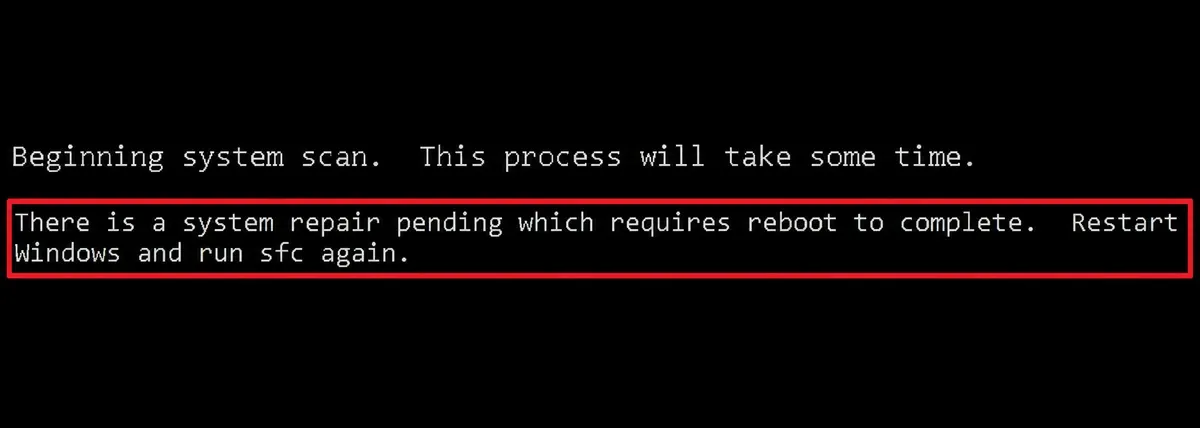
If Windows is still showing update progress, keep it connected to power and allow the installation to finish. Don't force it off just to reach the command prompt. A machine trapped before sign-in belongs in the Windows recovery-loop checks.
Complete the restart before retrying SFC
- Save open documents and close applications. Connect a laptop to power.
- Open Settings > Windows Update. Note whether an update is installing, a restart is requested or an error appears. Save any error code and KB number.
- When Windows offers an update restart, use that restart control. Otherwise choose Start > Power > Restart. Let Windows finish and return to the desktop.
- Reopen Windows Update and check what changed. A new package asking for a restart isn't necessarily the same pending operation.
- Search for cmd, right-click Command Prompt and choose Run as administrator. Approve the prompt with an authorized administrator account.
Microsoft's Windows Update instructions explain that a restart is needed to finish installing updates. A restart is the first check here, not a promise that every persistent pending state will clear.
In the administrator Command Prompt inside the Windows installation you're repairing, run:
sfc /scannowSFC's documented scan option checks protected system files and repairs problems when possible. Keep the console open until verification completes, then record the final message. If you receive an administrator warning instead, follow the instructions for opening an administrator SFC console.
If the pending message has gone, judge the new result. A completed scan with no integrity violations or a successful repair is different from one that couldn't repair some files. For the latter, use the remaining corrupt-file checks. Also check the feature or application that prompted you to run SFC; starting the scan alone doesn't establish that the original problem is fixed.
If the result changes to could not start the repair service, check Windows Modules Installer and the service-start result. A could-not-perform-the-requested-operation result has its own scan and Safe Mode checks. Follow the new message instead of continuing to clear a pending state.
If the message survives a normal restart
Stop repeating the same restart without checking its result. Open Settings > Windows Update > Update history and record the affected package, installation result and date. If no active or failed update is listed, record that too; the SFC message alone doesn't identify a particular KB or prove an update failed. Open Settings > System > About and record the edition and version under Windows specifications, following Microsoft's device-information instructions. Keep those details with the exact SFC command, message and time.
If the same update is failing or repeatedly requesting a restart, use the Windows Update restart-loop investigation. That page distinguishes a failed package from a restart notification that doesn't reflect the installation result. Clearing a badge and repairing servicing are different outcomes.
Once active servicing and any requested restart have finished, Microsoft's system-file repair sequence puts DISM before SFC. In the administrator Command Prompt in running Windows, the documented repair command is:
DISM.exe /Online /Cleanup-Image /RestoreHealthWait for its final result. If it succeeds, follow any restart instruction before retrying sfc /scannow. If DISM fails, save its full code and message rather than assuming the repair completed. Its normal online repair uses Windows Update for source files; a failed update service or an unavailable source needs its own investigation.
If SFC still refuses to scan, preserve the entries around your latest attempt in %windir%\Logs\CBS\CBS.log. Microsoft's SFC instructions explain that extracted [SR] details can include several runs, so compare the timestamps. Don't assume a pending attempt will contain a complete scan's findings. Give support the relevant time window privately, together with the update status and DISM result.
For persistent servicing damage on a PC that still starts, a Windows 11 repair install that keeps apps and files is a later option. Back up important files first and check the retention choice. Microsoft's reinstallation through Windows Update preserves apps, files and settings on supported systems, but the option can be unavailable on managed PCs or older installations. On a work or school device, have IT investigate the pending operation before changing recovery or update settings.
Keep RevertPendingActions in the recovery branch
Don't run /RevertPendingActions as an online reset for a working desktop. Microsoft's DISM package-servicing reference limits it to a system-recovery scenario on a Windows image that did not boot. It reverts all pending actions from previous servicing operations; it isn't a narrow command to dismiss SFC's message.
When Windows won't boot, recovery tools may be run from Windows Recovery Environment, but the target must be the offline Windows installation. Microsoft says this option isn't supported on a running operating system or on a Windows PE or Windows RE image. Running a tool from recovery and servicing the recovery image itself are different things. Microsoft describes Safe Mode as Windows running with a limited set of files and drivers, so it doesn't make an offline command appropriate.
Don't copy an example's C: or assume that the recovery environment's own drive is the installed Windows target. Microsoft's offline SFC parameters also distinguish the Windows directory from the boot directory. If you can't identify the correct installation and recovery prerequisites, have qualified support do so before attempting a rollback.
Use the Startup Repair failure guide for the boot problem and supported recovery choices. Microsoft's recovery-environment instructions list Startup Repair and Uninstall Updates among its tools. Encrypted devices may require the BitLocker recovery key for certain tools; keep that key private and available before recovery. The SFC message alone doesn't tell you which update to remove.
Why I wouldn't delete pending files or registry flags
Deleting pending.xml, removing RebootPending or taking ownership of the component store isn't a general repair procedure for this message. Windows Resource Protection restricts changes to protected resources for a reason. A permission error isn't an instruction to remove those protections.
If there is no pending.xml file, don't create one or start deleting other XML files. A Windows 7 repair-pending report describes the message despite that file being absent; the thread doesn't confirm a fix. File absence isn't evidence that the pending operation completed.
The historical outcomes show why scan access and recovery must stay separate. In a Super User discussion covering Vista and Windows 7, one Windows 7 contributor got SFC to run after deleting pending files, but explicitly reported unrepaired files and continuing startup problems. The original poster reported resolving their separate case with a repair install. Neither outcome establishes a safe file-deletion recipe for Windows 11.
A Tom's Guide repair-pending thread records another trap: an offline DISM command pointed at the Windows installation that was running. Changing the command to use /Online doesn't remove the recovery-only restriction on /RevertPendingActions.
Keep the next action tied to the current result: retry SFC after a completed restart, investigate a repeatable servicing failure, or follow recovery guidance if Windows no longer starts. The Windows system repair hub connects the separate SFC and DISM failure paths.



