
Startup Repair couldn't repair your PC means Windows' automatic repair attempt didn't resolve the startup problem. Select Advanced options, keep the repair report, and choose the next recovery action from the recent change or the specific error it found. The message alone doesn't tell you to replace a drive, copy registry files or reinstall Windows.
I would use the failed repair as a decision point. Running it again without a changed condition gives you little new information; the useful questions are what it reported, whether a recent change can be reversed, and whether your files are protected.
Confirm that this is a completed repair failure
This guide starts at the screen with Advanced options and the completed failure message. If you are still stuck at Preparing Automatic Repair, cannot reach recovery controls or need a recovery USB, use the Automatic Repair loop guide for that earlier stage. Don't interrupt an active Windows or firmware update to reach this screen.
Microsoft describes Startup Repair as a tool for certain startup problems, including damaged system files, boot configuration and incompatible drivers. Its failure is a result from that tool, not a diagnosis of every component. Photograph the exact message, any error code and the entire displayed log path before leaving it.
Keep SrtTrail.txt as evidence
A path ending in System32\LogFiles\Srt\SrtTrail.txt points to the Startup Repair log. Microsoft's advanced startup documentation identifies this report as a record of startup issues and attempted repairs. Deleting the log doesn't repair the problem it records.
If you can open Advanced options > Troubleshoot > Advanced options > Command Prompt, you can read the report without running a repair command. Follow any account or drive-unlock prompt. Recovery may assign a different drive letter from normal Windows, so confirm the Windows installation and the log's location before opening it. If several installations or inaccessible volumes make the target unclear, give support the photographed path instead of guessing.
The type command displays a text file without changing it. For example, only if you have confirmed this exact location, enter:
type "D:\Windows\System32\LogFiles\Srt\SrtTrail.txt"D: is an example, not the drive letter to use on every PC. Read and photograph the reported problem and repair result. A named file is evidence to investigate, not an instruction to delete that file. If you get File not found or Access is denied, keep that result too; don't format a volume or change permissions to force the example to work. Type exit to leave Command Prompt.
If recovery requests a BitLocker recovery key, it needs the matching 48-digit key. Use the displayed key ID to locate it in the relevant Microsoft account, work or school account, printout or saved USB copy. Keep the key private. If you cannot find it, stop the drive-dependent step and ask the device administrator before choosing an option that could erase files.
If the recovery screen still shows 0xC000000F, keep its File and Info lines and follow the boot-file and storage-access checks for 0xC000000F. Confirm the installation and boot target before copying new boot files.
Choose one action from the evidence
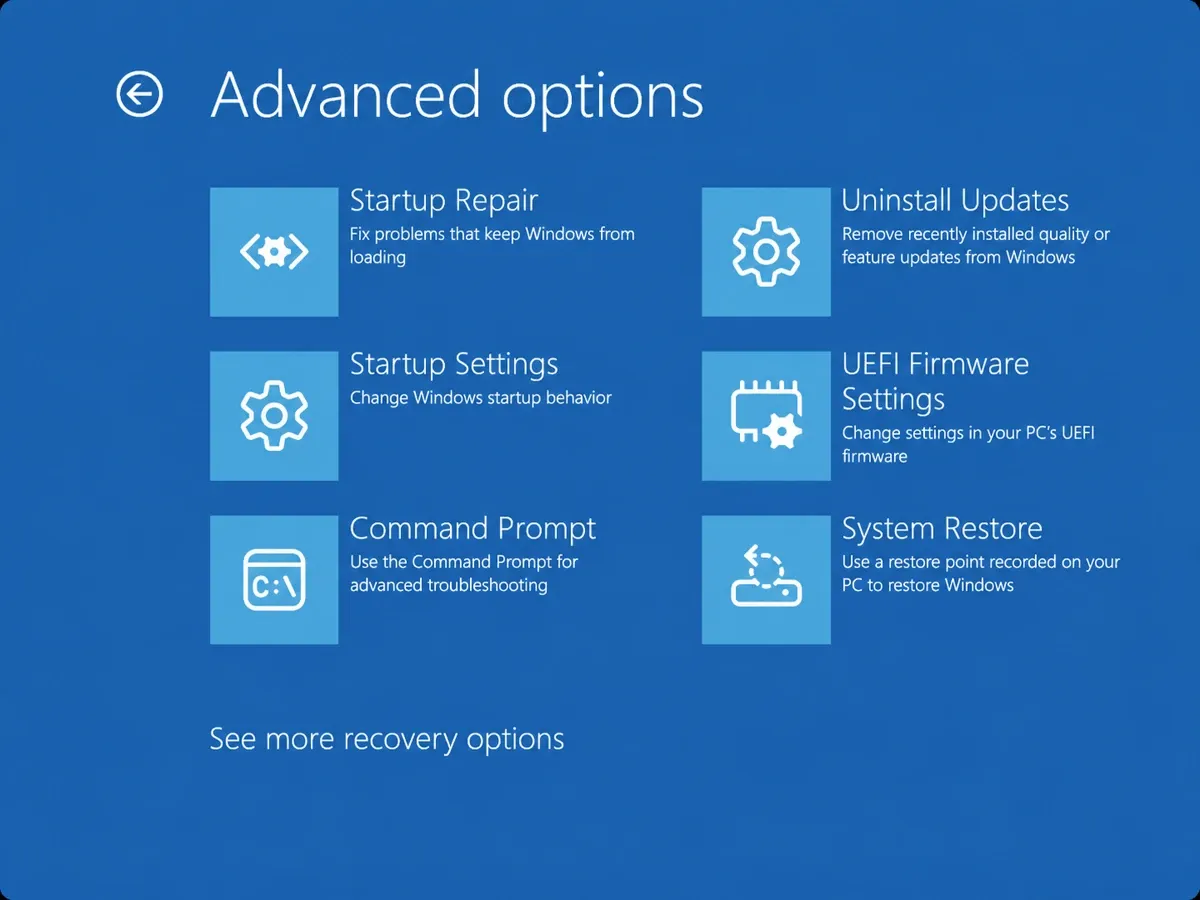
Return to Troubleshoot > Advanced options. If an option pictured below isn't available, use another applicable route; the menu can differ by device. Reset this PC is a separate choice under Troubleshoot.
| Evidence you have | Next choice | Condition to check |
|---|---|---|
| The first failed boot immediately followed a Windows update | Uninstall Updates | Choose the matching removal option that is offered, then record its result. |
| A driver, app or settings change preceded the failure | System Restore | An existing restore point must predate the change. |
| You need to find out whether Windows can load with fewer drivers and services | Startup Settings > Restart > 4/F4 for Safe Mode | Record whether sign-in and file access work; this doesn't name the faulty component. |
| Quick machine recovery is available | Quick machine recovery | A supported network and an available Microsoft remediation are needed. |
| A report identifies a specific boot error, or the expected drive is missing | Diagnosis for that error or model | Preserve the report and files before changing partitions or storage settings. |
For an update-related failure, Microsoft's Windows RE update-removal route is Troubleshoot > Advanced options > Uninstall Updates. Follow the option offered for the relevant update, then attempt normal startup. Some updates cannot be removed. Removing a security update reduces protection, so keep the update identity and investigate why it failed before retrying it.
With a suitable earlier restore point, select System Restore, choose the point, review Scan for affected programs, then select Next > Finish when you accept the changes. Follow the completion prompt to restart. System Restore reverses system changes while preserving personal files; recently installed programs and drivers may be affected. Point-in-time restore is a different option that can also roll back personal files. Read its consequences before proceeding.
Microsoft's Startup Settings procedure starts from recovery, so you don't need a working desktop to select Safe Mode. Have the account password ready: PIN and biometric sign-in aren't available in Safe Mode. If it starts, secure important files and investigate the specific recent driver or software change. A normal restart should leave the one-time Safe Mode session. If Safe Mode also fails, keep the new error rather than treating that failed comparison as proof of a broken drive.
Quick machine recovery looks for a Microsoft fix for a known, widespread boot issue through Windows Update. It isn't a universal repair for local hardware or file damage. If it finds no remediation, traditional recovery choices remain available.
If Bootrec or a BCD command returns The requested system device cannot be found, use the boot-target and recovery-mode checks before another write. That command result needs the actual Windows installation and system partition identified.
Don't turn a log filename into a command checklist
Boot configuration repair, offline system-file repair and disk repair address different failures. They need the correct Windows installation, boot layout and evidence for the operation. Microsoft's DISM target syntax distinguishes the running system selected by /Online from an offline image selected by /Image. An online command doesn't automatically repair your installed Windows from a recovery session, and a fixed C: example can refer to a different volume there.
Microsoft's advanced startup guidance separates BIOS and UEFI startup and warns that automatic registry backups to RegBack stopped starting with Windows 10 version 1803. Don't overwrite registry hives because a generic guide assumes that folder contains a usable backup. Disabling automatic recovery or early-launch malware protection also doesn't establish why Startup Repair failed.
A Windows 10 case with this same message shows why the exact result matters. The poster reported a System Restore error, then said the PC started; bootrec commands weren't recognized and a BCD check returned access denied. Later the poster said it was running well but didn't know why. That sequence doesn't demonstrate that the failed commands repaired the computer. Record both the tool result and the subsequent boot result on your PC.
Protect files before the remaining recovery choices
If the targeted choices fail, keep a short record: PC model, last successful boot, recent change, exact repair message, relevant log lines, Safe Mode result and the outcome of each recovery action. Share a redacted report with trusted support, keeping recovery keys and personal paths out of public posts. A missing drive or repeated read errors deserves storage diagnosis before more write operations.
Microsoft's recovery comparison distinguishes options that preserve personal files from those that remove them. Troubleshoot > Reset this PC > Keep my files reinstalls Windows and removes apps and settings while retaining personal files. Remove everything also removes personal files. Keep my files doesn't replace a separate backup, and neither choice guarantees a fix for failing hardware. If the only copy of important data is inaccessible, arrange file preservation before approving reset or reinstall.
After a recovery action succeeds, sign in normally, open an important file and a usual app, then restart and verify that the completed-repair failure doesn't return. Back up files as soon as Windows is usable. If a specific stop code replaces this message, follow that code from the startup and recovery hub; bring the repair report with you.



