
If Windows 11 returns to the desktop but still says Restart required, record the update's KB number, then use Update and restart once with your work saved. After Windows starts, check the installation result and current build. Don't keep rebooting blindly: a failed package and a stale restart message need different fixes.
First check whether you can reach the desktop
This guide covers a working desktop with a recurring restart request in Windows Update or its notification. If the PC remains on Updates are underway, repeatedly rolls back or never reaches sign-in, it is a different stage of the update.
Keep an active installation connected to power and allow it to complete. A motionless percentage alone doesn't establish that servicing has stopped. Don't hold the power button merely to clear the notification. If the machine cannot boot, follow the restart-loop recovery guide rather than trying desktop-only commands.
Complete one deliberate update restart
- Open Settings > Windows Update. Note the full update title, KB number and current status. Record any error code before dismissing it.
- Save your documents and close applications. Plug a laptop into power and keep its connection available for any additional download.
- Use the offered Restart now button, or Start > Power > Update and restart when available. Let the update finish and sign in again.
- Reopen Windows Update. Check whether the same KB is still pending, a different update now needs a restart, or an installation error has appeared.
Microsoft's update troubleshooting instructions explain that many updates require a restart and tell you to save work first. The Windows Update FAQ also recommends keeping portable devices powered during updating.
A second, different package needing a restart isn't proof that the first one failed. I would compare the KB numbers before treating two notifications as a loop.
Check the result, not just the restart badge
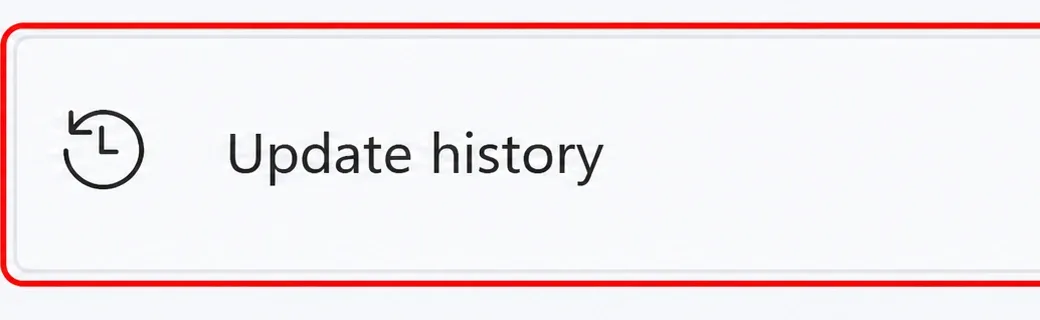
Open Windows Update > Update history and expand the relevant category. Look for the affected KB, its result and installation date. Then type winver in Start and press Enter to record the running Windows version and full build.
- Successfully installed, expected build present: check release-specific known issues before attempting to remove the restart flag.
- Failed or rolled back: retain the error code and troubleshoot that failure.
- No clear installation record: compare the installed release/build with the package's release notes. An absent old entry alone doesn't prove the fixes are absent.
The missing update-history guide explains cumulative replacements and the limits of command-line inventory. Don't reset the local history before saving the evidence you need.
A documented display issue has a specific scope
Microsoft's 25H2 update history describes a case after installing an update with the Windows Update Standalone Installer (WUSA), or by double-clicking an .msu file: after restarting, the Update History page can temporarily still say a restart is required. Microsoft identifies it as a display issue and lists KB5079391 as the resolution in that known-issue section.
That doesn't make every repeated restart request harmless. Check your release, installation method and actual result. Don't install an arbitrary old KB on a different version merely because its number appears in a fix discussion. Use the applicable current cumulative update and the release notes for your device.
If the same update actually fails
Run the Windows Update troubleshooter in Get Help, Microsoft's current Windows 11 diagnostic route. You can also reach Windows Update troubleshooting through Settings > System > Troubleshoot > Other troubleshooters. Follow the result, then check the same KB again.
Use the exact error rather than assuming that every pending restart means a corrupt cache. For example, the 0x800f081f repair-source guide addresses missing servicing sources. Keep the failed KB, build, code and actions already attempted together for support.
Don't delete pending.xml, remove restart-related registry keys or stop servicing processes while an installation is running. Making a notification disappear doesn't establish that the package finished correctly. Skip scripts that combine unrelated service, registry and security changes without diagnosing the failure.
What the follow-up reports show
In a Q&A discussion about KB5030509, users had already used Update and restart, and the advisor later acknowledged that standard and advanced troubleshooting hadn't resolved the reported problem. The discussion's suggested regional explanation wasn't established by a confirmed diagnosis.
A separate pending-restart thread for that configuration update includes a report that recovery reinstallation still left the restart request. In a later Q&A update-failure discussion, one user reported that service/folder-reset steps helped KB5051987. The repeated identical reply is one report, not two independent confirmations. These outcomes don't support a universal reset or reinstall recipe.
Separate restart scheduling from repair
On a work or school PC, ask IT to check the pending package and restart policy. Microsoft's restart-management guidance warns that conflicting policies can produce unexpected behavior. Active hours control timing; they don't repair a failed package. Don't add registry overrides to a managed device.
If updating works and you only need a less disruptive time, use the Windows 11 update-pause and restart-scheduling controls. That route distinguishes the calendar pause, older weekly options and managed deadlines. It handles timing; a failed package or recurring restart request still needs the checks above.
Escalate only after recording the failure
If the same failure survives the diagnostics, consider a repair install that keeps apps and files after current servicing has finished. Back up important files, retain the recovery key and verify the retention choice before proceeding. A repair install is an escalation for broken updating, not a guaranteed way to clear every restart badge.
Stop troubleshooting when the applicable update has installed successfully, the running build is correct and the repeated request has cleared. If it persists, give support the KB/build, result, installation method and diagnostic history. The Windows Update hub links the related installation and error guides.


