
To turn on Task Manager dark mode in Windows 11, press Ctrl + Shift + Esc, open Settings in Task Manager's left sidebar and choose App theme > Dark. Choose Use system setting instead if you want its appearance to follow Windows. Windows 10's classic Task Manager doesn't offer this native App theme control.
I'd change Task Manager's own setting first. It lets you keep the rest of Windows light, and a color preference doesn't call for registry patches, replacement system files or a Windows repair.
Choose Dark in Task Manager
- Open Task Manager with Ctrl + Shift + Esc. You can also right-click Start and select Task Manager.
- Select the Settings gear near the bottom of its sidebar. Expand the navigation menu if you need to see the labels.
- Find App theme and select Dark. Scroll within the Settings page if that section isn't immediately visible.
- Return to Processes and check that the main window has a dark background with readable text. Close Task Manager normally, reopen it and check the appearance again.
- If the reopened main window looks right, stop here. You don't need a Windows update or a system-wide color change just to complete this preference.
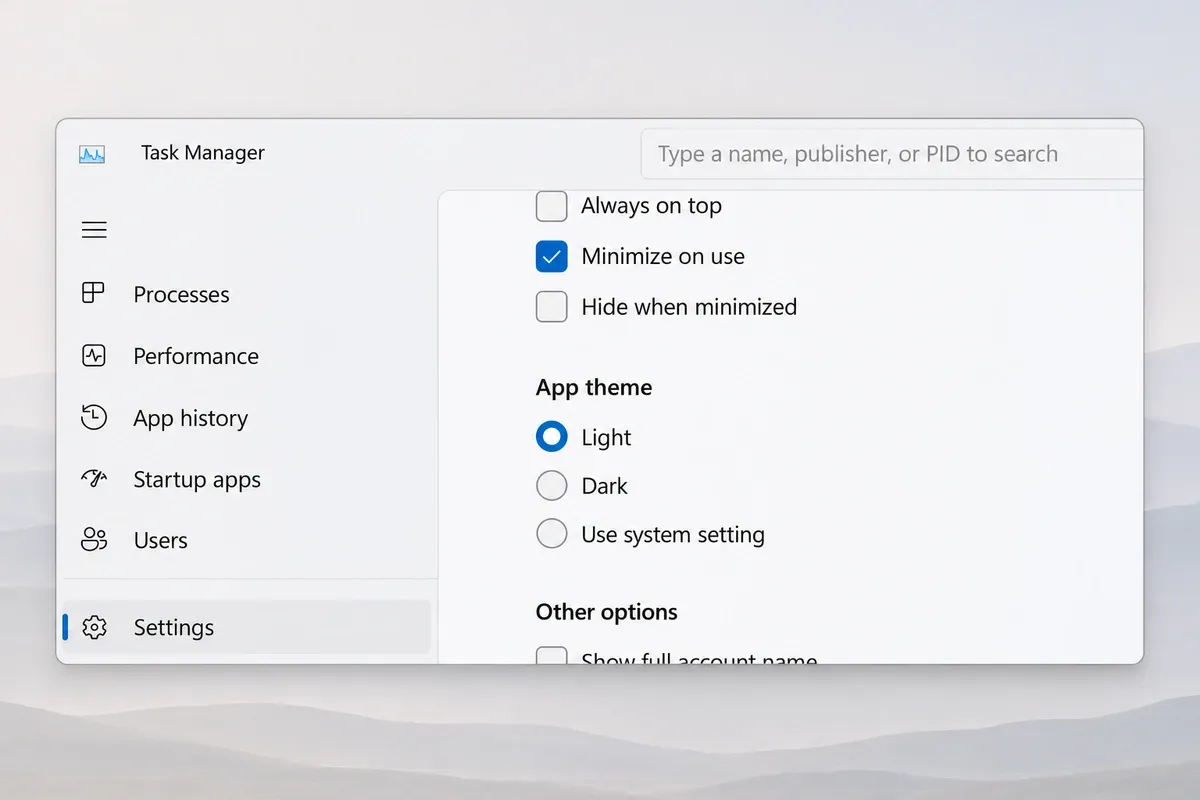
Microsoft's released Task Manager theme enhancement explicitly allows its theme to differ from Windows. You don't need to join the Insider Program or activate a hidden feature to use a setting that's already present on your PC.
| Goal | Choose |
|---|---|
| Only Task Manager dark | Dark |
| Follow Windows colors | Use system setting |
| Return to a light window | Light |
Follow the Windows color setting
For a consistent dark desktop, set Task Manager to Use system setting, then open Windows Settings > Personalization > Colors. Under Choose your mode, select Dark. Microsoft's Windows color-mode instructions distinguish Light, Dark and Custom, and explain that some apps have independent theme controls.
Custom separates Windows mode from the default app mode. If you want that mixed appearance elsewhere but Task Manager isn't using the color you want, select Dark directly in Task Manager. This avoids changing the taskbar or other apps just to adjust one window.
Accent color changes highlights and borders; it isn't a substitute for App theme. Leave transparency alone unless you also want to change that visual effect. Keep contrast themes or color filters you rely on for accessibility rather than switching them off to make a screenshot match.
If the file browser is the window that stays white, use the File Explorer dark-mode checks. Task Manager's local App theme won't recolor Explorer. If Windows Settings itself fails to launch, follow the Settings launch and repair checks for that separate failure.
If App theme is missing
Check the actual interface before following more steps. The classic Task Manager with a row of tabs across the top is different from the redesigned Windows 11 version with a navigation sidebar. Press Windows + R, enter winver and note the Windows version and OS build.
On Windows 10: the native classic Task Manager doesn't have the App theme selector shown above. Changing Windows to Dark won't add that missing control. A contrast theme or an inverted-color overlay is a different accessibility/display effect, not the native dark interface.
On an older Windows 11 installation: check for updates through Settings > Windows Update, or ask IT about the supported update path on a managed PC. Microsoft described the redesigned Task Manager in a 2022 preview announcement, while the separate theme choice reached a released update in 2023. An old tutorial saying “Insider only” describes that rollout period.
I wouldn't replace taskmgr.exe or install a theme DLL patch for this. In a reported Task Manager replacement attempt, the user described an error after integrating an older executable and named SFC as a way to remove the error. A downloaded recreation or a different process viewer also isn't the built-in control described here.
If you expected the sidebar version but see a classic window, record how you launched it and whether a customization tool replaced its shortcut or launch route. Review that tool's own restore instructions before changing protected Windows files. On a managed machine, give IT the build and a screenshot of the missing setting rather than bypassing policy.
If the colors still look wrong
Return to Task Manager Settings and confirm which App theme choice is selected. Select Dark explicitly for one local comparison, then close and reopen Task Manager. Check the Processes and Performance pages for readable text. If the preference reverts, record that separately from a dialog that simply looks different.
A light secondary dialog doesn't automatically mean the main theme failed. Microsoft's 2023 enhancement specifically excluded Run new task and Properties from the newly themed dialogs. Check which window you're looking at before applying a repair intended for an unreadable main interface.
There was a real Custom-mode regression in Windows 11 22H2 after KB5020044 in November 2022. Microsoft documented unexpected colors and unreadable parts of Task Manager, then fixed that issue in KB5021255 on December 13, 2022. The discussion's final owner reply confirms that update returned their display to normal.
That history is a reason to check the installed build and current updates, not to uninstall an unrelated update or manually install a 2022 package on a modern release. Don't assume every white panel is the same old bug. If unreadable colors persist, keep the selected App theme, Windows color mode, build, affected page and recent customization changes together for support.
Changing appearance doesn't require ending a process. If your real goal is to close a frozen app from its taskbar icon, the taskbar End Task setting is a separate feature with an unsaved-work risk. Use the Windows desktop hub when another shell or display setting needs attention.



