
To turn on dark mode for File Explorer in Windows 11, open Settings > Personalization > Colors and set Choose your mode to Dark. Return to a folder in File Explorer to check the result. If the window stays light, first check that Windows saved the mode and identify which part of the window is still light.
I'd use the built-in color setting before installing a theme tool. Changing an accent color or your browser's appearance doesn't answer the same question, and an old Insider workaround isn't needed to select the standard Windows mode.
Set Windows color mode to Dark
- Open Settings, select Personalization, then Colors.
- Note the current Choose your mode selection so you can restore it. If it is Custom, record the choices within that mode too.
- Open that dropdown and select Dark. This changes the Windows color mode, including areas such as Start and the taskbar; it isn't an Explorer-only preference.
- Return to File Explorer and inspect the same folder. Compare the main file area and navigation area, then open another Explorer window and check whether it has the same appearance.
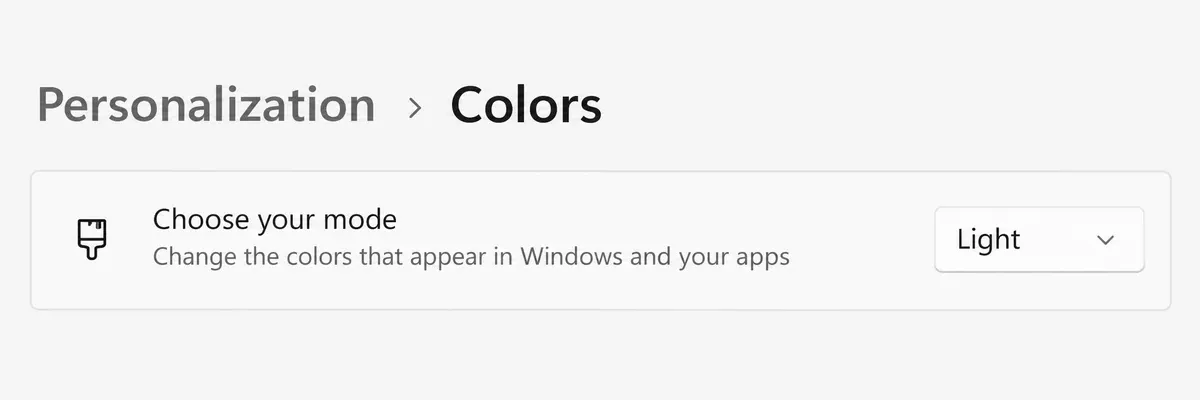
Microsoft's Windows color settings document this path and the Light, Dark and Custom choices. To undo the change, return to the same dropdown and restore your previous selection, or select Light for the light mode. If you used Custom, restore the choices you recorded within that mode too.
Custom offers light and dark options, but don't use it as proof that Explorer has an independent appearance switch.
Choose the right control for what you want to change
| What you want | Where to start |
|---|---|
| A dark File Explorer window | Windows Settings, Personalization, Colors, Choose your mode |
| A different highlight or border color | Accent color settings on the Colors page |
| A dark browser or another app | Check that app's own appearance settings |
| A light strip or dialog inside an otherwise dark Explorer | Identify the exact area and Windows version before troubleshooting |
Accent color highlights interface elements. The separate Show accent color on title bars and window borders option applies color to those areas. Neither is the control for making the whole file area dark; Microsoft describes these separately in its accent color instructions.
Some apps let you select their own light or dark mode, and not all apps support dark mode. A browser with a dark toolbar therefore doesn't confirm the Windows color mode. Check File Explorer itself rather than a web page, an Edge appearance menu or a file picker opened by another app.
If File Explorer stays light
Reopen Settings > Personalization > Colors and confirm that Choose your mode still says Dark. Record whether the selection changed back or stayed Dark. Those are different results: one concerns the saved choice, while the other concerns how a window displays it.
If the selection remains Dark, compare the main file area with the top bar and any separate dialog. Note whether the problem affects an existing Explorer window, a newly opened one or both. That gives support a more useful description than simply saying that dark mode doesn't work.
You can select Light and then Dark once to check whether the appearance refreshes. Inspect both the existing window and a newly opened window again. Don't keep repeating this if only the existing window changes.
In a reported Windows 11 case with a white top bar, switching modes refreshed open windows but newly opened windows remained affected. That report supports checking both states; it doesn't establish the cause of every partial dark-mode problem.
If the issue began after installing or updating a shell appearance tool, record its name, version and whether it affects Explorer. Use the Explorer Styler troubleshooting guide when that is the component you configured. Don't assume that every light strip proves a third-party tool is responsible.
Separate old guides from your current Windows version
Use the native Windows mode for this preference. Microsoft's original File Explorer dark-theme instructions described it for Windows 10 version 1809. That older article uses the label default app mode; use the current Windows 11 Colors path above rather than looking for an identical old screen.
A dark main window and dark dialogs are also separate details. For example, reporting on a 2025 Insider preview covered darker file-operation dialogs in an already dark Explorer. It isn't a reason to run a hidden-feature command on your everyday PC.
For a persistent mismatch, open Settings > System > About and record your Windows version from Windows specifications, following Microsoft's device information instructions. Include the affected area, whether the setting remains Dark and whether a new window differs from an existing one. Keep contrast themes and color filters that you rely on for accessibility in place while seeking advice; Microsoft treats them as separate accessibility controls.
When the problem is more than window color
If you can't reach Colors because Settings won't open or closes, use the Settings recovery steps. If File Explorer freezes or closes, follow the File Explorer response checks. A theme preference doesn't explain either failure by itself.
For another Windows shell symptom, choose the relevant issue in the desktop troubleshooting hub. Keep the observations above with your support request so the next step targets the affected window or setting.


