
To add End task to the Windows 11 taskbar, open Settings > System > Advanced and turn on End Task. On an earlier Windows 11 layout, look under System > For developers instead. Right-click a running app's taskbar icon to check the new command; you don't need to select it just to verify that it's available.
End task can lose unsaved work in the affected app. I'd keep normal closing as the first choice and reserve this control for an app that won't respond. Check all of that app's windows before forcing it closed, especially a browser, editor or program processing a file.
Turn on the End Task setting
- Press Windows + I to open Settings.
- Open System > Advanced. Microsoft's Advanced Windows Settings documentation lists End Task under Taskbar.
- Find End Task, described as enabling the taskbar action by right-click, and turn its switch On.
- Return to an app that's already running. Right-click its taskbar icon and look for End task. Close the menu without selecting it for this availability check.
If your page says For developers, use that page's End Task switch. Microsoft places the former For developers settings under Advanced in Windows 11 version 25H2 and later. The older page name in a tutorial doesn't mean the setting was removed.
Change the End Task switch alone. Developer Mode is a separate control: Microsoft's Developer Mode guidance says it isn't needed for ordinary day-to-day use. Don't turn on device discovery, remote diagnostics or other developer options to obtain this taskbar command.
Right-click the running app icon
Use the button for the running app you intend to close. Right-clicking empty taskbar space opens a different menu. A desktop shortcut's right-click menu is also a different location. A shortcut for a closed app also isn't the same target as its running window.
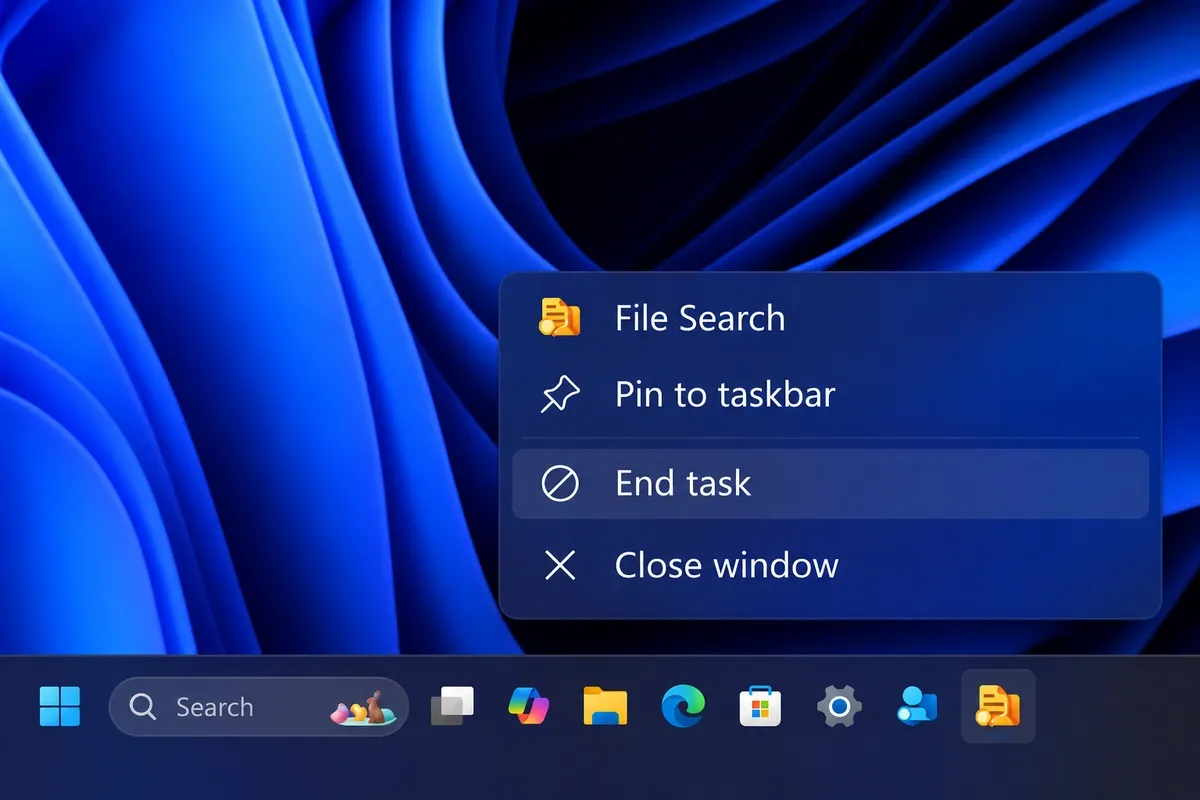
The Windows Latest walkthrough shows the command on an open app's taskbar menu. It uses the older For developers Settings layout, so use the current path above when your PC has Advanced.
You don't have to pin an app to use its running taskbar button. If your actual goal is to keep the shortcut after closing the window, follow the taskbar pinning and shortcut-persistence checks. Pinning an app doesn't configure how Windows terminates it.
Choose normal close or End task
Try the app's normal close action first. If a save or confirmation dialog appears, handle it rather than forcing the process to stop. A program busy with a known export, save, installation or transfer can need time; a temporarily slow window isn't enough reason to interrupt that work.
| Situation | Appropriate next action |
|---|---|
| The app responds | Save work and close it normally. Keep any save or confirmation prompt visible. |
| One app won't respond and normal close fails | Check its other windows and accept the risk to unsaved work before choosing End task. |
| The taskbar itself won't respond | Use the taskbar and Explorer recovery route. Its right-click command isn't an accessible recovery control in this state. |
| The app closes but freezes again after reopening | Record the trigger and investigate that app. Adding a termination shortcut hasn't repaired the recurring failure. |
When forcing a close is necessary, right-click the correct running-app icon and select End task. Expect unsaved content to be at risk; don't rely on a recovery prompt appearing afterward. Reopen the app through its trusted shortcut and check the document or task that was affected.
An app can have several windows with work open. Don't assume that forcing the app to stop protects documents in its other windows. Save what you can in the affected app first.
If the command or switch is missing
First compare the right target: an open app's icon, its right-click menu and the End Task switch set to On. Check the newer Advanced page and the earlier For developers page according to your Windows version.
A Microsoft Q&A answer about the missing command directs the user to System > Advanced and asks for the Windows version if the setting isn't available. Use the documented switch and the running-app comparison before considering any wider taskbar repair.
Record your version with Windows + R > winver, then check Settings > Windows Update for the supported update offered to your PC. On a managed device, give IT the version and missing or disabled control. Microsoft's Advanced settings documentation notes that organization policies can disable its toggles; don't override that restriction with a registry file.
If you need to close an unresponsive app before the taskbar option is available, press Ctrl + Shift + Esc to open Task Manager. Select the affected app under Processes and choose End task, with the same warning about unsaved work. Keep system processes and unfamiliar background services out of an app-specific force-close attempt.
If the whole bar is unresponsive or the desktop needs Windows Explorer restarted, follow the taskbar and Explorer recovery checks. This optional app command doesn't replace that process or resolve a system-wide freeze.
Turn it off or investigate a repeat hang
To remove the extra command, return to the same End Task setting and turn it Off. Check an open app's right-click menu again. This changes the taskbar shortcut; use the app's ordinary close action for routine work.
If one app repeatedly needs forced closing, keep its version, the Windows version, the file or action that triggers the hang and whether it happens in a new empty document. Give that record to the app's support team, with personal file paths redacted. The Windows desktop hub connects the separate shell and interface checks when the failure affects more than that app.



