
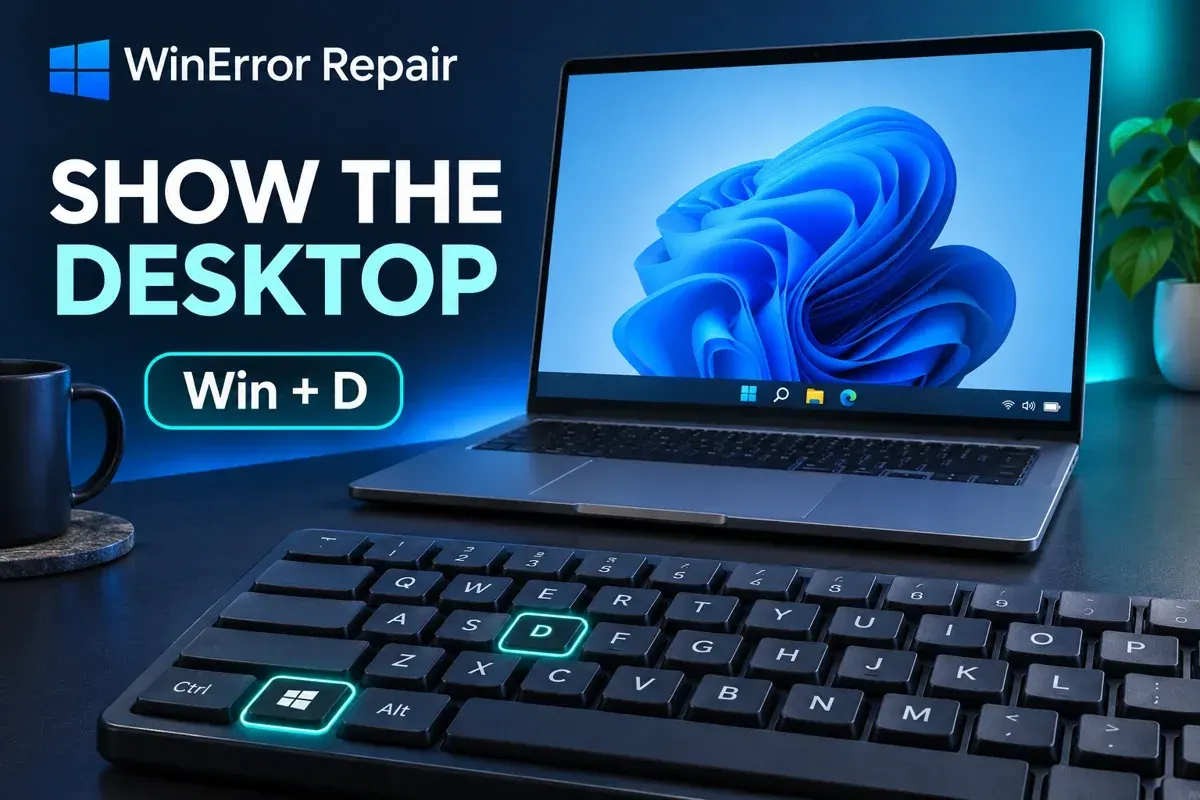
Press Windows + D to show the desktop in Windows 11. Press the same combination again to bring your windows back. Hold the Windows-logo key, tap the letter D, then release both keys. You don't need to close your apps or install a shortcut utility.
I'd use this toggle when reaching a file on the desktop because the return action is the same key combination. Keep it separate from switching to another virtual desktop or locking the PC.
Show the desktop, then return to your windows
- With an ordinary app window open, hold the Windows-logo key and tap D.
- Release both keys. Check that you can see the desktop rather than the app covering it.
- Press Windows + D again to return to the windows.
Microsoft's Windows keyboard-shortcut reference defines this as displaying and hiding the desktop. If you have opened or activated another window after showing the desktop, use Alt + Tab to select the app you need. Use the Windows-logo key, not Ctrl: Ctrl + D can delete a selected item in File Explorer.
Choose between showing, minimizing and peeking
| What you want | Keys |
|---|---|
| Show or hide the desktop | Windows + D |
| Minimize all windows | Windows + M |
| Restore minimized windows | Windows + Shift + M |
| Temporarily peek at the desktop | Windows + comma (,) |
Windows + M has a separate restore command; pressing M again with the Windows key isn't the same toggle as Windows + D. Use the peek shortcut for a temporary look rather than leaving the desktop visible to work with a file.
Adding Ctrl changes the job: Windows + Ctrl + D creates another virtual desktop. If you want a different workspace, follow the virtual desktop switching steps. If you want to enlarge the current app instead, use the maximize-window shortcut.
Use the far-right taskbar area without the keyboard
Select the small area at the far-right end of the taskbar to show the desktop. If the taskbar is automatically hidden, move the pointer to the bottom edge of the screen to reveal it first. Select it again to restore the open windows. Microsoft's Show the desktop taskbar instructions describe this built-in alternative.

If selecting that corner doesn't show the desktop, right-click the taskbar and select Taskbar settings. Expand Taskbar behaviors and enable Select the far corner of the taskbar to show the desktop. Retry that same corner after changing the option. This controls the taskbar area; it isn't a setting for changing the keyboard combination.
If Win + D doesn't show the desktop
Compare the two built-in routes before changing Windows. If the enabled taskbar corner works but the keys don't, confirm that you're holding the Windows-logo key while tapping D. Press the Windows key alone and check whether Start opens, then try the combination with an ordinary File Explorer window active.
Microsoft notes that apps can change default shortcut behavior. If the problem occurs only in one app, check that app and any keyboard-remapping utility you already use for a conflicting assignment. A failure across ordinary apps needs different checks from a shortcut captured by one app.
When ordinary typing or several keys also fail, use the keyboard input checks. If the taskbar, Start and desktop controls stop responding together, follow the taskbar recovery steps. Don't start with a registry change, driver-updater download or Windows reinstall to replace a single shortcut.
Keep showing the desktop separate from locking the PC
Showing the desktop leaves your session accessible. To protect the account before stepping away, use the Windows + L lock shortcut. During a screen share, remember that showing the desktop can expose its files and wallpaper; it isn't a privacy mode.
After using the shortcut, confirm both parts of the task: the desktop appears and you can return to the intended app. For a single app window, Alt + Tab lets you select it from the open windows. Use the Windows desktop hub when the remaining problem concerns another workspace or shell function.


