
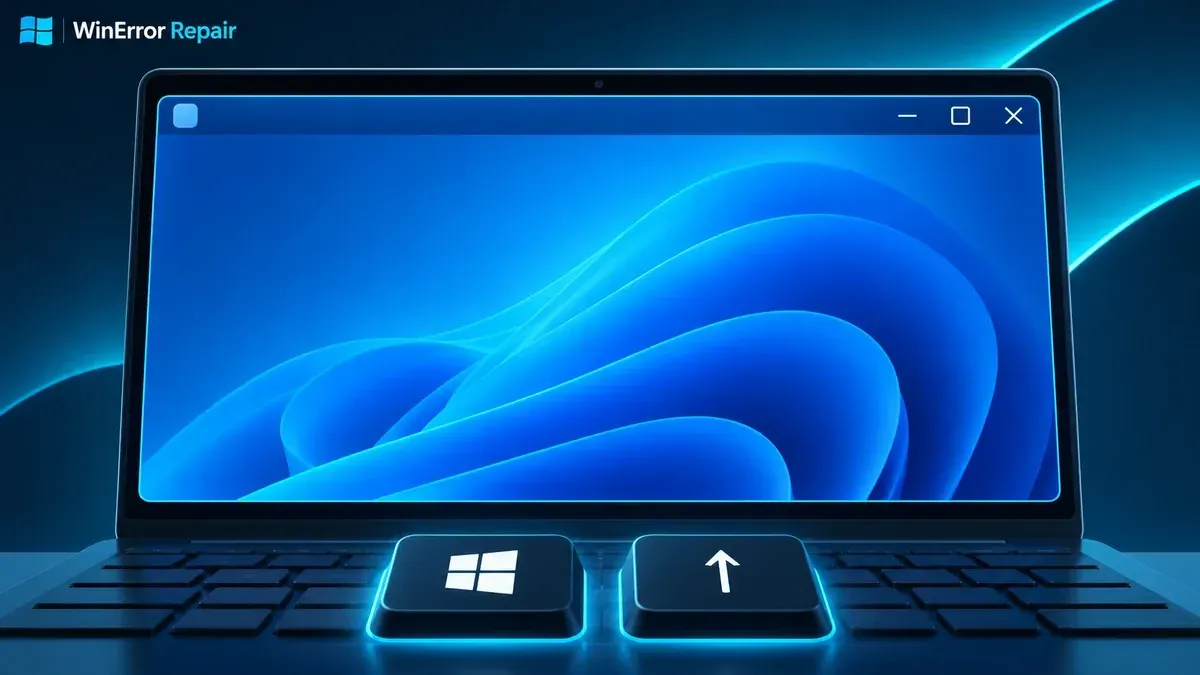
To maximize a window in Windows 11, select the window you want and press Windows + Up Arrow. This expands the active window. If you're working with several open windows, choose the right one with Alt + Tab first.
I'd use the native shortcut before installing a window-management utility: Windows already provides separate commands for maximizing, restoring and moving a window. The useful first check is which window has focus and whether it's already snapped into a layout.
Select the window, then maximize it
- Hold Alt and press Tab until the intended window is selected. Release Alt.
- Hold the Windows logo key, press Up Arrow, then release the keys.
- Check that the intended app window has expanded across its display. If another window changed size, select the correct window and repeat.
Microsoft's Windows keyboard-shortcut table defines Windows + Up Arrow as maximizing the active window. Alt + Tab switches between open windows; it isn't itself a maximize command.
Restore the size or leave a Snap layout
To restore a maximized or snapped window, press Windows + Shift + Down Arrow. If your window occupies a half or quarter of the screen and you want one maximized window, restore it with that shortcut, then press Windows + Up Arrow.
That order avoids treating every arrow-key result as a failure. In a Snap arrangement, Windows + arrow keys can change the window's position within the layout. Microsoft's Snap instructions describe these position changes and the separate layout picker.
For a smaller window again, use the restore shortcut rather than repeatedly pressing the maximize shortcut. Windows + Up Arrow isn't a general-purpose maximize/restore toggle.
Choose Maximize in the window menu
With the intended window active, press Alt + Spacebar to open its window menu. Use the arrow keys to highlight Maximize, then press Enter if the command is available. If the window is already maximized, choose Restore to return to its smaller size.
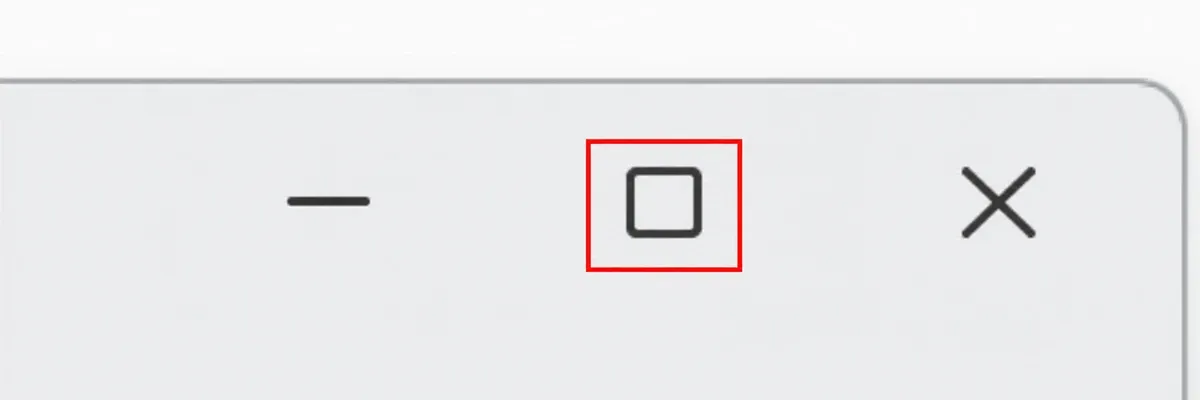
The title bar gives you a mouse alternative: select the single-square Maximize button between Minimize and Close. In a maximized window, the corresponding control becomes Restore. You can also double-click a noninteractive part of a standard title bar to switch between maximized and restored states, as Microsoft's title-bar behavior guidance describes.
Use the menu's visible command rather than memorizing a letter from another guide. Menu access letters depend on the displayed language and app, while the Windows + Up Arrow shortcut avoids that extra choice.
Keep maximize, full screen and Snap separate
| What you want | Shortcut and result |
|---|---|
| Expand the active window | Windows + Up Arrow maximizes it. |
| Restore a snapped or maximized window | Windows + Shift + Down Arrow restores it. |
| Choose a window arrangement | Windows + Z opens Snap layouts. |
| Stretch a desktop window vertically | Windows + Shift + Up Arrow stretches it to the top and bottom. This is a different command from maximizing. |
| Use full-screen mode in Microsoft Edge | F11 toggles Edge full screen. Other apps have their own commands. |
Edge's Windows shortcuts list F11 as its full-screen toggle. Don't assume F11 maximizes every Windows app, or that a shortcut for a chart pane controls the entire app window.
Windows + M minimizes all windows, and Windows + D displays or hides the desktop. Neither is the command for making your current window larger.
To reach a desktop file while keeping your apps open, use the show-desktop shortcut and return steps. That is a separate action from making one window larger.
If the window doesn't maximize
First compare the shortcut with the window menu. If Maximize is unavailable, try the same keys in a normal File Explorer window. A fixed-size dialog or an app window without maximize support needs a different response from a shortcut that fails across ordinary windows.
Apps control whether their windows have a maximize button and sizing border; Microsoft's window-style definitions describe those separate controls. I'd check the affected app's own window options when only that app refuses to expand, rather than changing display drivers or registry settings.
These are Windows' default shortcuts; an app can change how shortcuts behave. If the menu maximizes a normal window but the shortcut doesn't, check any keyboard remapping or window-management utility you already use for an assigned shortcut. Record the exact keys and the apps affected. When ordinary typing or several shortcuts also fail, follow the keyboard input checks and keep a working alternate input method available.
Maximize on the intended monitor
For an active window on the wrong display, press Windows + Shift + Left Arrow or Windows + Shift + Right Arrow to move it to the monitor on that side. Then press Windows + Up Arrow and confirm the same window fills the intended display. Once it does, stop: there's no need to change resolution, scaling or drivers to complete this task.
If Windows doesn't detect the second display at all, use the second-monitor detection checks before trying to move a window there. For other workspace tasks, the Windows desktop hub keeps window and desktop instructions together.


