
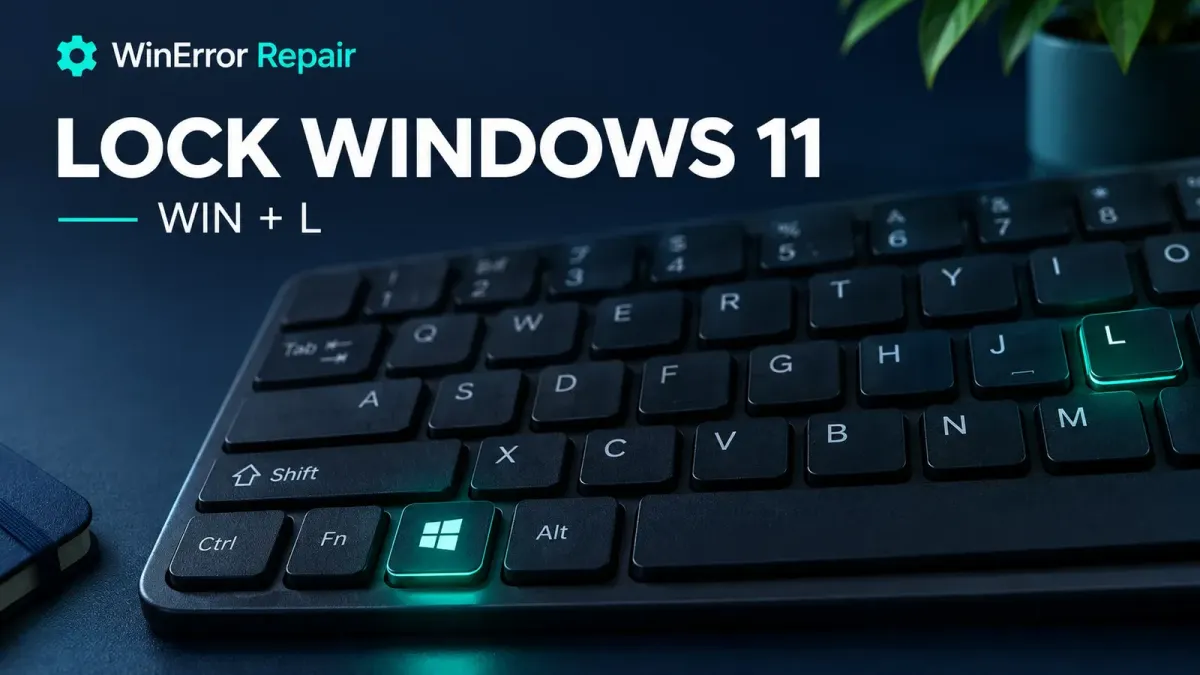
Press Windows + L to lock your Windows 11 PC. Hold the Windows-logo key, tap L, then release both keys. If that shortcut doesn't work, press Ctrl + Alt + Delete and select Lock.
I'd use Win + L first because it goes straight to locking the current session. You don't need to set a timer, install a shortcut utility or change your screen saver.
Use Win + L from your current session
- Make sure you know your existing Windows sign-in method before locking the PC.
- On the PC you want to lock, hold the Windows-logo key and press the letter L. This is L, not the number 1.
- Release the keys and check that Windows has left your desktop for the lock or sign-in screen.
- When you return, dismiss the lock screen if one appears, then use your existing PIN, password or configured Windows Hello method to resume the session.
Microsoft lists Windows key + L as the PC-lock shortcut. Ctrl + L is a different combination; keep the Windows-logo key held while tapping L.
Use Ctrl + Alt + Delete, then Lock
Press Ctrl + Alt + Delete together to open the Windows security screen, then choose Lock. Opening that menu alone isn't the final step. Select Lock before walking away.

The Ctrl + Alt + Delete entry in Microsoft's shortcut guide identifies this security screen and its lock option. Choose Lock rather than Sign out or a power command when you want to protect the current session.
If Win + L doesn't lock the PC
Try the security-screen route once, then use the result to choose the next step:
- Ctrl + Alt + Delete opens and Lock works: the PC can lock through that route. Press the Windows-logo key alone and check whether Start opens. If it doesn't, investigate that input before treating the lock function as broken.
- Neither combination responds: determine whether ordinary typing still works. If the security shortcut itself fails, use the Ctrl + Alt + Delete input checks rather than changing lock-screen appearance settings.
- The security screen opens but Lock is missing or unavailable: on a work or school PC, ask IT whether locking is restricted. Don't edit policy or registry values to override it.
- Windows reaches sign-in but stalls when you return: use the Welcome-screen recovery steps. That is a return-to-session problem, not a different lock shortcut.
Microsoft's Remove Lock Computer policy can prevent locking through Ctrl + Alt + Delete. A missing Lock option therefore needs a different investigation from a Windows key that produces no response.
I'd keep the standard shortcut instead of building a replacement macro. Microsoft says PowerToys Keyboard Manager can't remap Win + L or Ctrl + Alt + Delete because Windows reserves those combinations.
Locking, a black picture and sleep do different jobs
A black screen isn't proof that your account is locked. A black fullscreen picture can hide the desktop visually without securing it. If your goal is only a dark display while a task runs, use the black-screen and power-setting choices; keep account protection as a separate decision.
Don't assume a locked screen keeps a download or another long task running indefinitely. Locking protects the session; it doesn't replace its power plan. Display-off and sleep settings can still matter. For a PC that sleeps unexpectedly or refuses to sleep, follow the sleep-state checks instead of replacing the lock shortcut.
Check the result before leaving
Lock the session, then confirm that normal interaction takes you to Windows sign-in rather than straight to an exposed desktop. Microsoft's workstation-lock reference describes the same result as Ctrl + Alt + Delete > Lock and requires sign-in to unlock. Windows Hello supports facial recognition, fingerprint and PIN sign-in. Check which existing sign-in method Windows used before treating the absence of a password box as a lock failure. Use your normal account method to return. Stop if you can't sign back in; don't repeat the test until you've resolved access.
For a shared or managed computer, follow its account and security rules. The Windows desktop and power hub separates these session, appearance and power problems so you can follow the branch that matches what failed.


