
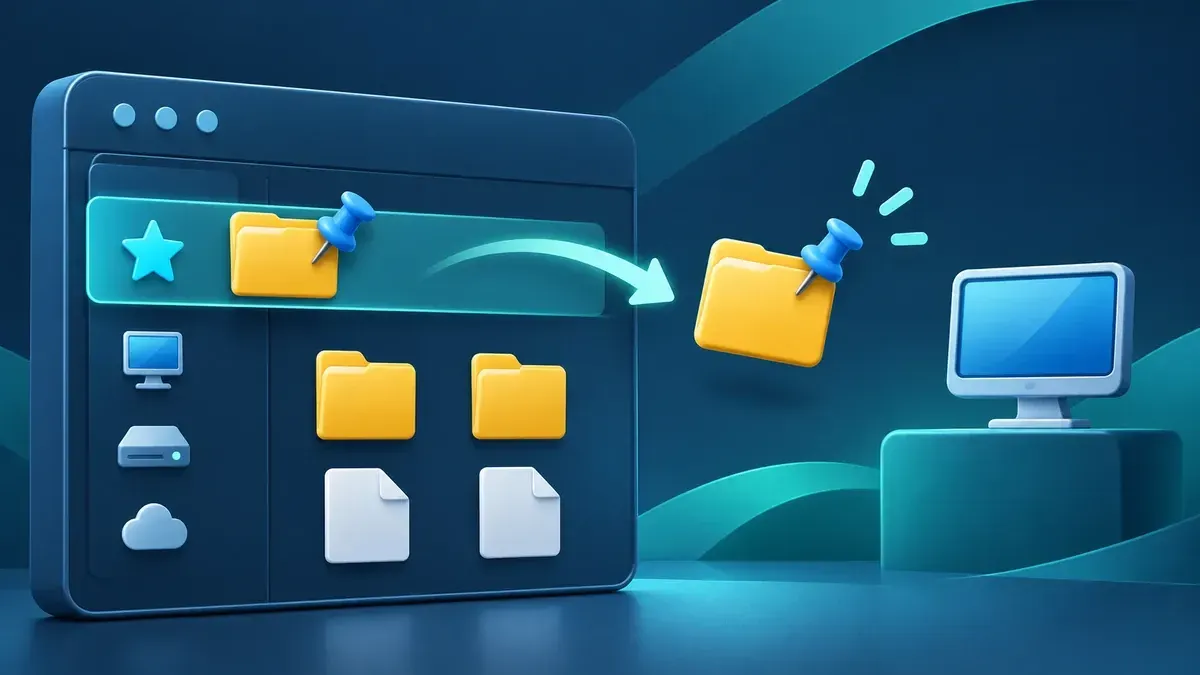
To remove a pinned folder from Quick Access in Windows 11, right-click its shortcut and select Unpin from Quick access. To stop automatic recent or frequent items, change the Privacy choices in File Explorer Options. You can also make new Explorer windows open to This PC; these changes clean up the contents and starting view but don't remove the Home entry itself.
I'd separate those goals before changing anything. Removing a shortcut, hiding activity and deleting a folder are different actions. Use Unpin for a shortcut you don't want, and keep the folder at its original location.
Choose what you want to remove
| Your goal | Use this action |
|---|---|
| Remove a pinned folder shortcut | Unpin from Quick access |
| Stop automatically listed files or folders | Change the recent and frequent Privacy choices |
| Open Explorer at your drives | Set Open File Explorer to This PC |
| Remove the entire Home entry | The settings below don't remove that navigation entry |
Microsoft's File Explorer instructions explain the naming change: Quick Access was renamed to File Explorer Home in Windows 11 version 22H2. Quick access folders can still appear within Home and in the left navigation pane, so an old guide's screenshot may not match your window.
Unpin the folders you don't want
- Open File Explorer and select Home in the left navigation pane.
- Find the pinned folder you want to remove from Quick access and note its original location so you can restore the shortcut later. Right-click it and select Unpin from Quick access.
- Check that the shortcut is gone, then open the folder from its original location to confirm that your files remain available.
Choose Unpin from Quick access, not Delete. This is a change to a navigation shortcut. Microsoft's pin and unpin instructions treat it separately from file operations such as deleting or moving content.
Desktop, Documents, Downloads, Pictures, Music and Videos are default pinned folders in Windows 11 version 22H2 and later. If several of these appear, they aren't evidence that Windows is restoring your recent activity. Unpin only the shortcuts you don't want.
Stop recent and frequent items from returning
If unwanted entries are automatically listed rather than deliberately pinned, open File Explorer's See more menu, shown as three dots, and select Options. On the General tab, look under Privacy for the choices for recently used files and frequently used folders. Note their current states, clear the relevant checkboxes and select Apply.
A Windows 11 Quick Access support discussion distinguishes disabling these lists from unpinning existing folders. After applying the change, return to Home and inspect the entries that remain. A deliberately pinned folder needs its own Unpin action; don't repeatedly clear history to remove it.
Leave unrelated Privacy options as they are. Clearing File Explorer history is a separate action, and I wouldn't start there just to remove one pinned shortcut. Don't delete recent-items databases or reset every pin as a first step.
To undo the Privacy change, return to the same options and restore the choices you recorded. Then check the resulting list again. Your preferred automatic lists and your manually selected pins should be judged separately.
Open new Explorer windows to This PC
In File Explorer, select See more > Options. Set Open File Explorer to to This PC, then select Apply. Open a fresh Explorer window to verify that it starts at This PC rather than Home.
This is the documented Windows 11 starting-view setting. It is useful when you want your drives and network locations first. It doesn't remove Home from the navigation pane or erase its contents.
For undo, return to the same dropdown, choose your previous starting location and apply the change. On a current Windows 11 window, that previous choice may be named Home rather than Quick access.
Restore a folder you unpinned
Find the actual folder, right-click it and select Pin to Quick access. Check Home and the navigation pane for the restored shortcut. You don't need to recreate the folder or copy its files somewhere else.
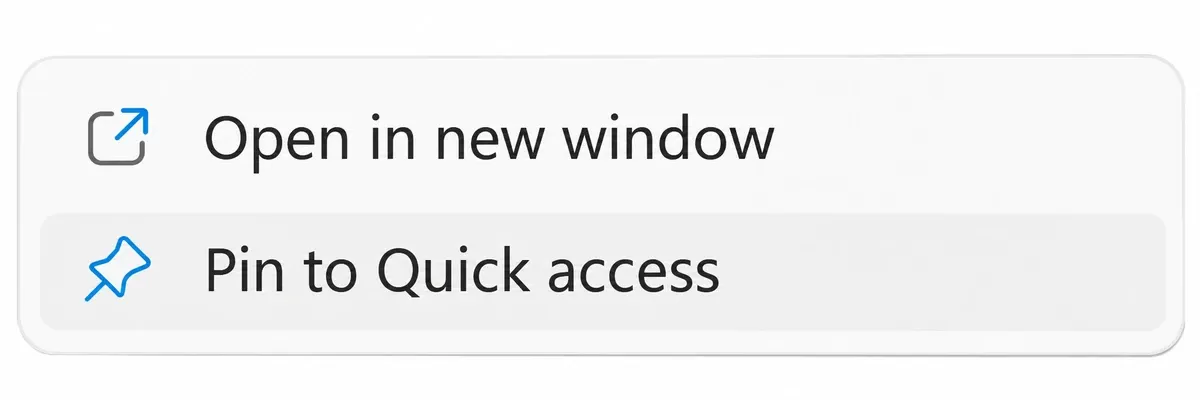
For the default Windows folders, Microsoft's known-folder restoration steps offer another route: select Home, then the Up arrow to the left of the address bar. The view shows the six known folders. Right-click the one you want and select Pin to Quick access.
If the documented restore command does nothing, use the Quick Access pin-failure checks to compare the target folder with another local folder and inspect the navigation view before resetting stored shortcuts.
If the clutter is one external drive listed twice rather than a pinned folder, compare the two entries with the duplicate-drive navigation checks. Unpinning Quick Access folders addresses a different item; identify the same volume before changing its display.
If you want the entire Home entry gone
The controls above address shortcuts, automatic lists and the starting location. They don't offer selective removal of the Home navigation entry. Hiding the entire navigation pane also hides your other navigation choices; it isn't the same change.
I'd keep the navigation pane and use This PC as the starting view when the goal is simpler access to drives. If you require removal of a specific node, check a method against your exact Windows version before applying it. I wouldn't change shell permissions or registry attributes from an old Windows 10 recipe just to simplify a Windows 11 starting view.
If your goal is a different navigation layout, compare the file managers for dual panes and folder columns. Try one beside Explorer with disposable file copies before changing default-folder integration; removing a Home shortcut and choosing another manager solve different tasks.
If a folder stays pinned after Unpin, note whether it is a manual pin or an automatically listed folder, and whether the same item returns in a new Explorer window. If Explorer instead freezes, use the File Explorer hang checks; if it closes unexpectedly, follow the Explorer crash troubleshooting. Other shell issues belong in the desktop troubleshooting hub.


