
If Pin to Quick access does nothing in Windows 11, open the actual folder's parent location and try the right-click command there. Check both Home and the left navigation pane for the shortcut. If it still doesn't appear, try turning off Show all folders and compare the result with another ordinary local folder before clearing history or deleting stored pins.
I'd separate a hidden shortcut from a failed pin first. The same empty Home view can lead to very different repairs, and a failed shortcut doesn't by itself mean your documents are damaged.
Confirm where the shortcut should appear
Press Windows + E and select Home. Microsoft's current File Explorer instructions explain that Quick access was renamed to File Explorer Home in Windows 11 version 22H2. Pinned folders can appear within Home and in the left navigation pane; you don't need an entry literally named Quick access to use them.
If the entire left pane is hidden, select View > Show > Navigation Pane. Inspect the folder list. A shortcut already present there needs no new pin.
| What you find | What to check next |
|---|---|
| The folder opens from the left pane, but Home looks empty | Check the view and Show all folders setting. |
| Only one folder won't pin; another local folder works | Check that target's location and object type. |
| No ordinary local folder will pin | Retry after a normal restart, then record a reproducible Explorer-wide failure. |
| The folder itself won't open | Resolve that location or access error before investigating its shortcut. |
Recent files, frequently used folders and deliberate pins aren't interchangeable. Don't turn on activity tracking just to test a manual folder pin. If your goal is to remove entries or change Explorer's starting view, use the separate Quick Access removal and display settings.
Check Show all folders before resetting anything
- In the left navigation pane, scroll to a blank area and right-click it.
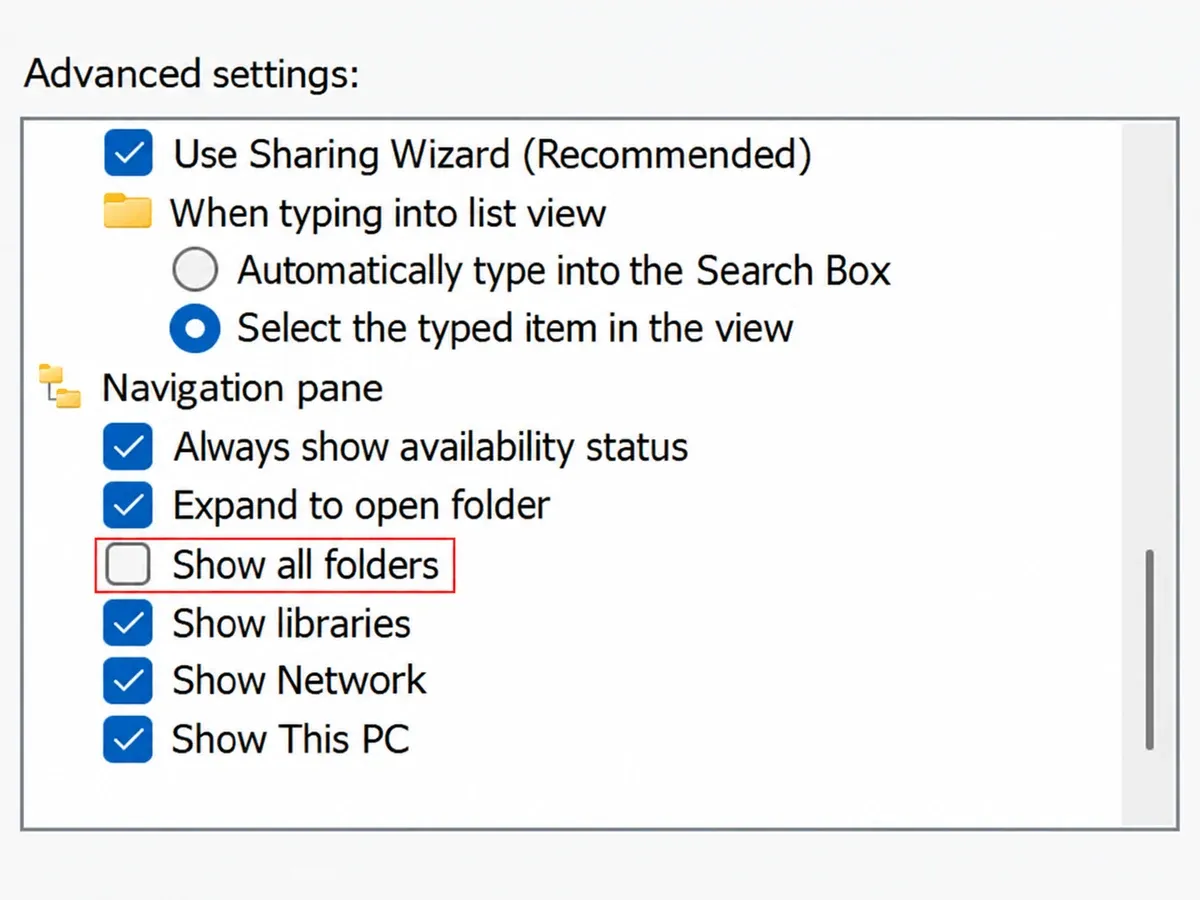
- Note whether Show all folders is checked. If it is, clear that choice. Leave the other navigation options as they are.
- Return to the folder's actual parent location, right-click the folder and choose Pin to Quick access.
- Inspect the left pane and Home again. Open any resulting shortcut and confirm it reaches the intended folder.
This is a targeted display check. In a Windows 11 support discussion about empty Home and failed pins, a follow-up reported that disabling Show all folders worked. That was a specific historical case, not proof that every present-day pin failure comes from the same bug.
You may also see the checkbox under See more > Options > View > Advanced settings > Navigation pane. If you use that route, change only Show all folders and select Apply. The other checked items aren't instructions to enable every navigation option.
If the change doesn't help and you prefer the previous layout, restore the recorded checkbox state. Don't stack Restore Defaults, privacy changes and registry edits on top of the test; you'll lose track of which change affected the result.
Compare one folder with another local target
Choose an ordinary local folder you can already open and that isn't currently pinned. From its parent directory, right-click it and select Pin to Quick access. Use the same method for the original folder, then compare the two results in a fresh Explorer window.
Microsoft documents the right-click command as the normal way to pin a folder. I prefer it for this comparison so both attempts use exactly the same command. Dragging introduces a different action and a different drop target, making the result harder to compare.
A Super User report about one folder refusing to pin describes exactly that narrower symptom: other folders worked, while dropping one particular folder did nothing. The answer suggests the context-menu method, but it doesn't establish that the original reporter's issue was resolved.
If another local folder pins successfully, keep the investigation on the failing target. Open it from its original location and note whether it is a local directory, a OneDrive-backed folder, a network location, a library or another special Explorer item. A library or search result isn't automatically the actual folder you intended to pin. Locate the underlying folder where possible, rather than assuming every Explorer object supports the same command.
If Pin to Quick access isn't offered, check that you selected an actual folder rather than a file or special view. Try the same command on the ordinary local comparison folder. Don't install a context-menu extension just to add a command that the selected object may not support.
If the menu already says Unpin from Quick access, record that state and look for the existing shortcut before resetting anything. If the target is inaccessible, preserve its exact access or connection error. On a managed PC, have IT check the intended location and policy; don't take ownership of a work folder or unlink OneDrive to repair a navigation shortcut.
After the comparison, you can remove its extra shortcut with Unpin from Quick access. Don't choose Delete; the test doesn't require removing the actual folder or its contents.
Restore Documents or Pictures from the known-folder view
When the failing item is a default folder such as Documents or Pictures, use Microsoft's known-folder restoration route: select Home, then the Up arrow to the left of the address bar. Right-click the required known folder in that view and select Pin to Quick access.
Return to Home and the navigation pane, then open the shortcut to verify its destination. Don't create a second Documents folder or move its contents to make an old tutorial's path match. On Windows 11 version 22H2 and later, the six default known folders aren't listed under This PC in the same way as older layouts.
Retry a persistent failure without wiping the list
If pinning still fails, save open work and finish any file transfers before a normal restart. Return to the same Windows account, open a fresh Explorer window and repeat the same local-folder comparison. Check the shortcut again in another new window; appearing once and disappearing later is a different result from never appearing.
Keep a short record: the original target opens or fails, the comparison target pins or fails, the Show all folders state, and any exact error. Find the Windows edition and version under Settings > System > About > Windows specifications, using Microsoft's device-information instructions. Give support the location type and relevant error privately; redact account names, server paths and document names from public screenshots.
If the problem began after an update, include that timing and the update details in the report. Don't assume a particular update caused it solely because the two events were close together. The local-folder comparison is more useful than repeatedly clicking Pin without recording what changed.
Why a broad destinations reset is a later step
I wouldn't start by deleting everything in Recent, AutomaticDestinations and CustomDestinations. That is a broader reset than removing one broken shortcut. Record the folder list you want to keep before any support-guided reset, and ask exactly which history and pins will be lost.
The reported outcomes aren't uniform. A Windows 10 Spiceworks troubleshooting thread records a user correcting a suggested deletion command and still getting the same error. A separate aggregation of folder-pinning discussions includes a contributor reporting restored pins after a broader Recent-items deletion, alongside other unresolved issues. These different systems and procedures don't establish a success rate or prove your current folder list is corrupt.
Microsoft's Jump List documentation distinguishes application-specific recent destinations and pinned items. The Recent-items tracking function also connects usage records with both the Recent folder and application Jump Lists. Preserve that broader context before following a wildcard deletion recipe. Don't delete your Windows profile, reset shell permissions or remove unrelated registry values just because a tutorial calls them a Quick Access repair.
If Explorer freezes during these checks, follow the Explorer hang investigation; if its windows close unexpectedly, use the Explorer crash checks. For a stable window with a repeatable pin failure, take the two-folder results to Windows support or your IT team. The Windows desktop troubleshooting hub connects the separate shell problems.



