
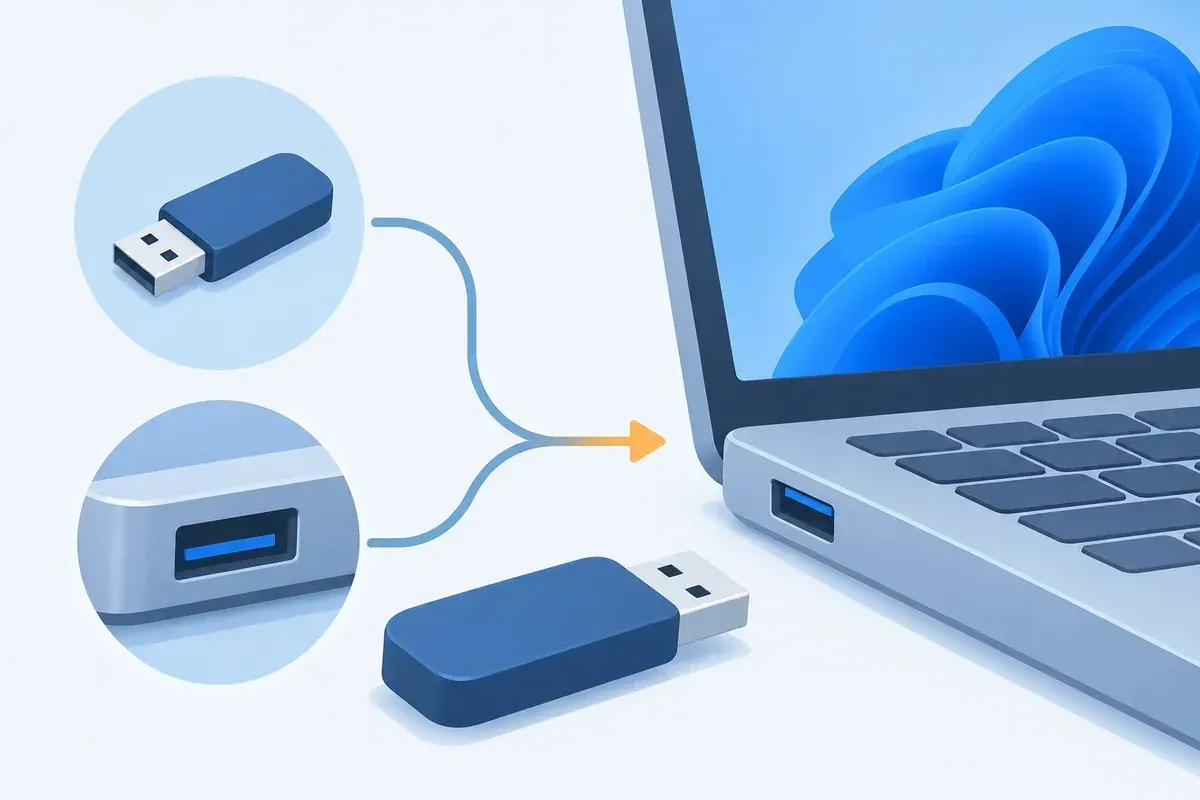
Connect the USB device directly to another compatible port, then test it on another computer if one is available. If Windows 11 still reports USB device not recognized, open the device's Properties in Device Manager and record the full Device status message. That separates a connection problem from a missing driver or a device that has reported a failure.
For a USB drive containing files you need, cancel any request to format or initialize it. I'd protect those files before attempting repairs that write to the disk.
Find whether the failure follows the device or the PC
Save your work and restart Windows through Start > Power > Restart, then reconnect the device. Check the cable and ports for visible damage. Stop using a damaged connector and contact the maker or a repair service; don't probe inside a powered USB port.
- Remove the dock or hub from the test. Connect the device directly to the PC where its connector and requirements allow.
- Try another compatible port. Keep the same device and cable so you change one part at a time.
- Try a known working data cable if the device uses a detachable cable. Match its specification to the device; charging alone isn't a data-transfer test.
- Test on another computer. Also test a known working USB device on the original PC.
The physical checks in ASUS's USB troubleshooting instructions distinguish a device that also fails on another computer from one that works directly but fails through a hub. Neither test by itself identifies the exact failed component.
If the same device and cable work at a rear motherboard port but fail on the case front, use the front USB port and case-panel checks. They separate an unconnected or damaged front path from a Windows recognition error before you change drivers.
| Result | Next step |
|---|---|
| Only this device fails on more than one computer | Check its cable, power requirements and manufacturer's support route. Preserve any important stored data. |
| A known working device fails on one port but works on another | Investigate that port or connection. Don't reset every Windows driver. |
| Direct connection works; the hub or dock doesn't | Check the hub's power supply, cable and supported features. |
| Several devices fail only on this PC | Collect their Device status messages and check the PC maker's driver guidance. |
| The disk appears in Disk Management but not File Explorer | Follow the storage branch below before writing anything to it. |
Read the exact error in Device Manager
- Right-click Start and select Device Manager.
- Find the affected device, often marked with a yellow warning symbol. Expand Universal Serial Bus controllers if the unknown USB entry is there; a recognized device can appear in its own category.
- Right-click that entry and choose Properties.
- On General, copy the full message under Device status, including the code. Record the device name too, such as Unknown USB Device (Device Descriptor Request Failed).
Microsoft's USB connection guidance sends readers to this code before choosing a repair. Turning off USB connection notifications only hides the warning; it doesn't make the device work.

| Code | What it establishes | Repair direction |
|---|---|---|
| 28 | The drivers for the device aren't installed. | Obtain the correct driver from Windows Update or the device maker. |
| 10 | The device cannot start. | Keep the complete message and check the appropriate driver; the code alone doesn't identify the cause. |
| 43 | A controlling driver reported a device failure and Windows stopped it. | Check the connection tests and targeted driver route; contact the maker if it persists. |
These meanings come from Microsoft's Device Manager error-code reference. Code 43 isn't proof that the physical USB device is dead. Keep a descriptor or port-reset message alongside the code instead of reducing it to “driver problem.”
Update or roll back the identified driver
Open Start > Settings > Windows Update > Check for updates, install applicable updates and restart if prompted. If the device needs a separate package, use the PC or device manufacturer's official support page for the exact model, Windows version and architecture. Some devices need their software installed before connection; follow that maker's installation order.
To check the identified entry in Device Manager, right-click it and select Update driver, then choose the automatic search option. For a package you've already downloaded from the maker, use Browse my computer for drivers and select the extracted driver folder. Microsoft's driver update and rollback procedure describes both routes.
If the failure began immediately after a driver update, open that device's Properties > Driver > Roll Back Driver. Rollback requires administrator permissions. If the button is unavailable, don't uninstall unrelated devices to force it; use the model's official support route.
I'd reinstall only the identified device after the connection checks and driver update route fail. Save work first, keep the official recovery package available, and make sure you'll still have a way to operate and restart the PC. Removing a hub or host controller can affect the keyboard and mouse connected through it. If you can't identify the affected entry or keep a working input and restart route, stop and ask the PC maker for guidance.
For a targeted reinstall, right-click the affected device, choose Uninstall device, confirm, then restart Windows. Windows attempts to reinstall its driver. If it doesn't, use the prepared manufacturer package. Don't treat deletion of every USB controller, every gray entry or the driver package itself as a routine cleanup step.
For a D-Link DUB-H7, check the hardware revision and official DUB-H7 installation resources before choosing a driver download. The F1 guide lists automatic installation on Windows 10; that listing alone does not certify every revision for Windows 11.
If the USB device is a musical keyboard or controller, use the USB MIDI driver selection and app-input checks once you have identified it. Built-in MIDI support, a model-specific driver and the music app's input selection are separate checks. Read the current KORG Windows 11 warning before reinstalling an older KORG USB-MIDI package.
Check dock power and USB-C capabilities separately
A connector that fits doesn't guarantee the required feature. Microsoft distinguishes USB4, Thunderbolt, display alternate modes and power requirements in its USB-C guidance. Check the specifications of the PC port, cable, dock and attached device together.
- Use the device's external power supply if it supports one.
- Connect a laptop to its appropriate power supply while testing a power-demanding peripheral.
- Disconnect unused USB devices and retest the problem device.
- Use the manufacturer's supplied cable or a cable certified for the required feature.
A light turning on proves that some power is present, not that the data connection works. In a Microsoft Q&A report about an HP Spectre, the reader still couldn't detect devices after trying a powered hub. The thread's proposed Windows repair wasn't reported as a successful fix. Don't use that case as proof that a powered hub or reinstall will solve yours.
If USB-C video is the only failure while other USB functions work, follow the second-monitor connection checks. That problem needs a display-capability check as well as a USB connection check.
If a USB drive is missing from File Explorer
Open Disk Management from Start and inspect whether the expected disk appears. Identify it by its capacity and connection; don't assume Disk 0 or the first removable entry is the target.
If the USB device is a storage drive and its files still do not appear, follow the missing hard drive checks in Windows 11. Match the disk and volume state before assigning a letter, and preserve existing files before considering initialization or formatting.
If the existing data volume is accessible and healthy but has no letter, open Disk Management as an administrator, right-click that volume and choose Change Drive Letter and Paths > Add. Choose an unused letter and confirm. Microsoft's drive-letter procedure excludes drives containing Windows or apps. If the option is unavailable, don't force it or modify EFI, recovery or system partitions.
Cancel Format, Initialize Disk or New Simple Volume if this is an existing drive with files you need. Microsoft's disk initialization instructions are for a new disk without existing data and explicitly warn that initialization erases data. “Not initialized,” RAW or unallocated space isn't permission to prepare an old drive as new.
If the drive becomes readable on another connection, copy important files to separate storage before more changes. If it remains unreadable, disconnect it and discuss recovery with the device maker or a data-recovery specialist. I'd stop repeated experiments on a damaged or repeatedly disconnecting drive when the files matter. No recovery app can promise to restore a device that isn't accessible.
If Windows can already read your WD drive but WD Drive Utilities cannot see it, use the WD utility compatibility, detection and diagnostic checks. The app supports particular external models; its empty device list alone does not establish a Windows USB failure. Protect the files before running drive tests.
For a phone that charges but doesn't appear for photo import, unlock it and use a cable that supports file transfer. Open Photos > Import on the PC and select the connected device. Microsoft's phone-to-PC import instructions explain the Android transfer setting and the iPhone's Trust or Allow prompt. Don't format a phone or enable developer options to solve a normal photo-transfer problem.
If USB fails only after sleep
Record whether reconnecting the device or restarting Windows restores it, and whether the failure affects one device or the whole dock. Send that pattern, the driver version and the PC/dock models to the relevant manufacturer.
Don't disable USB selective suspend across the PC as a default fix. Microsoft's selective-suspend documentation says it is enabled by default and strongly recommends keeping it enabled. Follow a model-specific support instruction if a controlled power-setting test is needed, and record the original setting so you can restore it.
Before seeking support, collect the exact Device status, which ports and cables you've tried, the result on another computer, whether direct connection works, and whether an existing disk is visible in Disk Management. Those details give the maker a useful diagnosis path without another round of broad resets. Other hardware symptoms are grouped in the device troubleshooting hub.


