
wsl_update_x64.msi is Microsoft's Linux kernel update package for older, built-in WSL 2 installations. It isn't the current full WSL installer. If an old guide or the message "WSL 2 requires an update to its kernel component" sent you here, first identify your WSL installation and processor architecture. Current WSL normally uses wsl --update; the older manual route uses the matching x64 or ARM64 kernel MSI.
I'd choose the servicing route before downloading another installer. A Windows 11 build number alone doesn't establish that the old kernel package applies, and repeatedly running the wrong MSI won't complete a modern offline installation.
Choose the package for your WSL installation
Microsoft's manual kernel-download instructions distinguish WSL inside the Windows operating system image from the more frequently updated Store version. Use that distinction to choose:
| Your situation | Appropriate route |
|---|---|
| Older, built-in WSL 2 needs its separate kernel package | Complete the manual prerequisites, then install the architecture-matched kernel MSI. |
| Current WSL is installed and asks for an update | Use its supported wsl --update route. Check available options with wsl --help. |
| A current WSL installation must be completed offline | Use the current WSL MSI from Microsoft's GitHub releases and the separate offline prerequisites, not just the old kernel MSI. |
For a new installation on supported Windows 10 version 2004/build 19041 or later, or Windows 11, Microsoft recommends the current WSL installation flow. wsl --install can install WSL and the default Ubuntu distribution; don't use it as a neutral check on a working setup. Windows Server has separate installation instructions.
If you are starting a Linux environment from scratch, follow the WSL installation and first Linux-user setup before choosing an old kernel download. That route covers distribution selection, the separate Linux password and opening the same environment again.
Check WSL version and System type
Open PowerShell or Command Prompt in Windows. The following are information checks, not commands to convert or remove a distribution:
wsl --version
wsl --status
wsl --list --verbose
wsl --help
Microsoft's command reference gives these different meanings: --version reports WSL and component versions, --status reports configuration such as the kernel version, and --list --verbose shows each installed distribution's state and whether it uses WSL 1 or 2. The VERSION column in that list isn't the WSL application's package version.
On older inbox WSL, --version may be unavailable; retain that response and use wsl --status with the installed command's help. An unsupported --version response alone doesn't prove the old MSI is the right package.
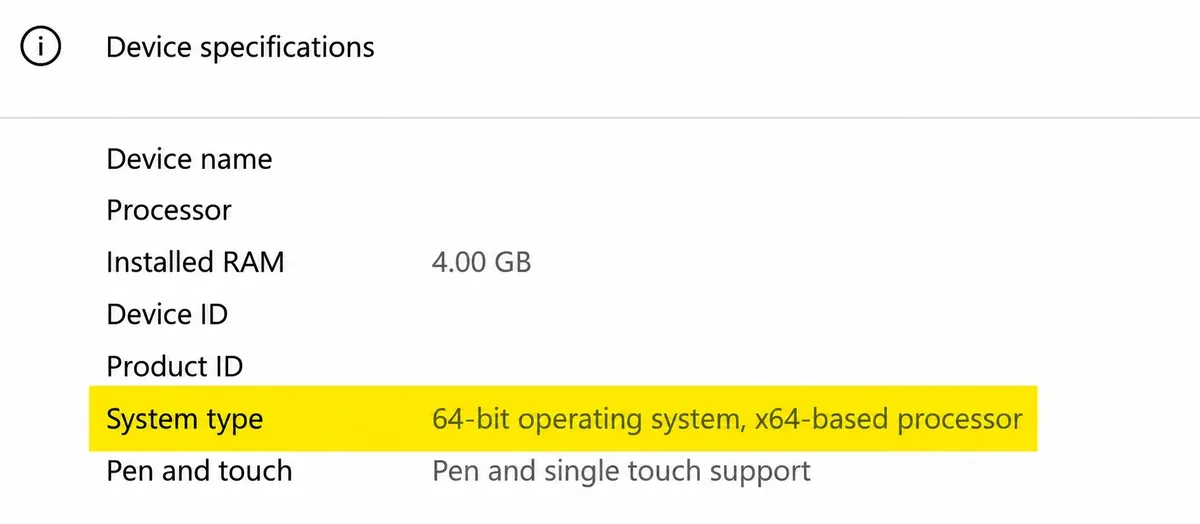
Open Settings > System > About and read System type. Match an x64-based processor to the x64 package and an ARM-based processor to ARM64. The words "64-bit operating system" alone don't choose between them.
For the Windows version and build, press Win + R, enter winver and select OK. Keep those details separate from the WSL and Linux distribution versions.
Update current WSL or use its offline installer
If the installed WSL supports it, run the documented update command in Windows, approving administrator elevation only when required and authorized:
wsl --updateIf the Microsoft Store download route is unavailable, and your installed command's help supports the option, wsl --update --web-download downloads the update from GitHub instead. This still needs a working connection and permitted access; it isn't an offline command or a way around your organization's software policy.
For a genuinely offline computer, follow Microsoft's offline installation procedure. Obtain the current architecture-matched WSL MSI from Microsoft's WSL releases using an approved connected device and transfer it through your organization's approved process.
In the release assets, the full installers use names such as wsl.<version>.x64.msi and wsl.<version>.arm64.msi. Choose the matching MSI for the current supported release; wsl_update_x64.msi is the separate legacy kernel package.
Microsoft's procedure also requires the Virtual Machine Platform component, a restart for that feature when needed, and a separate .wsl file if you need to install a distribution. Installing WSL alone doesn't supply that offline distribution.
If updating fails, record the exact download, name-resolution, permission or installer message. Don't switch off endpoint protection or reset every network adapter to make one download work. On a managed computer, ask IT to provide the approved package or servicing path.
Install the legacy kernel package when it applies
Use this branch for the older manual, built-in WSL 2 setup. Microsoft's manual prerequisites specify Windows 10 x64 version 1903 with build 18362.1049 or later, Windows 10 ARM64 version 2004/build 19041 or later, or Windows 11. Those are WSL 2 compatibility requirements, not a recommendation to keep an out-of-support Windows release.
Enable the required components. In an authorized administrator PowerShell window, the manual installation uses the two commands below: one for Windows Subsystem for Linux, then one for Virtual Machine Platform. WSL 2 also requires virtualization capability. If your PC is managed, confirm the configuration with IT first.
dism.exe /online /enable-feature /featurename:Microsoft-Windows-Subsystem-Linux /all /norestart
dism.exe /online /enable-feature /featurename:VirtualMachinePlatform /all /norestart- Save your work and restart Windows to complete the feature changes. The
/norestartswitches postpone a restart; they don't make it unnecessary. - Download the matching official kernel package: Microsoft's WSL 2 kernel update for x64 or WSL 2 kernel update for ARM64. These are the destinations linked by the Microsoft manual page. Don't choose a similarly named third-party mirror or assume any blob-storage address is Microsoft software.
- Run the downloaded MSI and approve its requested elevation only for the package you intentionally obtained. Keep the exact message if it rejects the machine or raises an unexpected publisher/security warning; don't disable protections to continue.
- Retry the original WSL 2 operation. If a distribution is already installed, reopen that same distribution. If you're still setting up WSL, installing a Linux distribution remains a separate step.
wsl --set-default-version 2 changes the default for new distributions. It doesn't convert an existing WSL 1 distribution or prove the kernel problem is fixed. Conversion is a separate operation with its own backup requirements; it isn't necessary just to identify or install the right kernel package.
Match the exact error before retrying
"This update only applies to machines with the Windows Subsystem for Linux." In the legacy MSI path, Microsoft's WSL troubleshooting guidance points to an unsupported Windows version, the WSL optional component being disabled, or a restart still needed after enabling it. Check those conditions once. If they are already satisfied, return to package selection rather than repeatedly toggling the features.
The published outcomes explain why this distinction matters. In a Windows 11 build 22000.613 report, the owner said the old kernel MSI resolved 0x800701bc. In a later Windows 11 24H2 offline installation report, the owner had already enabled the features and restarted, but the old MSI still refused to apply; the owner reported success with the current WSL release MSI instead. I'd use those contrasting outcomes to check package generation before repeating prerequisites. They don't establish a universal fix based on the Windows name.
"WSL 2 requires an update to its kernel component," 0x800701bc, or 0x1bc. For the manual built-in installation, Microsoft directs this missing-kernel condition to the kernel MSI step. Match architecture and complete the feature restart first. If the same error remains, retain the installer result and WSL status instead of copying kernel files into System32 by hand.
0x8007019e identifies the Windows Subsystem for Linux optional component not being enabled. 0x80370102 requires checking Virtual Machine Platform and firmware virtualization; a kernel download alone doesn't establish those prerequisites. Use the PC manufacturer's virtualization instructions or IT support. A Windows guest VM also needs the host's virtualization configuration checked by its administrator.
If the MSI instead reports a script, program or DLL action failure, keep that full message. The Windows Installer package guide explains how to collect the matching setup evidence; don't treat a product-specific action failure as the same thing as "this update only applies."
Verify the distribution and keep the failure record
After the supported update or installation, check WSL status again and retry the same distribution or setup operation that originally failed. A completed MSI wizard alone doesn't confirm that your distribution launches. If there is no distribution yet, finish the appropriate online or offline distribution-installation step before expecting a Linux shell.
If you need to restart the WSL environment, save Linux work and stop its services first: wsl --shutdown immediately terminates all running distributions and the WSL 2 utility VM. Don't use wsl --unregister as a kernel repair; it permanently removes the selected distribution's data, settings and software.
For an unresolved failure, keep the Windows version/build, System type, WSL version or status, distribution list, exact original error, package filename/source and the installer or update result. Share diagnostic output privately after checking it for account and machine details. Use the system repair hub if Windows features outside WSL are also failing; keep a WSL-only package problem focused on its installation stage.


