
When you see “There is a problem with this Windows Installer package,” save the complete message, especially the sentence about the script, program or DLL that failed. Check the product version and whether you were installing, upgrading or uninstalling it. If the publisher's supported package fails again, collect a log for that operation and use the named failing action to choose the next step.
I'd start with the exact message because this heading covers several failures. Restarting the Installer service, changing folder permissions and deleting an old product are different interventions; the opening sentence doesn't tell you which one applies.
Match the second sentence before choosing a fix
Microsoft's Installer message reference separates these cases. Record a numeric code if the dialog or log provides one; don't invent a number when it doesn't.
| Wording after the package heading | Documented message | Evidence to keep |
|---|---|---|
| A script required for this install to complete could not be run | 1720: script failure | Custom-action name, script error, line and column if supplied |
| A program required for this install to complete could not be run | 1721: program couldn't run | Action, location and command |
| A program run as part of the setup did not finish as expected | 1722: program didn't finish as expected | Action, location and command |
| A DLL required for this install to complete could not be run | 1723: DLL action failure | Action, entry point and library |
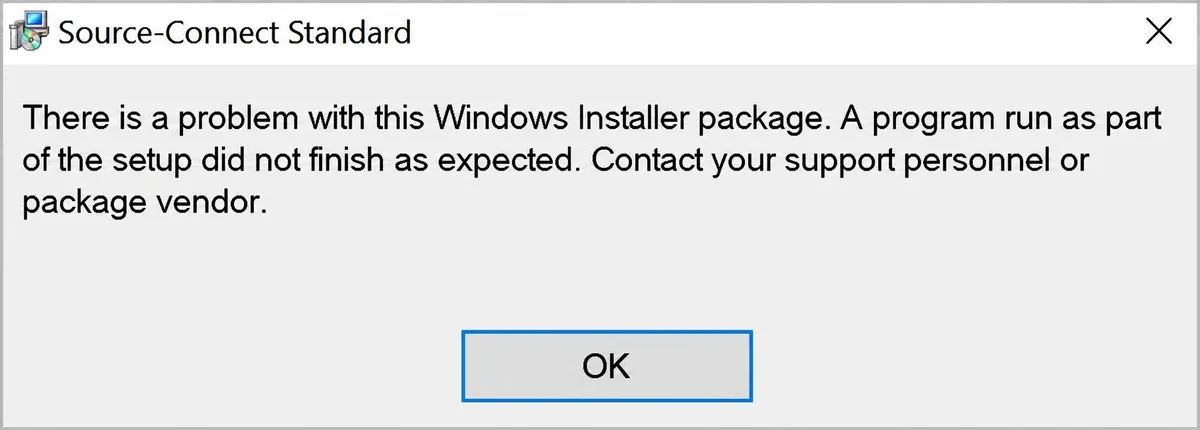
The example comes from the legacy Source-Connect 3 support page. That page assigns a permissions cause to that product/version; that doesn't make permissions the cause of every package error. Keep any extra action or file name from your own dialog.
Two nearby messages need a different investigation. “Windows Installer service could not be accessed” is message 1719. “This installation package couldn't be opened” can accompany return code 1619 or 1620. For those return codes, Microsoft distinguishes package access from an invalid package: verify the file exists and is accessible, then ask its publisher to confirm the package. A DLL-required message alone isn't a reason to download an individual DLL from a repair site.
Check the package and existing product
Use the software publisher's supported installer for your Windows version and architecture. Record the download source and package version before replacing it. If the publisher distributes an EXE setup program, follow its instructions; renaming it to .msi doesn't turn it into a Windows Installer package.
Check which edition and version are already installed, and whether this attempt is an upgrade or a removal. Return code 1638 means another version of that product is installed. Use the vendor's documented upgrade/removal route instead of deleting application folders or registry entries to make it disappear. Save application data and settings before any removal that may affect them.
If a previous removal failed, ask the publisher whether its supported cleanup procedure preserves your settings, licenses and other applications. Check that scope before removing shared components; a leftover-product theory isn't permission to erase every matching registry key.
For iTunes, distinguish a Microsoft Store installation from a standalone installer before following an Apple-component cleanup recipe. In an iTunes support exchange, the owner reported success after advice that combined component removal with service changes. That report doesn't isolate which change worked or justify removing every Apple application on another PC.
If unrelated MSI installations have already worked, record that result before making a system-wide change. In an EMET support discussion, the owner could install other MSI packages while EMET continued to fail. That separates a product-specific investigation from an assumption that every Windows installation is broken; it doesn't prove the downloaded file is corrupt.
If another installation is already running, let it finish before retrying: that's the documented response to return code 1618. Don't kill every msiexec.exe process or stop the Installer service while another setup is using it. Use administrator elevation only when the publisher requires it and you have permission, especially on a managed PC.
For the WSL kernel installer, "This update only applies to machines with the Windows Subsystem for Linux" calls for a package and prerequisite check. The WSL 2 kernel update package guide separates the older kernel MSI from current WSL updates and offline installation, then checks architecture, enabled features and the required restart. Check that route before treating the message as a script or DLL action failure.
Capture one targeted MSI log
First look for a log supplied by the failed setup or ask the publisher how to collect one. For an EXE installer, use its documented logging option; it may manage prerequisites and more than one package. Don't extract and run an internal MSI unless the publisher supports that route.
The following example starts an installation and can change the computer. Save your work and protect the application's data before reproducing the failure. Use it only for a trusted, publisher-supported MSI you intend to install, with the required authorization. If the original problem happened during uninstall, preserve that operation and ask for the vendor's removal-log procedure.
Open Command Prompt and replace the example MSI path with your actual file. The log destination must be writable. This example uses Command Prompt's %TEMP% expansion, so don't paste it unchanged into PowerShell:
msiexec.exe /i "C:\Install\vendor-package.msi" /L*V "%TEMP%\vendor-install.log" /norestartMicrosoft's msiexec command reference defines /i as installation, /L*V as all standard logging plus verbose output, and /norestart as preventing an automatic restart at completion. A required restart may still need to be completed later. The separate /x option uninstalls a package; don't substitute it casually or use /i as an uninstall fix.
Run the supported attempt once, keep the final dialog and confirm that the named log file was created. If the path is rejected or no log appears, retain that exact error rather than repeating the command with broader permissions. You don't need persistent registry-wide logging to request a log for this one run.
Read the failing action in context
Open the log as text and search for the error wording, the action name from the dialog, and Return value 3. Read the surrounding action messages rather than sending only that final line. Microsoft's action-return table maps log value 3 to fatal error 1603. It marks failure; it doesn't identify the missing file, permission or prerequisite by itself.
Use the record to narrow the next action:
- A prerequisite or helper program is named: check the publisher's supported prerequisite versions and setup sequence. A failed helper doesn't establish that Windows itself is damaged.
- A specific path or permission error appears: verify that exact location and required account with IT or the vendor. Don't grant Everyone Full Control across a drive.
- An existing product or failed removal is named: use the matching version's repair/removal instructions. Preserve the action name and installed version; a generic reinstall can repeat the same failure.
- The action remains unexplained: stop changing system settings and send the full log privately to the package vendor. The custom action belongs to that setup, and its name is more useful than a list of unrelated reset commands.
For a confirmed 1603, Microsoft lists several conditional causes, including an already installed application, an encrypted destination, a substituted drive and insufficient SYSTEM permissions at the destination. Those are checks for matching evidence, not instructions to change every folder or remove working software. The article's older Windows 10 menu path isn't a Windows 11 navigation guide.
Verify the original operation and keep the support record
After a documented correction, repeat the same supported install, upgrade or uninstall that failed. For installation, verify the expected version is present and opens. For removal, verify the intended version is removed without losing data you meant to retain. A dismissed error dialog alone doesn't establish success.
In a Python 2.7 removal report, the failing action was RemovePip, and the owner said the Program Install and Uninstall troubleshooter removed the product. That's a historical removal outcome, not evidence that an installation command or the same tool will fix every current Windows package.
Give the vendor the exact message/code, action, product and package versions, Windows version/build, source of the installer, original operation, failure time and relevant log. Note whether unrelated installers work. If Windows recorded a matching application event, the Windows event-collection guide explains how to retain its source, ID and full message; it supplements the setup log.
Keep the original log private. Review a separate copy before public posting and remove private account, machine and path details. Installer logs can include user-request information and properties, so use the vendor's private support channel for the complete file.
I'd leave broader Windows repair until the evidence extends beyond one product. Keep package-specific failures with the publisher; use the system repair hub when separate Windows functions are also failing and need their own checks.



