
The KB5063709 reset and recovery issue has a released fix. Microsoft addressed it in KB5066188, released August 19, 2025, for Windows 10 22H2 and the affected LTSC 2021 editions. If Windows still starts, check the installed version and updates before trying another reset. An old article saying a fix is “coming soon” no longer describes this regression.
I'd update the applicable Windows installation before a reset that is genuinely needed. Don't reset a working PC to test the patch, and don't download a Windows 11 package because a news report discusses both operating systems. If Windows no longer starts, use the recovery branch below rather than instructions that require the desktop.
Confirm the Windows version and the update
Record the Windows edition, version, OS build, installed update and exact operation that fails. Open Settings > System > About and read Windows specifications; Microsoft explains the device-information checks. In Windows 10, open Settings > Update & Security > Windows Update > View update history to check the installation record. A recovery failure after an update is a starting clue; the timing alone doesn't establish that this particular bug is still present. A later cumulative release can replace the original package, so the absence of the old KB number from the visible history isn't a diagnosis either. Check the release notes for the installed update.
The KB5063709 release bulletin identifies the August 12, 2025 Windows 10 update. Match the affected branch before choosing a package:
| Windows branch | August 2025 update and fix |
|---|---|
| Windows 10 22H2 | Original: Fix: |
| Windows 10 Enterprise LTSC 2021 or IoT Enterprise LTSC 2021 | Original: Fix: |
| Windows 11 22H2 Enterprise/Education, or 23H2 affected editions | Original: Fix: |
| Windows 10 Enterprise LTSC 2019 or IoT Enterprise LTSC 2019 | Original: Fix: |
The Windows 11 relationship is documented in KB5063875's reset-and-recovery known issue and the KB5066189 release. The LTSC 2019 fix bulletin separately says the reset issue did not affect Windows Server 2019. These are different update branches, not interchangeable downloads.
This table identifies the original regression and its first corrective release. It isn't a recommendation to replace a newer cumulative update with an August 2025 package. Windows 11 24H2 isn't one of the affected branches listed here; a failed recovery on that version needs its own diagnosis.
Install the applicable fix before a planned reset
First back up important files to a separate location and check that you can open them. Locate the BitLocker recovery key if the device is encrypted, particularly before entering recovery. A work or school PC should go through its administrator so the package, encryption recovery and deployment policy match that device.
- If Windows 10 starts, open Settings > Update & Security > Windows Update. Check for the latest update applicable to the installed edition and its support entitlement, then complete the installation and requested restart.
- Check update history again. Record the successful installation and current build; a download or pending restart isn't the same as a completed update.
- Only return to the reset operation if you still need it. Keep your backup and recovery key available, and review the file-removal choice before confirming.
At release, KB5066188 was an optional Windows Update package and was also available from the Microsoft Update Catalog; its bulletin says it wasn't available through WSUS. Those are historical delivery details. For a managed installation or a manual package, use the applicable release bulletin and let the administrator check its prerequisites and architecture. Don't install an arbitrary matching KB from a third-party download site.
Ordinary Windows 10 free support ended on October 14, 2025. Extended Security Updates and LTSC servicing have their own eligibility and lifecycle conditions. If Windows Update offers nothing, don't assume that this proves the reset bug is fixed or that every Windows 10 PC is still entitled to current free updates. Check the edition and its supported update route with Microsoft or your administrator.
If Windows Update instead says it couldn't connect to the update service, resolve that connection stage first. Repeating Reset this PC doesn't repair the failed update connection.
Choose the Windows 10 reset option deliberately
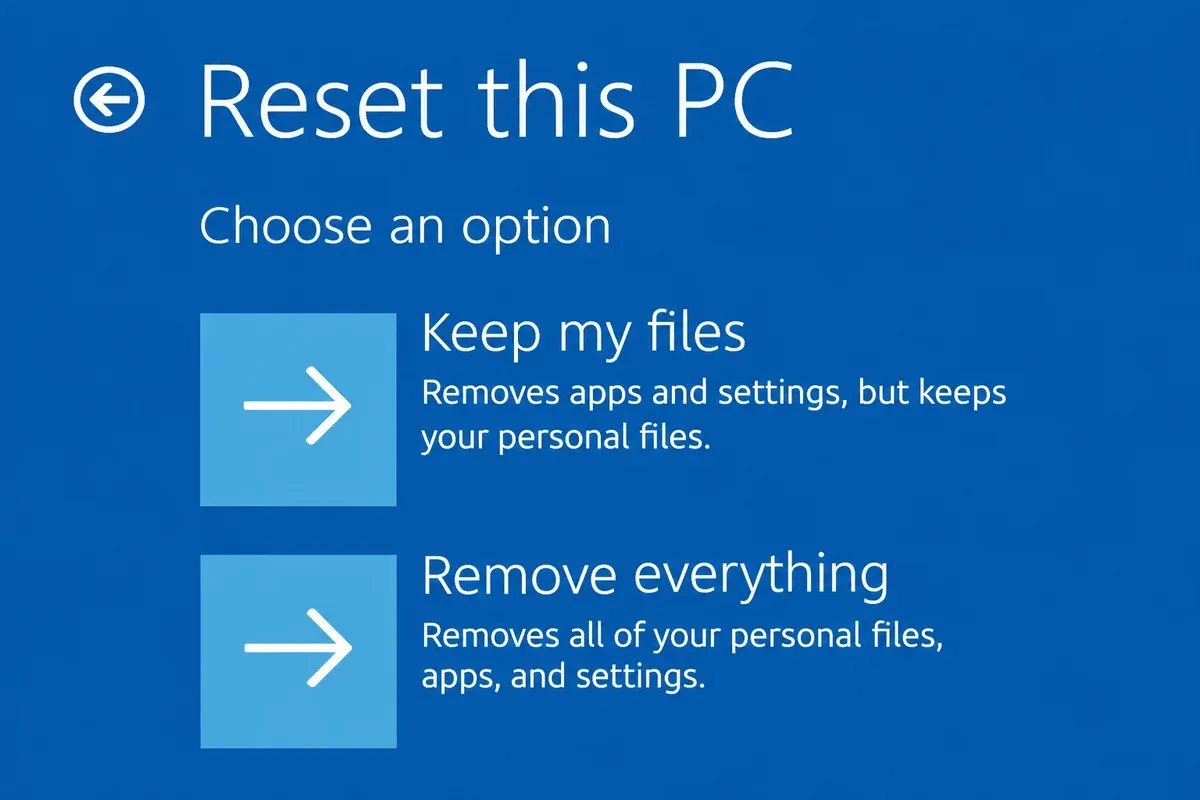
On Windows 10 the Settings route is Start > Settings > Update & Security > Recovery > Reset this PC > Get started. Microsoft's Reset your PC instructions distinguish it from the Windows 11 System > Recovery route. “Fix problems using Windows Update” is a separate Windows 11 repair feature; don't search for that button in Windows 10. For that different task, follow the Windows 11 repair that retains apps and its eligibility checks.
Keep my files reinstalls Windows while keeping personal files, but removes apps and settings. Remove everything removes personal files as well as apps and settings. Keep a separate backup whichever option you choose; the first choice doesn't promise to preserve your installed programs.
Cloud download downloads a fresh Windows copy; Local reinstall uses files already on the PC. That difference doesn't establish that Cloud download bypasses KB5063709. Apply the appropriate update first rather than treating the source choice as Microsoft's documented fix.
Once a reset is running, a long black screen isn't proof of this regression. Microsoft warns that the screen can remain black for upwards of 15 minutes and that manually restarting during the reset can make it fail. Keep power connected and follow the reset's prompts instead of repeatedly interrupting it.
If Windows no longer starts
Protect the files and obtain the BitLocker key before choosing a destructive recovery action. If the sign-in screen is accessible, hold Shift while selecting Power > Restart to enter Windows Recovery Environment. If you can't reach it, use the PC maker's documented recovery-entry method or official installation media prepared on another working PC; don't start a clean installation merely to reach the recovery tools. Microsoft's WinRE entry instructions describe booting the installation media, choosing language preferences and selecting Repair my PC to reach recovery. Follow the repair choice offered by your media, not the install or disk-deletion route.
Microsoft's recovery-options guide provides Troubleshoot > Advanced options > Uninstall updates for failures that began after a recent update, and Troubleshoot > Reset this PC for a reset. Choose the least disruptive operation that fits the actual failure. Some updates can't be uninstalled; a failed uninstall isn't a reason to delete packages or the recovery partition by hand.
For an available restore point, open Troubleshoot > Advanced options > System Restore. Use Scan for affected programs before applying the restore point. System Restore rolls back system changes while keeping personal files; it can affect apps, drivers and updates installed afterward. A reset, a clean installation and recovery from a USB drive have different data-loss consequences. Stop before a file-removing choice when the backup or encryption key is missing.
Once Windows starts again, verify the installed version and applicable update before a planned reset. A recovery operation that restores an older Windows installation is not evidence that the corrective update remains installed. If recovery itself keeps failing, save its exact message for the next branch.
If the reset still fails after updating
After the applicable update and its restart, a reset that you still needed may succeed or return another failure. Record that result instead of treating the successful update as a successful reset. Keep the current build and installed update next to the exact error, the failed stage, the reset option and whether Windows returned to a usable desktop. That separates an update-installation failure, a reset rollback and a failure to enter the recovery environment. Don't keep removing an old update just because its number appears in the first search result.
The comments under BleepingComputer's original report illustrate the scope problem: one owner described a recovery-related blue screen on Windows 11 24H2 while normal Windows still worked. That report was outside the listed affected versions, and the claimed hardware checks didn't establish this regression as its cause. Similar symptoms don't make a Windows 10 fix package applicable to that machine.
If creating a USB recovery drive is the operation that fails, use the recovery-drive creation checks. Creating that drive and resetting Windows are different operations. For persistent reset or recovery errors, give Microsoft support, the PC maker or your administrator the build, installed update, encryption state and precise failure record before approving a reinstall that removes data.
Use the Windows system repair hub for the specific repair operation that remains blocked. The useful finish here is a verified applicable update and a deliberately chosen recovery path. A completed update doesn't require an unnecessary reset as proof.



