

If the Windows Installer service could not be accessed, leave Safe Mode and check Windows Installer in services.msc. Start it if it's stopped and enabled, then retry the same trusted installer. If the service won't start, save that exact error; if it starts but the setup still fails, check whether the problem affects one product or several MSI installations before repairing Windows.
I'd use the service's start result to choose the next step. A running service, a finished download and a successful installation are three different results. Changing startup types repeatedly won't tell you which stage failed.
Match the error before changing services
Keep the full dialog, any number shown, the product version and whether you were installing, upgrading or uninstalling. Microsoft's Installer message reference identifies 1719 as the service-access message. Its separate return-code table calls a service-access failure 1601. Those numbers belong to different lists; don't add a code your own dialog or log doesn't contain.
| Your message or result | What to check next |
|---|---|
| Windows Installer service could not be accessed | Normal Windows session, Windows Installer state and its start result. |
| A script, program or DLL required by this package failed | The named action inside the product's setup. |
| Another installation is already in progress, return code 1618 | Let that installation finish before retrying. |
| This installation package could not be opened, return code 1619 or 1620 | The package's location, access and validity with its publisher. |
For the script, program or DLL wording, use the Windows Installer package action checks. Messages 1720 through 1723 describe failures within a package and don't establish that the service is unavailable. If the error appears after an EXE setup has downloaded its prerequisites, retain that setup's name and stage too; downloading the file successfully doesn't verify its installation stage.
Return to normal Windows and finish pending setup
Windows Installer isn't accessible in Safe Mode: Microsoft's return-code table documents that condition as 1652 and directs you to exit Safe Mode. Don't add Installer entries to the SafeBoot registry to force it to run there.
Save your work and restart normally. If Windows keeps returning to Safe Mode because you enabled Safe boot yourself, Microsoft's Safe Mode exit instructions say to run msconfig, open Boot and clear Safe boot. Apply the change and restart. On a managed PC, or if normal startup fails, use your support team's recovery procedure rather than changing unrelated boot options.
Before another attempt, let any active installation or update finish, including its requested restart. Don't kill every msiexec.exe process or stop the service during another setup. A pending operation deserves a completion check, not an assumption that Windows Installer needs rebuilding.
Inspect Windows Installer, service name msiserver
Use the Windows desktop you're trying to install into. On a work or school computer, use an authorized administrator or IT's approved process for changes. Then:
- Press Windows + R, enter
services.mscand press Enter. - Find Windows Installer and open its properties.
- On General, confirm Service name: msiserver. Record Startup type and Service status.
- If it's Stopped and enabled, select Start. Keep the exact result, including an error number if Windows supplies one.
- If it starts, leave it running and retry the same supported install, upgrade or uninstall once. Record whether the original service-access message returns.
Leave an existing Manual or Automatic startup setting unchanged while checking whether the service starts. The service-access error alone isn't a reason to switch between them.
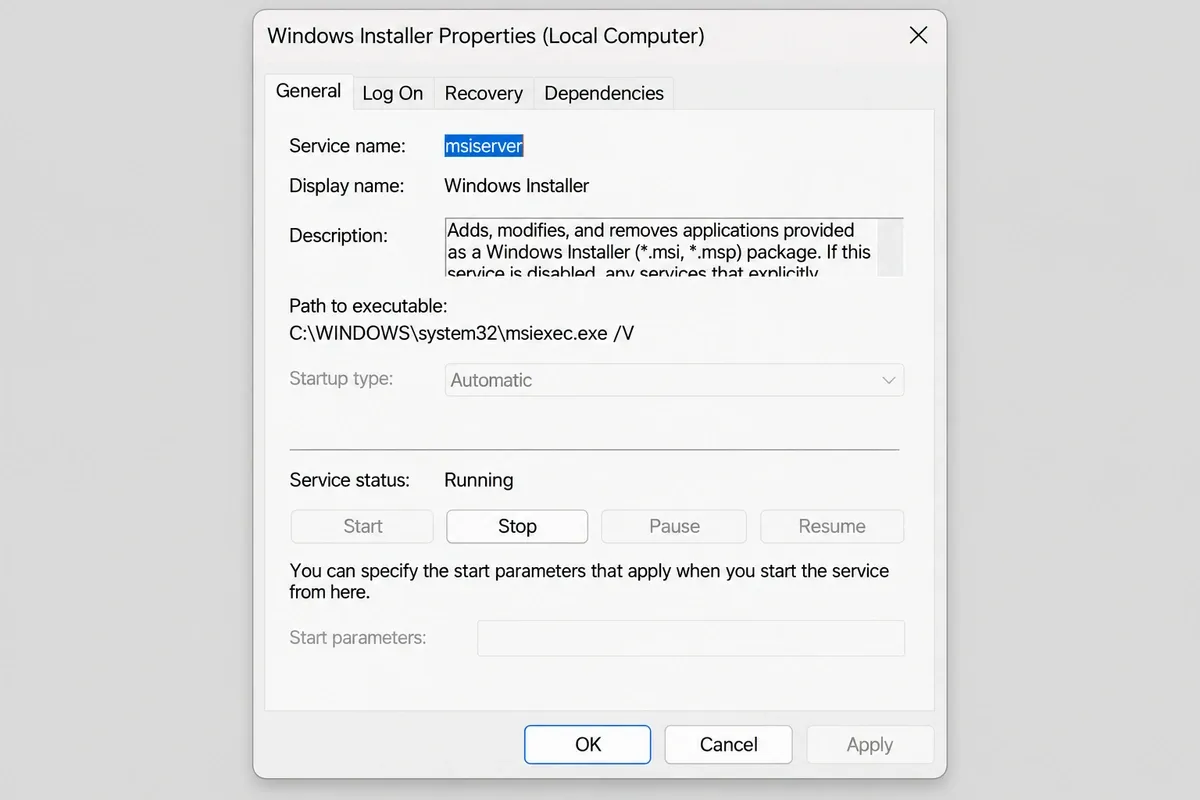
Already Running: leave it running. There is no need to stop a service another installer may be using. Retry only when the other installation has finished, and retain the original failure if it returns.
Disabled: find out why before changing it. If you knowingly disabled Windows Installer on your own PC and are reversing that change, choose Manual, select Apply, then try Start. If you don't know why it's disabled, or the setting is controlled by an organization, give the recorded state to IT. Acronis's service-access troubleshooting accepts Manual or Automatic and says the service must not be disabled. It doesn't require every PC to be switched to Automatic.
Missing entry, Start unavailable while Stopped, or a start error: record that condition. Don't create a replacement service from a downloaded registry file or change its Log On account to unlock the controls. Support needs the service state and start error before considering a configuration repair.
Windows Installer and Windows Modules Installer are different services. If your actual error came from SFC and says it couldn't start the repair service, use the TrustedInstaller and SFC service checks. Re-registering msiexec doesn't check that separate service.
If the service runs but setup still fails
Note whether unrelated MSI installations have already worked in this same Windows session. A successful browser download or a Microsoft Store app update isn't the same comparison. You don't need to install random software just to collect a test result.
Only one product fails: verify its supported Windows version, architecture, package version and download source with the publisher. For a vendor EXE installer, follow that vendor's logging and prerequisite instructions; don't rename it to MSI or run an extracted internal package unless the vendor supports that route. Keep an uninstall failure separate from an installation failure.
If the actual return code is 1625, Microsoft defines it as installation forbidden by system policy. Give that result to your administrator; don't remove organizational management or change policy to get past it.
Several unrelated MSI products fail, or msiserver can't start: give support the common service error and Windows build. That is a stronger reason to investigate Windows components than one product failing alone. It still doesn't identify registry permissions, antivirus or a specific update as the cause.
I'd keep re-registration as a targeted vendor step. The Acronis procedure includes different commands for 32-bit and 64-bit Windows, after the service check. If your product's support team directs that repair, use its sequence for your actual system type in an authorized administrator Command Prompt. Record the commands and retry result once; don't run every System32 and SysWOW64 recipe from unrelated XP-era answers.
Published outcomes show why registration shouldn't be a promise. A Windows XP discussion includes a commenter who said re-registration worked, while the question's author already had a running service. In a Windows 11 installation discussion, the owner reported that service changes, re-registration, SFC and a new administrator account hadn't fixed the error. The later repair-install suggestion has no confirmed completion in that thread. Neither case justifies importing registry permissions or disabling security protection on your PC.
Use system repair only for a supported reason
If the evidence points beyond one package, back up important files before broader repair. In an authorized administrator Command Prompt inside the installed Windows session, Microsoft's System File Checker procedure puts DISM before SFC:
DISM.exe /Online /Cleanup-image /RestoreHealthWait for DISM's final result. After it reports that the operation completed successfully, run:
sfc /scannowLet verification finish and keep both final messages. If DISM fails, preserve that error and resolve the repair failure before treating the sequence as complete. These commands repair Windows components; a completed scan doesn't by itself establish that your original installer now works.
A Windows Server 2012 R2 report ended with the owner saying DISM repair and a restart solved their installation problem after other attempts failed. That's a historical outcome on a different Windows product, not a measured success rate for Windows 11. I'd use the current Microsoft procedure and the affected PC's final results to decide whether to proceed.
If supported component repairs don't restore installation, the Windows 11 app-preserving repair guide explains Recovery's current-version reinstall and Setup launched from a working Windows session. Check the backup and app-retention conditions before starting. Don't substitute Reset this PC or a booted clean install when you need to keep applications.
Verify the original operation and save the evidence
Repeat the original supported operation after the targeted correction. For an installation or upgrade, confirm the intended version is installed and opens. For an uninstall, confirm the intended product was removed while retaining any data you meant to keep. A running service or a dismissed dialog is only an intermediate check.
If the failure continues, give the publisher or IT the full error, product/package version, Windows build from winver, failure time, operation, service state and start result. Include whether other MSI products worked. Ask for the vendor's setup log; the package-action guide linked above explains a targeted MSI log when the publisher supplies a supported MSI. For an EXE wrapper, request its own logging procedure.
If Windows recorded a matching event, the Windows event collection steps show how to preserve its source, time and full message. Keep the setup log and service-start result together. Share originals privately with authorized support, and redact account names, machine identifiers and private paths from a separate copy before posting publicly.
Stop changing service settings once the same installation succeeds. For a broader Windows fault that remains, use the system repair hub to follow the new result rather than repeating a registration command that already failed.



