
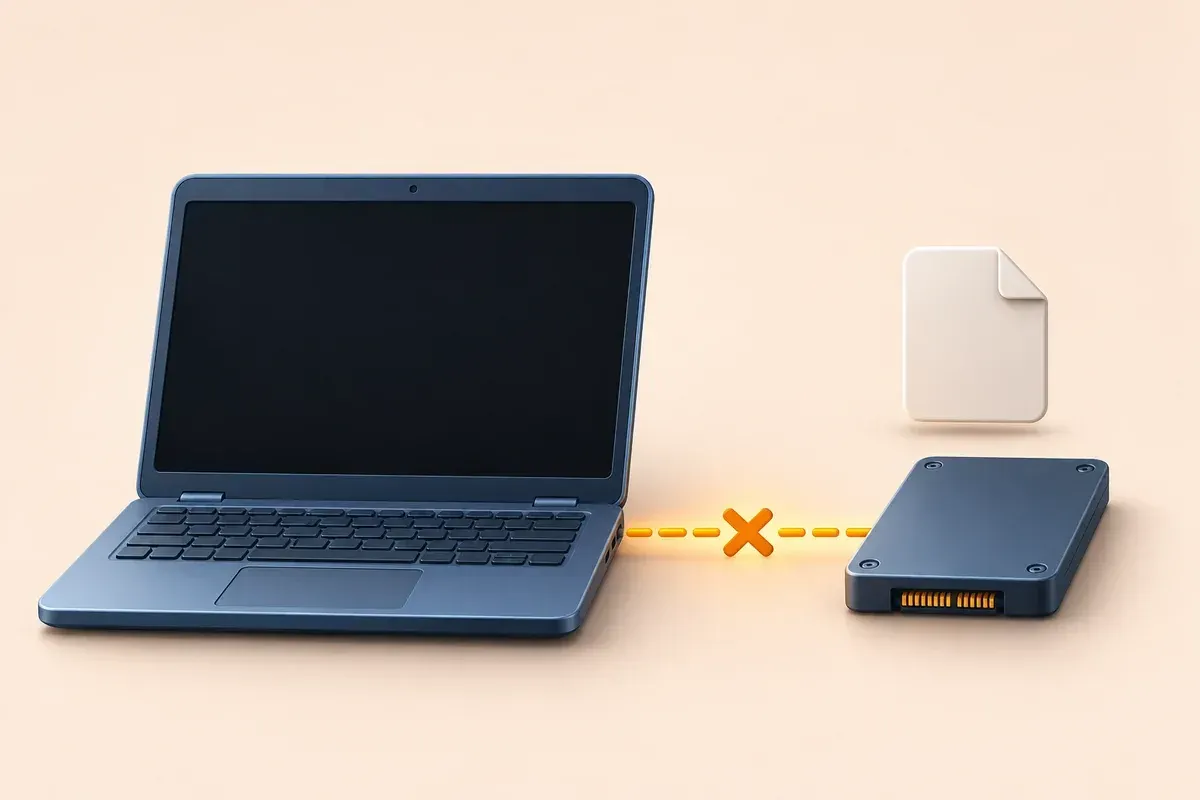
Photograph the complete recovery screen before changing anything. For 0xC000000F, record the File and Info lines, check that the Windows drive remains visible, then use Windows Recovery to try Startup Repair. Rebuilding boot files comes later, after confirming which Windows installation and system partition the computer actually uses.
If you arrived by searching 0xc00000f, compare it with the full code on your screen: this guide addresses 0xC000000F. Microsoft defines that eight-digit status as STATUS_NO_SUCH_FILE. It doesn't identify the missing file or prove that the drive has failed.
Read the File line before choosing a repair
Keep the exact path and message together. A screen naming \Boot\BCD or an EFI BCD path points your investigation toward boot configuration. A screen naming \Windows\System32\winload.efi identifies a later loader component. Microsoft's boot-phase troubleshooting guide separates Boot Manager from the Windows OS loader; the same final code isn't a reason to apply every repair to both.
| What you can establish | Next step |
|---|---|
| The internal drive disappears or cannot be read reliably | Protect files and investigate storage access before boot-file writes. |
| The drive is readable and the screen names BCD | Try Startup Repair, then confirm the Windows and system partitions. |
| The screen names winload.efi | Keep that path, firmware mode and recent-change history; don't download a replacement loader. |
| The error followed cloning, imaging or a second-drive change | Check whether boot files still depend on another disk. |
Also note whether this was an existing working installation or the first boot after Setup. If the error appears while starting the installation USB, check that media and its boot entry separately; that is not yet a failure to boot an installed Windows. Record a recent update, image deployment, BitLocker change or firmware change without assuming that the last event proves the cause.
If the screen instead says DISK BOOT FAILURE, INSERT SYSTEM DISK before Windows Recovery appears, start with the firmware drive-detection and existing boot-entry checks. Identify the attempted device before applying BCD repairs.
Get to recovery when Windows won't open
You don't need to reach desktop Settings. If the PC already opens Windows Recovery, select Troubleshoot > Advanced options. Otherwise, use another working computer to create approved Windows installation media, connect it to the affected PC and boot from it. Microsoft's installation-media recovery route takes you through the language screen, Next, Repair my PC and Next to Windows RE. Older media may label the repair option Repair your computer.
Choose the repair route rather than starting a new installation. Keep your file backup and BitLocker recovery key available before repair writes. An encrypted installation may require the key for recovery tools; keep the key private and obtain organizational help for a managed device.
A USB stick can have separate UEFI and legacy BIOS boot entries. Use the entry matching the installed system's boot mode. Microsoft's firmware-mode guidance explains that distinction. Don't switch SATA modes, disable Secure Boot or convert the disk just to make a copied command run.
Try Startup Repair and keep its result
With the drive accessible and files protected, select Troubleshoot > Advanced options > Startup Repair > Restart. Startup Repair attempts to repair startup problems including damaged system files and boot configuration. Let the attempt finish, then keep its final message.
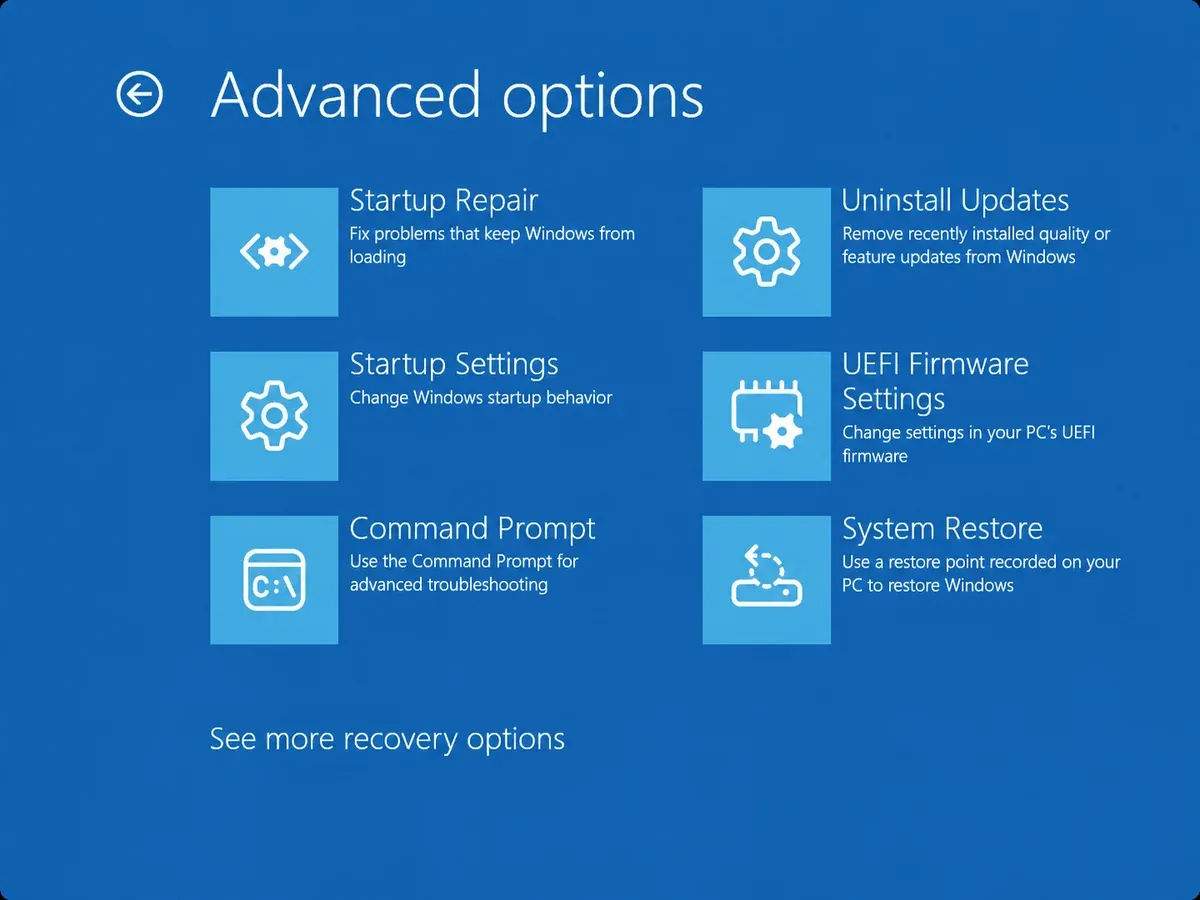
If it cannot repair the PC, use the failure report rather than repeating the same attempt. Microsoft's boot troubleshooting guide identifies %windir%\System32\LogFiles\Srt\Srttrail.txt as the Startup Repair log. In recovery, locate it under the confirmed installed Windows directory, not an assumed desktop drive letter. The Startup Repair failure guide covers that result as its own branch.
Confirm the Windows volume without changing partitions
Open Command Prompt in Advanced options. First list the storage layout:
diskpart
list disk
list volume
exit
These are inventory commands. Save the disk and volume listing locally; don't add clean, format, delete partition or active. DiskPart's command reference distinguishes listing from commands that modify the selected object.
Drive letters can change in Windows PE. Use the listing and directory contents to identify the intended installation. If D: is your candidate, these read-only checks help confirm it:
dir D:\Windows\System32
dir D:\Users
D: is an example, not a required Windows letter. A folder with a familiar name doesn't settle which installation you want on a multiboot PC. If the expected volume is locked, absent or unreadable, stop here and resolve access before copying boot files. Record separately whether firmware detects the physical drive and whether recovery can read its Windows volume; absence in one view is not a complete diagnosis. Don't treat an access error as proof that Windows has been erased.
The Windows volume and the system partition containing boot files are different roles. Microsoft's UEFI/GPT partition guidance identifies the EFI system partition as FAT32, but a small FAT32 volume alone isn't enough to establish the right target. It could be installation media or a different system's partition.
Keep the existing internal disks connected while documenting the dependency. In a Tom's Hardware SSD thread, the owner could boot by selecting the HDD while selecting the SSD produced a BCD error. Advice about GPT and UEFI was followed by the owner's statement that the disk used MBR, and the thread ended without a confirmed resolution. I'd verify the actual layout instead of copying a partition number or disconnecting the disk that may hold the working boot files.
Rebuild files only for a confirmed boot target
BCDBoot copies boot-environment files from a Windows directory to the system partition. It can help when the Windows installation is readable and the boot files need repair. It can't make an intermittently disappearing drive reliable.
For an existing, unambiguous system partition and a Windows installation that you have confirmed is D:\Windows, Microsoft's system-partition repair example uses:
bcdboot D:\WindowsThis is a write operation and a conditional example. Confirm the boot mode, Windows source and destination first. On UEFI systems, the default operation can add a Windows Boot Manager firmware entry and move it first in the boot order. If multiple disks or EFI partitions make that destination uncertain, have the layout reviewed before running it.
Don't append /s or /f UEFI from an unrelated guide. The /s switch explicitly selects a system partition; on UEFI it also changes the firmware behavior because BCDBoot doesn't create the normal NVRAM entry when /s is used. The /f option requires /s. Use the confirmed boot-target and BCDBoot checks for that explicit-target branch or a “requested system device cannot be found” command result.
A Windows 8.1 winload.efi report illustrates the distinction: Bootrec found Windows on D: but its write commands returned file-not-found errors; the author then reported being able to run bcdboot D:\Windows. That was a specific 2015 installation, not proof that D: or the same repair applies to every Windows 11 boot failure.
Stop when the evidence points away from BCD
If storage access is unstable, prioritize a current backup and a hardware assessment. In the SSD thread above, reinstalls and connector changes gave only temporary relief before the error returned. Another drive-replacement discussion included earlier slowness and disk-repair symptoms, but its replies didn't establish a final diagnosis. Neither case justifies replacing a drive from the code alone.
A mirrored Sysprep and BitLocker report describes a Windows 10 imaging sequence followed by a winload.efi failure. Its mixed replies don't provide a confirmed fix. If your failure follows organizational imaging or encryption, give IT that sequence; don't turn it into a generic instruction to remove encryption or change Secure Boot.
I wouldn't start a forced disk-repair scan or replace winload.efi with a downloaded file merely because a numbered fix list recommends it. A missing-file status doesn't establish file-system damage, and the next write should address an identified condition. If this is a new installation, distinguish failure to boot the installer from failure on the first boot of the installed Windows before deciding which device to investigate. Don't delete partitions containing files you still need.
Verify the internal-drive boot
After a repair reports success, shut down, remove the installation USB and try the intended internal Windows Boot Manager or existing system boot entry. Confirm that the expected Windows installation reaches sign-in. Then restart again and check that the same boot route works without relying on the USB.
A “boot files successfully created” message verifies the copy operation, not a completed Windows startup or healthy storage. If the error returns, save the new full code, File and Info lines, disk visibility, selected boot entry and the exact repair command and result. A changed error needs its own investigation.
If recovery remains uncertain, keep the existing partitions and backup intact while support reviews the layout and Startup Repair log. Remove recovery keys, account names and device identifiers from copies you share. The startup and recovery hub connects the separate boot-code, repair-tool and recovery-access paths.



