
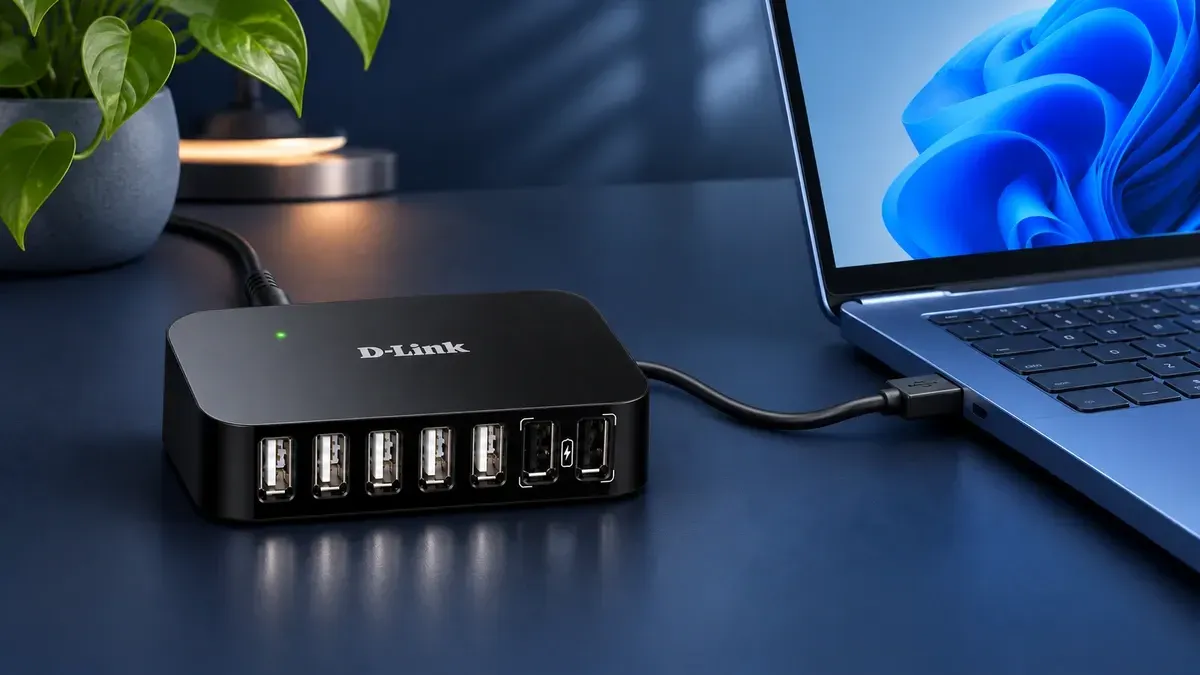
For a D-Link DUB-H7 revision F1 on Windows 10, connect the hub's power adapter and USB data cable first. D-Link's installation guide says Windows automatically detects the hub and installs its drivers; it doesn't direct you to a separate setup program. Check the H/W revision on your hub before using that guide or choosing a download for another revision.
I'd start with the revision and cable connection because a search result labeled “DUB-H7 driver” can lead to an unrelated manual, an old archive or a driver updater. None establishes which file your particular hub needs.
Check the model and hardware revision
Read the product label on the bottom or back of the hub. D-Link's hardware-version instructions identify the revision with H/W. Record both the model, DUB-H7, and that revision. A matching seven-port shape or a similar model name is insufficient.
The official F1 Quick Install Guide explicitly lists Windows 7, 8, 8.1 and 10. Its instructions apply to that documented revision. Don't use a DU-H7 manual or a DUB-H4 four-port guide as evidence for a DUB-H7 installation.
Connect the hub before looking for an installer
For the F1 setup, follow the connection order in that guide:
- Connect the supplied power adapter to an AC outlet and to the hub's power connector.
- Connect the square USB Type-B end of the supplied data cable to the hub's upstream port.
- Connect the rectangular end to an available USB port on the computer.
- Let Windows detect the hub and install the drivers automatically. Then connect your USB devices.
The front USB ports are for peripherals; the upstream connection links the hub to the computer. I'd test one known working peripheral first, such as a mouse, before reconnecting everything. Check that it performs its normal task through the hub. A charging phone or an illuminated hub alone doesn't verify the data connection.
Automatic installation doesn't mean Windows uses no driver. Microsoft's USB class-driver documentation explains that supported class drivers are included in Windows, install automatically and receive updates through Windows Update. That is different from downloading a vendor setup program.
Find the official downloads for your revision
- Open D-Link's US DUB-H7 support page and confirm that the product heading is DUB-H7, 7-Port USB 2.0 Hub.
- Under Downloads, select the hardware revision that matches your label. The page warns that the correct downloads depend on this selection.
- Read the row description before selecting Download. For revision F, Click DOWNLOAD for all resources (Legacy Site) opens the archive; it isn't the name of a Windows driver installer.
- In the archive, keep the same revision. The official REVF directory contains an F1 datasheet and Quick Install Guide. Use the guide for the connection instructions above.
If your label's revision isn't available, stop before choosing a different one. Use the official regional product support route to identify the correct material; a search result's Windows 10 label doesn't establish that an old ZIP file matches your hardware.

D-Link's US page identifies this product as discontinued with technical support ended. The global product page's “Live” label for revision F doesn't change the US support notice. Keep the support region and hardware revision together when reading those pages.
If Windows still doesn't recognize the hub
Before unplugging external storage to change connections, stop file transfers and use Windows' Safely Remove Hardware and Eject Media option. Wait for the safe-removal notification before disconnecting the drive.
Before changing drivers, check the connection at each end and inspect the cable and ports for damage. Stop using damaged hardware. Where the connectors allow, compare the same peripheral connected directly to the PC with its behavior through the powered hub. ASUS's USB connection checks use this comparison and a second computer to narrow down the failing path.
| What you observe | What to check next |
|---|---|
| The peripheral works directly but fails through the hub | Recheck the hub's power supply and upstream data cable. Try another compatible PC port. |
| The hub works on another computer | Record the original PC's Windows version and exact device error. That result doesn't establish a faulty hub. |
| Only one attached device fails | Check that device's own installation instructions. A working hub doesn't install every printer, scanner or other peripheral's software. |
| The hub fails on both PCs | Record the tested cable, power supply and revision for the manufacturer or repair service. Don't assume another driver archive will fix it. |
For an existing USB drive containing important files, cancel prompts to format or initialize it while checking connections. If the remaining problem is USB device not recognized on Windows 11, follow the existing USB detection and Device status checks. Those steps address the Windows error without repeating the model-specific download search.
The F1 guide's Windows 10 listing isn't a Windows 11 certification statement for every DUB-H7 revision. Keep your exact revision, Windows version, connection-test results and error message together for further support. For a different hardware symptom, choose the matching task in the device troubleshooting hub.


