

If Windows 11 is stuck on Shutting down, first check whether it is still applying an update. Keep power connected and allow an active update to finish. If the screen remains unresponsive with no ongoing update or firmware operation, a forced shutdown may be the last way out, but it can lose unsaved work. After starting Windows again, compare a normal shutdown with a full shutdown before changing several settings.
I would investigate what prevents power-off rather than make holding the power button a daily routine. A usable desktop, an app-blocking message and an unresponsive Shutting down screen each give you a different starting point.
If you have not reached Shutting down because a typed shutdown command is rejected as "not recognized", check shutdown command discovery in CMD or PowerShell first. That failure happens before Windows starts the shutdown operation.
Get out of the current hang without interrupting an update
Read the exact message. Working on updates, a changing percentage, a firmware update and plain Shutting down aren't interchangeable. Don't cut power to an active firmware update. For an update that continues to progress, leave the PC connected to power rather than forcing it off to start the checks below.
ASUS's Windows 11 shutdown troubleshooting begins by allowing time for ongoing tasks. If the device has remained stuck and a forced shutdown is necessary, hold the power button until the power light goes off, following your device manufacturer's instructions. Unsaved work can be lost and an interrupted write may need recovery. Use this as an exit from an unresponsive machine, not as evidence that the underlying problem is fixed.
If the device won't power off, use support instructions for the exact model. Don't open a laptop to disconnect a sealed battery or perform a CMOS/EC reset copied from a different device. Manufacturer hardware-reset procedures are separate from Windows troubleshooting.
Start the PC again and back up important files once the desktop is usable. Record how long the hang lasted, whether the screen or only the display went dark, whether fans or power lights stayed on, and which accessories were connected. A dark monitor alone doesn't tell you that the computer completed shutdown.
If the fans have stopped and only RGB or a USB accessory remains lit, check shutdown lighting and standby power before following the repair comparisons below. That route separates a powered light from a shutdown that has not completed.
Compare normal shutdown, Restart and full shutdown
Save your work and close apps normally first. If Windows says an app is preventing shutdown, cancel shutdown when offered, return to that app and save or close its work. Don't end an unfamiliar system process just because it appears in a shutdown message.
From a working desktop, make these observations separately:
- Choose Start > Power > Restart. Does Windows return to sign-in normally, or does Restart also hang?
- After signing in and saving work, choose Start > Power > Shut down. Note whether the computer powers off.
- If ordinary shutdown repeatedly hangs, try a full shutdown from the working desktop: open the same Power menu, hold Shift, and select Shut down.
The Shift method is documented in ASUS's full-shutdown instructions for Windows 11. It requires a responsive Windows session; it isn't a key sequence that repairs an already frozen shutdown screen.
| Result | Next useful step |
|---|---|
| Restart works, normal shutdown hangs, full shutdown works | Temporarily disable Fast Startup and compare normal shutdown again. |
| Both Restart and shutdown hang | Investigate connected devices and background software; Fast Startup alone doesn't explain the pattern. |
| A named app blocks shutdown | Save and close that app, then test without it running. |
| Only one account triggers the problem | Record that account pattern and recent startup-app or task changes for investigation. |
| A stop code appears instead of a silent hang | Record the code and use its specific crash route. |
Temporarily turn off Fast Startup
Fast Startup saves system state to make startup after shutdown quicker. It differs from a complete restart. For a normal-shutdown-only failure, I would test this setting before reinstalling Windows.
Use the Windows 11 Fast Startup setting as a reversible comparison:
- Search Start for Choose a power plan and open it.
- Select Choose what the power button does in Power Options.
- If the shutdown settings are grayed out, select Change settings that are currently unavailable and approve the permission request if you are authorized.
- Record the original setting. Clear Turn on fast startup (recommended), then select Save changes.
- Close apps and try ordinary Shut down again. Record whether the PC powers off.
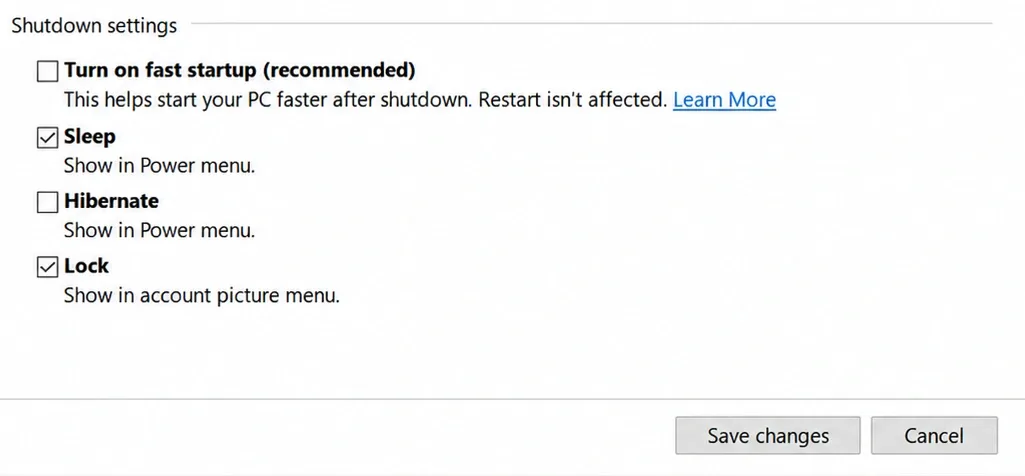
If the option isn't offered, don't enable hibernation or change unrelated firmware settings merely to make the checkbox appear. Record that the test isn't available on this device. Windows Fast Startup and a firmware setting called Fast Boot are different settings.
If disabling Fast Startup makes no difference, restore its original state before investigating another cause. If it consistently changes the outcome, keep that observation with the device and driver details. It narrows the failing shutdown path; it doesn't identify a particular driver or guarantee that every future shutdown will succeed.
Test accessories and background software separately
While Windows is usable, finish file copies and safely eject removable storage before disconnecting it. Compare shutdown without nonessential external devices such as a dock, printer or USB accessory. ASUS includes external devices in its shutdown checks. Don't disconnect the system drive, remove storage during a write or leave a desktop without its needed display and input devices.
If removing one accessory changes the result, reconnect devices individually and check that device's official driver or firmware guidance. If the failure began after a driver update, use the manufacturer and Windows driver options for the affected device. Avoid an all-driver updater or changing several packages in one test.
If an app or background service remains a plausible cause, use Microsoft's clean-boot procedure. It requires a usable Windows session and administrator access. On a managed PC, involve IT; temporary loss of functionality is possible.
- Record enabled startup items and service states before changing them.
- Search for
msconfigand open System Configuration. - On Services, select Hide all Microsoft services before selecting Disable all, then Apply.
- On Startup, open Task Manager. Disable the enabled items under Startup apps, keeping your record of what changed.
- Close Task Manager, select OK in System Configuration and restart. Test the same shutdown operation.
Don't change advanced Boot options. If clean boot changes the shutdown result, reenable the disabled third-party services or startup items in groups, restarting and testing between groups, until you isolate the relevant item. Contact that software's vendor rather than leaving a broad set of services disabled.
After the comparison, follow the same Microsoft procedure to restore normal startup: select Normal Startup on General, restore services and the startup items you disabled, then restart. Use the recorded original states so that previously disabled items aren't accidentally enabled. Clean boot is a temporary diagnostic state, not a repair to leave in place.
Use reported outcomes to avoid repeating an unsuccessful repair
In a Windows 11 shutdown case from 2023, the poster said reinstalling Windows and running SFC hadn't fixed the hang. The poster later said the suggested updates, drivers and clean-boot checks still left shutdown and Restart hanging. That report is a reason to record failed checks and escalate with evidence, not a reason to assume reinstalling always works.
A separate Windows 10 discussion suggested disabling Fast Startup, while a later participant reported a hang despite already using the suggested power settings. These aren't comparable controlled tests, so they don't establish a success percentage. The useful observation is whether the setting changes the outcome on the affected PC.
Another Windows 11 account-specific report mentions Task Host and a recently scheduled task. Task Host appearing on screen doesn't prove that Windows Defender is defective. Record recent task changes and the affected account; don't disable security protection just to remove a suspected cause.
Check system files, then hand off the remaining evidence
If Windows remains usable and the targeted comparisons haven't explained the hang, ASUS recommends a system-file check. Follow Microsoft's SFC procedure: install applicable Windows updates and restart, open Command Prompt as administrator, then run DISM. Wait for successful completion before running SFC:
DISM.exe /Online /Cleanup-image /Restorehealth
sfc /scannow
These commands apply to running Windows. Record any command failure and whether normal shutdown changes afterward; a successful scan isn't proof that power-off is repaired. Don't use registry timeout edits to conceal a process that still cannot close cleanly.
For continuing hangs, give support the exact Windows build and PC model, connected accessories, the last relevant change, whether Restart/full shutdown/normal shutdown differ, and what happened with Fast Startup and clean boot. Use the manufacturer's model-specific advice before a BIOS update, hardware reset or Windows reset. Protect files before recovery changes.
If a crash explicitly says DRIVER_POWER_STATE_FAILURE, follow the driver power-state failure guide. If Windows cannot reach the desktop after a forced shutdown, use the startup recovery route. The startup and recovery hub lists the other symptoms. Verify the repair by completing an ordinary shutdown, then starting and using Windows normally.




