

DRIVER_POWER_STATE_FAILURE (0x9F) means a driver is in an inconsistent or invalid power state. Start by recording whether the crash follows sleep, waking, shutdown, restart or connecting a device, then check the driver or hardware change immediately before it began. The code doesn't identify one specific device.
I would change one relevant item and repeat the same power transition before trying a broad Windows repair. A laptop that crashes only when restarting through a dock gives you a more useful comparison than a list of every driver installed on it.
Record the transition that triggers the crash
| When it happens | Comparison to record | What the result can tell you |
|---|---|---|
| After a driver update | Driver version and date before and after the first failure | A relevant rollback can compare the changed driver. |
| When a dock or optional peripheral is attached | The same action with the accessory safely disconnected | A repeatable difference narrows the device path. |
| During sleep or waking | Whether normal restart works and whether the problem follows that sleep transition | Avoiding sleep temporarily may isolate the trigger, but doesn't repair it. |
| During every shutdown or restart | Exact time, stop code and any available crash dump | The device and driver need evidence beyond the generic code. |
Microsoft's 0x9F reference describes several power-request and transition failures. Record the exact screen text and any named file, plus the PC model, connected devices and last driver or hardware change. A filename in a crash summary is a clue to investigate, not permission to delete that file.
Back up important files while Windows is available. On a work or school device, involve its administrator before changing managed drivers, security software or firmware. Save open work before a restart or a deliberate sleep comparison.
Roll back a relevant recent driver before changing unrelated devices
If the failures began immediately after one driver update and you can use Windows, record its current version and try the supported rollback. Microsoft requires administrator permissions for this operation in its Device Manager driver instructions.
- Right-click Start and open Device Manager.
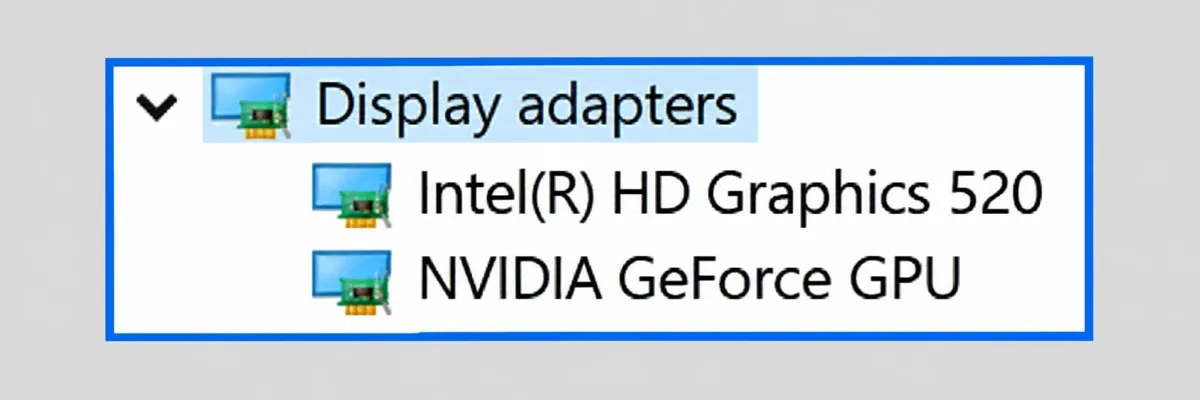
- Expand the category containing the relevant device. Identify the actual device; don't choose a similarly named item by guesswork.
- Right-click it and select Properties > Driver. Record the provider, date and version.
- Select Roll Back Driver if available, choose the reason and confirm. Restart if prompted.
- Repeat the action that previously triggered the crash, keeping other conditions the same.
If Roll Back Driver isn't available, use the PC or device manufacturer's instructions for a compatible version. Match the exact model, Windows version and architecture. Windows Update also supplies drivers for many devices. Don't use an unrelated driver-download site or a tool that replaces a whole set of drivers without identifying the relevant change.
If you decide to reinstall a specific device driver, obtain the appropriate replacement and recovery instructions first. Microsoft's procedure uninstalls the selected device and restarts Windows, which attempts to reinstall its driver; that attempt isn't a guarantee that every device will be ready afterward. Keep network access or another working PC available when the affected driver controls connectivity.
If the affected PC cannot download the needed package, use another working PC to obtain the exact compatible driver from the manufacturer's official site and transfer it on a USB drive. Follow that package's installation instructions; for an extracted driver package, Microsoft's Device Manager procedure uses Update driver > Browse my computer for drivers to select its folder.
Compare the same action with optional accessories disconnected
If the crash began with a dock, USB device or display change, save work and disconnect the optional item using its supported removal procedure. Keep the power supply, display and input devices needed to use the PC. Don't unplug storage that is still in use.
Repeat the same shutdown, restart or sleep-and-wake action. If it works without the accessory, reconnect items one at a time and record whether the failure follows a particular connection. Check the manufacturer's driver, dock firmware and compatibility guidance for that exact combination rather than updating every component at once.
Record the power source too. Disconnecting a charging dock can also move a laptop from external power to battery. Use the manufacturer's approved direct power supply when appropriate to keep that condition comparable; if you cannot, tell support that both the connection and power source changed. The result narrows the scenario without proving which part caused it.
A useful example appears in an Intel UHD 750 support discussion: a later contributor reported a restart failure tied to a particular monitor over HDMI, while another display connection worked. That report concerns an older Windows 10 configuration. It supports checking the connection combination; it doesn't establish that Intel graphics or HDMI causes every Windows 11 0x9F crash.
Use a temporary sleep comparison without treating it as a fix
For a sleep-specific failure, first record the existing sleep timers. Microsoft's Windows 11 power settings place them at Settings > System > Power & battery > Screen, sleep & hibernate timeouts. Labels and available controls can vary by device.
For a short, attended comparison, temporarily prevent automatic sleep using the relevant Make my device sleep after setting, then observe whether the normal working session stays usable. Keep the PC ventilated and don't put an awake laptop in a bag. Restore the recorded timer afterward. A crash avoided only by never sleeping leaves the original transition problem unresolved.
Change the device-sleep timer for the power source you are checking, not just Turn my screen off after. Screen-off and device sleep are separate controls. Record battery and plugged-in values separately so you can restore the correct ones.
Don't disable power management across all devices or change firmware power features at random. Microsoft's 0x9F guidance treats temporary power-saving changes as isolation; the useful result is a more specific trigger to investigate.
Use device events and crash dumps to identify the driver path
In Device Manager, look for warnings and inspect the relevant device's properties and events. In Event Viewer > Windows Logs > System, record device or driver errors around the crash time. Microsoft's 0x9F guidance recommends both checks. An apparently normal Device Manager tree does not identify the cause of a later power-transition failure.
If Windows created small memory dumps, preserve the files around the relevant crash dates from %SystemRoot%\Minidump, commonly C:\Windows\Minidump. Microsoft's small memory dump explanation describes the stored stop information, loaded drivers and limited context. Share the files through a support channel you trust rather than posting a public download link by default.
Ask for analysis of the actual device stack and the blocked power request, using several relevant dumps when available. Names such as pci.sys, ACPI.sys or a USB hub driver can appear in the path; the name alone doesn't tell you which physical device or third-party driver should be replaced. If there is no matching dump, report that and keep the exact crash time and screen information.
If the device you are investigating is NVVHCI Enumerator, use the NVVHCI identity and driver-compatibility checks before selecting a package. Its name in a driver list alone doesn't establish the cause of a power-state crash.
If crash analysis specifically names Netwtw12.sys, use the Intel Wi-Fi driver crash checks to record the wireless model and version and prepare a replacement installer before removing connectivity.
If crashes prevent a usable desktop, use recovery first
From recovery, choose Troubleshoot > Advanced options > Startup Settings > Restart, then 4 or F4 for Safe Mode. The Startup Settings choices also include 5/F5 for Safe Mode with Networking, but don't assume that your network connection will work there.

Have the account password ready; Windows Hello PIN and biometric sign-in aren't available in Safe Mode. Encrypted recovery may also request the BitLocker recovery key. If Safe Mode works, preserve files and make the relevant supported driver change, then restart normally. If it also fails, record that result rather than repeating it indefinitely.
If the failure followed a system change and an appropriate restore point exists, Troubleshoot > Advanced options > System Restore can roll back system changes while keeping personal files. Review affected apps and drivers in Microsoft's System Restore procedure. If the tools cannot be reached, use the recovery-entry and official media route before considering a reset.
Don't enable Driver Verifier as a routine repair
Driver Verifier can deliberately crash a computer when it detects a driver violation. Microsoft limits its use to computers being tested and debugged. It isn't a general instruction to enable verification for every driver on a PC you need for daily work.
If you already enabled it while troubleshooting and need to stop verification, Microsoft's documented reset is verifier /reset from an administrator Command Prompt, followed by a restart. If normal Windows won't load, seek a usable Safe Mode session through the route above. This resets verification settings; it doesn't itself repair the driver that caused the original 0x9F failure.
Retest the original transition with normal settings restored
After a targeted change, restore temporary sleep settings and check the same action with the same intended accessories. Confirm ordinary restart and, if relevant, sleep and resume. Keep a note of the driver version and result. One crash-free session is useful evidence, not a guarantee that an intermittent problem is gone.
If the error returns, give support the PC and accessory models, trigger, driver versions, event messages, relevant dumps and the result of each controlled comparison. Use the startup and recovery hub for a different stop code or boot-stage failure rather than applying 0x9F advice to every restart problem.




