
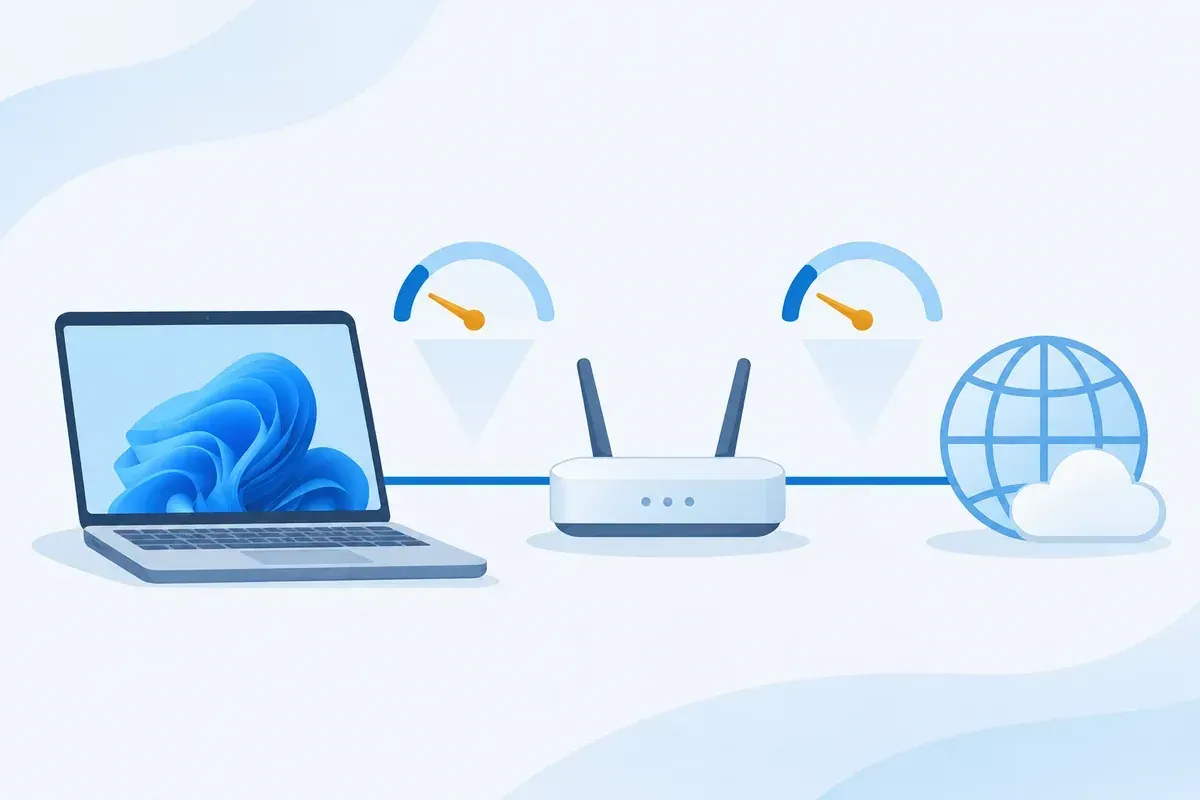
For slow internet in Windows 11, compare the same PC near the router, another device in the same location and a wired connection if one is available. Those comparisons tell you whether to investigate Wi-Fi coverage, the PC or the internet service. A network reset won't increase the capacity of a slow line or an older wireless adapter.
I'd record a repeatable baseline before changing a driver. Otherwise, a quieter network or a different test server can look like a successful repair.
Measure the connection you want to fix
First identify what feels slow: a speed test, a large download, every website, one application or a game. A game that responds late needs latency checks as well as download speed. If Wi-Fi disconnects altogether, use the recurring disconnection guide instead.
Microsoft's home Wi-Fi guidance recommends recording several speed tests in different locations and comparing results after changes. Use one trusted test, keep the same server when the test allows it and record download, upload and latency results. Run devices one at a time, with your own large downloads, cloud transfers and streams paused for the comparison. Restore them afterward; don't disable Windows security or permanently turn off updates.
| Compare | Read the difference |
|---|---|
| PC near the router versus its normal location | A large change points toward wireless coverage or interference. |
| Another device beside the PC | One slow device warrants its adapter, antenna and software checks. Devices can have different capabilities. |
| Same PC on Ethernet | Good wired performance narrows the investigation toward the wireless path. |
| Another website or app | One slow service calls for checking that service and app before resetting Windows networking. |
Keep your actual results rather than comparing unlike devices with headline plan speeds. CenturyLink's slow-connection checklist distinguishes service-line, Wi-Fi and device problems and notes that the plan's bandwidth is shared by the household. A router's own service test and a laptop's Wi-Fi test measure different paths.
If moving closer or using Ethernet helps
Move the PC or access point to reduce walls and metal obstructions. Place the router in an open, central location rather than behind furniture. For a desktop with external Wi-Fi antennas, check the model's installation instructions and make sure the supplied antennas are attached. Don't open the case to start this comparison.
Compare a different supported Wi-Fi band if your router already broadcasts it. Microsoft describes 2.4 GHz as having longer range, while 5 GHz generally offers faster throughput over a shorter range. Using 5 GHz through a floor isn't automatically better. A 6 GHz connection requires compatible equipment and drivers.

Don't force an arbitrary channel width, wireless mode or transmit-power value from a forum. Those controls vary by adapter and router. If the comparison points to interference, follow the router maker's guidance for your model and record the original setting before changing one item. On a work or school network, give the results to its administrator.
For a slow wired connection, check the cable, router LAN port and any dock or USB Ethernet adapter. Use a known-working compatible cable or another supported port for comparison. The Ethernet troubleshooting guide covers that path. Repeated Wi-Fi tweaks won't fix a damaged wired link.
If this PC is slow on otherwise working connections
Check the PC's own downloads and sync applications, then other household traffic. Microsoft's internet performance explanation includes running programs, browser add-ons, computer resources and outside congestion. Close an unnecessary app normally and repeat the same test. Don't end unfamiliar system processes or install a speed-booster utility.
If speed tests are reasonable but one browser struggles, compare another current browser or the same service's app. Check that browser's update and extension troubleshooting instructions. Avoid clearing all browser data as the first experiment: it can remove saved sessions without establishing why the network is slow.
For a persistent adapter-specific problem, identify the actual Wi-Fi or Ethernet device in Device Manager > Network adapters and record its driver version. Check Windows Update and the PC, motherboard or adapter maker's supported package for the exact model, Windows version and architecture. Microsoft's driver update instructions explain the official installation routes.
A problem that began immediately after a driver update may justify checking Properties > Driver > Roll Back Driver, with administrator permission and an earlier driver available. Keep a compatible offline replacement before any uninstall. Follow the offline wireless-driver recovery checks if needed. Don't replace unrelated drivers or flash firmware just because a general checklist recommends it.
What the reported checks establish
In a Windows 11 discussion about one slow PC, the poster reported much lower speeds downstairs than on other devices. Forcing a wireless mode made performance worse; restoring it improved the result somewhat, while downloaded drivers and reset commands hadn't resolved the problem. The reply proposed several further checks, but the thread doesn't report a completed repair. It supports comparing location and hardware before copying its advanced settings.
Another discussion about speed falling during a session reports a temporary improvement after toggling Airplane mode, followed by the slowdown returning. A later reply says the suggested methods and a fresh Windows installation hadn't helped. A brief recovery after reconnecting is a reason to retest the original pattern, not a reason to declare the issue solved.
If several devices are slow
Check the provider's outage information and your router or modem's status using its official instructions. If the equipment offers a service-line test, record that separately from device tests. Explain whether wired and wireless devices are affected, when it happens and whether upload or download is worse.
A router restart can interrupt everyone using the network. Save work, warn other users and follow the equipment's restart instructions. Don't factory-reset the router or change provider credentials as an initial speed check. If performance repeatedly deteriorates after a restart, retain the timing and contact the provider or equipment maker.
Network reset belongs after targeted PC checks, with its adapter, VPN and network-profile consequences understood. It isn't a routine speed optimization. After any change, repeat the original app and test conditions, restore paused traffic and check again during the time of day that caused the problem. Bring those results to support if the slowdown continues. The network troubleshooting hub links the other connection symptoms.


