
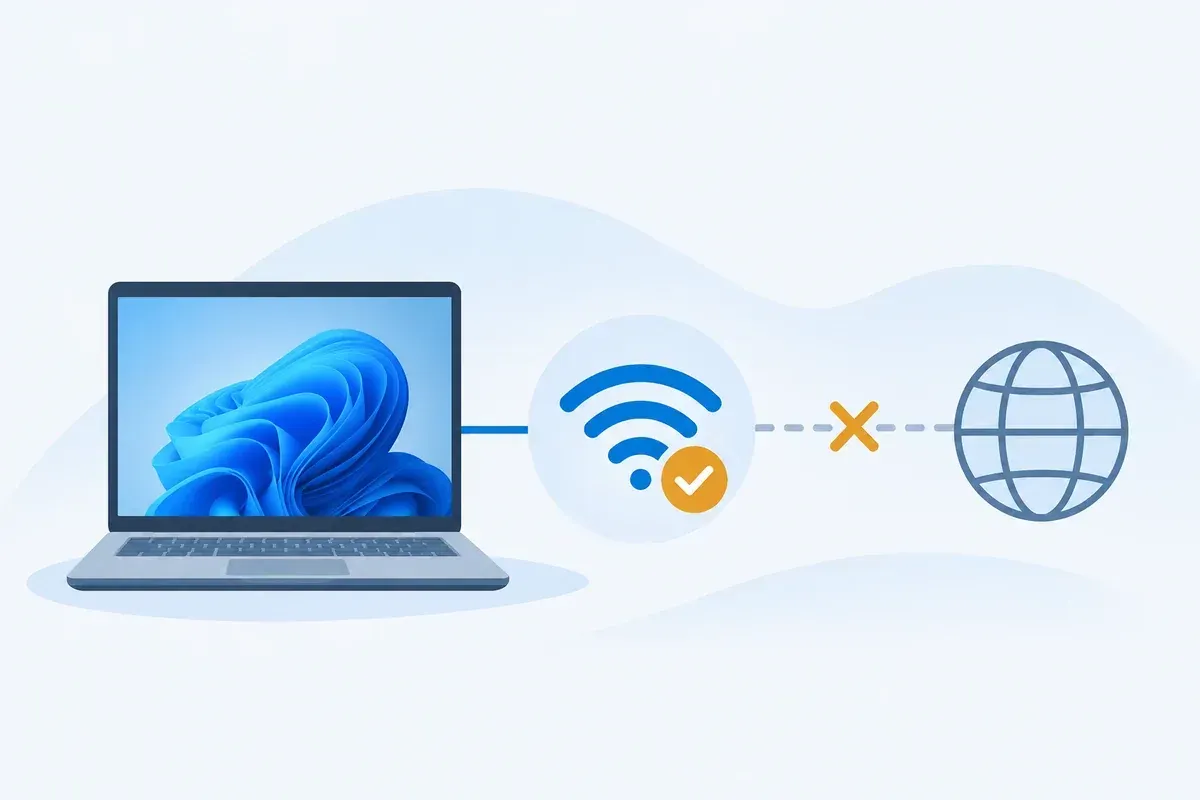
A Windows 11 laptop can join a phone's hotspot without getting a working internet connection. Check the phone's own cellular access, try a second device on the hotspot, and test the laptop on another network. Those comparisons tell you whether to investigate the phone, its hotspot allowance or Windows.
First establish which device is sharing the connection. If your PC joins an iPhone or Android phone, Windows' Mobile hotspot switch isn't the control you need. That switch makes the PC share its own connection. The Windows-host case has a separate section below.
Locate the failure before changing settings
Save your work and make the comparisons locally, where a brief disconnection won't end a remote-support session. Use two unrelated websites and the application that originally failed. Don't rely only on the words Connected, no internet.
| Comparison result | Investigate next |
|---|---|
| The phone can't browse using cellular data | The phone's cellular connection, coverage or carrier service. |
| The phone browses, but two devices fail on its hotspot | The hotspot configuration and carrier's tethering allowance. |
| A second device works on the hotspot; only Windows fails | The PC's connection profile, adapter, address assignment or app configuration. |
| Windows browses, but its icon or one application reports no internet | The exact application or connectivity-status detection. |
For a cellular comparison, temporarily disconnect the phone from home Wi-Fi and check that it can open a page using mobile data. Then test the hotspot again. Some Android phones can share Wi-Fi, according to Google's tethering instructions, so establish the actual upstream connection rather than assuming it is cellular. Restore the phone's usual settings afterward.
When comparing Windows, use another trusted network. A failure limited to one hotspot needs a different investigation from a PC that fails on every Wi-Fi network. If only Chrome has a DNS probe error, follow the Chrome connection checks.
If the phone or every hotspot client fails
Check the phone's hotspot screen for an error, device limit or carrier message. Confirm the plan's hotspot allowance, not just the phone's data allowance. Google notes that carriers can limit or charge extra for tethering. In the US, Verizon's hotspot FAQ distinguishes plan-specific high-speed hotspot allowances and reduced speeds afterward. Reaching a high-speed limit doesn't universally mean service stops; check your own carrier and plan.
Once any ongoing transfer can be interrupted, turn the hotspot off and back on and reconnect the test device. A normal restart of the phone and client is also reasonable. Recheck after each change so you can identify what affected the result.
For iPhone, open Settings > Personal Hotspot and confirm Allow Others to Join. Apple's Personal Hotspot troubleshooting guide recommends current iOS and restarting both devices. If an iPhone 12 or later has a Wi-Fi compatibility problem, Maximize Compatibility is an available comparison; Apple warns it can reduce internet performance and Wi-Fi security. It isn't a general cure for a carrier-side failure.
On Android, names and options vary by model. Use the manufacturer's hotspot instructions and keep password protection enabled. If a VPN or custom DNS setting changed just before the problem, record it and check the provider's supported tethering configuration. Don't disable managed protection, insert random APN credentials or remove the hotspot password to test internet access.
If the hotspot works for another device
Confirm that Windows joined the intended phone's network. If its name or password changed, reconnect using the current details. To remove just that saved connection, open Settings > Network & internet > Wi-Fi > Manage known networks, select the hotspot and choose Forget. Have its password ready before reconnecting. This doesn't require deleting every saved network.
Microsoft's Windows Wi-Fi guidance covers reconnecting and the Network and Internet troubleshooter in Get Help. Save the troubleshooter's exact findings. If Windows cannot see or join the hotspot at all, use the missing Wi-Fi network checks instead.
For a joined connection that still fails, run this read-only command in Command Prompt:
ipconfig /allFind the active Wi-Fi adapter and check its address-assignment mode, IPv4 address, default gateway and DNS servers. Don't copy values from another computer. A self-assigned 169.254.x.x address on a network expecting automatic assignment belongs in the Wi-Fi DHCP investigation. Keep addresses and device identifiers private when sharing diagnostic output.
If address assignment looks appropriate but name lookups fail, compare DNS with the DNS resolver checks. Preserve any deliberate workplace DNS or proxy configuration. A lookup result alone doesn't establish that every app has access through the phone.
A Windows 11 discussion about an iPhone 15 Pro hotspot describes an iPad working while the laptop failed even after network resets. One reply suggests editing Windows' own hotspot properties, which addresses a different sharing arrangement. I'd keep the host and client roles separate before following a proposed fix.
If Windows 11 is providing the hotspot
First verify that the host PC can browse through the connection you intend to share. Then open Settings > Network & internet > Mobile hotspot. Under Share my internet connection from, select that working upstream connection. Under Share over, select the intended method. Microsoft's Windows hotspot instructions distinguish the upstream source from the Wi-Fi or Bluetooth sharing method.

Expand Properties > Edit to check the network name, password and band, then save any intentional change. Reconnect clients with the new details. Test one client before adding others. Changing the name or band won't repair an upstream connection that already fails on the host PC.
Retest the original arrangement
Confirm that the affected device can load the original sites and application, then disconnect and reconnect once. If the fault appears after the phone locks or the PC wakes, repeat that condition. Restore temporary comparison settings and turn off sharing when finished to avoid unintended data use.
Reserve network reset for a supported next step after identifying the failing device. Windows reset can remove adapter settings and require VPN or virtual-switch setup again; Apple's phone reset also removes saved Wi-Fi, cellular, VPN and APN settings. Resetting both devices at once loses useful evidence and creates extra recovery work.
If it still fails, give support the phone model and OS, Windows version and adapter, which device is the host, the second-client result, and whether the phone itself browses on cellular. These details are more useful than the connected icon alone. The Windows networking hub connects the related guides.


