
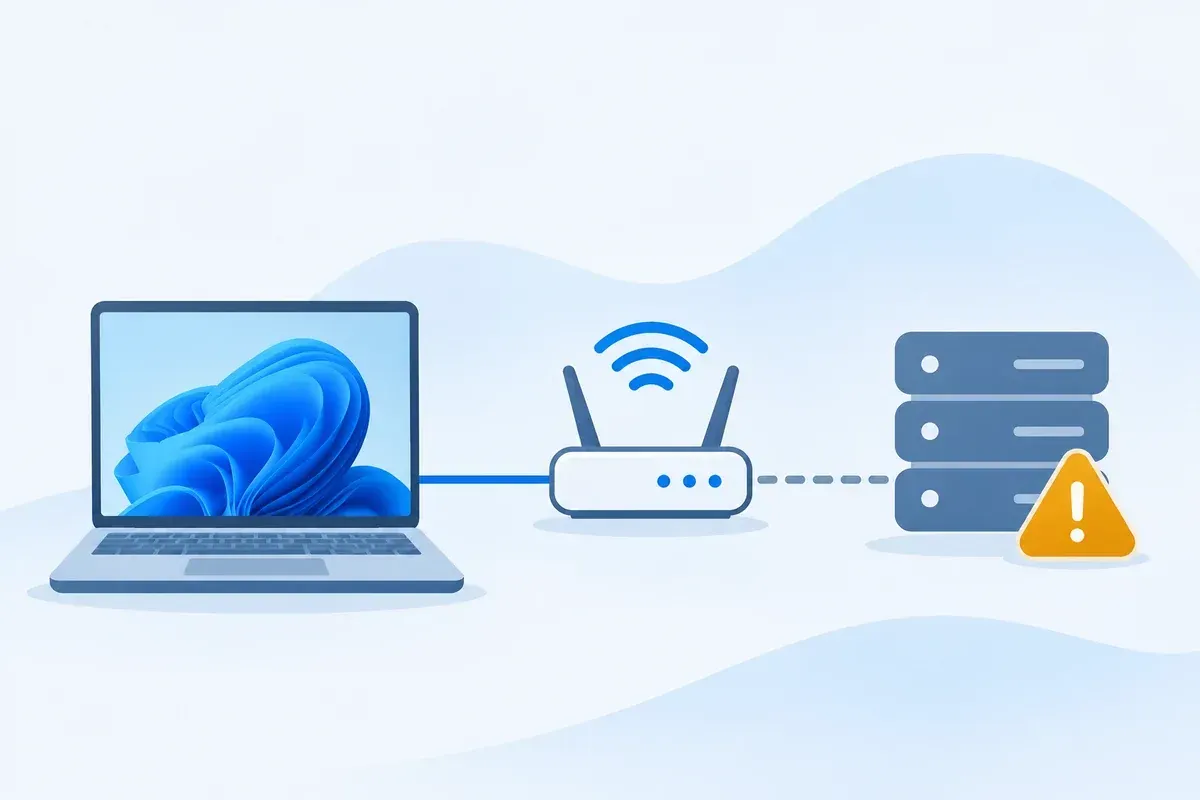
When Windows 11 reports “DNS server not responding,” first compare a name lookup through your current DNS server with the same lookup through an allowed public resolver. That separates a resolver-path problem from a wider connection failure without changing your network settings. Check another device on the same network before resetting this PC.
I'd keep the original error and lookup results before trying a repair. A successful cache-clear message or a brief recovery after restarting doesn't establish that the recurring problem is gone.
Check what stopped working
Try two unrelated websites and another current browser. If only one site fails, check that service's status and the spelling of its address. If this PC has no working Wi-Fi or Ethernet connection, start with the connected-without-internet checks or the Ethernet connection guide. Changing DNS won't reconnect an unplugged cable.
Compare another device on the same home network, making sure a phone isn't silently using mobile data. Several affected devices point toward the router, provider or shared network configuration; one affected PC calls for checking that PC's connection and resolver settings. Microsoft's Windows connection guidance uses this other-device comparison and provides the Network and Internet troubleshooter in Get Help.
On a work or school network, give the exact error to its administrator before changing DNS. Public resolvers aren't a replacement for the organization's required configuration.
Compare lookups without changing DNS
Open Command Prompt and run the following commands one at a time. These are diagnostic lookups, not reset commands. Use them on your own network, or where the administrator permits queries to a public resolver.
nslookup microsoft.com
nslookup microsoft.com 1.1.1.1
The first command uses your default DNS server. The second asks Cloudflare's public resolver for the same public name. Microsoft's nslookup documentation defines the second argument as the server to query. An address result means that particular lookup received an answer; it doesn't prove that every website or application can connect.
| What you observe | Next check |
|---|---|
| Default lookup times out; the public lookup returns addresses | Record the default server shown. Check its configuration and repeat before considering a temporary DNS change. |
| Both lookups time out | Check the network connection and other devices. The result doesn't identify a failed DNS provider by itself. |
| Both return addresses, but browsing fails | Check the affected browser or app and its exact error before changing system DNS. |
| One name returns a nonexistent-domain response | Check the name and another known public domain. A negative answer differs from a server that never responds. |
Keep the complete error wording. Microsoft distinguishes a timeout, a nonexistent domain, a refused query and a server failure. A managed network may restrict direct public-DNS queries, so a failed second command isn't proof that Cloudflare or your adapter is broken. Don't try to defeat that restriction.
To inspect the PC's current configuration, run ipconfig /all and find the active Wi-Fi or Ethernet adapter. Record its DNS servers and whether its address configuration is automatic. Keep this output private: it includes network and device details. Microsoft's ipconfig reference explains the full configuration display.
Clear the local cache when the connection works
When the network is connected and the problem could involve an old cached lookup, open Command Prompt with Run as administrator and run:
ipconfig /flushdnsThis clears the Windows DNS client resolver cache, including cached negative answers. It doesn't restart your provider's DNS server or select a new resolver. Close and reopen the affected browser, then retry the original site. A flush that completes successfully confirms the cache operation; use the browsing result to judge whether it helped.
Don't append a full reset bundle automatically. For example, ipconfig /release discards a DHCP address configuration and interrupts that connection. DNS-only troubleshooting doesn't require that interruption as its first step.
Try a temporary DNS-only change on your own network
Consider this when repeated lookups through the current resolver fail while an allowed alternative answers. Save the current automatic/manual state, every existing DNS address and any encryption setting first. Changing provider also changes who receives those DNS queries; choose a provider you intend to use.
- Open Settings > Network & internet. Open the properties for the connected Wi-Fi network or select the active Ethernet connection.
- Find DNS server assignment > Edit. Keep IP assignment unchanged.
- Choose Manual in the DNS editor and enable IPv4. For Cloudflare's standard resolver, enter 1.1.1.1 as preferred DNS and 1.0.0.1 as alternate DNS.
- If you also configure IPv6 DNS, use the provider's matching addresses: 2606:4700:4700::1111 and 2606:4700:4700::1001 for Cloudflare. Don't disable the IPv6 protocol to avoid configuring it, and don't invent a local IP address or gateway.
- Save, reopen the affected application and repeat the original website and default-server lookup. If the DNS editor is unavailable or managed, stop the change and ask the administrator.
Cloudflare's Windows 11 setup instructions specify the separate DNS editor and these IPv4/IPv6 pairs. Microsoft's network settings documentation also explains IP assignment and DNS over HTTPS. If encrypted DNS is already configured, follow the provider's linked encryption instructions before saving, or leave the current configuration in place. Don't carry an old provider's manual encryption template into a new provider's setup.

To undo the experiment, return to the same DNS editor and restore Automatic (DHCP) if that was the original DNS setting, or restore the exact saved manual addresses and encryption options. Restore any IPv6 DNS changes too. Don't switch IP assignment to automatic as a shortcut: that can change more than DNS.
Google's public-DNS configuration guidance likewise calls for saving existing settings, testing and reverting when necessary. If the change makes no difference or breaks access, restore the original configuration before investigating another cause.
What the reported fixes establish
In an Experts Exchange discussion about intermittent DNS errors, a Windows 10 user reported that reset commands, a driver removal and public-DNS changes hadn't restored browsing. Access returned after the computer was shut down overnight. The later discussion says no single suggestion was “The” solution. That sequence supports collecting evidence during the failure rather than crediting whichever change happened last.
A separate Microsoft discussion about DNS delays after waking reports two days without the delay after a modem/router reboot. The earlier symptom could also disappear after waiting or restarting the PC, and the discussion doesn't establish the cause. These Windows 10 reports are useful examples of intermittent outcomes, not a Windows 11 success rate or proof of a universal fix.
Retest the original failure and choose the next step
If several home devices fail, check the provider's outage information from a working connection. A router/modem restart is reasonable when its instructions call for it, but it disconnects other users. Warn them first and follow the equipment's procedure. A factory reset is a different operation and isn't part of this initial investigation.
Keep Windows security enabled. Don't copy a generic firewall exception, disable IPv6 or uninstall an adapter just because the diagnostic message mentions DNS. A PC that fails on several otherwise working networks needs its own supported adapter and software investigation; the official wireless-driver recovery checks explain how to retain an offline replacement before removing a driver.
Repeat the original failure conditions, including waking from sleep if that's when the error appears. Record whether the default lookup, the original website and another device now work. If the problem recurs, give support the time, error wording, affected adapter, resolver comparison and changes already reversed. The network troubleshooting hub connects the related symptoms; a broad network reset remains a later step with its VPN, adapter and profile consequences understood.


