
0xc0000005 is an access violation: an application tried to read, write or execute an invalid memory address. In Windows 11, start by identifying which program crashes and whether the same task fails in other applications. The code alone doesn't identify bad RAM, a broken Windows DLL or a file-permission problem.
I'd collect one matching crash event before changing anything. An app that fails only when opening one project needs a different investigation from several unrelated browsers and games crashing throughout the day.
Match the error to the failing task
Microsoft's access-violation explanation describes invalid memory access caused by software problems such as a null pointer, overwritten memory or use of freed memory. Hardware memory faults are another possibility. “Access” here doesn't mean that giving the application administrator rights will repair it.
| Pattern | Start here |
|---|---|
| One application fails at launch | Record its version, update it and use its publisher's repair procedure. |
| One project, game or file triggers the crash | Preserve the original and check that specific content, add-on or game installation. |
| Several unrelated applications crash | Compare crash events and recent system changes; consider background conflicts and memory diagnostics. |
| Windows won't reach the desktop | Use a recovery route. These desktop checks require a working Windows session. |
If you have a separate blue-screen stop code, record that too. A program closing with 0xc0000005 isn't the same observation as a MEMORY_MANAGEMENT system crash. If Windows cannot start, begin with startup recovery instead of repeatedly trying an application repair.
Collect the matching application event
Search Start for Event Viewer, open Windows Logs > Application and look at the time of the failure. For an Application Error event, record the application name and version, faulting module, exception code and the action that triggered it. Keep a private copy of the event; redact personal paths before posting details publicly.
Microsoft's application-crash guidance identifies Event ID 1000 as the actual application crash event and shows these fields. Its example includes 0xc0000005. If you don't find a matching event, keep the exact error message and time rather than treating an unrelated old event as the explanation.
A faulting module named ntdll.dll, kernel32.dll or kernelbase.dll doesn't establish that the DLL is defective. Microsoft explains that these widely used modules can be victims of corruption caused elsewhere. Don't download replacement DLLs from a repair site.
If DxDiag also lists WindowsWcpOtherFailure3, keep its event name and signature separate from the application crash. Match each report to the incident before choosing an app repair or a Windows servicing investigation.
If only one application fails
- Save work, restart Windows and retry the same task. Note whether the crash happens at launch or after a particular action.
- Install the application's current supported update from its publisher or original store. Also complete applicable Windows updates and restart when requested.
- If a particular add-on, overlay or mod was added just before the failures, disable that addition through its own supported controls and repeat the task. Change one item at a time so the result remains useful.
- Use the publisher's repair or file-verification option if available. Before reinstalling, back up local projects, settings and saves that the application doesn't sync. Confirm how to restore them.
- If the failure persists, give the publisher the application version, matching event and smallest repeatable example. Share private files only through its approved support channel.
Keep the test specific. If a game fails while another program works, that doesn't clear every driver or hardware component; it tells you where to start. Likewise, don't install an assortment of runtime packages unless the publisher identifies a required version or the error specifically points to a missing dependency.
Check a background-software conflict
If failures began after adding an overlay, monitoring utility or other background tool, update that software and check its compatibility guidance. For a broader isolation test, follow Microsoft's complete clean-boot procedure. Use IT's process on a managed PC.
The essential checkpoint is Hide all Microsoft services before disabling the remaining services in System Configuration. Record which startup items were enabled before disabling them in Task Manager. Restart and repeat the same failing task. Don't change advanced boot settings.
If the application works in the clean-boot environment, reenable the recorded items in groups, restarting and testing between changes, until you isolate the conflict. If it still fails, preserve that result for support. A clean boot doesn't identify a defective memory module.
Restore normal startup when the investigation ends. Microsoft's return procedure uses Normal Startup, restores services and reenables the startup items you disabled. Follow that section of the linked instructions rather than leaving the PC indefinitely in a diagnostic configuration.
When a memory check is useful
Repeated crashes across unrelated applications, especially after a RAM or memory-setting change, justify checking memory stability with the PC or motherboard manufacturer's guidance. Record any recent hardware or firmware changes. Don't buy replacement RAM solely because 0xc0000005 contains the word “memory” in its explanation.
For the built-in check, save open work, open Terminal from Start and run mdsched.exe. Choose Restart now and check for problems, or schedule the check for the next startup if you can't restart yet. The documented diagnostic launch sequence shows these controls.
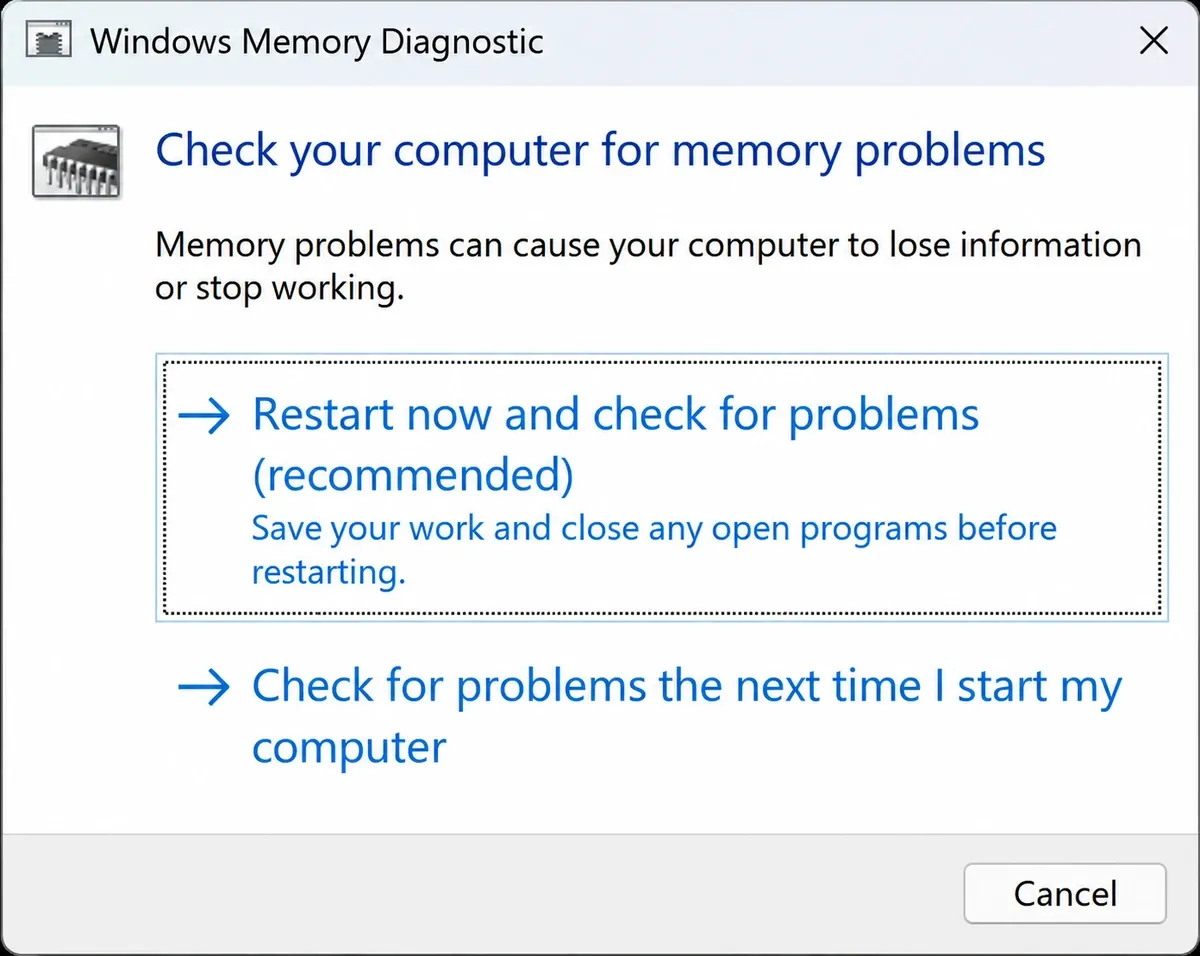
Record whether the check completed and whether it reported errors. An error warrants hardware investigation; it doesn't, by itself, identify the component to replace. A clean run doesn't explain an intermittent application crash. If the result never appeared or the test didn't finish, record that instead of calling it a pass.
When Windows reports damaged system files, use the DISM and SFC repair sequence and read its final result. Repeating successful scans won't diagnose an application's invalid pointer.
What reported troubleshooting results show
In a multi-application Microsoft community case, the author reported continuing crashes after successful SFC and DISM checks and a memory diagnostic without errors. They later reported stability with CPU affinity limited to one CPU. That observation is useful for a support investigation; it doesn't establish a universal affinity fix or prove a faulty processor.
A Steam discussion's later follow-up describes a different outcome: a Windows 11 user said a game exception in their antivirus hadn't helped, but shutting the antivirus off had. My recommendation is to take that compatibility evidence to the game, anti-cheat and security vendors. It isn't a reason to leave protection disabled or create broad exclusions.
I wouldn't run a generic “verify every driver” command for this error. Microsoft's Driver Verifier documentation warns that it can crash the computer and restricts its use to testing and debugging systems. The community thread above also includes crash and recovery complaints after that advice.
Escalate with evidence instead of more registry changes
If the same crash remains after the relevant checks, send support the exact Windows and application versions, crash time, matching event, recent changes and results of each controlled retry. Include whether only one application or several are affected. This gives the next investigation a starting point.
Microsoft's crash guidance describes collecting a process dump for deeper analysis. Arrange that with the application publisher or support team, scope collection to the affected process and use a private upload channel: dumps can contain application data. Remove temporary diagnostic settings after the investigation.
Avoid registry cleaners, generic LoadAppInit_DLLs changes and disabling DEP or Memory Integrity simply because a list of fixes mentions them. Use a change only when evidence and the responsible vendor justify it. The Windows system repair hub connects the narrower repair and recovery paths when the evidence points beyond one application.
If the responsible vendor specifically asks for a temporary Memory integrity comparison, use the local switch and running-state verification steps, then restore protection and check the application again. A changed security state alone does not explain the access violation.



