
If NVVHCI Enumerator shows a warning in Windows 11, identify the device as ROOT\NVVHCI and record its exact status before choosing a driver. Microsoft's catalog identifies it as an NVIDIA system component, but the old Windows 10 package found by this name doesn't establish Windows 11 compatibility. Start with Windows Update and the support route for your exact PC and NVIDIA hardware; don't force an old download onto a device just to remove the warning.
I'd leave a working entry alone if the name is the only concern. A component appearing in Device Manager or a driver list isn't evidence that it caused a game crash, a slow PC or a USB failure.
Confirm which device needs attention
Right-click Start, open Device Manager and find the NVVHCI entry. Check System devices and, for an unidentified entry, Other devices. Open its Properties and keep these details together:
- General > Device status: copy the complete message and any code. Separate an actual warning from a device that reports normal operation.
- Details > Property > Hardware Ids: look for
ROOT\NVVHCI. Microsoft's hardware-ID instructions describe this path and explain how Windows matches an ID to a driver package. - Driver: record the provider, date and version if those fields are available. Also record when the problem began and which installer or update immediately preceded it.
The Microsoft catalog's NVVHCI record names NVIDIA as the driver manufacturer and provider, with root\nvvhci under supported hardware IDs. That is a useful identity check. It doesn't make a warning on a different USB controller the same problem.
If the entry has no warning and your intended function works, stop here. If a crash is the real problem, keep the crash time and evidence too; don't select a driver for removal merely because its name is unfamiliar.
Choose a supported driver route
Save your work before an installation or restart. On a work or school PC, have IT approve the package. Keep a known working display and recovery route available before removing any graphics software.
Use Settings > Windows Update > Check for updates first, then inspect any relevant driver offered for the identified device. Microsoft's driver-update instructions recommend Windows Update and require a manual download to match the Windows version and architecture.
For optional drivers, open Windows Update > Advanced options > Optional updates. Microsoft notes that optional driver updates aren't installed automatically. If an applicable driver is offered, select it and choose Download and install, then restart after installation. Don't select every optional driver as an NVVHCI repair.
If Windows offers no applicable update, open the support page for your exact PC model. For a separate NVIDIA graphics package, use NVIDIA's manual driver search and match the GPU product and operating system. Check the package's supported hardware and instructions, especially for a notebook or an older GPU. A current graphics download isn't a promise that it contains this legacy NVVHCI component.
Follow the matching manufacturer's installer. If support supplies extracted driver files specifically for this device, Microsoft's manual path is Device Manager > Update driver > Browse my computer for drivers, then the supplied folder. An EXE installer and an extracted driver folder are different inputs; don't point Windows at an arbitrary download and force a selection.
Stop if the installer reports unsupported Windows or no compatible hardware. Keep that exact message and recheck the package's product, OS and notebook or desktop requirements. Repeatedly running it or editing an INF won't establish compatibility.
When the manufacturer doesn't list a supported Windows 11 package for the component or hardware, ask its support team whether NVVHCI is still required in your configuration and which package, if any, should provide it. Don't install a Windows 10 CAB, copy a standalone SYS file or disable driver-signature checks to fill that gap.
Read the old catalog entry before downloading
Searching the catalog for NVVHCI Enumerator returns an NVIDIA system-driver entry. Open its title and inspect Overview and Package Details. The details identify the following historical package:
| Catalog field | What the entry says |
|---|---|
| Driver model and provider | NVVHCI Enumerator; NVIDIA |
| Version | 3.4.2785.9920 |
| Architecture | AMD64 |
| Version Date in the details | January 10, 2020 |
| Supported products | Windows 10, version 1903 and later, Servicing Drivers; Windows 10, version 1903 and later, Upgrade & Servicing Drivers |
| Supported hardware ID | root\nvvhci |
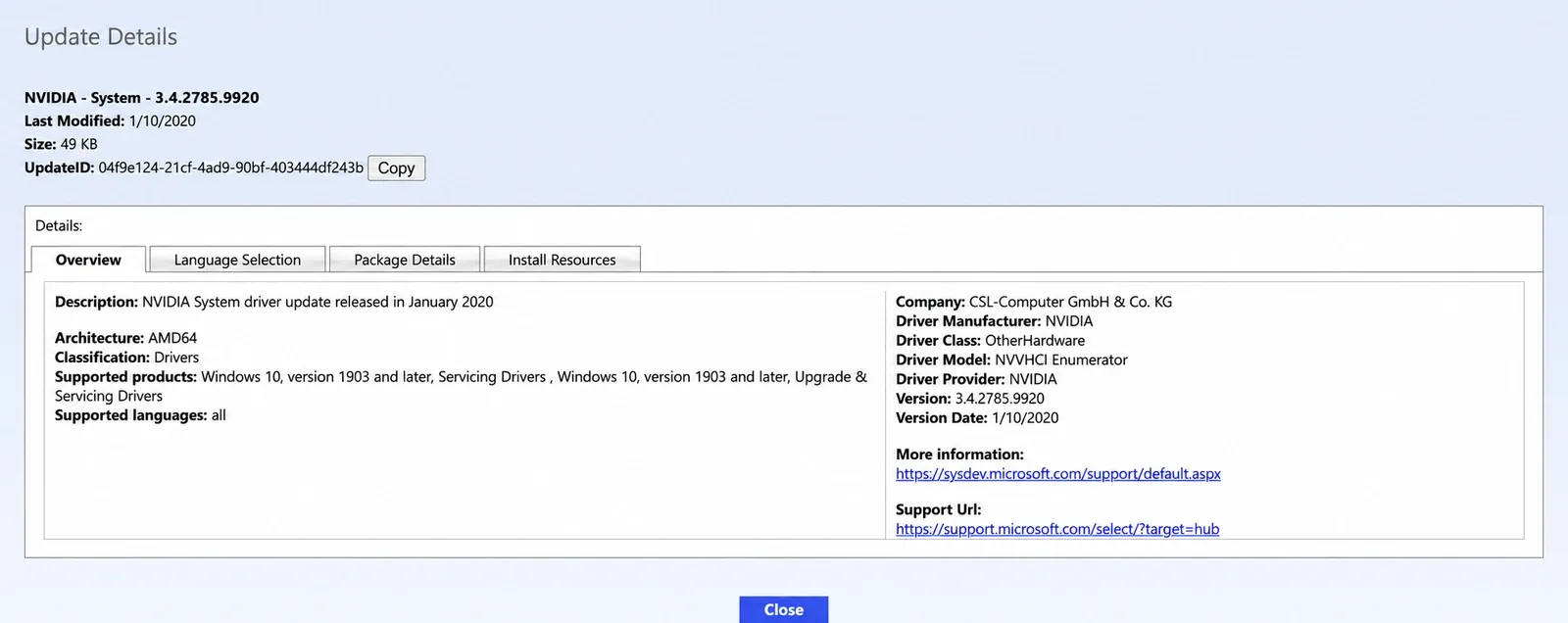
I'd use this entry to confirm identity and package limits. The words and later within a Windows 10 product label aren't enough to certify this package for your Windows 11 installation. AMD64 also doesn't establish Arm64 support. Match the hardware, OS and architecture through an applicable manufacturer recommendation before attempting installation.
Third-party pages offering a newer version or a broad Windows 11 label don't resolve that compatibility question. A download list from somebody else's PC can contain several OEM bundles; it doesn't show which one belongs on yours.
What the published problem reports establish
In the older NVIDIA forum discussion about the new NVVHCI entry, a community reply describes it as an NVIDIA Virtual USB Host Controller driver for interaction with SHIELD USB ports. The original Windows 10 user reports trouble with the 378.xx driver series, while another contributor reports an incompatible installer and a missing NVVHCI entry after cleanup. Those posts describe different failure paths; neither supplies a confirmed Windows 11 repair.
A separate Dell XPS user's Windows 10 report names version 3.4.2785.9920 and says it doesn't start. That thread has no replies establishing a solution. Matching the same version number is therefore a reason to collect the device status, not proof that reinstalling it will help.
The practical conclusion is to separate device identification, installer compatibility and an actual failure to start. I wouldn't begin with a graphics-driver purge: the DDU preparation and cleanup guide covers the separate case where ordinary removal fails or a supported repair requires thorough cleanup.
Verify the result and choose the next step
After an approved change and any requested restart, reopen the same device's properties. Compare its status, provider and version with your earlier record, then repeat the function that originally failed. A completed installer alone doesn't settle whether the problem is fixed.
For a remaining NVVHCI warning, give the PC maker or NVIDIA support the exact PC and GPU models, Windows version and architecture, ROOT\NVVHCI, device-status message, installed driver version and package you tried. Share logs privately when requested; keep account details and serial numbers out of public posts.
If the remaining symptom is DRIVER_POWER_STATE_FAILURE, follow the power-transition and crash-evidence checks to identify the relevant driver path. NVVHCI's presence alone doesn't establish that cause. For a different device or connection fault, use the devices and drivers hub to choose the matching problem.



