
If your camera isn't working in Windows 11, check the laptop's camera shutter or privacy switch, then open Start > Camera. If the preview works there, check the failing app's camera selection and permissions. If Camera also fails, check Windows camera access and whether the device is disabled or missing before reinstalling its driver.
I'd make that preview comparison first. “Zoom can't see me,” a covered lens and “No camera attached” describe different problems, even if they all interrupt the same meeting.
Check the shutter, switch and connection
Look for a sliding cover over the lens, a switch on the side of the laptop, or a keyboard key with a camera symbol. Some models require Fn with that key. Use the instructions for your model; F6, F8 or F10 isn't a universal webcam shortcut.
A physical camera switch can make Windows behave as though no camera is installed, or show a camera symbol with a slash. A lens cover can leave a working camera looking black. Open the cover and enable the camera using its documented control before changing a driver.
For a USB webcam, reseat the cable and try another USB port on the PC. If possible, test it on another compatible computer. Note whether the same camera and cable work there rather than concluding that Windows or the webcam is faulty from one failed connection. These are checks in Microsoft's camera troubleshooting guide.
Compare Camera with the failing app
- Close meeting apps and browser tabs that might be using the camera. Save any work before closing them.
- Open Start, search for Camera and open the Windows app. Allow its camera access if prompted and you intend to use it.
- Check whether you get a live preview from the intended camera. Record the exact error if you don't.
- Close Camera before reopening the meeting app. Select the intended camera in that app's video settings and check its preview before joining a call.
| What you see | Next check |
|---|---|
| Camera shows a live picture; one app doesn't | Check that app's selected camera, Windows permission and any browser site permission. |
| Black or covered picture in every app | Recheck the shutter, lighting, camera access and detected device. |
| No camera attached, or the expected device is absent | Check the physical switch, disabled-camera list and Device Manager. |
| Another app is using the camera | Close the other camera apps, then retry the intended app by itself. |
A working Camera preview narrows the investigation to the failing app's path. It doesn't establish that every app has permission or selects the same camera. If video works but your voice doesn't, use the microphone recording and permission checks separately.
For a Sony camera connected through Imaging Edge Webcam, follow the Sony Webcam setup and USB Reset checks before treating it as an ordinary USB webcam. A working Imaging Edge Desktop preview does not confirm that the separate Webcam component is installed or available to your meeting app.
Allow access at each required level
Open Settings > Privacy & security > Camera. Turn on Camera access and Let apps access your camera. Expand the app list and allow the specific app you want to use, including Camera if you're testing with it.
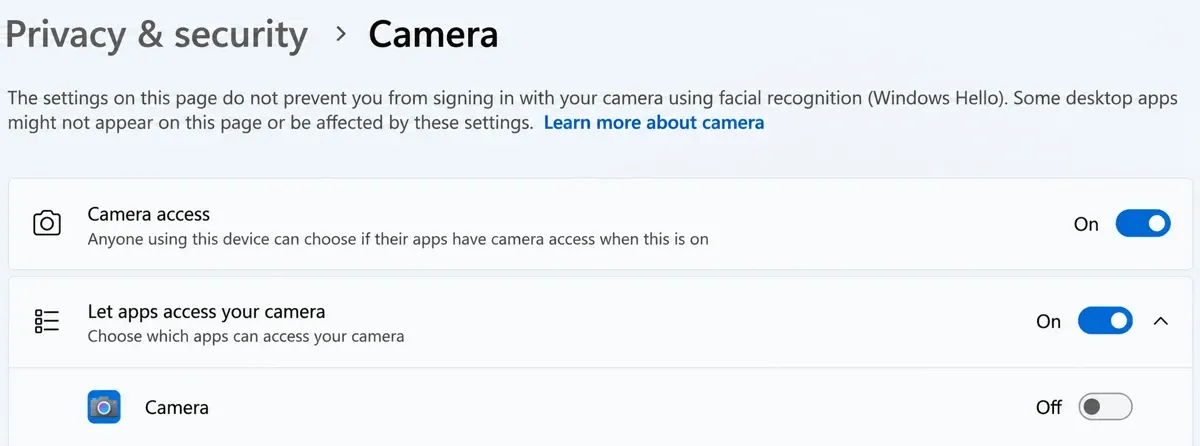
For a desktop program or browser, also turn on Let desktop apps access your camera farther down the page. Microsoft's guide notes that desktop apps don't use the same individual-app list, and that you can't control each desktop app separately with this switch. Don't assume a program is missing because its name doesn't appear beside a Store app's toggle.
If Camera access is off and grayed out, an administrator needs to enable it. On a managed work or school PC, ask IT to check the camera policy. Don't change registry consent entries or organizational policy to force a blocked camera on.
After changing access, close and reopen the affected app and check its preview. Grant access to the app you need rather than enabling every app in the list.
If one app or website still has no video
Choose the intended webcam inside that app, particularly if the PC has a built-in camera, a USB webcam or a virtual camera. Check its video-off control and close other apps using the camera before retrying.
A browser meeting also needs permission for the website. In Chrome, open Settings > Privacy and security > Site settings > Camera. Review the site's allowed or blocked status and choose the intended camera from the camera selector. Allow only the trusted meeting site, then leave and rejoin the call. Google's camera permission instructions distinguish site permission, system permission and camera selection. Other browsers have their own site controls; managed browser settings may require IT.
If the Windows preview works but the app still fails, record the app version, selected camera and error for its support team. Avoid reinstalling every camera driver to resolve an app-specific selection problem.
Check whether the camera is disabled or missing
Open Settings > Bluetooth & devices > Cameras. Look under Connected cameras and Disabled cameras. If your intended camera is in the disabled section, select Enable; administrator access is required. If no disabled section appears, no cameras are disabled through this Settings page.
Microsoft's camera settings documentation explains that some devices won't appear here, including infrared cameras used for Windows Hello and certain specialist cameras. A camera missing from this page isn't automatically physically disconnected: missing drivers or disabling through another utility can also affect the list.
If Camera shows a picture but Windows Hello face setup says something went wrong, separate the Hello sensor and enrollment checks from ordinary webcam video. Keep a working PIN or another authorized sign-in method while investigating the infrared camera path.
Open Device Manager and look under Cameras, Imaging devices or Sound, video and game controllers. Note the device name, driver version and any status error. If your camera is listed but disabled, use Enable device if offered. If it's missing, select Action > Scan for hardware changes, restart and check Camera again.
Don't disable another camera as a general repair step. On some systems, cameras share processing hardware, so disabling one can disable more than one. If the expected camera remains absent after checking its physical control and connection, use the exact PC or webcam model when requesting the manufacturer's driver or hardware checks.
Run troubleshooting, then consider Basic camera
Open Get Help and run the camera troubleshooter. Another route is Settings > System > Troubleshoot > Other troubleshooters > Camera > Run. For a listed camera, its page under Bluetooth & devices > Cameras also has a Troubleshoot button that opens Get Help. Record any error and retry the preview after an offered repair.
On Windows 11 24H2 and later, Microsoft documents Basic camera as a troubleshooting option. Select the camera in Settings > Bluetooth & devices > Cameras, then select Edit under Advanced camera options. If available and permitted, turn on Basic camera and test again.
This mode turns off hardware acceleration and, where possible, manufacturer plug-ins that may be causing trouble. It also enables multi-app camera mode. Windows Studio Effects won't work while Basic camera is on; Windows Hello bypasses Basic camera because it can need those plug-ins. Note the original Basic camera and multi-app settings before changing them, and restore those settings if the test doesn't help. These options may be managed by your organization.
If security software reports blocking the camera, inspect its camera-access setting using that product's official instructions or ask IT. Don't disable all antivirus or firewall protection as a routine webcam test.
Update, roll back or reinstall the relevant driver
Save your work and use Start > Power > Restart if you haven't restarted since the failure. Waking the PC from sleep isn't the same as restarting. Check Settings > Windows Update > Check for updates. For an applicable camera driver, also check Advanced options > Optional updates, install the matching update and restart as directed.
If the failure followed a driver update, open the camera's Properties > Driver > Roll Back Driver in Device Manager. Administrator permissions are required. If available, follow the prompts, restart and test Camera again. Some drivers don't offer rollback; ask the manufacturer about a supported earlier package if that option is unavailable.
For a later targeted reinstall, first download the correct camera driver from the PC or webcam manufacturer's official support page. Match the exact model and Windows version. Save your work, identify that camera in Device Manager, select Uninstall device, confirm and restart. Windows attempts to reinstall its driver. If the camera doesn't return, use Action > Scan for hardware changes and the saved manufacturer package. Microsoft's device driver instructions describe this targeted reinstall and recovery route.
Microsoft also documents the built-in USB Video Device driver as a later option for compatible external USB webcams. It requires administrator rights and may remove manufacturer features, including Windows Hello face recognition. Check compatibility with the manufacturer before substituting it; it isn't a universal driver for every built-in or specialist camera.
Check Media Feature Pack only for Windows N
If you have Windows 11 N, missing media components can affect the webcam. Microsoft's Media Feature Pack instructions apply specifically to Windows 10/11 N. Check your Windows edition before following a forum's Media Feature Pack suggestion.
For an N edition, install Media Feature Pack through Optional features in Settings using Microsoft's instructions. Restart afterward even if Windows doesn't prompt you. This isn't a general fix for a non-N edition, and the pack's absence from its optional-feature list isn't a reason to download a random replacement.
After the restart on an N PC, confirm Media Feature Pack appears in the installed-feature list, then retry the Camera preview. If the pack is missing or installation fails, the Windows Pro N and Media Feature Pack guide separates edition checks, feature installation and the next information to collect; repeatedly changing camera permissions won't complete a failed feature installation.
What to keep for support
Record the exact error, PC and webcam model, Windows version, driver version, physical-switch state, and whether Camera or only one app fails. For an external webcam, include the ports, cable and other computer you compared. Remove account names, serial numbers and other personal details before sharing screenshots publicly.
In a Microsoft Q&A discussion about camera failures after updates, one Lenovo Legion 5 owner reported that rollback restored the camera; another Legion owner said the camera had disappeared from the device list. Other replies describe a camera key helping, continued failures and edition-specific media advice. Those reports support checking the actual symptom and hardware, not assuming every failed webcam needs the same rollback or Windows reset.
If the expected camera remains absent or its preview still fails after the matching supported driver, contact the manufacturer with those observations. Use a known working approved webcam for an urgent call while arranging the repair. For related connection and driver problems, see the device troubleshooting hub.



