
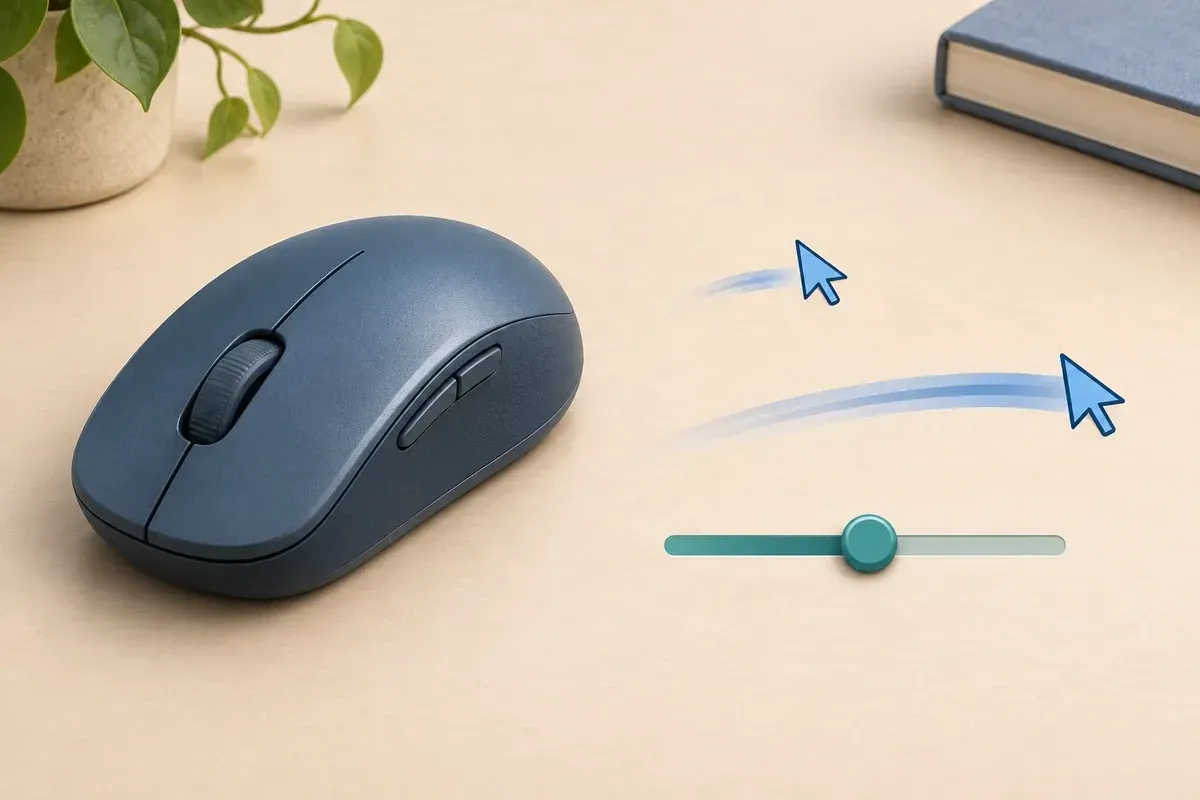
In Windows 11, mouse acceleration is called Enhance pointer precision. Open Settings > Bluetooth & devices > Mouse and look for that switch. Turn it Off to disable Windows pointer acceleration. If your Mouse page doesn't show it, open Additional mouse settings > Pointer Options and clear the checkbox with the same name.
I'd change this setting on its own first. Keeping mouse DPI, pointer speed and game sensitivity unchanged makes it easier to judge what the acceleration change does. A different desktop feel doesn't prove that a game's aiming input has changed.
Find Enhance pointer precision
- Open Settings, then select Bluetooth & devices > Mouse.
- Record the current Enhance pointer precision state so you can restore it.
- If the switch appears on this page, set it to Off to disable acceleration or On to enable it.
- Leave the page, return to Mouse settings and confirm the chosen state remains.
Microsoft's current mouse-settings instructions place Enhance pointer precision directly on the Windows 11 Mouse page. The separate Mouse pointer speed slider changes travel speed; it isn't the acceleration switch.
If the control isn't visible, use the classic dialog below. You don't need to install a mouse utility or edit the registry to find this built-in preference.
Use the classic Pointer Options tab
- From Settings > Bluetooth & devices > Mouse, find Related settings and select Additional mouse settings.
- In Mouse Properties, select Pointer Options. The neighboring Pointers tab changes pointer appearance; it isn't the Motion settings tab.
- Under Motion, clear Enhance pointer precision to turn Windows acceleration off. Select the checkbox to turn it back on.
- Select Apply if available, then OK. Reopen the dialog and check that the state was saved.

For a direct route, press Windows key + R, enter main.cpl and press Enter, then select Pointer Options. The native Mouse Properties route described by SCOPE.GG uses this command and checkbox.
Check the right kind of movement
Acceleration changes how movement speed affects pointer travel: a fast mouse movement can move the pointer farther than a slow movement over the same physical distance. RAPOO's explanation of speed-dependent pointer movement describes that distinction. Turning the feature off doesn't choose a new mouse DPI or a universal sensitivity value.
| What you want to change | Relevant control or check |
|---|---|
| Fast swipes change travel | Enhance pointer precision controls Windows pointer acceleration. |
| Too fast at any pace | Review Mouse pointer speed and the mouse's DPI separately. |
| Only game aiming feels wrong | Check that game's input method and its own sensitivity or acceleration controls. |
| Pauses or stutter | Investigate the input connection or PC responsiveness rather than using acceleration as a repair. |
After saving the state, compare ordinary desktop pointing with the same mouse, surface and DPI. Keep the physical movement comfortable and away from screen edges. Judge whether small selections and larger movements suit you. If they don't, restore the recorded state before changing another setting.
Reopening the switch or checkbox checks the saved Windows state. A hand swipe alone can't identify every layer of input processing.
If a game still feels different
A game that reads raw mouse input can bypass Windows pointer processing. Microsoft's explanation of mouse input methods distinguishes ordinary pointer messages, which have Windows ballistics applied, from raw input, which doesn't. The RAWMOUSE reference also states that raw input events aren't affected by the speed setting in Mouse Properties.
Check the current instructions and controls for the particular game. If it offers raw input, acceleration or smoothing options, record their states before changing them. Don't paste old launch options or console commands from a different game or release. A game may also apply its own processing after reading the mouse.
Keep the desktop check separate from an in-game comparison in the same practice area. If desktop motion changes while aiming doesn't, that alone isn't a failed Windows setting. There is no basis for promising a higher hit rate or lower input delay from this checkbox.
If the control is missing or keeps changing
Try both the Mouse settings page and Mouse Properties > Pointer Options. If main.cpl reports an error, record the exact message and use the Settings route. If the control is disabled on a managed PC, give IT the Windows version and the unavailable control instead of forcing a registry change.
When a saved value later changes, note when it happens: after signing in, opening a mouse utility, starting a game or installing an update. Check the matching profile or documented behavior in software you already use. That timing is a clue to investigate, not proof that Windows or the mouse driver is defective.
For actual Bluetooth pauses, jumps after idle or continuous stutter, use the Bluetooth mouse lag checks. If the laptop touchpad won't move the pointer or recognize gestures, follow the touchpad troubleshooting path. Those failures need their own checks even when Enhance pointer precision is already off.


