
If the Windows 11 taskbar won't auto-hide, confirm Automatically hide the taskbar is checked, move the pointer away from the bottom edge and close any open taskbar menus. If it still stays visible, check which app is asking for attention, then compare the Show flashing on taskbar apps setting before restarting Explorer.
I'd separate a bar that responds but won't retract from a frozen taskbar. The first calls for a visibility and app-attention check; an unresponsive Start button or pinned app needs the wider taskbar recovery steps.
Confirm automatic hiding on the ordinary desktop
- Right-click an empty part of the taskbar and select Taskbar settings, or open Settings > Personalization > Taskbar.
- Expand Taskbar behaviors and select Automatically hide the taskbar. If it is already selected, clear it once and select it again.
- Close Settings and any open Start, Search, notification or taskbar context menu. Move the pointer into the middle of an ordinary app window, away from the screen's bottom edge.
- Check whether the bar retracts, then move the pointer to the bottom edge to reveal it. Move away and check again.
Microsoft's taskbar customization instructions confirm the Windows 11 checkbox and bottom-edge reveal behavior. A bar that appears while the pointer is at that edge is behaving as expected; the useful test is whether it goes away after you leave.
| What happens | Next check |
|---|---|
| The bar hides until you reach the bottom edge | Normal automatic hiding. Keep the pointer away while testing an app. |
| The bar stays visible and an app icon flashes or remains highlighted | Open that app and inspect its request, then compare the flashing setting. |
| Hiding works on the desktop but one fullscreen app is covered | Compare the app's fullscreen mode with another app. |
| Explorer restart helps, but the failure returns | Repeat the trigger and record the app, display and attention settings. |
| The bar or app buttons are missing only on another monitor | Check secondary-display placement rather than a bar that refuses to retract. |
If a setting is unavailable or reverts on a work or school PC, record the control and any management message for IT. Keep enforced policies in place. The missing Windows 10 Lock the taskbar switch is a separate question; use the Windows 11 taskbar controls instead of searching for an unlock command.
On a supported 2-in-1 with its keyboard folded back or detached, the tablet-optimized taskbar can collapse while keeping time or battery status visible. Microsoft describes that as a separate collapsed state; remaining status icons alone don't mean ordinary automatic hiding has failed.
Check the app asking for attention
Look for a flashing or highlighted app button. Select it, inspect any dialog or notification and handle the request if appropriate. Check background apps in the system tray and its hidden-icon menu too. Close the menus afterward and move the pointer away from the edge before judging the result.
If the hidden-icon menu is unavailable, open Taskbar settings and expand Other system tray icons to check its visibility. Microsoft calls it the hidden icon menu or overflow area. Restore any tray preference changed only for this inspection.
Microsoft explains that an app opening minimized or behind another window can flash its taskbar icon when it needs interaction. The icon normally stays highlighted until you select it or open the app. That makes app attention worth checking before treating the behavior as damaged Windows files.
Press Windows key + N, or select the clock or notification bell, to inspect notification center. Don't clear an important work alert simply to hide the bar. If one app repeatedly brings it back, record which app and action are involved rather than disabling notifications for every app.
Compare the flashing setting without changing everything
Turning off flashing removes that visual attention cue. Note its original value and make sure you can still notice important requests from the affected app before testing.
- Return to Settings > Personalization > Taskbar > Taskbar behaviors.
- Leave Automatically hide the taskbar selected. Clear only Show flashing on taskbar apps for this comparison.
- Leave Show badges on taskbar apps at its original value. Close Settings, move the pointer away and repeat the app action that previously kept the bar visible.
- If nothing changes, restore flashing before trying the next branch. If hiding works, decide whether the loss of flashing is acceptable, then repeat your original trigger before keeping that preference.
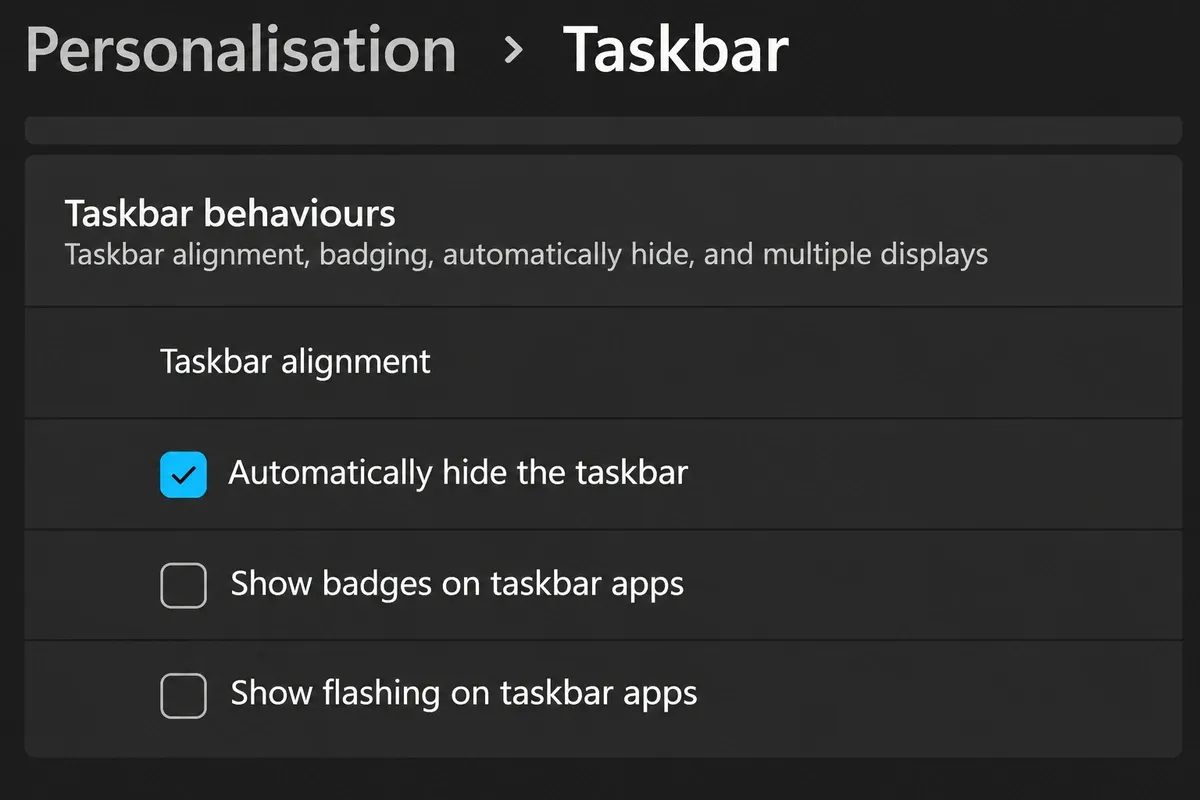
In the Microsoft-hosted discussion about a taskbar that won't stay hidden, the accepted answer reports improvement after turning flashing off. The original question describes Explorer restarts helping only temporarily. Those are different observations, so a successful restart alone doesn't establish a lasting fix.
A separate answer explicitly describing Windows 11 Pro 25H2 reports the same flashing change. That author also had badges off but wasn't sure they were necessary. I'd change flashing alone first: changing both controls together would leave the badge question unanswered. These reports support a reversible comparison, not a guaranteed repair for every PC.
If only a fullscreen app or another display is affected
Leave fullscreen using the affected app's controls and check the ordinary desktop. Compare another app in its own fullscreen mode. If hiding works elsewhere, record the affected app and whether the failure occurs when entering fullscreen, leaving it or opening an overlay. A maximized window and an app's fullscreen mode aren't the same test condition.
If the issue occurs only in a remote session, identify whether the visible bar belongs to your local PC or the remote Windows desktop before changing its settings. Don't terminate a remote session with unsaved work just to remove an overlapping toolbar.
For multiple monitors, test each active screen with the pointer away from its bottom edge. Show my taskbar on all displays controls placement separately from automatic hiding. If the bar or its app buttons are absent on a second screen, continue with the secondary-monitor taskbar checks.
If you use a taskbar replacement or desktop customization tool, record its name, version and current preferences. Temporarily turn off its taskbar feature using that tool's own controls, then compare the native Windows bar. Restore the preference afterward if needed. Ask IT before changing an enforced desktop setup.
Restart Explorer, then repeat the failure
Save open work and let active file copies finish before restarting Windows Explorer. The taskbar and desktop may disappear briefly while the shell reloads.
- Press Ctrl + Shift + Esc to open Task Manager.
- In Processes, find Windows Explorer, right-click it and select Restart.
- When the bar returns, confirm automatic hiding is still selected. Test on the desktop, then repeat the app or display action that brought the problem back.
The Explorer restart method described by Laptop Mag is also present in the community reports. Its older Windows 10 menu paths and desktop-mode switches shouldn't be copied into a Windows 11 checklist. Restarting the shell is a recovery check; it doesn't identify why the bar stayed visible.
If the bar won't respond to clicks or Explorer fails to return, use the wider recovery guide linked above. I wouldn't run an all-users app-registration script, edit the registry or reinstall Windows for a responsive bar with a hiding problem alone.
Verify the behavior you actually need
Check hiding and bottom-edge reveal after the original trigger: an app requesting attention, entering fullscreen, waking or reconnecting a display. If the problem was intermittent, one successful hide isn't enough to call it resolved. Restore any test preference you don't want to keep.
If it returns, give support the Windows version and build from Settings > System > About, the affected app, monitor arrangement, any taskbar tool and which individual change affected the result. Include whether Explorer restart helped temporarily and whether the flashing comparison changed anything.
Automatic hiding is a display preference, not a way to stop someone closing apps or accessing Windows. Keep that separate from a managed kiosk requirement. The Windows desktop hub connects the related visibility, Start and Explorer guides.



