
Windows 11 doesn't have the traditional Lock the taskbar switch that lets you unlock, drag and resize the Windows 10 taskbar. For the standard Windows 11 taskbar, use Settings > Personalization > Taskbar > Taskbar behaviors to change icon alignment or visibility. You can also drag app icons into a different order without unlocking the bar.
I'd identify the intended change before trying a registry fix. Moving the icons to the left, keeping the bar visible and moving the entire bar to another screen edge are different requests. Only the first two have the native Windows 11 settings described below.
Choose the change you need
| Goal | Windows 11 route |
|---|---|
| Icons on the left | Set Taskbar alignment to Left. |
| Change app order | Drag an app's taskbar icon to its new position. |
| Keep the bar visible | Clear Automatically hide the taskbar. |
| Move the whole bar | The native bar stays at the bottom; there is no top or side position setting. |
| Drag it taller | The traditional unlock-and-drag height control belongs to the Windows 10 workflow. |
Microsoft's taskbar customization instructions separate Windows 11 icon alignment from Windows 10 locking, height and location controls. Select the correct Windows version in that document; the older controls don't become available in Windows 11 just because an illustrated guide shows them.
Change icon alignment or visibility
- Right-click an empty part of the taskbar and select Taskbar settings. You can also open Settings > Personalization > Taskbar.
- Expand Taskbar behaviors. Note the current alignment and whether automatic hiding is checked before changing either control.
- To move the icon group, choose Left or Center under Taskbar alignment.
- To keep the bar on screen, clear Automatically hide the taskbar. To have it retract when unused, select that option.
- Check the result on the desktop. The icon group changes alignment along the bottom edge; the whole bar doesn't move to the left side of the display.
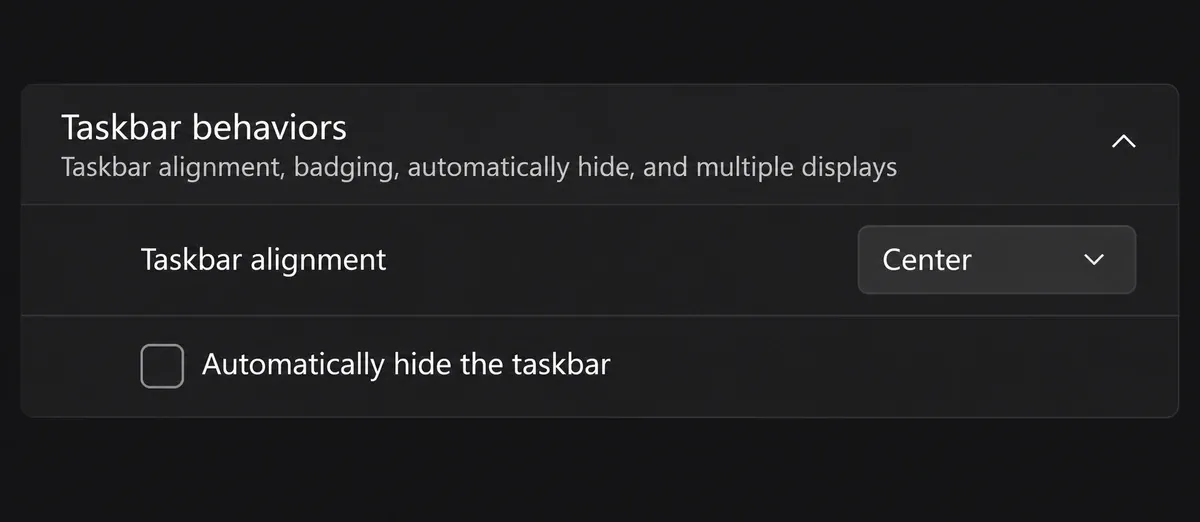
When automatic hiding is enabled, move the pointer to the bottom edge to reveal the taskbar. If changing the setting gives an unwanted result, return to the same control and restore its previous value.
Reorder or unpin apps without unlocking
To change the app order, select an app icon on the taskbar and drag it to the position you want. Check that the icon moved and still opens the intended app. You don't need a Lock the taskbar menu item for this.
To remove a pinned shortcut, right-click that icon and choose Unpin from taskbar. To pin an app again, find it in Windows Search, right-click the result and choose Pin to taskbar; an open app also offers that command on its taskbar icon. Use these app controls when your goal is to change the shortcuts rather than the position of the entire panel.
Why an unlock guide may not match your PC
Older guides often show a right-click Lock the taskbar option, a resize cursor at the border or a choice of screen edges. Those are legacy controls. In the standard Windows 11 taskbar, the missing unlock option doesn't by itself indicate corruption.
A Microsoft-hosted question about unlocking and enlarging the Windows 11 taskbar describes the actual need behind many searches: making room for more visible app buttons. The discussion also mentions shell replacement tools. Such software changes the taskbar implementation; it doesn't establish that Windows 11 has a hidden native unlock switch.
If your goal is to reach one of many open windows, select Task view or press Windows key + Tab to see the open-window thumbnails. You can also unpin shortcuts you don't use. These are native ways to reduce the navigation problem; they don't recreate a taller, multirow taskbar.
Don't use Automatically hide the taskbar as an instruction for moving the bar to the top or side. Microsoft's Windows 11 documentation explicitly says there are no native settings for those positions. A registry file or policy change advertised as an unlock isn't evidence that the requested movement is supported on your build.
If you already use a taskbar replacement or shell customization tool, record its name and version and use its vendor's matching instructions. Check compatibility with your Windows build and a supported way to undo the change before modifying it. On a work PC, ask IT before installing or changing shell software.
If you're using Windows 10
For the Windows 10 taskbar, right-click an empty part of the bar, choose Taskbar settings and turn Lock the taskbar off. Microsoft's Windows 10 instructions then allow changing the location or dragging the border to change its height. Turn the lock back on when you've finished arranging it.
That is a version-specific answer to the unlock question. It isn't a reason to downgrade Windows or apply a Windows 10 registry recipe to Windows 11. If you're unsure which version is installed, check Settings > System > About before following version-specific steps.
If the settings don't match
On an organization-managed PC, record which control is unavailable and any message about managed settings, then ask IT to check the policy. Don't disable policies or edit their registry values simply to make a screenshot from another guide match your screen.
If settings open but a choice won't stay applied, note the Windows version, selected value, what it changes back to and whether shell customization software is installed. Change one supported setting at a time and verify it before moving on. This gives support a specific behavior to investigate.
A taskbar that won't respond to clicks needs the taskbar recovery checks. If Settings won't open at all, use the Settings recovery steps. Those are failures of a function that should work; searching for a missing Windows 10 unlock switch won't repair them. The Windows desktop hub connects the related shell guides.



