

If app icons are missing from a visible Windows 11 taskbar, first check whether a blank button still opens the intended app. Save your work, press Ctrl + Shift + Esc, find Windows Explorer in Task Manager and select Restart. If the pictures return, repeat the action that originally made them disappear before treating the problem as fixed.
I'd distinguish a missing picture from a missing shortcut before deleting a cache. A white page that launches the app, a pin that vanishes after closing it and a hidden notification icon need different checks.
Identify the missing part
| What is missing | First useful check |
|---|---|
| An app picture, with a blank button still present | Check which app the button opens, then refresh Explorer. |
| The whole app button after closing its window | Check whether the installed app is pinned. |
| A background app icon near the clock | Check the system tray and hidden icon menu. |
| The entire bar, or Start and other controls also fail | Use the wider taskbar recovery route. |
Microsoft's taskbar component guide separates app buttons from the system tray. If the missing item is beside the clock, use the system tray visibility and app-status checks. Those visibility switches don't restore the image of an app button near Start.
If an app's button disappears only when you close its last window, follow the app-pinning and persistence steps. If the missing buttons occur only on another monitor, check secondary-monitor taskbar visibility and app placement before repairing an icon cache.
Refresh Explorer with work saved
- Save work and wait for file copies to finish. Close File Explorer windows you don't need.
- Press Ctrl + Shift + Esc to open Task Manager.
- In Processes, find Windows Explorer, right-click it and choose Restart. The desktop and taskbar can disappear briefly while Explorer reloads.
- Check the affected app button, its launch target and the other taskbar icons.
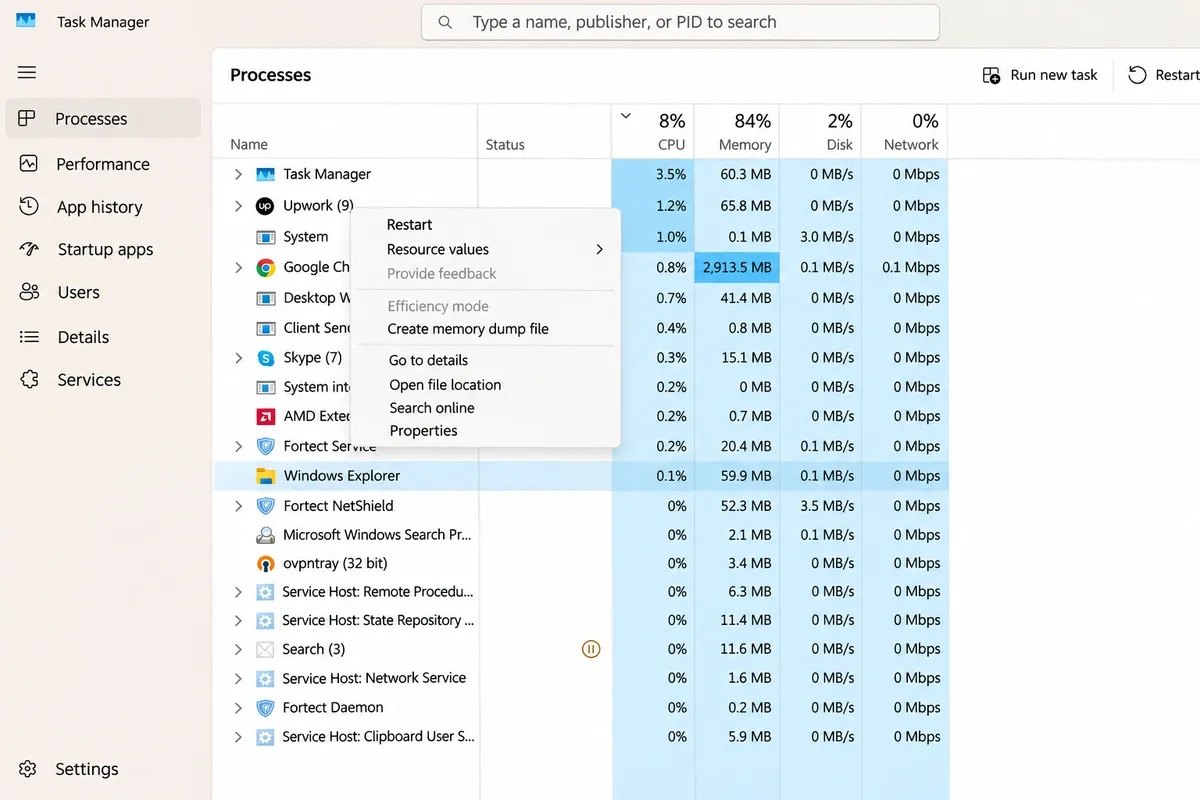
If Windows Explorer isn't listed and the shell is missing, select Run new task, enter explorer.exe and confirm. If Task Manager won't open, or the whole bar remains unresponsive, use the taskbar and Explorer recovery steps instead of repeatedly deleting icon files.
In a Microsoft-hosted disappearing-icons discussion, the original Windows 11 21H2 user described Explorer restarts helping only temporarily. A separate 22H2 report on that page described blank tiles that still launched their apps and redrew when clicked. These are reported behaviors, not evidence that one restart permanently repairs every case.
Compare one app's shortcut and running button
Open the affected installed app from Start or its existing trusted shortcut. Compare its Start entry, desktop shortcut if present, and running taskbar button. Record whether only the running button is blank or the app's other shortcuts also have blank images. If hovering opens a window preview, compare its small app icon too. A correct icon in the preview beside a blank taskbar button is a useful distinction to send the vendor. Don't download another copy of the app merely to create a new pin.
If you recently chose a custom icon, check that its resource file still exists. The shortcut icon and running-button guide explains how to inspect the actual shortcut without changing its launch target. Keep the original resource information so you can undo an unsuccessful appearance change.
For a single affected app, use its vendor's current repair guidance before treating every Windows shortcut as broken. In the Directory Opus blank-icon discussion, one user reported that pinning and unpinning briefly restored the image, but reopening the app brought the blank image back. Installing over the existing installation later helped that user.
A different participant using Windows 11 25H2 and Open-Shell reported that cache clearing and installing over the existing app didn't help. Their later improvement followed both closing a helper process and changing a shortcut icon. That combination doesn't identify a single cause or justify ending another app's helper processes. Keep an app-specific failure with the vendor, including whether its running button differs from its shortcuts.
Clear the specific cache only for blank shortcut images
When blank images affect shortcuts across Start, the desktop or the taskbar even though the apps still open, Microsoft's blank application-shortcut guidance identifies the icon cache as an initial check. Its cache procedure stops Explorer, removes IconCache.db from the affected profile's Local AppData folder and starts Explorer again.
This interrupts the shell. Save work, finish file transfers and keep Task Manager open first. On a managed PC, have IT handle the cache procedure. If administrator approval would require signing in as a different account, stop: that account's profile isn't the affected profile.
- In Task Manager's Processes view, right-click Windows Explorer and choose Go to details. Confirm that the selected process is
explorer.exeand record its PID. If you can't identify that process, don't guess. - Select Run new task, enter
cmd.exeand choose administrative privileges if your own account can approve them. Keep Task Manager available. - To stop only the Explorer process you identified, type
taskkill /f /fi "IMAGENAME eq explorer.exe" /pid, followed by a space and its recorded numeric PID, then press Enter. If access is denied or the process doesn't match, don't continue to deletion. - Confirm in Task Manager that the identified Explorer process has ended before proceeding. Run the following folder command. Continue only if it succeeds; if it fails, skip deletion and restart Explorer using the final step.
CD /d "%userprofile%\AppData\Local"Then remove only the named cache file:
DEL IconCache.db /aWhether deletion succeeds or reports an error, return to Task Manager, select Run new task, enter explorer.exe and confirm. Check that the desktop and taskbar return. If the file isn't found or access is denied, record that exact result; don't broaden the command to delete folders or every file with a similar name.
The PID route avoids guessing an End task command on an Explorer menu that instead offers Restart. Microsoft's taskkill reference documents selecting a process by PID and explains that /f forces it to end. Use the PID from the identified Explorer entry, not a number from a tutorial or an unrelated process.
Verify the original trigger before wider repairs
Compare the same shortcuts and running apps after the refresh or cache check. Save work and close and reopen the affected app normally. If the original failure followed sleep, hibernation or sign-in, repeat that normal sequence and check again. A picture returning once is a useful result; it doesn't establish that a recurring fault is gone.
If you use a taskbar or Start-menu replacement, record its name and version. Compare the native Windows shell using that product's supported controls, restoring your preference after an unsuccessful test. The Open-Shell detail in the Opus report matters when interpreting a missing menu command; it isn't evidence that every native Windows installation has the same issue.
Microsoft's blank-shortcut article also covers Shell Experience Host registration and IconHandler registry checks. Those are broader technical steps to match to the remaining symptom with support or IT, with a registry backup before any registry modification. I wouldn't start with an all-users re-registration script for one blank app button, or use a tray-promotion registry script for a missing app image.
Give support the Windows build, app version, exact missing item, original trigger and the result of each check. Include whether the shortcut still launches and whether the blank image affects one app or several locations. Remove private account details from screenshots. The Windows desktop hub connects the neighboring shell and appearance guides.



