
If the system tray is missing icons in Windows 11, open Settings > Personalization > Taskbar > Other system tray icons, enable the hidden icon menu and check the affected app's visibility setting. Then open the app and compare its icon with the other tray icons. If the entire taskbar is unresponsive, use the Explorer recovery route instead of repeatedly changing icon switches.
I'd separate one missing app icon from a missing Windows control first. The overflow menu, network and volume controls, and a third-party dock aren't the same part of the desktop, so a change that helps one can leave the others untouched.
Identify what is missing
Check the ordinary desktop with full-screen apps minimized. Note the exact missing item and whether Start, pinned app buttons and the clock still respond. If you use several displays, compare them before changing settings; a whole bar missing on one screen belongs to the secondary-monitor taskbar checks.
| What you see | First useful check |
|---|---|
| One background app icon is absent, but the bar responds | Check the hidden icon menu, then open that app. |
| The upward arrow is absent or the overflow menu isn't available | Check the hidden icon menu setting under Other system tray icons. |
| Network, volume or battery is the missing item | Compare Quick Settings or the specific device status, separately from app-icon switches. |
| The bar appears when you reach the bottom edge | Check automatic hiding before treating the tray as broken. |
| Start, app buttons and the notification area all stop responding | Use the wider taskbar and Explorer recovery steps. |
| Icons are absent only inside a dock or replacement taskbar | Compare the native Windows taskbar with the customization disabled through its own controls. |
Microsoft's taskbar customization instructions distinguish background-app icons from Quick Settings and the clock/notification area. Keep that distinction while testing: an app button pinned near Start isn't its background status icon.
Restore hidden app icons
- Right-click an empty area of the taskbar and choose Taskbar settings. You can also open Settings > Personalization > Taskbar.
- Expand Other system tray icons. Note the original hidden-menu and app-visibility settings so you can restore them after an unsuccessful comparison. Enable Hidden icon menu if it is off.
- Find the affected app in that section and turn its visibility switch on. Return to the taskbar and open the upward-arrow menu if the icon is still inside it.
- If the icon appears in the overflow menu, drag it from that menu onto the system tray to keep it visible. Dragging it back into the overflow area reverses that placement.
- Open the icon's menu or the app and check that it is the application you intended. Repeat the check after the next normal sign-in if the failure occurs at startup.
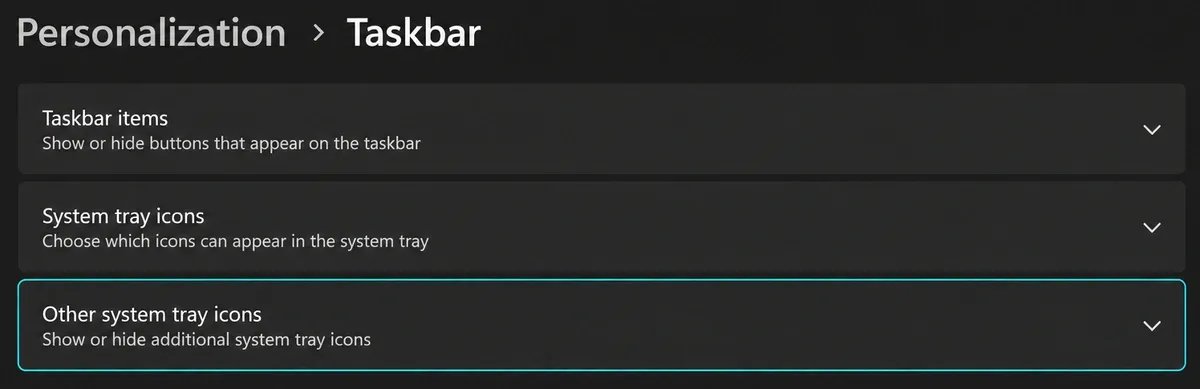
The nearby System tray icons section is for controls such as the pen menu, touch keyboard and virtual touchpad. It isn't the background-app list. Microsoft's instructions also document moving app icons between the tray and its overflow area; use the app's actual icon rather than dragging a desktop shortcut onto the taskbar.
Check the app before reinstalling it
If the app isn't listed or its icon doesn't return, open the installed app from Start and inspect its own status and notification-area preference, if it provides one. Record whether the icon appears while the app is open and whether closing its window removes it. Don't apply one app's minimize-to-tray behavior to every background utility.
A missing security-app icon isn't enough to determine protection status. Open that security product and check its reported protection state; keep any actual warning for its support team. Don't stop protection services or uninstall the product just to make an icon reappear. On a work or school PC, have IT handle an enforced app or setting.
Bitdefender's explanation of its delayed tray icon describes an agent starting after the protection engines. That documented behavior is specific to Bitdefender; it doesn't prove another app has started or that a warning can be ignored.
For an ordinary app that appears when opened manually but not after sign-in, check the app-specific startup controls. Preserve the original setting and change only the identified app. If its visibility switch is already on but the symptom returns, save the app version, Windows build and trigger for the vendor before choosing its current supported repair procedure.
Separate Windows controls from app icons
Press Windows + A to open Quick Settings. Microsoft documents that shortcut for the network, volume and battery area. If Quick Settings opens and the connection or sound control works, record the remaining problem as a missing or unexpected indicator rather than assuming the adapter or audio device has failed.
A network icon can represent Wi-Fi or Ethernet. In a Q&A discussion about a missing Wi-Fi symbol, one respondent reported that the displayed symbol changed with a VPN connection. That was an individual observation, not a reason to disconnect a required work VPN or reset every network adapter. Check the actual connection in Settings before choosing a network repair.
If only the battery indicator is missing, use the battery icon and detection checks. For a missing clock, Microsoft's taskbar instructions place Show time and date in the System tray under Adjust date and time, reached by right-clicking the clock. If that route isn't available, open Settings > Time & language > Date & time and inspect the matching option available on your build. If it is absent, record the Windows build for support rather than creating registry values to force it.
Compare the native taskbar before wider repairs
If the entire bar returns when the pointer reaches the bottom edge, check Taskbar behaviors > Automatically hide the taskbar. The automatic-hiding and app-attention guide covers that behavior. Icon visibility switches don't control whether the whole bar hides.
For a dock or taskbar replacement, record the product version and original settings. Temporarily turn off its taskbar feature through its own supported controls, then compare the native Windows bar. Restore the setting after an unsuccessful comparison. If the native tray works while the replacement fails, take that result to the customization vendor; installing another shell patch makes the comparison harder.
Save work and let file transfers finish before restarting Explorer. If the native bar and its controls remain unresponsive, follow the taskbar and Explorer recovery steps. Keep cache deletion, registry scripts and Windows reinstallation out of a single-icon visibility check.
Check whether the icon stays restored
Repeat the trigger that originally exposed the failure: normal sign-in, opening the app, closing its window or reconnecting a display. Check both the icon and the application's real function. An icon returning once is a useful observation; it doesn't establish that an intermittent failure is repaired.
The reported outcomes show why this matters. In a Bitdefender disappearing-icon discussion, the owner reported that reinstalling restored icons temporarily before they disappeared again, and later described a visibility-setting change followed by a restart. In the Winstep system-tray discussion, users distinguished Nexus from NextStart and described accessing the native Windows bar as a workaround. These are separate, uncontrolled cases, not a shared repair-success rate.
If the icon disappears again, send support the app and customization versions, Windows build, exact missing item, trigger and results of each individual comparison. Remove private account details from public screenshots. Use the Windows desktop hub to follow the remaining symptom if it has moved beyond tray visibility.



