Windows network and internet problems
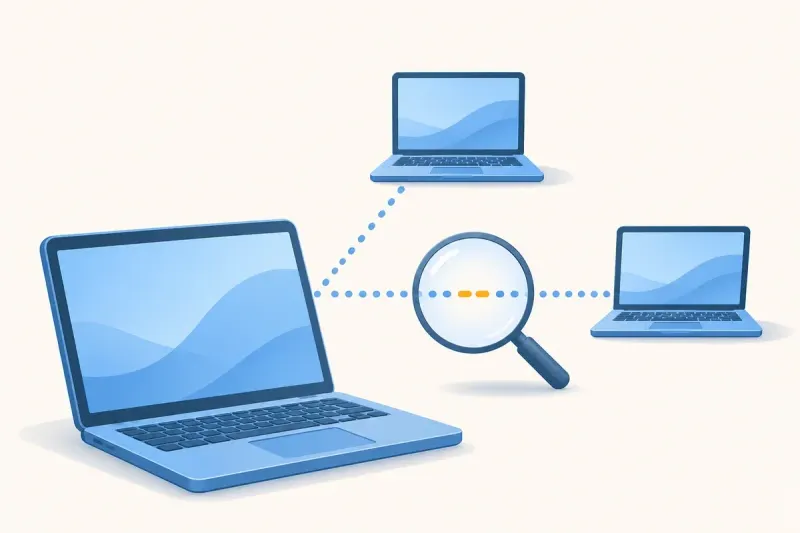
Separate missing PCs in File Explorer from denied shared-folder access. Check the trusted profile and discovery services without enabling obsolete SMB1.

Windows network and internet problems
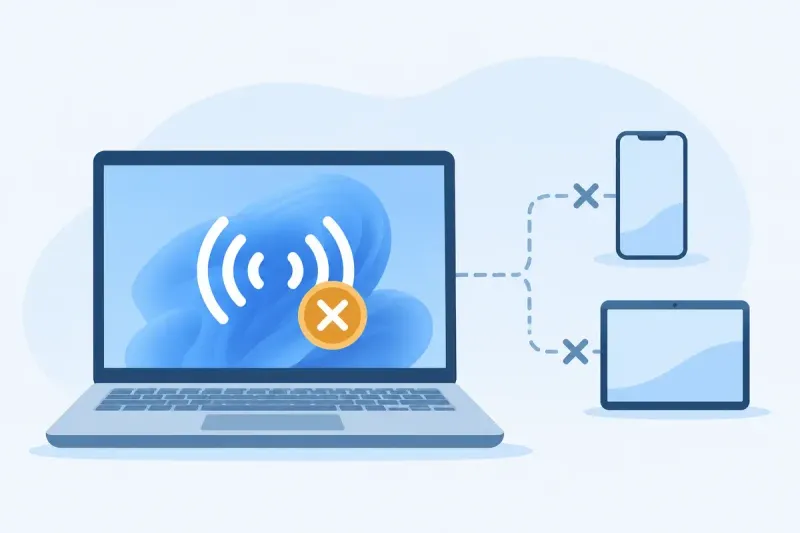
Separate Wi-Fi spikes, background traffic and game-server routes with repeatable comparisons. Use Windows diagnostics without a blanket reset or optimization script.
Windows network and internet problems
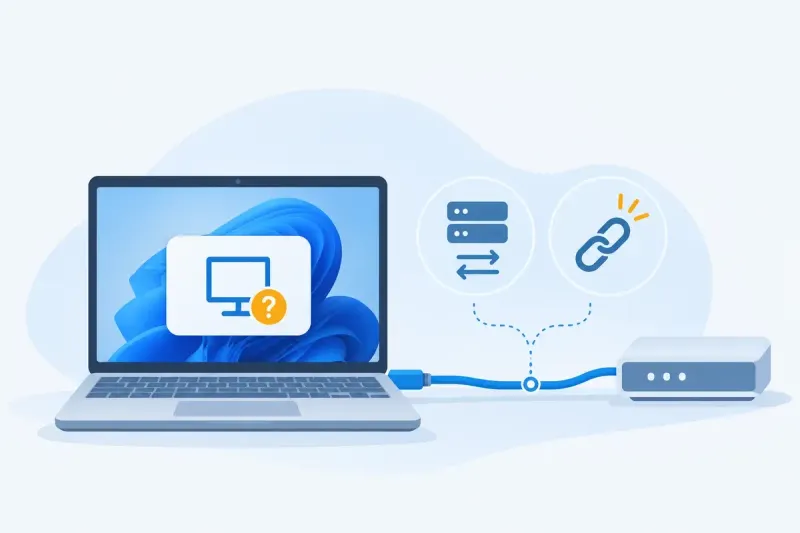
Start with the intended connection and active Ethernet address. Check DHCP without copying a static IP, then verify the original app and wired connection.

Windows network and internet problems
Check the Settings switch, the model's radio control and the actual wireless adapter. Keep offline drivers and retest the restart or wake pattern before a reset.
Windows network and internet problems
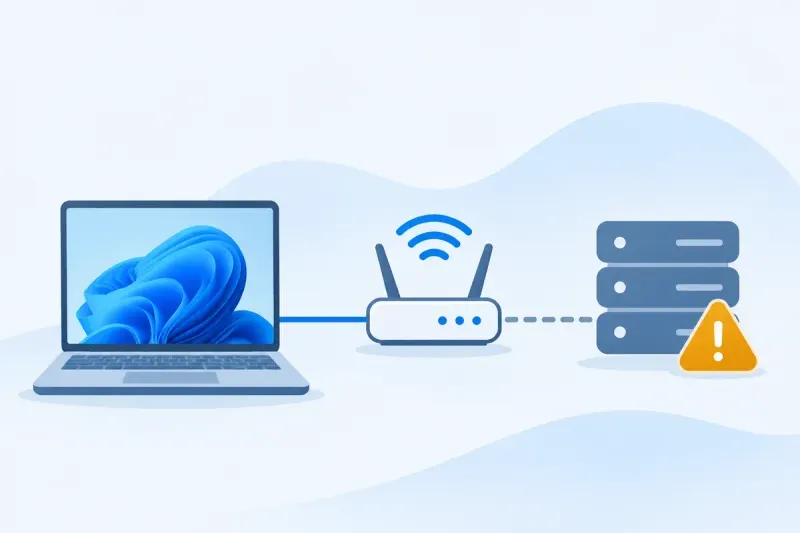
Compare default and public DNS lookups before changing settings. Separate a resolver issue from connection failure, then retest with a clear way to undo changes.
Windows network and internet problems
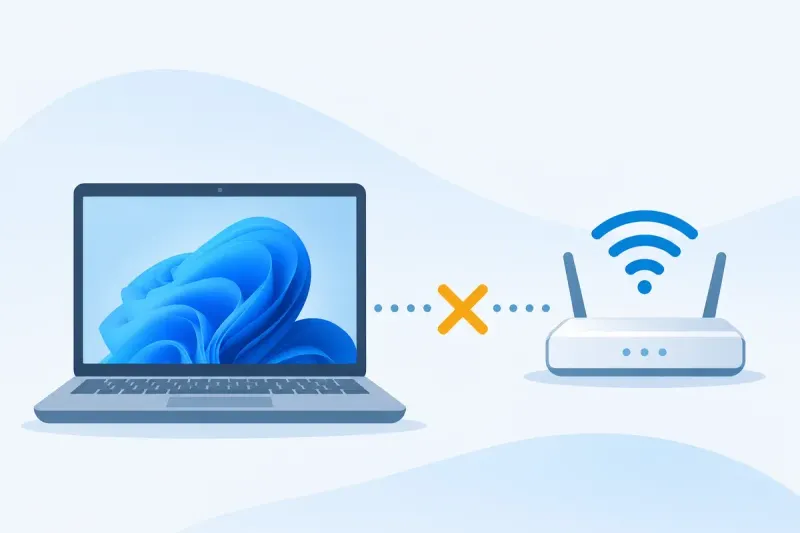
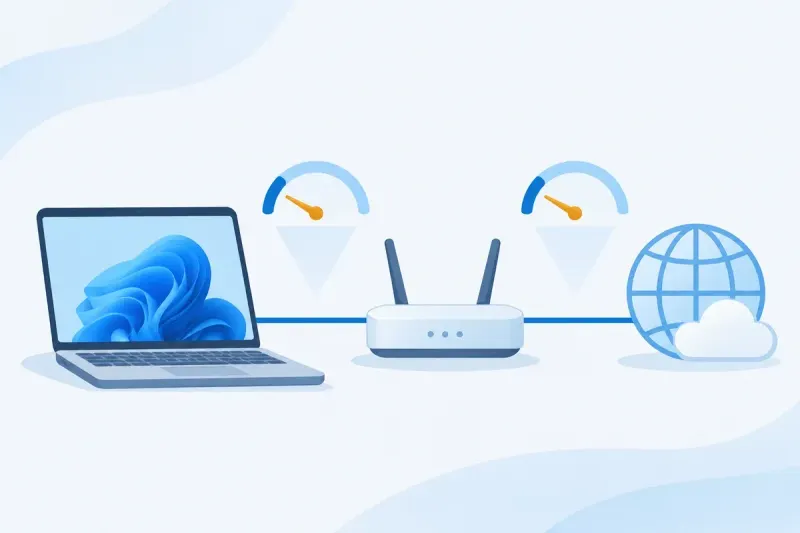
Record repeatable tests, then compare location, devices and Ethernet. Separate wireless coverage, PC software and provider problems before changing settings.
Windows network and internet problems
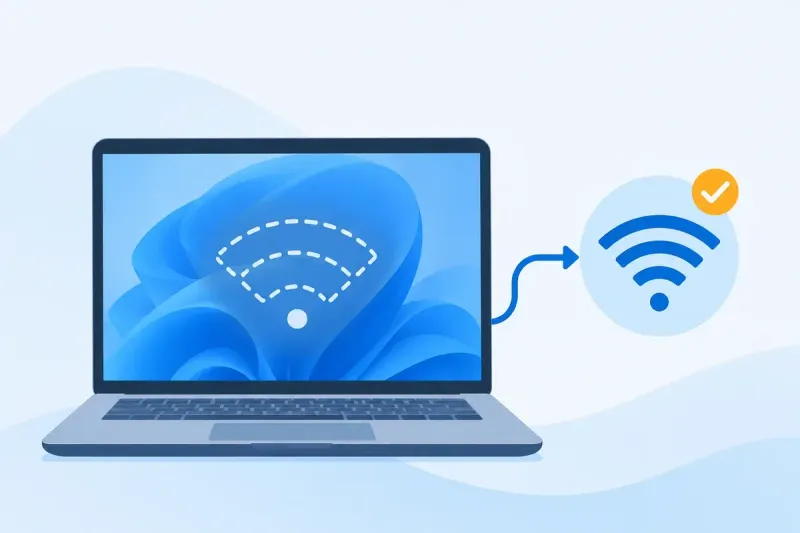
A missing Wi-Fi option needs different checks from a missing network name. Find the wireless adapter, keep an offline driver and verify the original failure.
Windows network and internet problems
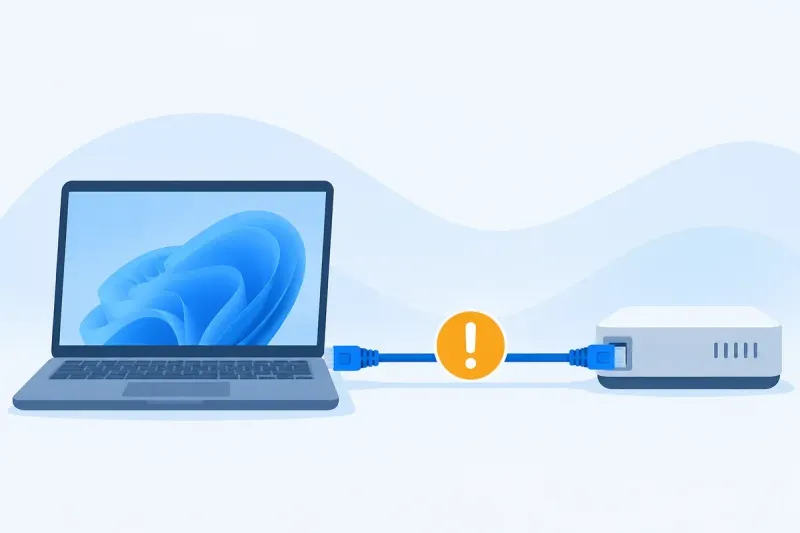
Check the cable and LAN port, identify the wired adapter and inspect its address. Keep an offline driver and use Network reset after targeted checks.

Windows network and internet problems
Record the failed session, compare networks and check available power controls or compatible drivers. A brief reconnection does not prove the recurring drop is fixed.
Windows network and internet problems
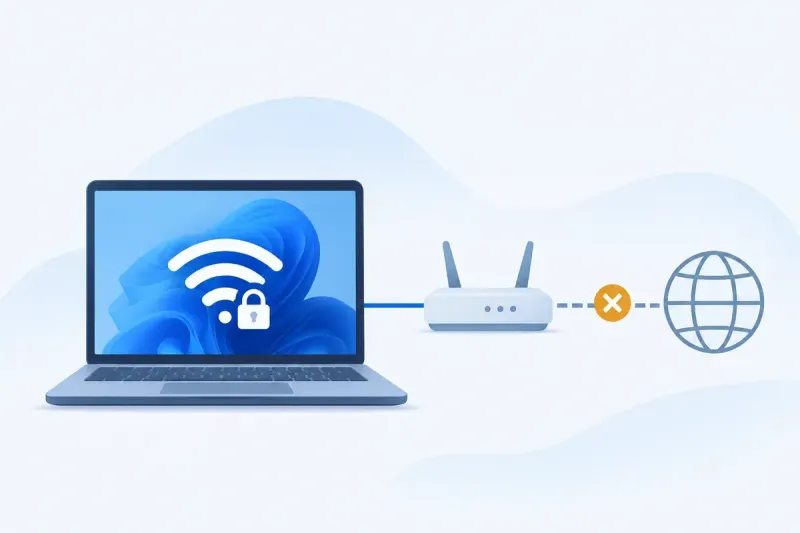
Check actual browsing, the active Wi-Fi address and DNS before broad resets. A working browser with a “No Internet” label needs a different branch.