
If Software Center reports 0x4005 (16389) during a Windows upgrade, preserve the failed attempt's logs and identify the task-sequence action that failed. The displayed status doesn't establish whether the problem is free space, an incompatible app, a content download or a custom deployment step. Start with smsts.log, then follow any Windows Setup error from that same attempt.
I'd establish the failed stage before cleaning files or changing security software. On a work or school PC, record the error and give it to your deployment team; don't bypass its task sequence or remove managed protection.
Record the deployment and the full error
Open the failed item's details in Software Center and record its name, complete error, failure time, installed Windows version and intended target. Note whether the failure happened before a restart, during Setup or after Windows rolled back. The target release is the deployment's destination, not necessarily the version currently installed.
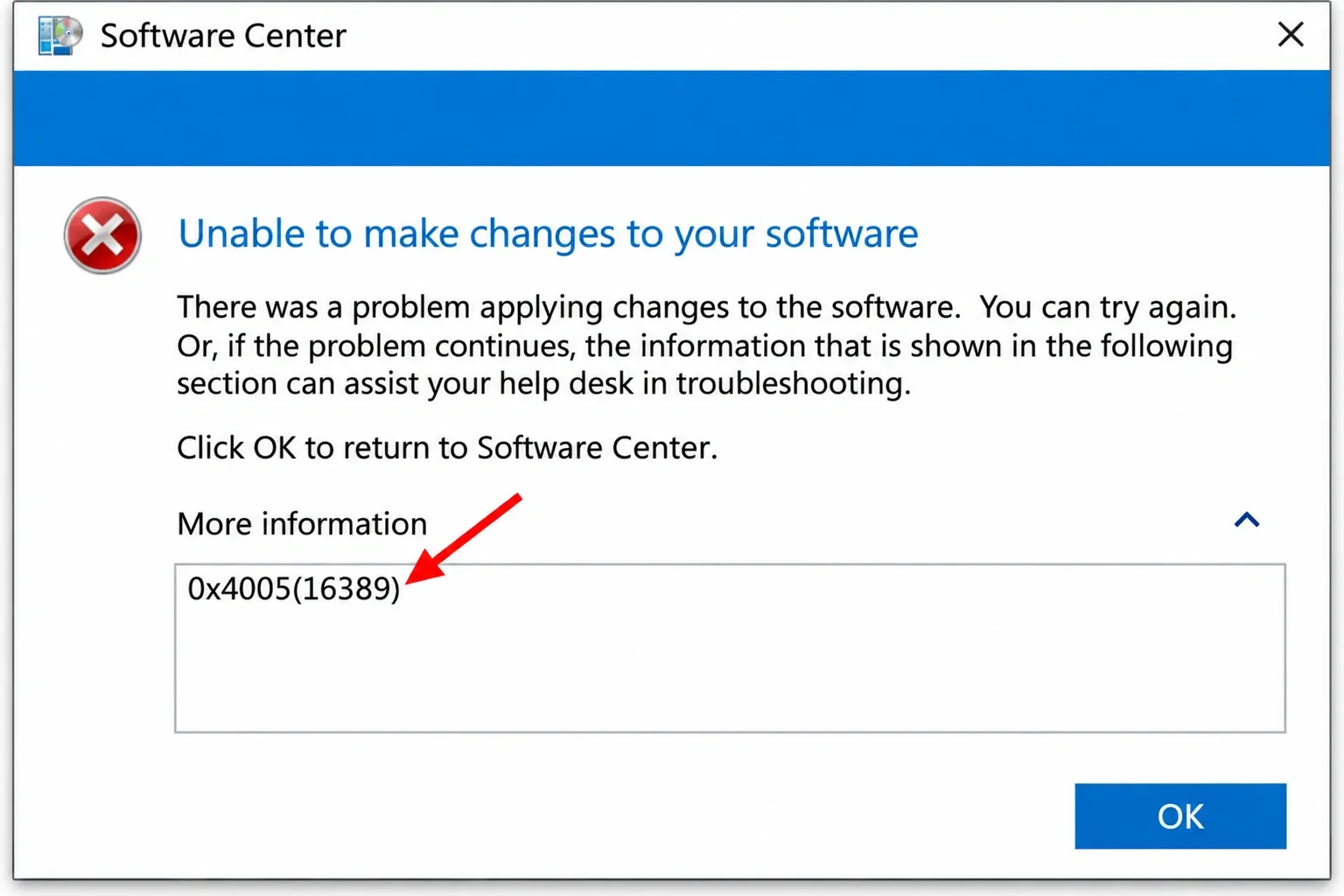
Confirm that this was an operating-system upgrade. Software Center can also display this status for an application deployment. A published .NET deployment case follows an application installer and decompression failure, not Windows Setup. Its 32-bit process setting isn't a general Windows upgrade fix.
Find the task-sequence log for the failed stage
Before another attempt or cleanup, copy the available logs to an approved support location. Microsoft's task-sequence log locations vary by phase. For a Windows upgrade on a client with Configuration Manager installed, check:
C:\Windows\CCM\Logs\smstslog\smsts.logwhile the task sequence runs in Windows after client installation.C:\Windows\CCM\Logs\smsts.logafter the task sequence completes.
The read-only task-sequence variable _SMSTSLogPath identifies the current log path for the deployment administrator. A different imaging stage can use another location; don't conclude there is no log because one of these folders is absent.
- Open the saved log in CMTrace. Microsoft documents the client copy at
C:\Windows\CCM\CMTrace.exe; ask IT for its supported copy if it isn't present. - Choose File > Open. Leave Ignore existing lines unchecked so the failed attempt's history remains visible.
- Use Tools > Find to find the failure near the recorded time. Read the surrounding action and group messages, rather than treating the last red line as the cause.
- Record the failed action's name, its specific return code and any child log or Windows Setup result it identifies.
Those controls come from Microsoft's CMTrace instructions. Keep complete logs for trusted support. Remove account names, device names, management-server addresses, site identifiers and secrets from public excerpts; don't publish the full deployment command.
| Failed stage | Evidence to follow |
|---|---|
| Check Readiness | The configured requirement and each failed validation in smsts.log. |
| Windows Setup compatibility scan or upgrade | The Setup exit code, phase and matching Setup logs or SetupDiag result. |
| Content download or custom command | The named content or action, its return code and preceding messages. |
| Application or client installation | The application's enforcement or installer log, or CCMSetup logs if client setup failed. |
If Check Readiness fails, use its configured requirement
Microsoft's Check Readiness reference says the step validates specified deployment prerequisites and records the check outcomes in smsts.log. Minimum free disk space is a configurable value in MB. Check the actual requirement and reported available space instead of assuming every deployment needs the same free-space allowance.
In a published Configuration Manager upgrade example, the initial log fails a configured 65536 MB free-space check. The later log illustration passes that check with 104017 MB available. That demonstrates the readiness check's result; it doesn't establish a universal Windows free-space minimum or prove the entire upgrade completed.
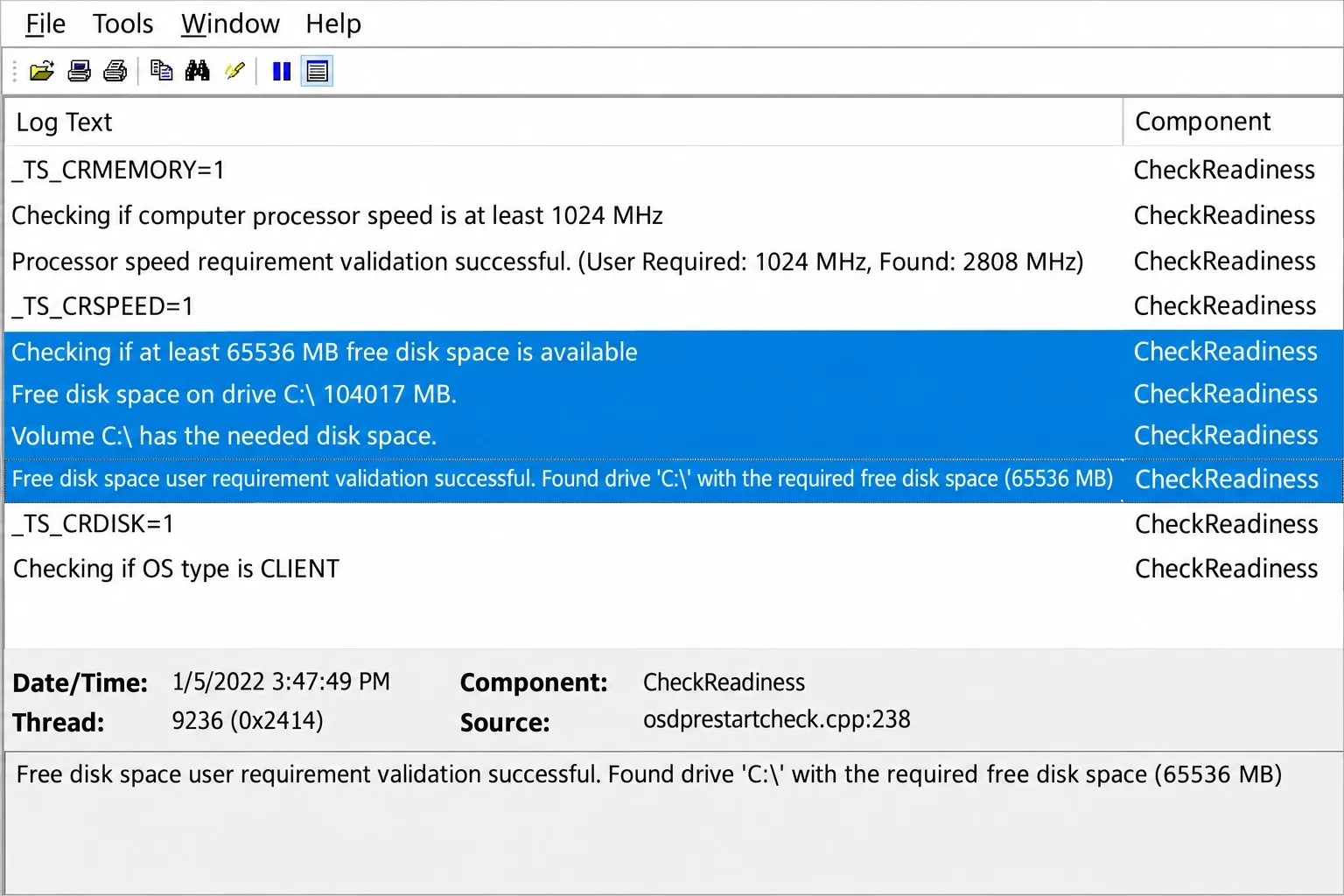
If your log identifies insufficient space, have the deployment owner confirm the required allowance. Back up important files and review approved cleanup choices before deleting anything. Preserve upgrade evidence first; don't delete EFI, System Reserved or recovery partitions to satisfy the check. Recheck all failed readiness conditions, not just disk space.
If Windows Setup starts, follow its own result
The task sequence's Upgrade Operating System step can run a compatibility scan without starting the upgrade. Microsoft's Upgrade OS reference distinguishes results such as 0xC1900208 for actionable compatibility issues, 0xC1900204 for an unavailable migration choice and 0xC190020E for insufficient free space. These child results are more useful than guessing from the Software Center status. A scan-only result of 0xC1900210 means no compatibility issues were found by that scan; it does not mean Windows has been upgraded.
Preserve the available setupact.log and setuperr.log from the same attempt. Microsoft's Windows Setup log reference places downlevel logs under $Windows.~BT\Sources\Panther and rollback logs under $Windows.~BT\Sources\Rollback. Use the recorded phase and timestamps to choose the relevant files.
When Setup runs SetupDiag automatically, its analysis is saved at %WinDir%\Logs\SetupDiag\SetupDiagResults.xml. Give that result and the underlying logs to IT. SetupDiag analyzes Setup logs; an absent result doesn't prove the upgrade was compatible or that the task sequence reached Windows Setup. If SetupDiag reports multiple failures, Microsoft says the last failure is typically the fatal one. Correlate it with that attempt's phase and timestamps rather than choosing an unrelated earlier error.
A Windows 10 21H1 deployment discussion illustrates the distinction. Its Setup result was 0xC1900208, and the compatibility evidence named an old VirtualBox installation as a hard block. The author reported successful upgrades on two affected clients after removing it. That is a case-specific outcome, not a reason to remove VirtualBox or other software on every PC with 0x4005.
Resolve the named blocker through the app vendor and deployment team. If Setup specifically names SentinelOne, use the managed-agent compatibility checks. If the evidence points to the installed or target Windows release, use the feature-upgrade and servicing branches. Don't disable protection or switch installation media just to evade the warning.
If another deployment step failed, keep that context
A content-download failure needs its named content and connection evidence. A custom script failure needs the specific command's return code and context. Give these to the deployment administrator instead of inserting a computer-description command copied from a generic fix list.
If the operation was an application installation, Microsoft's Configuration Manager log reference identifies AppEnforce.log for application installation and removal actions. If client setup itself failed, follow the CCMSetup log and failed-package checks. Reinstalling the management client doesn't identify an unrelated Windows Setup blocker.
Retry the approved deployment and verify the whole result
After IT repairs the identified condition, save your work, connect power and complete any required restart in the approved maintenance window. Retry the approved deployment once and retain the new logs. Confirm that the previously failed action now passes and the task sequence finishes.
Then verify the installed Windows version and the endpoint's expected management and protection state. A passing readiness check, a disappearing error dialog or a new restart isn't enough. If the same action fails again, compare both attempts and escalate that specific failure; if a different action fails, follow its new evidence.
Include the deployment name, current and target versions, attempt time, failed action, task-sequence return code, any Windows Setup result, relevant logs and approved changes with the support case. The Windows Update and upgrade hub covers related failure stages.




