
To try the old Notepad in Windows 11, open Settings > Apps > Advanced app settings > App execution aliases and turn off the Notepad entry for notepad.exe. Then open the classic executable already in your Windows folder. This works when the classic component is installed; if it's missing, check the Notepad (system) optional feature instead of uninstalling your only working editor.
I'd keep the modern Notepad installed until the classic editor opens and saves a file correctly. Changing the launch route is a smaller first step than removing the app, importing registry files or downloading an old executable.
| Result | What to do |
|---|---|
| The modern app opens instead of the existing classic editor | Try turning off only the Notepad execution alias. |
| The classic executable is missing | Check whether Windows offers Notepad (system) as an optional feature. |
| Classic Notepad opens, but double-clicking a .txt file uses another app | Check file-type defaults separately. |
| No classic component or alias is available | Keep the working editor; don't replace Windows system files to force the old version. |
Turn off only the Notepad execution alias
Save any unsaved documents from the modern app to files before changing your setup. An open tab isn't a substitute for a saved copy you can reopen in another editor.
- Open Settings > Apps > Advanced app settings > App execution aliases.
- Find the Notepad row with notepad.exe beneath it. Note whether its switch is currently On or Off.
- Turn that specific switch Off. Leave unrelated aliases alone.
- Open File Explorer, go to C:\Windows\System32, and open the existing notepad.exe. Use your Windows installation folder if Windows is installed somewhere other than C:\Windows.
- Check which editor opens before changing shortcuts or file defaults.
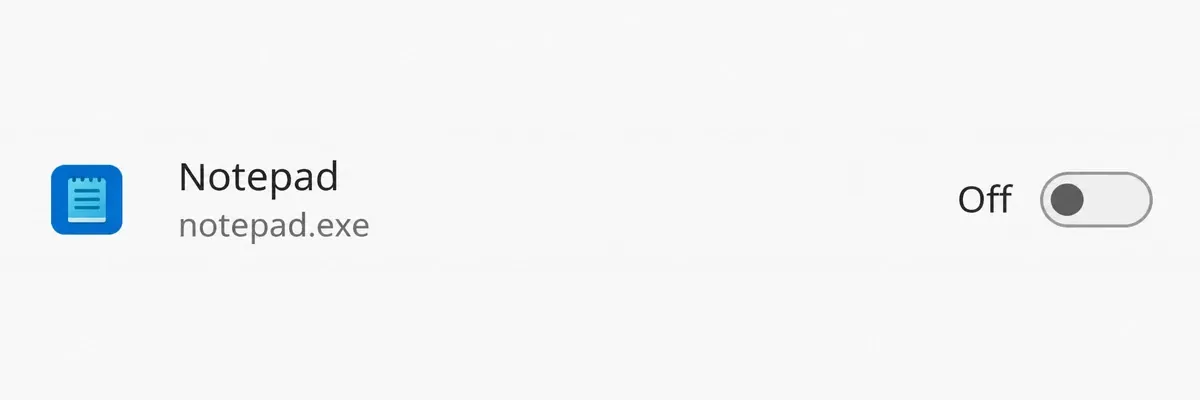
The accepted answer to a Windows 11 classic-Notepad question describes this alias approach, and a later classic Notepad walkthrough shows the same setting. Keep the installed component and the launch setting separate: turning off a redirect can't supply an editor that isn't on the PC.
If the alias isn't listed, or the existing executable still opens the modern app, don't rename or overwrite notepad.exe. Use the component check below. For Settings that won't launch at all, follow the Settings opening and repair checks before attempting further app changes.
Verify the classic editor before changing defaults
Look for the traditional single-document window and classic menu bar, rather than the modern tabbed app. In that window, create a short disposable text file in a folder you control, save it with a recognizable name, close it, then reopen it through that editor's File > Open command. Confirm that the content you saved is present.
For a screen reader or Braille workflow, check the operations you rely on in that same disposable file: reading, moving through text, editing and saving. A classic-looking window alone doesn't confirm that your accessibility setup works as intended.
Keep this check separate from double-clicking a .txt file. The editor can launch successfully while Windows still associates text files with a different application. Pin or create a shortcut to the classic executable only after you've identified the working window, so two similar Notepad icons don't leave you guessing.
If the classic editor is missing
Microsoft lists Notepad (system) as the classic system editor, separate from the Store-updated Notepad app. Look for that component on your PC; toggling an alias can't install a missing executable.
- Open Settings > System > Optional features. Some Windows 11 versions place Optional features under Apps.
- Check the installed features for Notepad (system). If it isn't installed, choose View features beside Add an optional feature and search for Notepad.
- If Notepad (system) is offered, select it, choose Next, review the selection, then use Add to install it. Follow any completion or restart request before checking the classic editor again.
Those are Microsoft's current optional-feature controls. Windows Update supplies the feature content, so the PC needs an online connection. On an organization-managed device, access to the feature page can be restricted.
If the component isn't offered or installation fails, record the exact feature name and error. Don't select a different package just because it contains the word Notepad. A feature-download failure needs its own repair; a Windows Update connection error belongs with the update-service connection checks. Ask IT about a managed feature source or hidden setting.
I wouldn't replace a protected Windows executable with an old download to get a simpler editor. Keep the modern app or another approved text editor available when the native component can't be installed through your PC's supported feature route.
Choose text-file defaults only after the editor works
Open Settings > Apps > Default apps, search for .txt, and select the matching file type. Note the currently assigned app before changing it, then choose the classic editor if Windows offers the version you've just verified. Microsoft's default-app instructions explain this per-file-type selection; changing an execution alias doesn't replace that check.
If the classic editor is absent from the choices, don't apply a registry package intended for another Windows build. You can still use File > Open inside the working editor without forcing a system-wide association. Check other extensions individually if you need them; a .txt default doesn't establish how .log, source-code or configuration files will open.
Undo the alias change without removing either editor
Return to Settings > Apps > Advanced app settings > App execution aliases and restore the Notepad switch to its original state. To use the modern alias again, set it to On. If you also changed the .txt default, choose your previous app again in Default apps; remove only a shortcut you created for this change.
Reopen the editor from the route you normally use and check a saved test file. If you restored the modern alias but a pinned shortcut still opens the classic editor, check the shortcut's target rather than toggling unrelated aliases. Once that route and the file default behave as intended, stop changing settings. Other desktop changes belong in the relevant Windows desktop guide, rather than a blanket reset of app aliases.


