
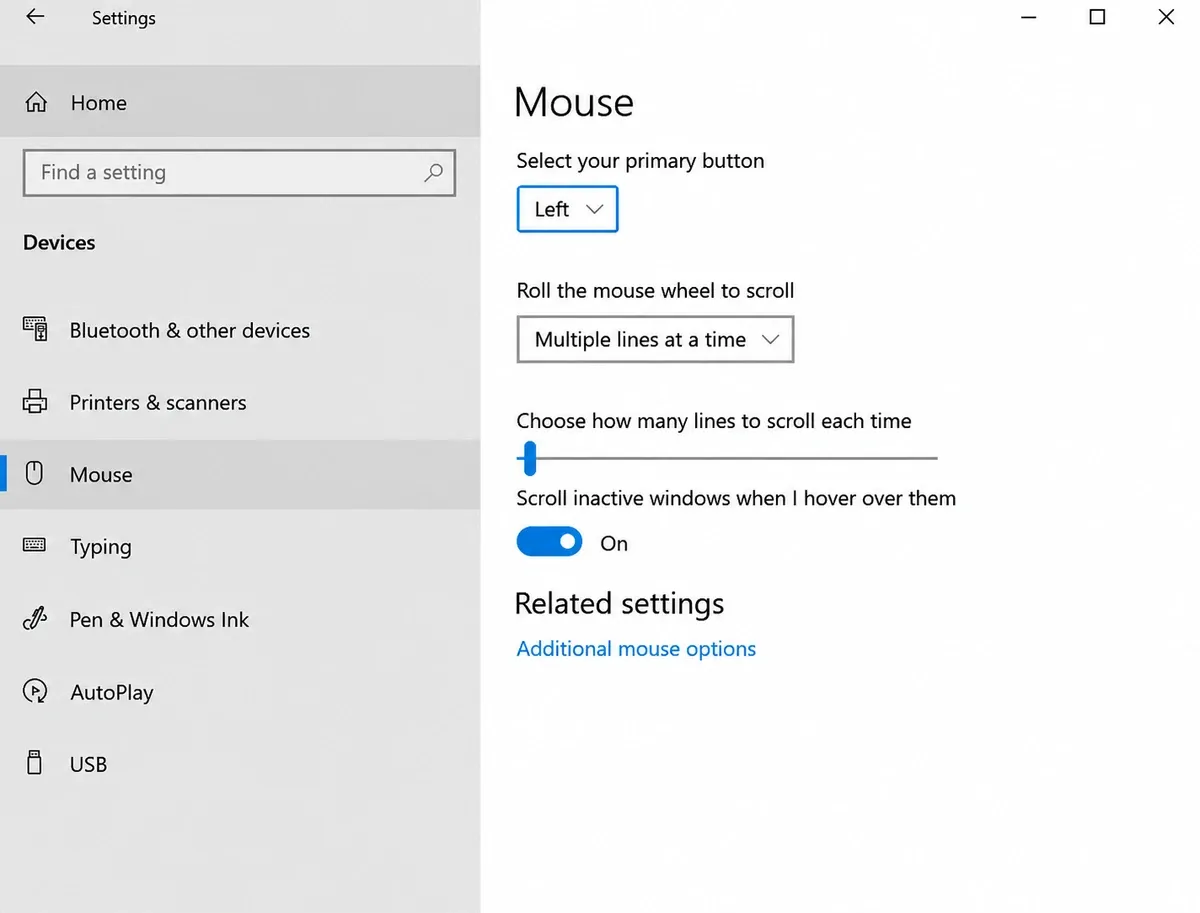
To restore ordinary left-button selection, open Settings > Bluetooth & devices > Mouse in Windows 11 and set Primary mouse button to Left. In Windows 10, use Settings > Devices > Mouse > Select your primary button. If Left is already selected, check whether the reversal happens everywhere or only in one app before changing drivers.
I'd check this preference first because it directly controls which button selects items. Keep Right if that is your intended left-handed setup; the goal is to restore your chosen arrangement.
Reach the setting while the buttons are swapped
If the physical right button now selects items, use it to open Settings. Once you change the preference, be ready to use the physical left button again. You can also reach the page with the keyboard:
- Press Windows key + R to open Run.
- Type
ms-settings:mousetouchpadand press Enter. - Press Tab until the primary-button drop-down has focus. Use Shift + Tab to move back if needed.
- Use the arrow keys to choose Left, then press Enter. Read the selected value before leaving the page.
Microsoft lists ms-settings:mousetouchpad as the Mouse & touchpad Settings address. It opens a Settings page, rather than installing a tool or changing a driver. Microsoft's Windows keyboard shortcuts document Run and moving through controls without relying on a mouse click.
If that address doesn't open, press Windows key + I and follow the Settings route above with the keyboard. Use the visible focus indicator rather than counting a fixed number of Tab presses.
Choose the primary button and check both actions
On Windows 11, find Primary mouse button on the Mouse page. Windows 10 labels the control Select your primary button. Microsoft's primary-button instructions confirm the separate routes and the Left or Right choices.
After selecting Left, single-click a harmless desktop item with the physical left button: it should select the item. Then use the physical right button on that item: it should open its context menu. Press Esc to dismiss the menu. Repeat the comparison in the app where you noticed the problem.
If one physical button produces no action at all, use the other-mouse comparison below; a dead button is a different observation from two buttons exchanging functions. If these actions now match your preference, stop changing settings. Pointer speed, scrolling, double-click speed and button assignment have separate controls; adjusting all of them makes a simple reversal harder to track.
For a Logitech mouse whose physical right button produces no click or responds intermittently, follow the Logitech right-button and assignment comparisons. That route separates a missing input from two working buttons exchanging functions.
| What the comparison shows | Where to look next |
|---|---|
| Both buttons work as intended after choosing Left | Keep that preference and retest after restarting. |
| The desktop works, but one game or app reverses actions | Inspect that app's button bindings and the active mouse-software profile. |
| Left is selected, but buttons remain wrong across Windows | Compare another mouse and, if available, the affected mouse on another compatible PC. |
If Left is already selected, check the scope
If the middle or side buttons also perform the wrong actions, record those assignments separately. Don't keep flipping Left and Right to compensate for a wider mapping problem.
Close the affected game or app and repeat the desktop selection/context-menu check. If the desktop behaves correctly, inspect the app's own input bindings before changing the Windows preference again. Record the current bindings before restoring a particular action.
If you already use mouse-customization software, inspect its active device and profile for button assignments. Logitech's G HUB software, for example, supports assignments and customization for supported devices. Use your mouse maker's instructions; don't install G HUB for an unrelated mouse.
A Tom's Hardware discussion about mixed-up buttons describes a Windows 10 problem that appeared shortly after sign-in. Another user reported that removing G HUB immediately restored their G403's buttons, but also listed earlier SFC and DISM attempts. That is a useful reason to check software that starts with Windows, not proof that every reversal needs those scans or a G HUB uninstall.
Before resetting a profile or removing its software, save the assignments you need and keep a working way to navigate. Change one assignment or profile at a time and repeat the same two-button check. If the problem returns when a particular app opens, keep that trigger with your support notes.
Compare the mouse before removing drivers
Try a known working mouse on this PC, and try the affected mouse on another compatible PC if one is available. Keep each computer's intended primary-button preference in mind. Record whether the unexpected assignments follow the mouse or stay with one Windows session.
In a Microsoft Q&A case about reversed buttons, the original poster had already selected Left, and the same problem occurred on another computer. They later reported resolving it with an official HP package for their Pavilion 300 mouse. The post calls it both firmware and a driver, so don't assume a Device Manager search and a model-specific firmware update are the same operation.
If the behavior follows the device, check the exact mouse model's official support page for assignment, onboard-memory or firmware guidance. Use only a package explicitly intended for that model and follow its connection and power requirements. Don't flash another mouse's firmware or reset every stored profile just because a forum mentions a similar device.
If another mouse also behaves incorrectly on this PC, keep the Windows preference, app/profile trigger and comparison results for support. On a managed PC, ask IT before removing installed input software. Blanket HID-device removal and registry edits aren't the next step for a primary-button preference.
Verify the arrangement after a restart
Save your work, restart normally and repeat the desktop selection/context-menu check, then open the original app and repeat it there. If the reversal returns, note whether it happens at sign-in or only when a particular program starts. Include the Windows version, mouse model, selected primary button and results from the other-mouse comparison.
If the buttons work but movement still feels wrong, use the mouse-acceleration setting checks. For unexpected pointer movement with hands clear, follow the mouse-jump isolation checks. Those are different symptoms from button assignment; the devices and drivers hub keeps the other input tasks together.



