
Get the CP-D70DW driver from Mitsubishi Electric's official printer download page, then match the package to your Windows version and processor. The listed Windows package is CPD70V Ver.2.50_WT, with separate 32-bit and 64-bit downloads. Mitsubishi marks later Windows versions as unsupported, so the Windows 10 download isn't a promise of Windows 11 compatibility.
I'd settle that support question before changing a working photo-booth PC. A package that downloads successfully can still be unsuitable for the computer, and replacing a working print setup can interrupt the application that uses it.
Choose the official package for the exact model
Open Mitsubishi Electric's driver download table and find the CP-D70DW row under Windows. The CP-D707DW row uses the same CPD70V packages; don't select a neighboring CP-D80DW or CP-D90DW download because its number looks similar.
- 32-bit Windows 10: CPD70V Ver.2.50_WT, 32-bit package.
- 64-bit Windows 10 on an x64 processor: CPD70V Ver.2.50_WT, 64-bit package.
- Windows 11: the later-OS column carries Mitsubishi's unsupported-version note. Confirm a supported configuration with the vendor before installing.
- Windows on ARM: the listed x86 and x64 packages don't establish ARM support. Check the exact model's supported route.
On Windows 11, Settings > System > About > Device specifications > System type identifies an ARM-based processor. Microsoft's printer-driver instructions recommend Printers & scanners > Add device for affected ARM PCs unless the manufacturer supplies specific Windows-on-ARM guidance. Don't treat an x64 download as an ARM driver or a guarantee that this printer will be detected.
For an existing Windows 10 installation, check Settings > System > About for its system type before choosing 32-bit or 64-bit. The official 64-bit CPD70V Ver.2.50_WT archive contains the driver files, the CP-D70DW-series PDF guide and Windows10ReadMeENG.txt. Extract the ZIP before browsing for the driver; keep the files together.
Don't downgrade your everyday PC to Windows 10 just to use this driver. Windows 10's regular support ended on October 14, 2025. A retained production workstation needs an appropriate supported security arrangement and a migration plan; a legacy printer package doesn't provide either.
Check the Windows 11 limit before changing security
The footnote on Mitsubishi's table says later OS versions aren't supported and that the driver may not work correctly. That is the support boundary to use, even when a download site lists Windows 11 beside this model. Ask Mitsubishi or the photo-booth system supplier to confirm the exact Windows build, processor, driver package and application combination.
An older LA Photo Party installation walkthrough tells readers to disable driver signature enforcement. I wouldn't use that as the default installation route: it doesn't establish current Windows 11 support, and the official Windows 10 readme gives a different, driver-first sequence. If Windows blocks the package or reports a signature problem, retain the exact message and stop for vendor review. Don't edit the INF, enable test-signing or disable Secure Boot to force it through.
Also check whether Windows protected print mode is active on the Windows 11 PC. Microsoft's protected-print-mode documentation explains that enabling it removes printers using third-party drivers. If company policy controls that mode, contact IT. Changing the mode doesn't turn Mitsubishi's unsupported later-OS package into a supported one.
If you already have a functioning printer on a supported production setup, preserve its driver version, media settings and application configuration before any approved migration. On Windows 11, use the general driver-availability checks to distinguish discovery, processor and print-mode problems while you obtain model-specific support.
Install the package on its documented Windows version
The following sequence is the Windows 10 procedure in the official package's readme. It isn't a Windows 11 compatibility workaround. Sign in with an administrator account authorized to install this printer. Before replacing an existing driver, save the current configuration and arrange the vendor's removal and recovery steps; don't remove a shared production driver while applications or other queues depend on it. The series guide says different driver versions can't be used together. If one is already installed, follow the package's Windows 10 uninstallation instructions as part of the approved replacement.
- Extract the matching package. Read
Windows10ReadMeENG.txtand the included English driver guide. Leave the printer disconnected from the PC until the driver has been added. - Open Settings > Devices > Devices and printers, as the readme describes. In Devices and Printers, select a printer icon, then open Print server properties.
- Open the Drivers tab, select Add, then Next in the Add Printer Driver Wizard.
- Confirm the matching processor entry: x86 for the 32-bit package or x64 for the 64-bit package. Select Next.
- On Printer Driver Selection, choose Have Disk and browse to the extracted driver folder and select
CPD70N0.INFif the file picker asks for an INF. The package's INF uses the display name MITSUBISHI CP70D Series(USB); this series name differs from the CP-D70DW label on the printer. - Follow the wizard through Next and Finish. Confirm that the source is the official matching package before approving an administrator or installation prompt. Stop if Windows reports a blocked or unverifiable driver.
- Check that the driver appears in the Drivers tab, then close Print Server Properties.
- Now power on the printer and connect it to the PC by USB. The readme describes automatic USB-port installation at this stage. After installation completes, restart the PC.
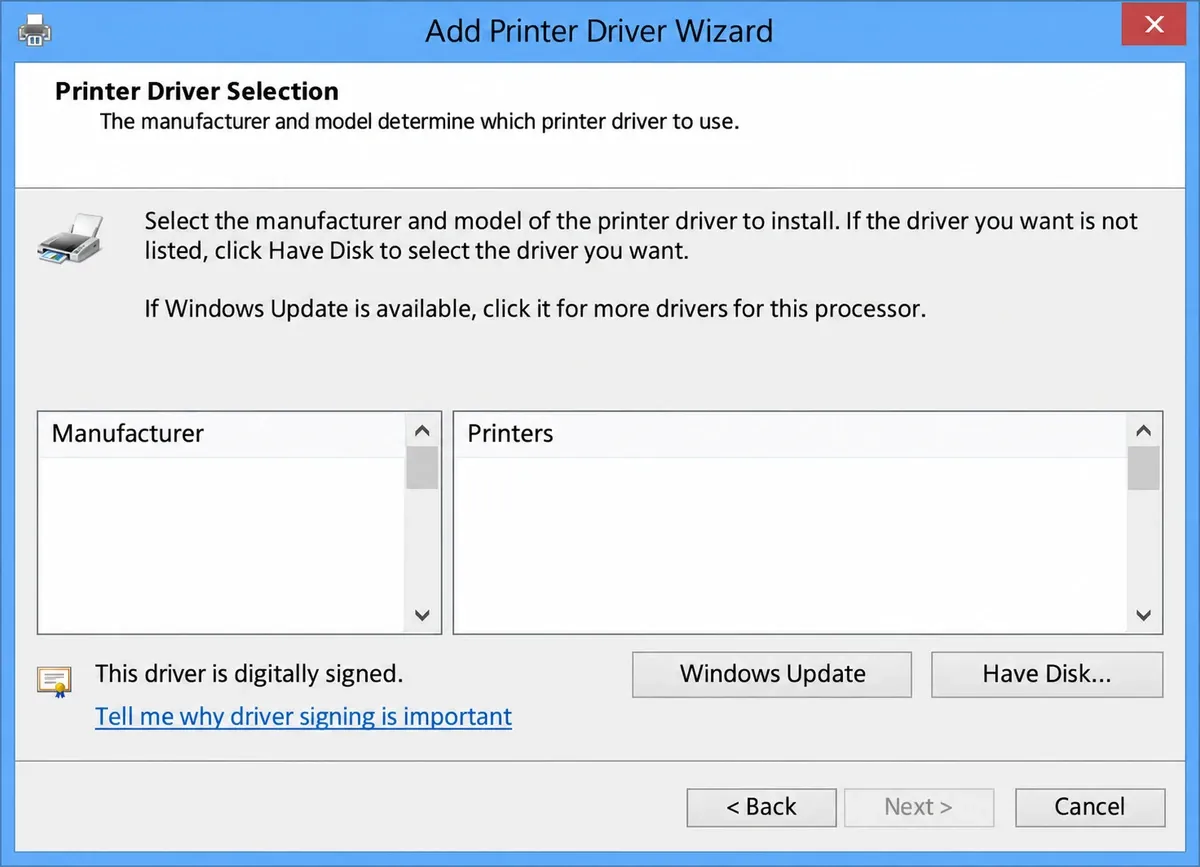
If no printer icon is available to open Print Server Properties, or your Windows screen doesn't offer the documented path, don't substitute another model or an arbitrary USB port. Give the supplier that exact stopping point. Microsoft's driver guidance also distinguishes adding a driver from installing a printer: seeing a package in the Drivers tab doesn't prove that the USB printer is ready.
Verify USB detection and a real print
After the restart, check that Windows has the intended printer and that your photo application selects that queue. Mitsubishi's guide specifies a USB cable 2 meters or shorter. If Windows can't see the device, check its power and data connection before reinstalling the same package; the USB-recognition checks cover that separate Windows 11 symptom.
Check the queue for pending jobs before sending a new one. Don't cancel a job during data transfer; Mitsubishi's guide says to wait until the printer returns to its initial state before starting another print after cancellation. Send one small job with the application's paper size matched to the loaded paper and ribbon. Confirm that the job leaves the queue, the printer produces the expected output, and the application still selects the correct printer after a restart. Don't start with a full event batch or use an installation-complete message as the only check.
The official driver guide separates connection errors from media errors. Printer is not connected calls for checking power and the interface cable; Paper size of printer driver and ink ribbon type do not match calls for checking the selected size and installed media. Copy the exact message before changing anything. Don't disconnect USB or turn the printer off during data transfer or printing.
If ordinary printing works but a cut size, matte setting or quality mode doesn't, check the model's driver guide and firmware requirements with the supplier. The guide makes several of these features conditional on appropriate firmware. A new driver alone doesn't prove that a particular cut or finish is supported by the printer's current firmware. Don't flash firmware as a general driver-installation fix.
Color-profile setup is a later task after reliable printing. The ICC-profile installation article distinguishes printer profiles from display profiles; follow the printer and application's documented color-management settings rather than assigning a printer profile to your monitor.
If installation or printing still fails, send the supplier your exact CP-D70DW model, Windows build and architecture, package name, failure stage and error text. Keep serial numbers and account details out of public posts. The devices, printers and drivers hub connects the separate USB, queue and Windows driver problems when the remaining symptom points there.



