
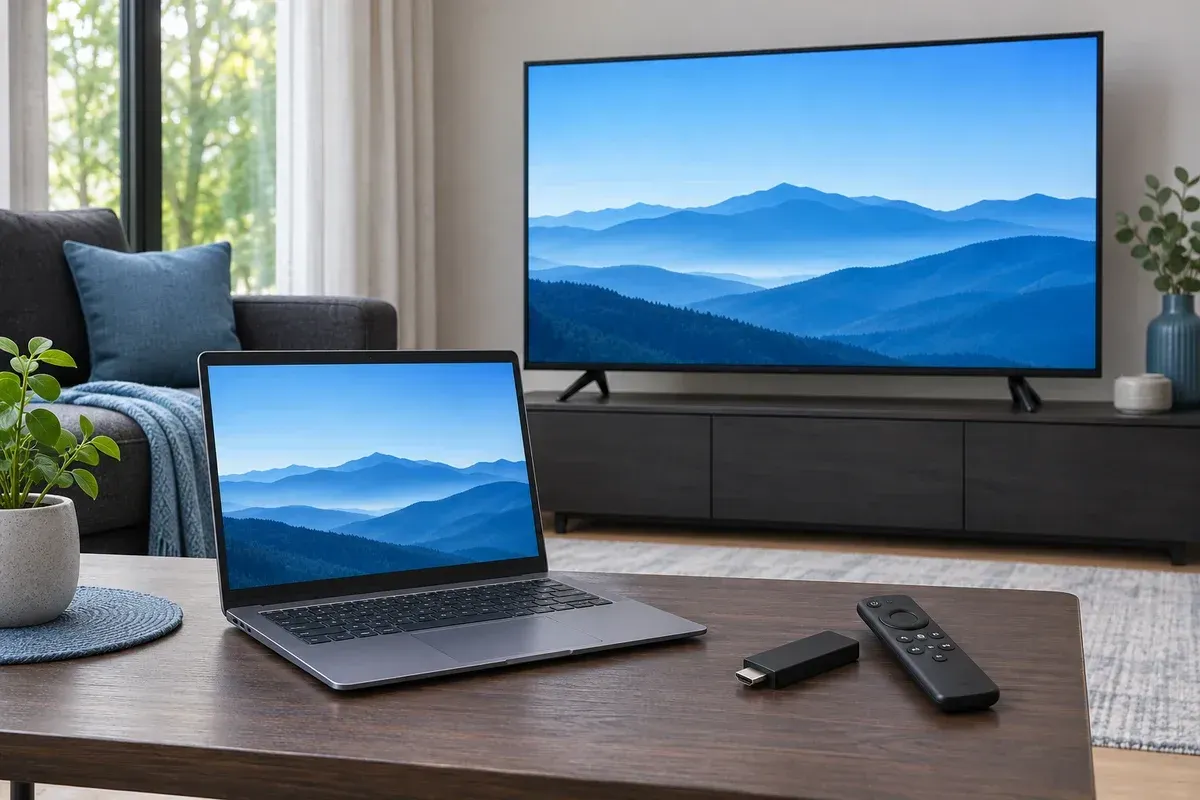
To mirror Windows 11 to a Fire TV Stick, first check that the Fire TV offers Mirroring. Open that receiving screen, keep Wi-Fi on, then press Windows + K on the PC and select the Fire TV. After connecting, press Windows + P > Duplicate to show the same desktop on both screens. A Fire TV name in a Bluetooth or Wi-Fi network list isn't the same connection.
I'd check support at both ends before installing a casting app. A working internet connection doesn't establish Miracast support, and a receiver that isn't advertising for mirroring won't necessarily appear in Cast.
Check the Fire TV and PC before pairing
Hold Home on the Fire TV remote and look for Mirroring. Amazon staff's Fire TV mirroring checks use that icon to identify a compatible receiver. Another Amazon support reply gives Settings > Display & Sounds > Enable Display Mirroring as the alternative route. Look for the control on your actual model.
If neither route offers mirroring, check that model's documentation or ask Amazon before continuing. Don't assume a guide for an Insignia television, an older Stick or another Fire TV generation establishes the capabilities of yours. The 2021 Amazon staff reply about a 4K Max also cautioned that Windows-PC mirroring wasn't officially supported in that case; an available icon isn't a promise that every PC combination will work.
On the Windows 11 PC, press Windows + K. Microsoft's wireless-display troubleshooting instructions say an unsupported PC may show a message directing you to connect an external display with a cable. If you get that message, record it and check the PC manufacturer's Miracast support for the installed hardware and drivers.
Keep Wi-Fi turned on, even if the PC gets internet over Ethernet. For the initial comparison, follow Amazon's recommended setup: put both devices on the same Wi-Fi network and within 30 feet (10 meters) of each other. Matching network names alone don't prove the PC can project. A USB Wi-Fi adapter that gets the PC online also needs appropriate wireless-display support.
Connect with Cast, then choose Duplicate
Close confidential windows and pause notifications before sharing your entire desktop. Use a harmless document or local image for the first check, rather than a private work screen or an application's special casting feature.
- Turn on the television and select the HDMI input containing the Fire TV Stick. Confirm you can see and control Fire TV normally.
- Open Mirroring on Fire TV and leave its receiving screen visible.
- On Windows 11, press Windows + K. Select your Fire TV from the available displays and follow any instructions shown on the PC and television.
- Once connected, press Windows + P and choose Duplicate. Open the test document and confirm the same window appears on both screens.
- Play a familiar audio clip at a comfortable volume if you need sound. Check the TV's volume and the Windows output separately.
Microsoft documents Windows + K for a Miracast display. That route avoids depending on an older tutorial's pencil icon for editing Quick Settings. If you want to end the session, open Cast again and select Disconnect.
The Wireless Display optional feature under Projecting to this PC belongs to Microsoft's instructions for making another Windows PC receive a projection. Installing it on the sending laptop doesn't add a missing Mirroring feature to Fire TV.
If the TV shows wallpaper instead of your window
You may already be connected in Extend mode. That creates more desktop space, so a window can remain on the laptop while the TV shows the background. Press Windows + P > Duplicate for the same picture, or keep Extend and move the window onto the TV.
Microsoft's display-mode instructions distinguish Duplicate, Extend, PC screen only and Second screen only. I'd use Duplicate for the first mirroring check because the laptop remains usable while confirming what the TV receives.
You can also open Settings > System > Display after connecting. Use the display-mode dropdown beside the detected screens to choose Duplicate these displays. The numbered boxes describe detected displays; they aren't the list of wireless receivers in Cast.

For a direct HDMI or DisplayPort connection that Windows can't detect, use the second-monitor connection checks. Keep that cable-and-dock investigation separate from finding a wireless Fire TV receiver.
If Fire TV is missing or the connection drops
| What happens | Next useful check |
|---|---|
| No Mirroring control on Fire TV | Confirm the exact model supports receiving this connection. |
| Windows + K reports no Miracast support | Check the PC hardware and supported driver path; use a compatible cable connection meanwhile. |
| Fire TV never appears in Cast | Keep its Mirroring screen open, verify Wi-Fi, then restart and compare nearby. |
| Fire TV appears, then returns to Home | Record the exact stage and messages; a discovered device hasn't completed projection. |
| The picture works, but sound stays on the laptop | Check Windows Sound output and the app's output assignment. |
Save your work, restart the PC and Fire TV, then open the receiving screen and repeat the same Cast test. Microsoft's wireless-display instructions also recommend current device drivers and receiver firmware. Use the PC and Fire TV makers' supported update routes for the exact models; keep the current versions and test after each change.
If Windows retains a failed connection, Microsoft's Windows 11 removal route is Settings > Bluetooth & devices > Devices. Under Wireless displays & docks, remove the matching display if it is listed, then reconnect with Windows + K. This removes that remembered display connection. Don't remove every Bluetooth device or delete the PC's network adapters.
If Wi-Fi itself is missing or its adapter has an error, use the adapter detection and status checks. Repeatedly resetting a router won't add an unsupported wireless-display capability. On a managed PC, ask IT about projection restrictions before changing network or security settings.
Avoid the WPS PIN and Bluetooth detour
Start from Windows + K and Fire TV's Mirroring screen. Don't manually join a DIRECT-…-FireTV network or pair the PC as a Bluetooth audio accessory to follow this walkthrough. If the actual projection workflow requests a code, use the instructions displayed for that connection; don't substitute an Amazon account password or parental-control PIN.
A long Amazon forum discussion about PC casting includes repeated WPS/PIN attempts that didn't resolve the original poster's problem. Other participants described a separate extended-monitor result and audio remaining on the PC. Those are distinct observations, so record which screen and connection path produce your prompt before trying more codes.
A mirroring app advertised for phones or Mac isn't automatically a Windows solution. For example, AirBeamTV's Fire TV application page offers iPhone, Android and Mac routes; its laptop installer instructions describe a PKG file. Confirm the sender's operating system, receiver requirements and any charge before choosing an alternative.
Check audio and finish the connection test
If the picture works but audio stays on the laptop, open Settings > System > Sound > Output and select the connected display's audio output if available. Then check Volume mixer for the affected app's mute, level and output. The Windows audio-output checks separate a missing playback device from one silent app. A visible TV picture doesn't establish which audio output the app uses.
Verify the document and required audio, disconnect, then reconnect and repeat. Fix369's Insignia Fire TV walkthrough describes that receiving-screen, Cast and display-mode sequence for a Fire TV television. The Amazon discussions also contain unsuccessful Stick connections, including one that returned to Home. Use the result on your specific receiver to decide whether to continue with support or use a direct PC-to-TV cable.
For a cable fallback, connect a compatible PC video output to an available input on the television, not to the Fire TV Stick's HDMI plug. Confirm the PC port or adapter supports video, then choose that TV input.
For support, collect the Fire TV model, PC model, Windows version, Wi-Fi and graphics driver versions, whether Mirroring exists, the exact Cast message and whether failure occurs before discovery, during connection or after the desktop appears. Share cropped screenshots without account details. The devices and display troubleshooting hub links the related hardware checks.


