
To make taskbar icons bigger in Windows 11, first check Taskbar settings > Taskbar behaviors > Show smaller taskbar buttons. If that control is available, select Never to keep icons at their original size. If the regular icons are still too small, increase Settings > System > Display > Scale; that enlarges the whole interface.
I'd try the taskbar setting before changing display scaling. It addresses icons that shrink as the bar fills without making every app larger. Record the current choice before changing it so you can undo the adjustment.
Stop taskbar icons from shrinking
- Right-click an empty area of the taskbar and select Taskbar settings.
- Expand Taskbar behaviors.
- If Show smaller taskbar buttons appears, note its current value and choose Never.
- Compare the icons with your usual apps open. Close apps normally after saving work, then compare the less crowded bar too.
Microsoft's June 2025 Windows 11 24H2 release notes introduced this behavior: the default reduces icon size when the taskbar is full, Always keeps smaller icons, and Never preserves the original size. Never restores regular-size icons; it isn't a slider for making them arbitrarily large. Keeping the original size also leaves less room for app buttons. Check that you can still reach your usual apps rather than expecting the same number of larger icons to fit.
The release describes a gradual rollout. If your PC doesn't show this control, check your Windows version and the updates currently offered to that PC. Don't install an old preview update just to follow its release note. On a managed PC, ask IT about an unavailable or enforced choice.
Increase display Scale if the whole interface is small
Use Scale when the regular taskbar icons and other interface elements are too small to read comfortably. Microsoft's Windows visibility settings distinguish increasing everything with Display Scale from increasing just the text with Accessibility's Text size slider.
- Open Settings > System > Display.
- If several displays are connected, select the display you want to change at the top of the page.
- Note the current Scale percentage. Under Scale & layout, choose a larger offered percentage for a comparison.
- Check the taskbar, Settings and the apps you actually use. Confirm that important buttons and window content still fit.
- If the result is uncomfortable or wastes too much workspace, return to Scale and restore the previous value.
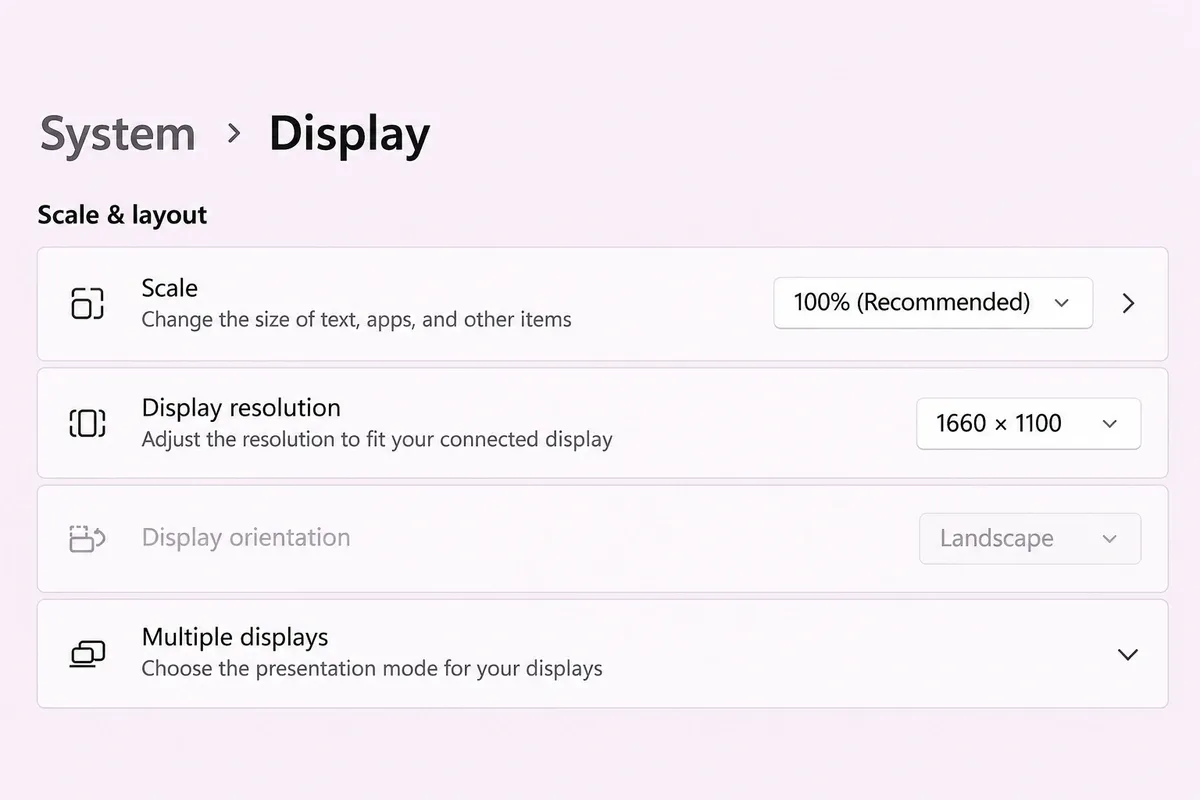
Start from the recommended Scale value and change one setting at a time. Microsoft doesn't recommend custom scaling; an offered percentage is the simpler comparison. Increasing Scale also enlarges app windows and reduces how much content fits on screen, so judge the whole desktop rather than the taskbar alone.
Keep Display resolution at its recommended value while testing Scale. Microsoft's display layout and resolution guidance warns that lower-than-native resolutions can make text less sharp or leave the image centered, bordered or stretched. Lowering resolution is a poor first choice for a size preference.
Check which size change you need
| What you see | Useful control or check |
|---|---|
| Icons become small when more apps are open | Choose Never under Show smaller taskbar buttons, if available. |
| Icons stay small even with few apps open | Check whether Always is selected before changing the whole display. |
| Regular icons, menus and apps all look tiny | Compare a larger Display Scale percentage on the affected display. |
| Only lettering needs to be larger | Use Accessibility > Text size; this isn't an icon-size adjustment. |
| You need a brief closer look | Use Magnifier rather than permanently changing the layout. |
For a temporary enlargement, press Windows key + Plus (+) to open Magnifier. Use Windows key + Plus or Windows key + Minus to change magnification, and Windows key + Esc to close it when no views are locked. If you've locked a Magnifier view, press Windows key + Esc once to release the locks and again to close it. This enlarges the view; it doesn't create a new taskbar icon-size setting.
If the problem occurs on only one monitor, record its Scale value before making changes and compare readability on each screen. Different displays can need different percentages; matching the numbers isn't the goal. A missing bar or missing app buttons on that monitor is a different symptom; use the secondary-monitor taskbar visibility and app-placement checks for that.
Why older size guides give different answers
A November 2024 Microsoft-hosted question received an answer saying Windows 11 didn't yet support taskbar-icon resizing and recommending display scaling. That answer predates the 2025 smaller-buttons control. Its date matters: it shouldn't override a newer control that is present on your PC.
Published results also depend on which taskbar is involved. In a Windows 10 discussion about small system icons, the owner reported that scaling and resolution changes hadn't helped at 125% on a 2560 x 1440 display. Respondents later identified a customized bar. The thread's solved label doesn't supply a final confirmation from the owner.
A separate 2018 account of a third-party taskbar tweaker reported larger icons, then an update breaking the tool. Those are version-specific reports, not evidence that an old download or registry recipe works with today's Windows 11 taskbar. I wouldn't install an archived binary or modify the shell just to bypass a size setting.
If you already use taskbar replacement software, record its name, version and Windows build, then consult that vendor's matching controls. Native Windows settings and a replacement bar aren't interchangeable. On a work PC, keep the approved configuration and ask IT before changing shell software.
Keep size, artwork and position separate
For a different picture on one app, use the shortcut icon and running-button checks. That changes artwork, not the taskbar's size policy. To move the icon group left or reorder apps, use the Windows 11 alignment and layout controls; the old unlock-and-drag height workflow belongs to Windows 10.
If the bar stops responding to clicks, follow the taskbar and Explorer recovery steps. A small but responsive icon doesn't justify restarting the shell, repairing Windows files or resetting Windows.
Keep the new choice when the intended icons remain comfortable with your normal apps open and the rest of the desktop stays usable. Record the selected value and check again during your next normal sign-in. If a choice changes back by itself, note the old and new values, Windows build and any taskbar customization tool; give those details to its vendor or IT instead of repeating the change. If only the appearance is worse, restore that value before investigating anything else. The Windows desktop hub connects the related appearance and shell guides.



