
Download the Komplete Audio 6 driver from Native Instruments' official Drivers & Other Files page, matching the generation of your interface. The listed Windows drivers are 4.2.0 for MK1 and 5.22.0 for MK2. If an MK2 is plugged in but the panel says No Komplete Audio 6 found, check that you haven't opened the original MK1 control panel.
I'd identify the hardware before reinstalling anything. The two generations use different control panels, and a working USB connection won't make the wrong panel recognize your interface.
Choose the driver for your generation
Check the model label and your product documentation. MK1 means the original Komplete Audio 6 generation; if the generation is still unclear, confirm it with NI support before choosing a package. Open Native Instruments' official driver catalog. Use the section for that exact product:
- Komplete Audio 6 MK1: choose Komplete Audio 6 Driver 4.2.0 - Windows 7 and above under Komplete Audio 6 MK1. The official archive is
Komplete_Audio_6_420_PC_p.zip. - Komplete Audio 6 MK2: choose Komplete Audio 6 MK2 Driver 5.22.0 - Windows 10 under Komplete Audio 6 MK2. Its archive is
NativeInstruments_UsbAudio_v5.22.0_2021-09-01_setup.zip. - Traktor Audio 6: use the separate Traktor Audio 6 section. It is a different product, even though its listed Windows driver also carries version 4.2.0.
Don't choose a Device Updater or Firmware Updater in place of the driver. Those entries update the interface itself; they aren't the Windows audio driver. A higher number from the MK2 section also isn't an upgrade path for MK1.
The catalog's Windows 10 label can be confusing on a Windows 11 PC. Native Instruments' Windows compatibility table explicitly marks Komplete Audio 6 MK1 / MK2 compatible with Windows 11. That same page says Windows ARM systems aren't supported. Check your processor before treating a Snapdragon or other ARM-based Windows laptop as equivalent to an Intel or AMD PC.
Use the official catalog rather than an old mirror result. For example, a page offering the original 3.0.2 archive doesn't become the latest driver because the site gives it a newer upload date or adds Windows 11 to a general OS list.
Install the MK2 ASIO driver before connecting
Save your work and close audio applications before replacing their driver. Record the working device selection and audio settings if this PC already runs sessions. The following order comes from the vendor's MK2 ASIO installation instructions:
- Disconnect the interface from the computer.
- Download the driver from the Komplete Audio 6 MK2 section of the official catalog. Check the model and archive name before opening it.
- Open the downloaded ZIP and run its setup.exe. Follow the installer's prompts. Approve installation only when the download and publisher match the official package; stop if Windows reports a blocked or unverifiable driver.
- When installation finishes, connect the interface. If you are correcting the wrong-control-panel problem, the vendor's recovery procedure also calls for restarting the computer.
- Open the audio preferences in your DAW or host application. Select ASIO as the driver type and Komplete Audio ASIO Driver as the device.
The installation article shows an Audio 1 & 2 download as its example. On your MK2, choose the Audio 6 MK2 catalog entry. For an original MK1, use its own 4.2.0 package and accompanying installer instructions; don't install the MK2 package to obtain a newer-looking control panel.
You don't need to install a sample library to locate this driver. Native Instruments' Komplete Audio 6 setup page separates Native Access registration and bundled software from its standalone driver link. An interface missing from the audio-device list is a different problem from a missing software entitlement.
Check the panel behind the no-device message
The original MK1 panel has Audio Settings and Diagnostics on the left, with several large settings groups. The MK2 uses a different panel with Status, Buffer Settings, Info and About tabs. Native Instruments identifies that mismatch in its MK2 control-panel recognition article.
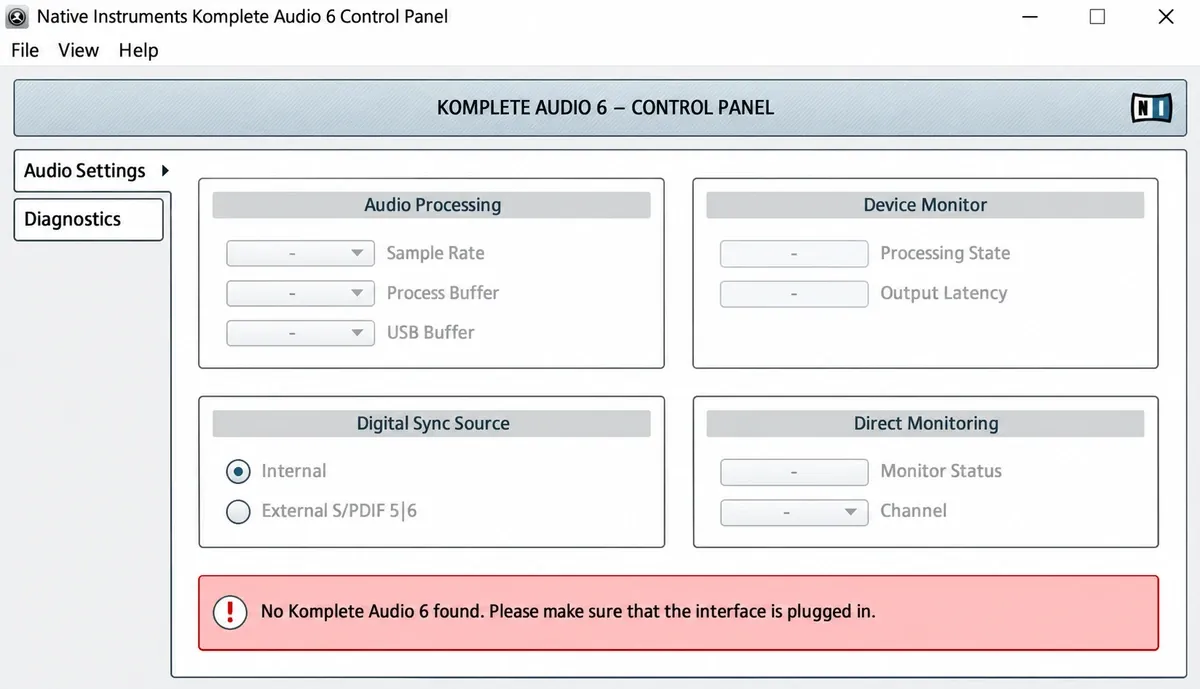
On an MK2, follow the installation sequence above and open the panel from the host's audio preferences. In the vendor's Maschine example, the button is Open Panel. Don't keep launching an old MK1 shortcut and use the same message as proof of a broken cable.
If the correct driver and panel still show no device, connect the interface directly to the PC and check another suitable USB port and data cable. Native Instruments notes that these interfaces are bus-powered and that shared USB connections can leave insufficient power. The Windows USB-recognition checks cover a device that Windows itself fails to detect. Avoid disabling driver-signature enforcement or changing security settings to force a mismatched package through.
Verify the audio route after installation
Lower the listening level before testing. In a small project, play a known audio file through the interface's intended output and check a short recording from the intended input. Confirm that the host still selects the same interface after you close and reopen it. This checks the useful result beyond an installation-complete message.
Hearing browser or Windows sounds through the laptop speakers doesn't prove the DAW's ASIO driver failed. Windows system playback and your application's ASIO selection are separate settings. Use the classic Sound control panel to inspect the Windows playback device when system sound goes to the wrong output; keep the DAW's audio preferences on the intended Komplete device.
If the device is recognized but playback crackles or skips, use the vendor's audio-settings guidance before reinstalling again. Record the current sample rate and buffer size, then try one higher buffer setting, such as 512 samples instead of 256, and replay the same project without changing the sample rate at the same time. A larger buffer gives the application more processing time and adds latency. Keep the setting only if playback improves, and restore the previous value if it doesn't. Don't assume the smallest buffer is the best setting for every session.
When Windows shows no output device at all, use the missing-audio-device checks to investigate detection. If the failure remains specific to this interface, give NI support the exact generation, Windows version and processor, driver version, panel name and failure stage. The devices and drivers hub connects the separate USB and Windows audio problems. Keep your hardware serial number and account details out of public posts.



