
To get internet on a Windows 11 laptop away from home, turn on your phone's hotspot and join its Wi-Fi network from the laptop. Check that the phone has working cellular data and that your plan allows tethering before connecting. A hotspot still needs carrier coverage; it can't provide internet everywhere just because the laptop can see its network.
I'd start with an existing phone because it avoids buying a separate modem or data plan for an occasional connection. For frequent travel, a dedicated cellular hotspot can be a useful separate device, but check coverage and plan conditions before paying for one.
Check the phone's connection and hotspot allowance
On the phone, temporarily disconnect from home Wi-Fi and open a website using cellular data. That establishes the connection you intend to share. Keep the phone nearby and charged, and confirm that cellular service is available where you'll use the laptop.
Read your carrier's tethering conditions before downloading anything substantial. Google's Android hotspot instructions warn that carriers can limit tethering or charge extra. A phone plan's general data allowance doesn't establish its hotspot allowance. Check the permitted devices, remaining hotspot data and what happens after any high-speed allowance runs out.
Before a trip, check that the plan permits hotspot use at the destination, including any roaming restrictions or charges. Try the phone-to-laptop connection while you still have another way online. A successful connection at home checks setup; it doesn't establish cellular coverage at your destination.
For a work or school laptop, use the organization's approved connection and VPN procedure. Keep its security controls in place; a phone hotspot isn't permission to bypass network policy.
Turn on a password-protected phone hotspot
Use the instructions for the phone providing the connection. The laptop will join that network afterward.
Android
- Swipe down from the top of the phone's screen and find Hotspot. You may need to edit the quick settings to add it.
- Touch and hold Hotspot to open its settings. Check the network name and password, keeping password protection enabled.
- Turn on the hotspot. Keep its network name and password available for the laptop.
Menu names differ between manufacturers and Android versions. If your phone uses a different route, use its maker's hotspot instructions. Don't select an open or password-free security option just to make the connection easier.
iPhone
- Open Settings > Personal Hotspot, or Settings > Cellular > Personal Hotspot.
- Turn on Allow Others to Join.
- Read the Wi-Fi Password and keep this screen open until the laptop connects. The hotspot's network name is the iPhone's device name.
Apple's Personal Hotspot setup procedure requires a carrier and plan that support the feature. If the option is unavailable, check that support with the carrier rather than changing unrelated Windows settings.
Join the phone's network from Windows 11
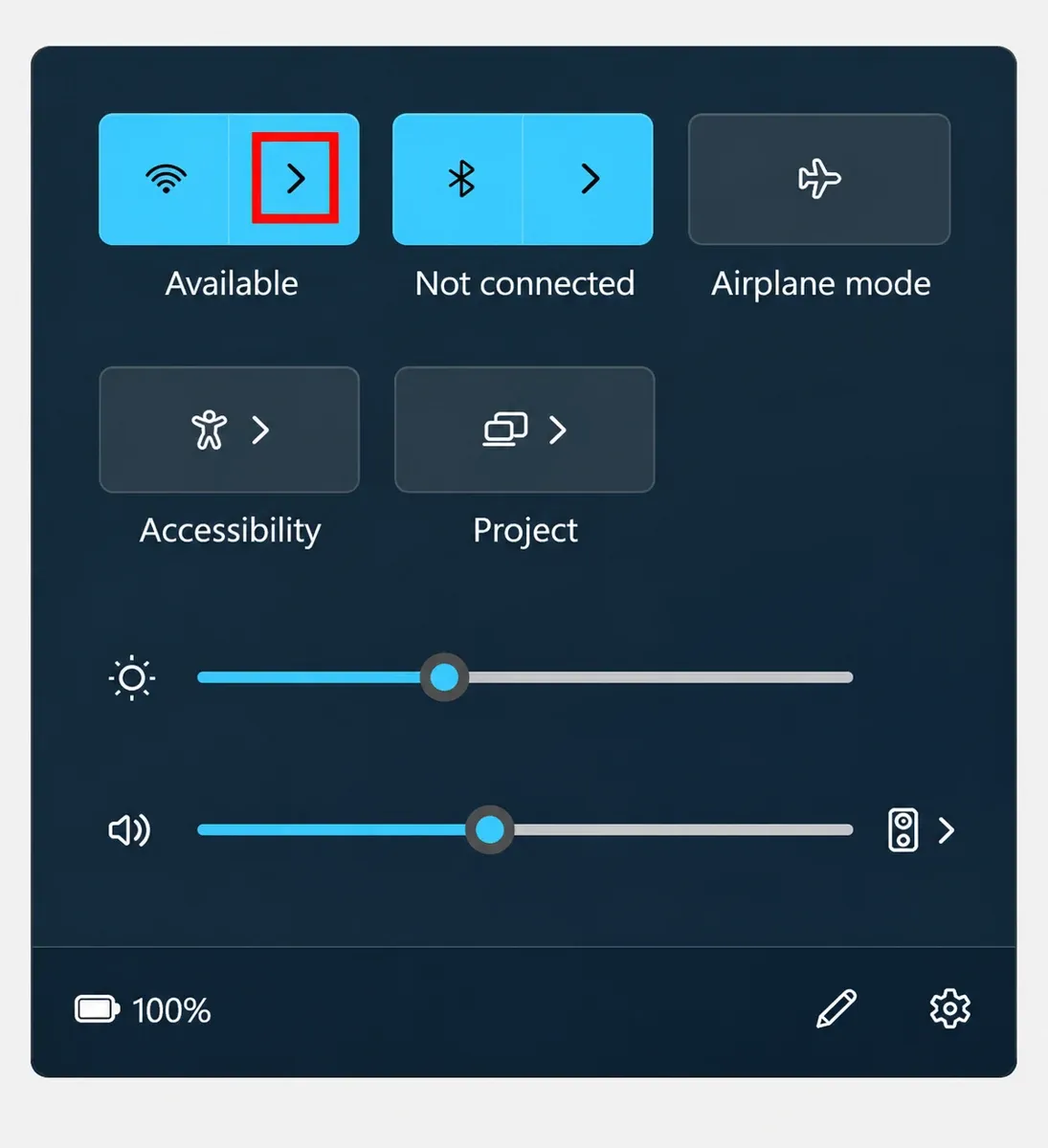
- Select the taskbar's Network, Sound or Battery area to open Quick Settings.
- Turn on Wi-Fi if necessary, then select the adjacent Manage Wi-Fi connections arrow.
- Choose the exact network name shown on your phone and select Connect. Enter its Wi-Fi password and select Next.
- Open the website and work app you need on the laptop. A network name appearing in the list isn't enough to establish internet access.
For that check, confirm that Windows is using the intended phone connection. An existing Ethernet, Wi-Fi or cellular connection can hide a failed hotspot path. If you need to disconnect another connection for the comparison, save work and do so only when it won't cut off remote support. Keep the working fallback available afterward.
That network-selection route follows Microsoft's Windows Wi-Fi connection instructions. Use the phone's current password, not your home router's password or a cellular account PIN.
Leave Windows Mobile hotspot alone when the phone is supplying internet. That Windows setting shares a connection from the PC to another device. The separate Windows-to-Ethernet sharing procedure also starts with a working connection on the Windows host; neither control is needed for joining your phone.
Reduce data use before a large download
For the joined phone network, open Settings > Network & internet > Wi-Fi, select the connected network and turn on Metered connection. Microsoft's metered connection guidance explains that this reduces some app and system data use, while some updates won't download automatically.
Metered mode isn't a carrier-enforced spending cap. Keep an eye on the carrier's hotspot usage record and pause discretionary large downloads, game updates and cloud transfers when appropriate. Don't disable managed security updates or assume every app will stop transferring data.
Choose another connection when the phone isn't suitable
| Your need | Connection and checks |
|---|---|
| Occasional internet | Use the phone's Wi-Fi hotspot. Check cellular access, tethering allowance and phone power. |
| No usable Wi-Fi | Use supported USB tethering. Check the phone's Windows support, cable and required software. |
| A separate device | Consider a dedicated cellular hotspot. Check carrier support, coverage, data plan and power. |
| A cellular laptop | Use its SIM or eSIM service, with a compatible device, carrier plan and required SIM or installed eSIM profile. |
| A venue connection | Use its authorized Wi-Fi or wired network. Confirm the network, sign-in procedure and permission with the venue. |
USB tethering changes the link between the phone and laptop. It still needs the phone's usable upstream connection and a supported tethering plan. I'd prepare it as a fallback for a missing or unusable Wi-Fi connection, rather than expect a cable to repair weak cellular coverage.
For Android USB tethering, Google's procedure is to connect the phone to the computer with a USB cable, open the phone's hotspot controls and turn on USB tethering. Use your model's instructions when the names differ. This can provide a route when the laptop's Wi-Fi is unavailable, provided the phone and plan support it.
For an iPhone connected to Windows by USB, Apple requires the latest Apple Devices app or iTunes for Windows on the PC first. Connect your own phone and PC with a suitable cable and approve the relevant Allow or Trust prompts only for that trusted pairing. Prepare the required software before relying on USB as your offline fallback.
Built-in cellular service needs compatible hardware. Microsoft's Windows cellular connection guidance distinguishes supported SIM/eSIM devices from an external cellular modem and requires a mobile operator's data plan. An eSIM subscription alone doesn't add a cellular radio to an ordinary laptop.
Check what a product supplies before buying something called a “USB internet dongle.” An ordinary USB Wi-Fi adapter joins an existing wireless network. A cellular modem connects through supported cellular hardware and service. The USB connector doesn't make those devices interchangeable.
A dedicated hotspot also needs usable service at the destination. I wouldn't replace a phone with another device on the same carrier solely to solve a coverage gap. Check the actual carrier coverage and the equipment's supported use first. No connection method here establishes universal coverage or a guaranteed speed.
If you can't connect, follow the stage that failed
If Windows has no Wi-Fi control or can't find the phone's network, use the missing Wi-Fi control and network checks. Keep password protection enabled while checking the phone's current name and supported connection options.
If Windows joins the phone but websites won't load, use the phone-hotspot connected-without-internet checks. That guide separates the phone's own access, its tethering allowance and a Windows-only failure. Don't reset both devices merely because one connected icon looks wrong.
When you're finished, disconnect the laptop and turn off the phone's hotspot or tethering. Google recommends switching tethering off when it's no longer needed, and Apple notes that USB hotspot connections can recur when the phone is plugged in to charge. Keep the connection intentional. The Windows networking hub groups the separate Wi-Fi and internet failure guides if the next problem is a specific error.


