

If File Explorer opens a folder in a new tab but leaves you in the original folder, select the new tab's label to switch to it. For a new tab that opens and becomes active in one action, use Ctrl + T inside File Explorer, then browse to the folder. Creating a tab, activating it and opening an external folder link in the same window are separate actions.
I'd use explicit tab selection before changing the shell. A background tab with the right folder isn't evidence of damaged Windows files, and a setting that reuses one window doesn't promise the focus behavior you expect from every opening method.
Switch to the tab you already opened
If the folder's tab is already visible along the top of the window, select its label. Don't keep choosing Open in new tab for the same folder; that creates more tabs without resolving which one you're viewing.
Bring File Explorer to the foreground before using these keys; they act in the active app. Microsoft's File Explorer keyboard shortcuts provide these alternatives:
| What you want | Use in File Explorer |
|---|---|
| Select the next tab | Ctrl + Tab |
| Select the previous tab | Ctrl + Shift + Tab |
| Select a numbered tab | Ctrl + a number from 1 to 9 |
| Create a new tab and switch to it | Ctrl + T |
| Close the active tab | Ctrl + W; with only one tab, this closes the window. |
Use the tab label and address bar to confirm which folder is active. Press Alt + D to select the address bar and check the full location. Two tabs can have similar names, especially when you're comparing folders on different drives or network locations.
Open and activate a fresh tab
- Bring the File Explorer window you want to use to the foreground.
- Press Ctrl + T. Microsoft describes this command as opening a new tab and switching to it.
- Choose the required folder from the navigation pane or use the address bar to reach its known location.
- Confirm that the new tab and its address show the intended folder before continuing your file work.
The + button in the tab bar is another way to create a tab. To open a particular folder directly, right-click that folder and choose Open in new tab, then select the resulting tab if focus stays behind. The tab controls and folder context-menu route are separate from opening another Explorer window.
Ctrl + N opens a new window. Windows + E opens File Explorer; it isn't the same command as Ctrl + T inside an existing window. If you can't find or open the app at all, use the File Explorer opening and taskbar-pin steps first.
Check external folder links separately
A desktop folder or another app's Show in folder action can be a different case: you want the location to open as a tab in an existing window, rather than creating another window. Changing which tab is active doesn't configure that routing.
Windows Latest's report on the external-folder tab option shows an additional checkbox under Browse folders. If your Folder Options dialog offers it:
- In File Explorer, select the three-dot See more menu, then Options.
- On General, record your original Browse folders choices.
- Select Open each folder in the same window and enable Open desktop folders and external folder links in new tab.
- Select Apply, then OK. Leave the other controls unchanged.
- Keep an Explorer window open and repeat the exact desktop-folder or external-link action you wanted to change. Check whether it uses a tab in that window.
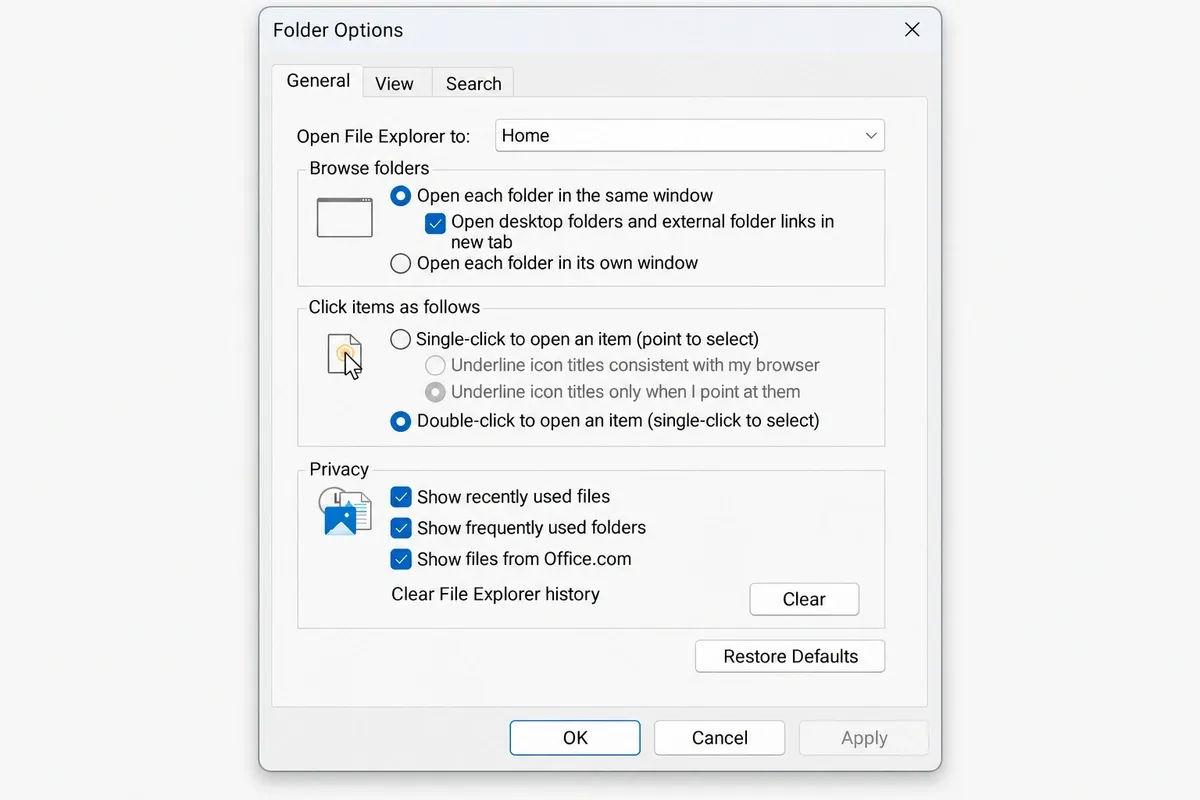
If those choices are already selected, leave them selected and choose Cancel if you made no change. A disabled Apply button doesn't mean the option failed. Don't use Clear or Restore Defaults for a tab-focus preference.
The ordinary Open each folder in the same window radio choice and the extra checkbox are different controls. An older external-folder question records that distinction: the owner reported that changing the ordinary choice didn't make Edge's Show in folder reuse the existing Explorer window.
If the extra checkbox is absent, don't invent it through a copied registry entry or assume that administrator rights will reveal it. Keep using explicit tabs and record your Windows version and build for support. On a managed PC, ask IT about the available build and policies. Restore your recorded choice if the comparison doesn't produce the behavior you need.
Keep focus separate from restore and crash problems
Restore previous folder windows at logon concerns reopening a workspace after sign-in. Microsoft's File Explorer release notes describe restoring the open tabs when that option is enabled. It doesn't describe selecting the result of your next right-click command.
In a 2024 tab-focus discussion, the owner and a community support responder described focus staying in the old folder. The responder identified a ThinkPad running Windows 11 24H2 build 26100.2314. That is a reported observation on that build, not proof that every current installation has the same defect or that an old rollback is an appropriate fix.
I wouldn't reinstall Windows, downgrade it or add a shell patcher just to switch to a folder that already opened. If tabs respond normally when selected, use that working navigation route. If the window stops responding, use the hung Explorer investigation; if windows close or the desktop restarts, use the Explorer crash checks.
Verify the original opening method
Repeat the same operation after one change: right-clicking a folder, using Ctrl + T, opening a desktop folder or choosing another app's Show in folder. Record separately whether a tab was created, whether it became active and whether a new window appeared. Success with Ctrl + T doesn't establish that an external app now reuses your existing window.
If the unwanted behavior persists, keep the working selection method and give support the Windows version/build, exact opening action and result. Use generic folder names in screenshots and remove private paths. The Windows desktop hub groups the separate navigation and shell-recovery routes.



