

To disable automatic Windows updates through Group Policy, set Configure Automatic Updates to Disabled under Computer Configuration > Administrative Templates > Windows Components > Windows Update > Manage end user experience. On a domain-managed computer, change the GPO that applies to that computer. The setting controls automatic updating; manual update actions and other management policies still need attention.
I'd establish who will install security updates before making this change. A PC that stops updating automatically still needs a working servicing plan, whether an administrator installs updates during maintenance or an approved patch-management system handles them.
Choose Disabled or notification behavior deliberately
Microsoft's Windows Update policy reference says that when Configure Automatic Updates is Disabled, available Windows Update updates must be downloaded and installed manually. Selecting Enabled and choosing a notification option configures a different behavior.
| Policy choice | What you're choosing |
|---|---|
| Disabled | Manual download and installation of available Windows Update updates. Establish the alternative update process before deploying it. |
| Enabled, option 2: Notify for download and auto install | Windows notifies the user that updates are ready to download. The user can go to Windows Update to download and install them. |
| Not Configured | This GPO doesn't set the automatic-update behavior. Defaults, another applicable policy or the device's management configuration can determine the result. |
Option 2 is useful when notification before downloading meets the requirement. It isn't the Disabled radio button. Also, the numbers in an Intune or MDM policy aren't interchangeable with this Group Policy dropdown: Microsoft's AllowAutoUpdate documentation uses a different numbering scheme.
For older recipes, check the operating-system limits: Group Policy option 5, Allow local admin to choose setting, isn't available on Windows 10 or later. Option 7, Notify for install and notify for restart, is for Windows Server 2016 and later. Use the documented Windows client choices when configuring a Windows 11 PC.
If your goal is simply to postpone an inconvenient restart on your own PC, use the existing guide to pause Windows updates and plan restarts. That keeps a short interruption separate from changing an administrator's update policy.
Check the edition and the policy owner
These steps target Windows 11 Pro, Enterprise and Education computers. Microsoft's policy documentation lists the supported editions and device scope. Check Settings > System > About > Windows specifications if you're unsure of the installed edition. If gpedit.msc can't be found, confirm the edition before looking for another editor or downloading a tool.
On a work or school PC, find out whether updates are controlled by an Active Directory GPO, Intune or another patch manager. A local policy window shows a local setting; it doesn't establish that the setting wins on a managed device. Use your organization's authorized management process rather than trying to override it from the PC.
Record the current Configure Automatic Updates state, any selected option, the GPO you intend to change and the maintenance plan. Keep the original values so you can restore them. For a domain rollout, start with an approved test group and verify one representative client before expanding the change.
Set the local policy on a PC you administer
- Save work, then press Win + R, enter
gpedit.mscand open Local Group Policy Editor with the required administrator rights. - Expand Computer Configuration > Administrative Templates > Windows Components > Windows Update > Manage end user experience.
- Open Configure Automatic Updates. Select Disabled, then select Apply and OK.
The current policy mapping places this setting in Manage end user experience. Older administrative templates can show it directly under Windows Update. Check the policy name rather than changing a similarly named restart or user-access policy.
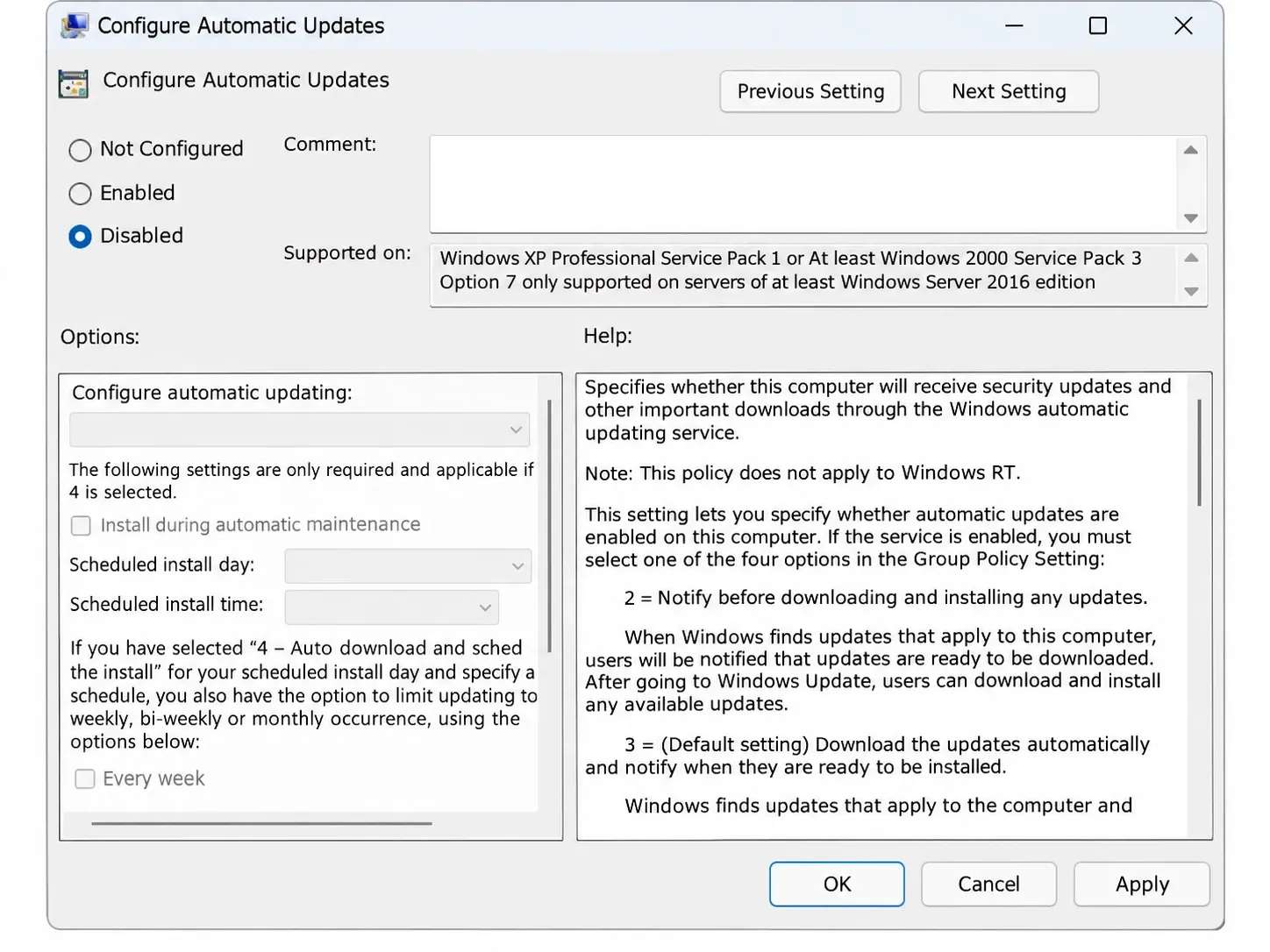
If the expected category is missing, have the administrator check which templates the editor uses. Microsoft's Central Store instructions distinguish domain templates from local files and say that replacing local C:\Windows\PolicyDefinitions with downloaded ADMX packages isn't supported. A missing folder isn't a reason to overwrite those files.
Change the correct domain GPO
For Active Directory-managed computers, use Group Policy Management (gpmc.msc) from your authorized administration environment. Edit the intended GPO and use Computer Configuration > Policies > Administrative Templates > Windows Components > Windows Update > Manage end user experience > Configure Automatic Updates. Select Disabled and save the policy change.
The extra Policies node belongs to the domain editor. Microsoft's Windows Update Group Policy walkthrough explains deployment through GPMC or locally per device. The GPO's link and scope must include the target computer; editing an unrelated GPO won't configure that client.
I'd check the target's resulting policy before changing inheritance or enforcing a GPO. Those broader changes can affect other computer settings. A computer in the wrong scope needs the administrator to correct that scope, not a collection of local registry overrides.
Refresh and verify the effective computer policy
On the authorized test computer, open Terminal (Admin) and refresh computer policy:
gpupdate /target:computerWait for processing to finish and read the result. Microsoft's gpupdate reference distinguishes a normal refresh from /force, which reapplies all policy settings. You don't need to add restart or sign-out switches for this verification. If the refresh fails, keep the error and resolve the policy-processing problem before assuming the setting applied.
For an HTML report of computer Group Policy, run this in the administrator PowerShell tab:
gpresult /scope computer /h "$env:TEMP\windows-update-policy.html"Open the generated report from the temporary folder. Use a different filename if that report already exists. Check the applied GPOs and the effective Windows Update policy information, including which GPO supplies the setting. A successful refresh message alone doesn't prove that your chosen GPO won.
Microsoft's gpresult reference describes the HTML report and notes that ARM64 systems require the SysWow64 version of gpresult for /h. On that architecture, use C:\Windows\SysWOW64\gpresult.exe with the same arguments if necessary. Keep reports private because they can identify accounts, computers and the organization.
The report concerns Group Policy. Review Intune or the patch-management console separately when those systems also manage the device. Don't click Check for updates merely to prove that automatic updates stopped: that button starts a manual update action.
- The local editor says Disabled, but the effective report shows another state: identify the GPO supplying that setting and resolve the conflict there.
- The effective policy is Disabled, but the patch manager starts an installation: check its deployment record and schedule. The manager's action can be part of the separate servicing process.
- Settings displays a message about organization policies: use the report and management configuration to identify the cause. The message alone doesn't establish which setting controls installation.
If updates continue, identify the controlling action
First distinguish an automatic download from an administrator's manual check or a patch manager's deployment. In a Windows 10 Pro BatchPatch discussion, the administrator found that blocking access to Windows Update interfered with their patch tool. The accepted answer instead directed them to Configure Automatic Updates. That case supports checking the required management workflow before adding another block; it doesn't establish how every patch manager behaves.
Next, inspect deadline policies. Microsoft's Update CSP documentation says that the download, installation and reboot settings from AllowAutoUpdate are ignored when the documented quality-update deadline or feature-update deadline policy is used. Have the administrator reconcile the relevant policies and Windows version instead of treating one Disabled selection as a universal guarantee.
Also distinguish update automation from hiding its controls. Remove access to use all Windows Update features disables the user's Check for updates option, but Microsoft says background scans, downloads and installations continue as configured. Disabling the Windows Update service or blocking its internet locations introduces different behavior and can interfere with the servicing process you're trying to retain.
An update already installed isn't removed by changing this policy. If a particular update caused a regression, investigate that failure separately and use the guide to choose the appropriate Windows update rollback when removal is warranted.
Restore the previous policy and confirm servicing
Return to the same local policy or domain GPO and restore the recorded state. If it was originally Not Configured, select Not Configured; if an administrator had configured an Enabled option, restore that option. Refresh computer policy again and regenerate the report to confirm the resulting configuration.
Then use the planned servicing process to check for updates and finish any required restart during the approved window. Verify the installation result and the next update responsibility. Keep the GPO change only for as long as that servicing plan requires it.



