
To skip the decorative lock screen in Windows 10 or Windows 11, use Do not display the lock screen on a supported edition and set that policy to Enabled. This removes the extra picture-and-clock layer before sign-in. It doesn't remove your password, PIN or Windows Hello protection.
I'd change that one appearance policy rather than turn on automatic login. First confirm which screen you want to remove and that you can already sign back in. On a work or school PC, have the responsible administrator make the change.
Identify the screen you want to remove
The phrase “lock screen” gets used for several different things. Choose your goal before changing account or power settings:
| What bothers you | Use this route |
|---|---|
| The photo and clock before the account prompt | The appearance policy below, if your edition supports it. |
| Entering a PIN, password or Windows Hello sign-in | That is account authentication. This policy keeps it. |
| The display goes dark after an idle interval | Check the screen-off, screen-saver and presence-sensing controls. |
| The whole computer sleeps or resumes unexpectedly | Use the sleep-state and wake-source checks. |
| Windows accepts credentials but stays on Welcome | Follow the post-sign-in Welcome investigation. |
To secure a working session when you step away, use the Win + L shortcut and locking checks. Removing a decorative layer isn't a reason to stop locking a shared or unattended PC.
Check the edition and policy before changing it
Microsoft's NoLockScreen policy reference lists Pro, Enterprise, Education and IoT Enterprise editions for its device policy. Its Windows 10 applicability entries include version 2004, 20H2 and 21H1 with KB5005101 and later; Windows 11 starts at version 21H2 in that table. That table describes the ADMX-backed management interface; it doesn't date the introduction of the desktop Group Policy setting. Don't install an old update on a newer PC merely to match a table entry.
Open Settings > System > About and read Windows specifications for the installed edition and version. Microsoft's device-information instructions show that route. Record the build shown there too before following a guide for another system. Windows Home isn't listed in that policy's edition table. I wouldn't install an unofficial Group Policy Editor or promise that a downloaded registry file makes Home support the same configuration.
Microsoft also qualifies the behavior for users who aren't required to press Ctrl + Alt + Delete before signing in. If your organization requires that security sequence, keep it. Don't change secure sign-in, inactivity protection or account policy merely to imitate a screenshot from a home PC.
Enable Do not display the lock screen
Use this route only where the policy is available and you have permission to change the PC's configuration. Keep your normal sign-in method available before testing a lock.
- Search Start for Edit group policy and open it. If the editor isn't available, stop at the edition and management check above.
- Open Computer Configuration > Administrative Templates > Control Panel > Personalization.
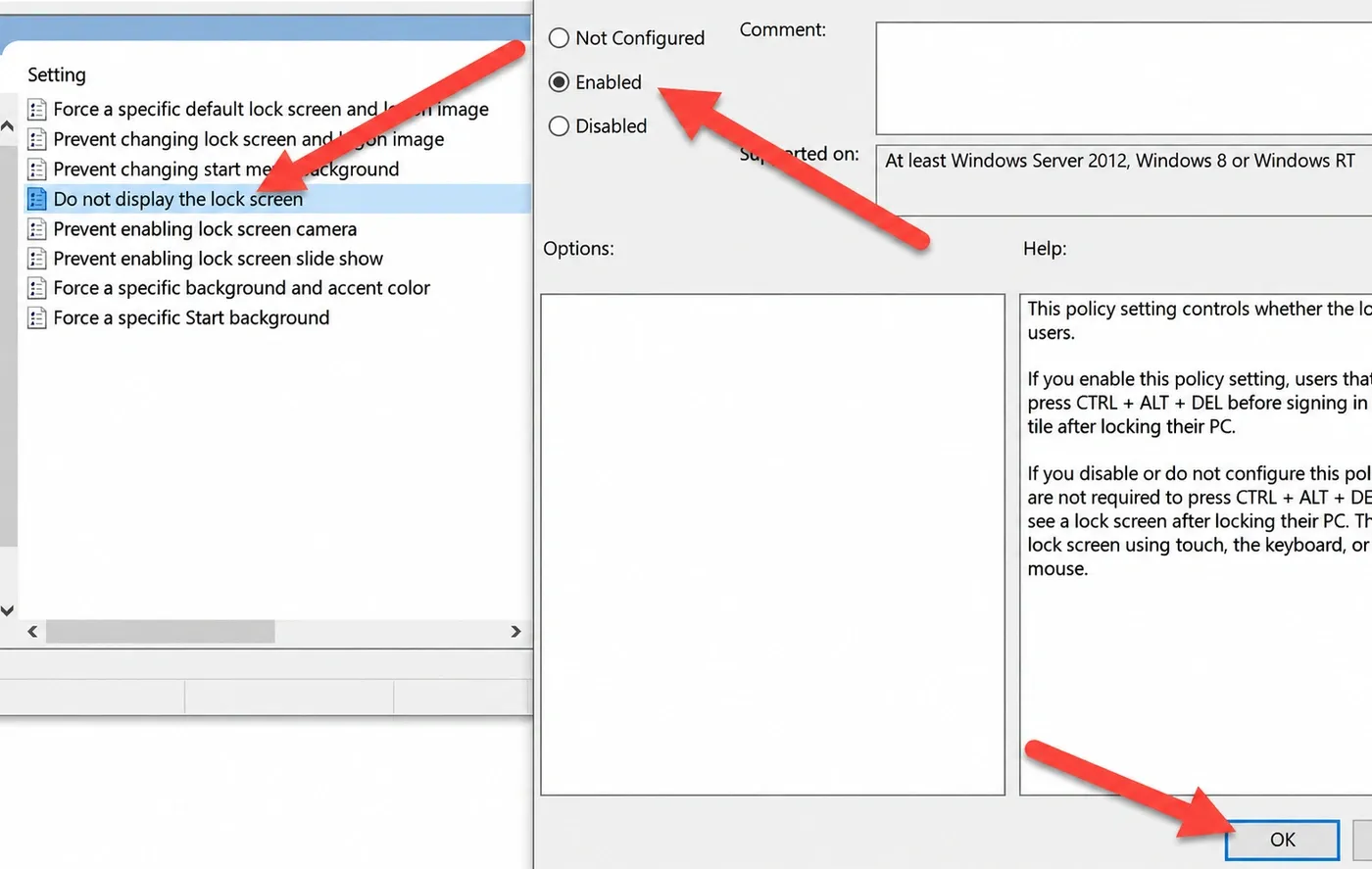
- Open Do not display the lock screen. Record its original state: Not Configured, Enabled or Disabled. If it is already Enabled, leave it there and use the verification below before changing anything else.
- Select Enabled, then choose Apply and OK.
The negative policy name is easy to misread: Enabled enables “do not display.” Microsoft's mapping identifies the computer-side Personalization policy; the illustrated Group Policy procedure shows that selection in the editor.
On an organization-managed device, a local choice may not be the configuration the administrator intends to deploy. If the control is unavailable, reverts or has no effect, record the edition, build and observed state for IT. Don't delete policy keys, disable management or run an activity simulator to defeat a required lock.
Check both the appearance and account protection
Save your work and press Windows + L. Microsoft documents this as the PC-lock shortcut. Check what appears before using your existing sign-in method to return.
For the policy's documented case, Windows should show the selected account tile after locking instead of requiring you to dismiss the decorative lock screen. A credential or Windows Hello step remaining is the expected boundary. Microsoft's workstation-lock documentation explains that unlocking requires sign-in.
Verify that you return to the expected account and its open applications. If Windows exposes the desktop without the protection you intended, stop and review the account's sign-in configuration. Don't mark the appearance change successful merely because a picture disappeared.
After a later normal restart, repeat the same lock-and-return check before considering the change settled. A successful lock comparison doesn't establish what every wake or startup screen will show. If the decorative screen remains, reopen the policy and compare its state with what you selected. Record whether the difference occurs after locking, waking or starting the PC. Those observations are more useful than repeatedly importing the same registry file.
Undo the change or follow the correct sign-in branch
To undo your local change, return to the same policy and restore the exact state you recorded. Microsoft says Disabled or Not Configured displays the lock screen for the documented users. Restoring the original state also avoids imposing a new preference when another administrator manages the setting.
A Windows 10 Home report describes a screen that remained after a change, while replies ask which screen the owner means. The captured discussion doesn't establish a confirmed repair. I'd settle that distinction before making another account change.
If your actual problem is a rejected PIN or password, use Microsoft's authorized sign-in recovery options. Changing the decorative policy doesn't recover account credentials. Keep automatic login, blank passwords and removal of security controls out of this appearance adjustment.
Keep the policy change only when the extra layer is gone and the account still locks and accepts your normal sign-in. The Windows desktop and power hub separates related appearance, session and power tasks.


