
If Windows Update shows 0x80070103, note the failed driver's full name before changing anything. If the device works and other updates install, keep the working driver and check whether Windows is offering it again. A repeated driver offer needs a different response from a broken device or a failed security update.
I'd start with the device's behavior, not a Windows reset. Removing a working driver to clear an update message can create a problem you didn't have.
If you are considering a command to update every driver, first check what CMD driver commands can change. A driver inventory or hardware rescan does not establish that every driver was updated, and a known local INF still needs the right device match.
Find the driver attached to the error
Open Settings > Windows Update > Update history and look under driver updates for the failed item. Copy the manufacturer, device or driver name, version, date and error. Keep the complete item name even if it says HP, Intel or another manufacturer different from the name on your PC.
The accepted Microsoft support-thread explanation describes duplicate driver offers and catalog-versioning problems. Some cases in that thread required Microsoft or the manufacturer to republish the offer; changing the PC couldn't correct the published metadata. That explanation fits a repeated offer on a working device, but it doesn't establish the cause of every failure on every PC.
Check the other update entries separately. A cumulative update with a different error should follow the repair route for that failed KB. Don't assume the driver message proves that security updates are blocked.
Check whether the device has a real problem
- The device works and only its driver offer fails: record the installed driver and check the manufacturer's guidance. Avoid uninstalling it simply to change the update display.
- The device is missing, has a warning or doesn't work: investigate that device and its current driver. Keep its status message as well as the update error.
- A device stopped working after a successful driver update: the new installation and its timing matter. A driver rollback may be relevant; the failed-offer message alone isn't a reason to roll back.
To inspect the driver, right-click Start > Device Manager. Expand the relevant device category, right-click the specific device, choose Properties and open the Driver tab. Record its provider and version. Don't change another device with a similar name just because the update label is unclear.
Use the manufacturer's driver when an update is needed
For a device that needs repair or an applicable driver update, use the PC or device manufacturer's official support page for the exact model and Windows version. Check the package's architecture and installation instructions. Microsoft's Device Manager guidance recommends matching the driver to Windows and using the manufacturer's official site.
If the manufacturer supplies an installer, follow its instructions. If it supplies extracted driver files for Device Manager, right-click the identified device, choose Update driver > Browse my computer for drivers, browse to the extracted folder, select Next and follow the prompts. Restart if requested, then test the device again.
If Windows says the best drivers are already installed, don't force a different package just to make the message disappear. For a device that still fails, give the manufacturer the model, installed version and device-status message. A generic driver updater doesn't replace that identification.
When the device failure began after a successful driver update, Microsoft's same instructions describe Properties > Driver > Roll Back Driver for an administrator. Use it for that identified regression if available, follow the reason/confirmation prompts and restart if requested. Don't remove network or storage drivers indiscriminately.
Run the update diagnostic if the offer keeps failing
Save your work and use a normal restart if Windows requests one. For a persistent update problem, open Settings > System > Troubleshoot > Other troubleshooters, select Run beside Windows Update and follow the Get Help prompts in Microsoft's troubleshooting procedure.
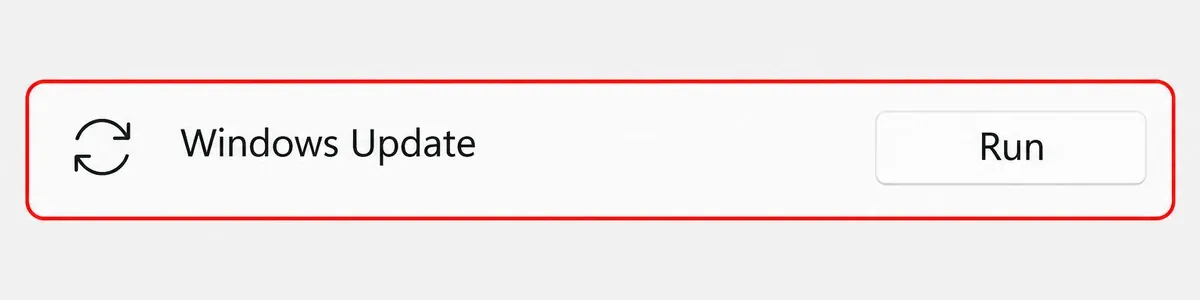
The diagnostic can't guarantee a correction to a manufacturer's published offer. If the device works and the same item returns, report the complete driver name and error through Feedback Hub or manufacturer support. On a managed PC, give IT the evidence before changing update policies.
Keep a repeated driver offer separate from system repair
I'd avoid pausing all Windows updates, deleting update-policy registry keys or uninstalling a working device as a first response. Those changes affect more than the one failed driver. An old Show or Hide Updates download also needs a current support and availability check; it isn't a necessary prerequisite for diagnosing this error.
If support needs logs, open Windows PowerShell as administrator and run Get-WindowsUpdateLog. Microsoft explains that the converted Windows Update log is a static snapshot. Generate it after the relevant attempt and share the matching time and driver name privately; remove personal paths and identifiers from public excerpts.
Finish by checking three things: the device works, the original offer's current status is recorded, and other applicable updates can install. A working device with a repeated catalog offer is a different outcome from a failed security KB. Use the Windows Update hub to follow the latter error without replacing a working driver merely to clear the history.


