
If Microsoft Photos won't open, try launching Photos from Start and opening a known-good local JPEG or PNG separately. If the app itself won't launch, update it through Microsoft Store and try Repair in its advanced options. If Photos opens but double-clicking a picture fails, check the file association before resetting the app.
I'd make that comparison first because a blank Photos window, one unreadable file and a crashing File Explorer need different repairs. Keep your original pictures intact. Open a copy in another trusted viewer without saving over it while you investigate.
Find out whether the app or the file fails
Search for Photos in Start and open the Microsoft app. Note whether no window appears, a window immediately closes or the window stays blank. Then compare a local picture you know opens elsewhere with the file that first failed.
| What you observe | Next check |
|---|---|
| Photos won't launch from Start, even without opening a file | Follow the app update and Repair route below. |
| Photos opens, but double-click fails while Open with works | Check the default app for that file extension. |
| Only one picture or one source fails | Compare another local file and another suitable viewer; preserve the original. |
| The folder window or desktop restarts before Photos opens | Investigate File Explorer's crash instead of repeatedly resetting Photos. |
A Windows 11 support discussion describes a double-click error, The specified procedure could not be found, while Open with > Photos and Paint still opened the picture. That is useful evidence for separating launch routes. It doesn't mean every Photos failure is a file-association problem.
For a picture on a phone, network share or cloud location, compare an authorized local copy with a known-good local JPEG or PNG. If copying or reading fails, record that error before changing Photos. If the app opens ordinary pictures but requests support for a different format, follow that specific format prompt through its official source. Don't rename a file extension or overwrite the original to make the test pass.
If a folder of images crashes the shell before you can choose a viewer, use the File Explorer preview and file-type checks. If only a particular picture fails in several suitable viewers, keep the app diagnosis separate from the file's format, availability and access conditions. A failed opening alone doesn't prove the image is corrupt.
Update Photos and record the installed version
Close Photos normally if its window responds. Save other work and restart Windows once, then repeat the same launch. Microsoft's Store-app troubleshooting instructions include closing and reopening the app, checking Windows updates, updating Microsoft Store and repairing the affected app.
Open Microsoft Store, check Library > Get updates where that control is shown, and install the available Photos update. A newer Store layout may place app updates under Downloads. If Store requests sign-in, use the authorized account for this PC. Record a download or installation error rather than repeatedly pressing Update.
Also check Settings > Windows Update and complete a required normal restart. On a managed device, have IT review a blocked update. Don't remove an old KB number from a forum merely because the symptom began after an update.
Search for Photos in Start, right-click it and select App settings to record its version. Also record the Windows version and build shown by winver. In the September 2025 Photos launch-failure thread, the adviser requested the app version before comparing packages. Several users reported repair or reinstall failures, while later comments reported Photos working again after updates. Timing alone doesn't identify a specific update as the cause.
Repair Photos before resetting its data
On Windows 11, open Settings > Apps > Installed apps, find Microsoft Photos, select its three-dot menu and choose Advanced options when available. Microsoft's app-repair instructions put Repair before Reset. On Windows 10, the corresponding list is Apps > Apps & features.
Select Repair, let it finish, then reopen Photos from Start and test the same local picture. If Repair is absent, don't assume you're on the wrong page: Microsoft notes that these options aren't offered for every app. If Settings itself won't open, use the Settings launch checks rather than broad app-removal commands.
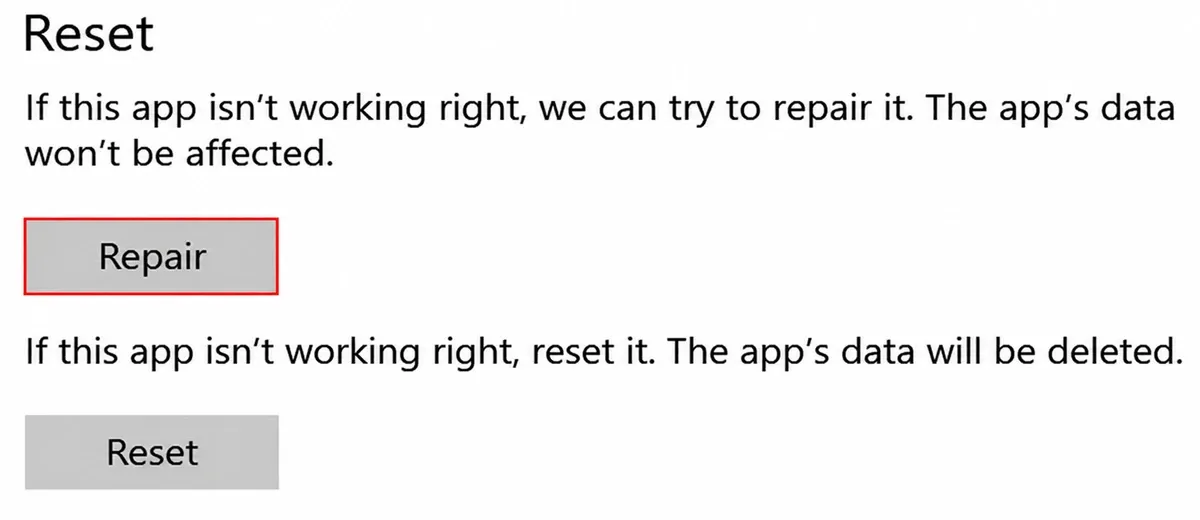
Before choosing Reset, save or export unfinished work and back up important original pictures separately. Read the confirmation for the installed version. Reset clears app data and returns the app to its original configuration; expect preferences and initial prompts to change. Microsoft's app-reset reference describes the freshly installed state. An app reset isn't a backup of your photo library.
If Repair didn't help and you're ready to clear that app state, choose Reset in the same advanced-options page and confirm. Reopen Photos and repeat both the Start launch and the same-file check. Stop repeating Reset if it produces the same failure.
The results in the historical Windows 11 discussion are mixed: the accepted reply reports Repair restoring double-click opening, but another participant says the problem returned the next day. Check again after a normal restart before calling the repair lasting.
Change the default only when Photos can open the file
If Open with > Photos works for the same picture but double-clicking doesn't, open Settings > Apps > Default apps. Search for the affected extension, such as .jpg, select its result and choose Photos. Microsoft's default-app instructions support assigning an app by file extension.
Retest that extension, then check other affected types separately. Changing the default for JPEG doesn't establish the association for PNG. Record the previous app so you can restore your choice. A default-app change won't repair Photos if it also fails to launch from Start.
Reinstall from the Store without cleaning every app
If the failure is isolated to Photos and persists, confirm that Microsoft Photos is available to reinstall through Microsoft Store before removing it. Preserve unfinished work and app settings you need. On an organization-managed PC, ask IT to handle a package or installation restriction.
When Uninstall is offered for Microsoft Photos in Settings > Apps > Installed apps, use that specific app's menu and follow its confirmation. Microsoft's removal instructions note that some built-in apps can't be uninstalled. If the option isn't offered, stop this branch rather than forcing removal of every Windows app.
Reinstall Microsoft Photos through the Store, using its Library and Install option where shown. Open it and repeat the same comparison. Keep an approved working viewer available while support investigates a package that still won't launch.
I'd avoid third-party package-download sites as the routine next step. A Windows 11 blank-window case after an aggressive uninstaller reported recovery with an older package, but the asker used a different version from the suggested one and later updated through Store to regain the desired feature. Another user in the September thread reported an older-package fix lasting only a day. Those outcomes don't establish one safe rollback package for every current PC.
Verify the same file and stop when the failure is broader
Confirm Photos launches, opens the known-good local picture and opens the original problem file where its format and access permit it. Test the original double-click route too. Repeat after closing and reopening Photos, then after a normal Windows restart. A working temporary viewer is useful access to your pictures; it doesn't prove Photos itself is fixed.
If several apps fail, record which ones and their exact errors before wider repair. The crash-log guide explains how to match the failure time to the application and module. Share versions, errors and redacted diagnostics with support; keep personal pictures and private paths out of public posts.
Don't disable antivirus, change folder ownership or roll back Windows solely to make this app launch. Keep the last working viewer and preserve the original files. Use the Windows desktop hub for a separate shell or Settings failure once you've identified that broader symptom.



