

If Windows 11 shows Invalid credentials, delaying next attempt, stop submitting the same PIN or password repeatedly. Check which account and sign-in method are selected, follow any waiting instruction actually shown, then use an available authorized alternative or the appropriate account recovery. A retry delay doesn't, by itself, identify a damaged Windows installation.
I'd preserve the remaining sign-in methods before changing security settings. A blocked PIN, a rejected account password and a profile that fails after authentication need different recovery paths.
Match the message and the selected credential
| What you see | What to do next |
|---|---|
| Invalid credentials, delaying next attempt | Pause retries. Record the full wording and selected method, then check the account and input before the next permitted attempt. |
| This sign-in option is disabled, with a powered-on waiting instruction | Follow that instruction, or choose a different authorized method that Windows actually offers. |
| The PIN is forgotten or still doesn't work | Use the Microsoft-account PIN recovery link if offered. A local account needs its password route. |
| Windows accepts the credential, then reports a profile failure | Use the User Profile Service recovery checks; this is a later stage. |
Choose the intended user on the sign-in screen. If Sign-in options is present, inspect the available choices and read the prompt above the entry field. A Windows Hello PIN is different from the Microsoft account password, as Microsoft's PIN recovery instructions explain. Don't put the account password into a PIN field or assume a PIN from another PC is this device's PIN.
Check the keyboard language or layout, Caps Lock and the required characters before the next attempt. Don't type a real password into a public text field or share it in a screenshot.
Follow the waiting instruction on your screen
The longer message can say: This sign-in option is disabled because of failed sign-in attempts or repeated shutdowns. Use a different sign-in option, or keep your device powered on for at least 2 hours and then try again. That wording appears in a Windows sign-in discussion. Its two-hour instruction applies to that displayed message; it isn't a timer to attach to every invalid-credentials error.
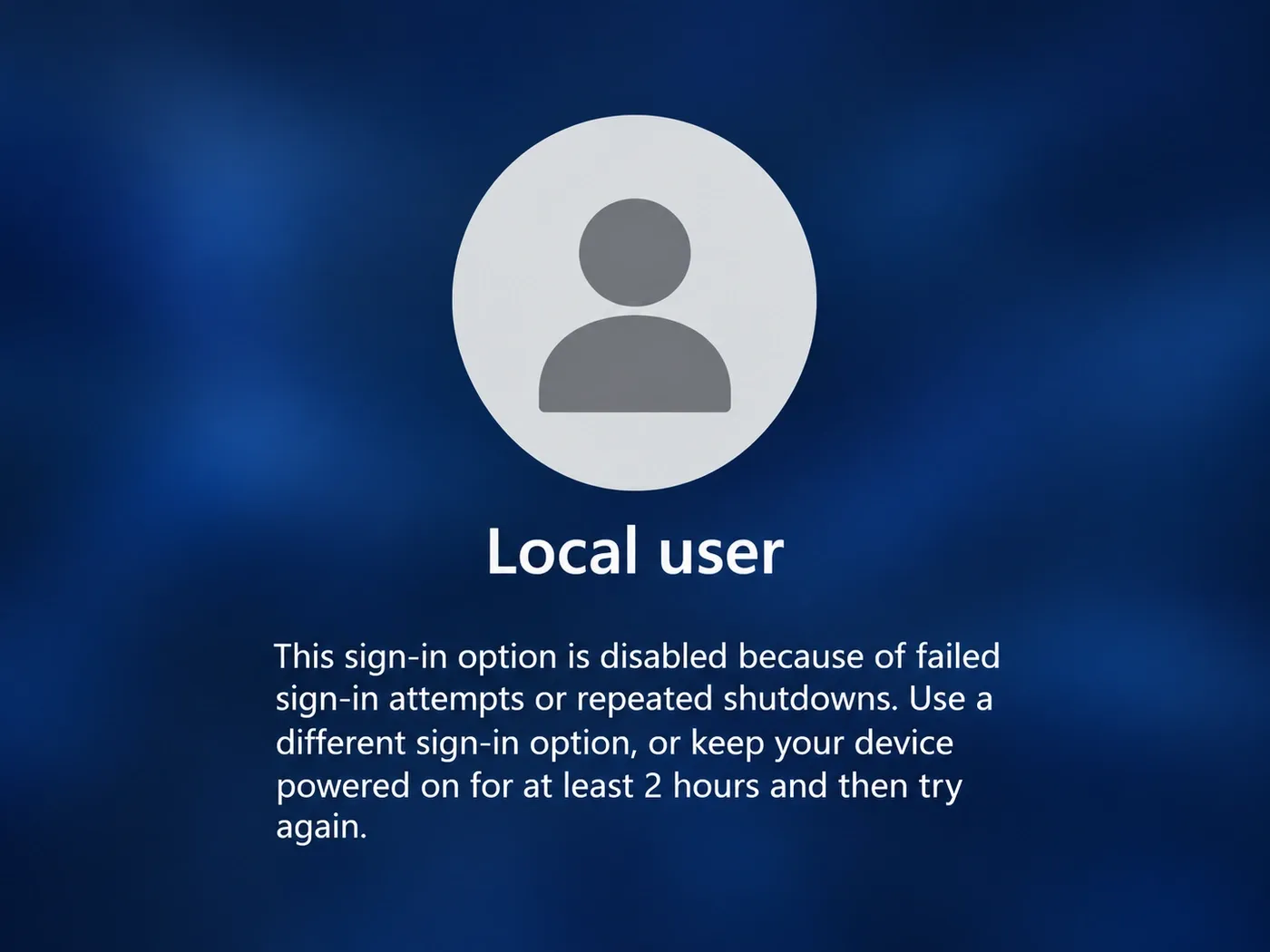
If you follow that waiting branch, connect a laptop to power, leave it powered on and avoid repeated shutdowns or fresh credential guesses. Don't interrupt a Windows update. If you already have an authorized way into the desktop, check its sleep behavior before leaving it unattended; don't assume a blank display proves the PC has remained awake. You don't need an unlocked desktop to read and follow the message. Record when you began the instructed wait. If the same message remains after that period, note whether the PC slept or restarted and use the recovery or support branch rather than starting a loop of guesses.
There is no verified universal answer to “how long?” for the shorter phrase alone. Microsoft's TPM protection explanation describes retry protection that depends on the TPM and Windows behavior. Those technical parameters don't establish the recovery time for every Windows sign-in screen. Keep the exact message rather than replacing its instruction with a timer from a different error.
Try an available authorized sign-in method
If Windows offers a password choice under Sign-in options, select it and enter the correct password for the selected Windows account when an attempt is permitted. For a personal Microsoft account, that is the account password; for a local account, it is that local account's password. Read the selected field before submitting.
A password choice may be absent. Don't disable Windows Hello requirements, disconnect a work account or edit the registry just to force an option to appear. A work or school PC needs the organization's approved recovery route. On your own PC, continue with the recovery choices actually available below.
When account verification needs internet access, use the sign-in screen's Network control to check the affected PC's connection. Microsoft's Windows sign-in troubleshooting includes this check. Another phone working on the same Wi-Fi doesn't establish that this PC can reach account services.
Recover the PIN or the account you actually use
For a personal Microsoft account, look for I forgot my PIN below the PIN field. If offered, select it and follow the verification prompts for the intended account. Use only your own established recovery methods, complete the requested verification, and create a new PIN if the flow permits it. This changes the device's PIN; it doesn't mean the Microsoft account password has been changed. If another authorized method has already restored access and the PIN works again, there's no need to reset it just to complete a checklist.
Microsoft's PIN instructions distinguish local accounts: the sign-in-screen I forgot my PIN option is for Microsoft accounts. With a local account, use its available password sign-in, then open Settings > Accounts > Sign-in options > PIN (Windows Hello) to manage the PIN. Change PIN asks for the old PIN; use the offered recovery flow when you don't know it.
If the password itself is forgotten, follow the recovery branch for that account type. Microsoft's same instructions describe personal Microsoft account password recovery and, for a local account, Reset password with previously configured security questions or a password reset disk. These are ownership-verification routes. They won't supply a missing recovery method or override an organization's account policy.
If account verification fails, stop at that prompt and record its exact error; repeatedly starting the PIN reset won't resolve a missing verification method. If no alternate method or recovery link is available, record that explicitly for Microsoft support, the PC maker or your administrator. Don't keep guessing credentials. Safe Mode isn't a PIN workaround: Microsoft's sign-in guidance says that PIN and biometric sign-in are unavailable there and a password is required.
Keep the account, files and protection intact
Published reports show why I'd choose the recovery branch before an invasive repair. A commenter on WinTips' disabled-option guide reports signing in after resetting the PIN. In a different disabled-option discussion, a reader reports that the error returned after reinstalling Windows. The accounts and circumstances differ; neither report establishes a fix for every locked-out PC.
Don't set a lockout threshold to zero, remove credential folders or activate an offline administrator account as a general response to this message. A Windows Hello retry restriction isn't automatically the same as a local account lockout. If an administrator needs to investigate an actual account lockout, they should identify the affected account and governing policy rather than weaken protection for everyone.
I wouldn't clear the TPM to shorten a sign-in wait. Microsoft's TPM lockout management guidance describes owner authorization for its administrative reset, and says Windows doesn't retain the TPM owner password by default. That isn't a substitute for recovering your Windows credential.
Verify the original account and watch for recurrence
After recovery, confirm you're in the intended Windows user and can open an expected personal file. Record which method worked and keep it available. Once you've saved your work and confirmed a usable fallback, verify the intended PIN or password at the next normal sign-in.
If the error returns, give support the exact wording, Windows version, account type, selected method, recent password or PIN changes, shutdown history, connection state and whether the instructed wait completed. Say whether the error occurs before credential submission, rejects a credential or appears after authentication. Keep passwords, PINs, verification codes and recovery keys out of that report.
If the delay has cleared but Hello setup or recognition now fails, follow the Windows Hello setup and recognition checks. Use the startup and recovery hub when the stopping point changes. Follow the new symptom while preserving the account and files you've regained.


