

Windows Health and Optimized Experiences is the Windows service named whesvc, associated with performance-diagnostic capture. I'd leave its configuration alone if the PC works normally. If you found it while investigating high CPU usage, verify the exact service and the workload first; if your concern is privacy, review Windows' diagnostic-data controls before changing services.
Microsoft's Scott Hanselman describes targeted performance traces saved locally when Windows detects sluggish behavior. He also says the service isn't laptop-specific. That gives desktop users a reason to check its purpose rather than assume that every battery-related explanation applies to it.
Identify the service before changing it
- Press Windows + R, enter
services.mscand select OK. - Find Windows Health and Optimized Experiences. Open its properties and check that Service name is
whesvc. - Record the displayed description, service status and startup type. Close the dialog without applying a change.
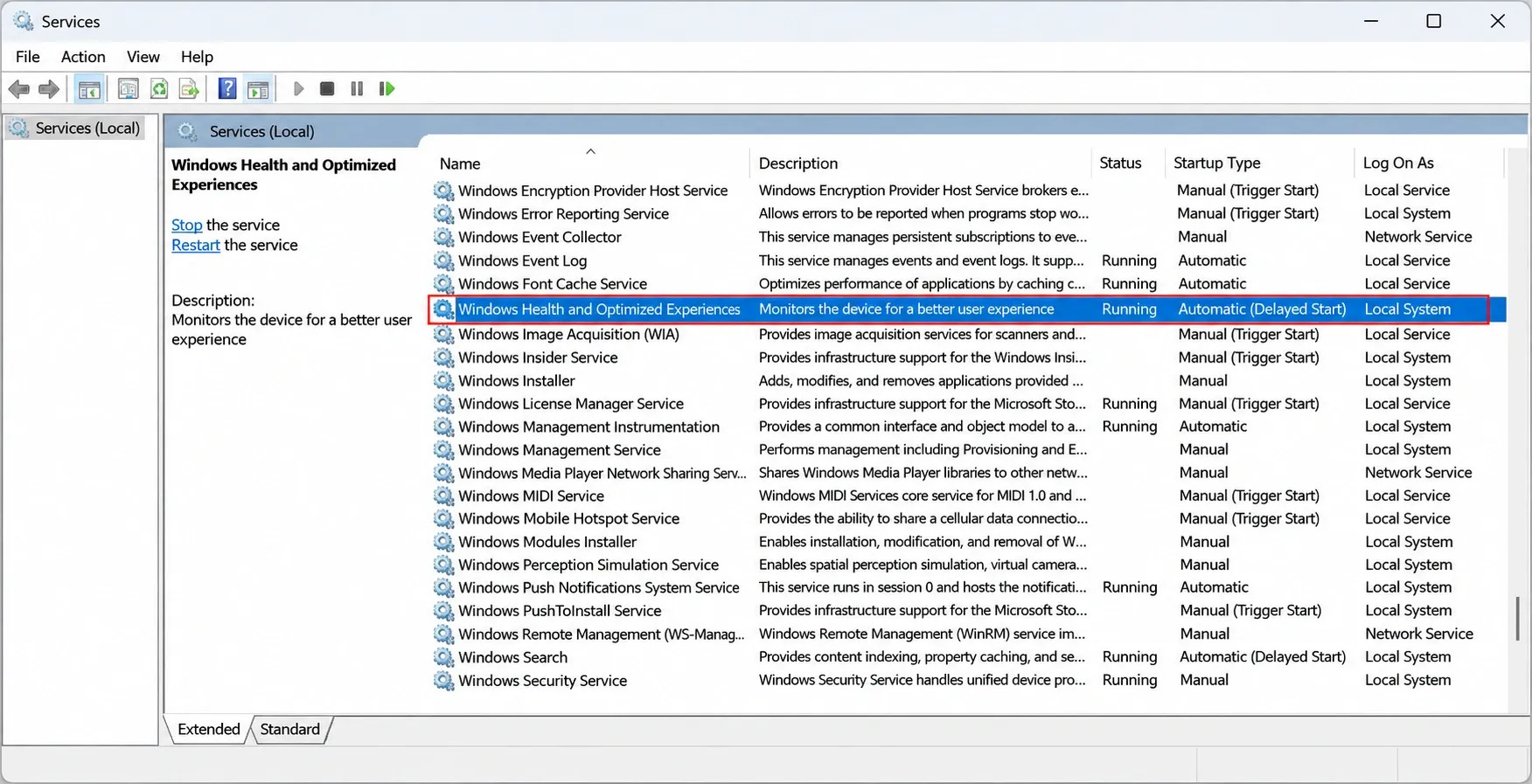
The English interface can show the description Monitors the device for a better user experience. The example below shows a running service with Automatic (Delayed Start). Use your own machine's recorded configuration for recovery; a picture of another PC doesn't establish the correct startup setting for your Windows build or work policy.
For a text record, open Terminal and use this read-only command:
sc.exe query whesvcMicrosoft documents Sc.exe query as a service-information query. Its output includes the service name and state. It doesn't change the startup type or prove that the service caused a slowdown. Use sc.exe exactly as written so the command names the executable explicitly.
If the entry is absent or the command returns an error, keep the exact message and Windows version from Settings > System > About. Don't create a replacement service, download a DLL or change permissions to make your PC match the illustration. An unfamiliar display name also isn't enough to establish whether a file is safe.
Choose the check that matches your concern
| What brought you here | Useful next step |
|---|---|
| The service appears, but the PC works normally | Keep its configuration. A running entry alone doesn't identify a fault. |
| A Service Host entry is using CPU or disk | Record its exact label, resource, timing and the task that becomes slow. Establish which service is involved before changing anything. |
| You want less diagnostic-data sharing | Review Diagnostics & feedback and the distinction between required and optional data. |
| A problem began after a service tweak | Reverse only the exact change you recorded, then repeat the failed task. |
| The PC is managed, or a setting is unavailable | Give IT the service state and error rather than overriding policy. |
Investigate a resource problem without a debloat list
Open Task Manager with Ctrl + Shift + Esc. Check which CPU, Memory or Disk entry stays busy while the slowdown occurs, and record its full displayed name. Expand a grouped entry when available. Record the observation while the problem is happening; a later idle reading won't show which workload coincided with it. If the group doesn't identify WHESVC, keep that uncertainty in your notes; a generic svchost.exe label doesn't isolate this service.
Compare a repeatable task with the same apps and power conditions, then check whether the load persists after the work finishes. The Windows performance checks explain that resource comparison and the next step for a recognizable app, update, backup or sync job. If System is the busy disk entry, use the System and ntoskrnl.exe file-activity checks to investigate that workload.
I wouldn't end an unfamiliar Windows process or disable several services to make Task Manager look quieter. You lose the connection between one change and one result. For a persistent problem, save the Windows build, exact process or service label, CPU or disk observation, affected task and recent update or configuration change for Microsoft support, the PC maker or IT.
There are published recommendations to disable WHESVC, including XDA's claim that desktop users don't need it. Hanselman's explanation directly disputes the laptop-only premise. That recommendation also supplies no controlled before-and-after performance result for the reader's PC, so I wouldn't use it as evidence of an FPS gain or a repair for sustained CPU usage.
Use diagnostic-data controls for a privacy decision
Open Settings > Privacy & security > Diagnostics & feedback and review the available Diagnostic data options. Microsoft's diagnostic-data explanation and controls distinguish required data from optional data. If your aim is to reduce optional sharing, turn off the optional-data choice when it is available. Windows continues to operate normally with required diagnostic data.
Optional diagnostic data can include device activity, browsing information and enhanced error reports; crash memory can unintentionally contain portions of files. Disabling one service isn't a complete privacy policy for Windows. Nor does a local performance-trace explanation mean that Windows sends no other diagnostic or required service data.
Hanselman says WHESVC can save targeted traces under %SystemRoot%\Temp\DiagOutputDir\Whesvc for filing with Feedback Hub. His separate performance-counter clarification distinguishes performance traces from screen recording. Neither a folder's existence nor the service's Running status proves that a report was uploaded on a recurring schedule. Don't delete the trace folder while trying to establish what happened; keep the evidence for the support case.
If you choose to send feedback, open Feedback Hub from Start, search for the problem and review the report and any requested diagnostic attachments before submitting. Keep confidential work material out of screenshots and descriptions. On an organization-managed PC, follow its reporting policy.
Some diagnostic options can be unavailable on managed devices. Leave policy enforcement to IT. The Delete diagnostic data control is also a separate action: Microsoft says deleting diagnostic data doesn't stop future diagnostic-data transmission.
Undo a known change, then check the result
If you personally changed this exact service immediately before a problem began, return to its properties and restore the startup type you recorded before the change, then apply it. Don't guess between Automatic, delayed start and Manual from a tuning guide. If you have no record, ask IT or support to establish the intended configuration for your build before applying another tweak.
Save work before a normal restart. Recheck the service state, repeat the original task and confirm that required apps and protection still work. If the symptom remains, stop changing services and provide the recorded before-and-after details. For a different specific Windows failure, choose its matching route in the Windows desktop troubleshooting hub.



