
If you see Windows cannot find the Microsoft Software License Terms during Windows Setup, first identify whether you're installing on a physical PC, using an unattended virtual-machine wizard or deploying a custom image. For a VM, try a manual installation from the original ISO in a separate new VM. For physical media, check the source and any edition or answer-file changes before altering the target disk.
I'd compare the ordinary installation path with the automated or modified one first. Repeatedly downloading the same ISO won't isolate an unattended-installation problem, and deleting a working virtual disk doesn't help establish why Setup can't reach its license page.
Match the error to the installation path
Record the exact message, Windows version and edition, image source and point where it appears. In a VM, also record the hypervisor version and whether its wizard supplied installation settings automatically.
| Where it fails | Start here |
|---|---|
| A VM created with unattended installation or Easy Install | Compare a manual install in a separate VM using the same original ISO. |
| A Hyper-V guest with low startup memory | Check Startup RAM against the guest OS requirements, not just Maximum RAM. |
| A physical PC booted from USB | Check official media, the intended edition and changes to the installation files. |
| A captured WIM or automated deployment | Compare the original image with the custom image and inspect the deployment configuration. |
This message appears in Windows Setup. It isn't a request to buy a key, nor does it establish that your activation entitlement has disappeared. A Windows Update code involving license metadata is a different investigation; for example, the Windows Update data-store guide separates that code from neighboring update errors. Don't reset update caches to repair an ISO-based Setup failure.
Try a manual install in a separate new VM
Keep the existing VM and its disks intact. Create a separate test VM with a new, empty virtual disk and enough host capacity for the guest. Use the same original ISO for the comparison, with the correct guest OS selected. Don't attach an existing data disk as the new installation target.
Oracle's VirtualBox creation instructions document Skip Unattended Installation. With a suitable ISO selected, that choice mounts the image on the new VM's DVD drive and leaves the OS installation to you. Complete the wizard, start the VM and follow Windows Setup manually.
For the VMware wizard shown below, select I will install the operating system later. Finish creating the separate VM, then use its settings to attach the original ISO to the virtual CD/DVD drive. In the VMware manual-install walkthrough, the hardware controls are New CD/DVD > Use ISO image file > Browse. Labels can vary by version. Boot the VM from that ISO and complete the installation interactively.
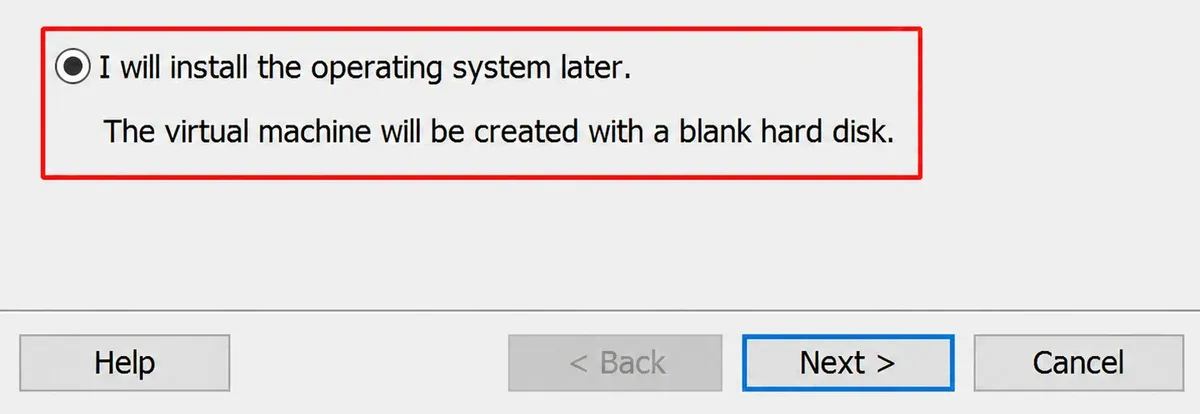
If the manual path reaches the license page with the same ISO, investigate the automated settings before blaming the download. In a Workstation 17 Pro discussion about Server 2019/2022 media, the asker reported resolving the error by choosing the ISO later in settings. A suggestion to disable Windows security features appeared in that thread, but it wasn't the reported solution.
The VirtualBox discussion of the same error records a useful contrast: a user on version 7.0.8 confirmed that manual installation worked while both command-line and GUI unattended installation failed. Removing the floppy controller hadn't helped that user. These reports support the comparison; they don't prove every current release has the same bug or that removing a floppy device always fixes it.
Check Hyper-V startup memory before changing the ISO
Microsoft's Dynamic Memory guidance says that installation and upgrade use the amount configured as Startup RAM, even when Dynamic Memory is enabled. Raising only Maximum RAM doesn't give Setup that larger amount.
For a VM you control, shut down the guest normally and inspect its Settings > Memory. Record the existing values. Set Startup RAM to meet the requirements of the specific Windows version and workload, while leaving enough memory for the host. On a managed host, have its administrator make that decision.
The WinTips guide also proposes temporarily disabling Dynamic Memory for installation. Treat that as a separate comparison, not proof that Dynamic Memory caused this error. Keep the startup-memory value adequate and record the result. Don't copy a fixed RAM number from a Server or older Windows example into every guest. If the static-memory comparison doesn't help, restore the recorded Dynamic Memory choice while keeping Startup RAM sufficient for the guest.
Check physical installation media without erasing the target
Use Microsoft's installation-media instructions to obtain the intended Windows version from its official download page. Compare an original, unmodified image with any USB or ISO you have customized. A filename alone doesn't establish that the image is the intended release, language and architecture.
Back up the PC before reinstalling Windows. If recreating a USB with Microsoft's tool, use a blank drive with at least 8 GB and verify its identity first: the tool deletes its contents. Recreating installation media is separate from deleting partitions on the target PC. Don't format that PC simply to see whether the license page appears.
If you specifically need Windows 10 media, the official Windows 10 ISO route explains the edition and architecture choices. Ordinary Windows 10 support ended on October 14, 2025; obtaining media doesn't restore that support. Use the appropriate supported release for a new installation when the workload allows it.
Retry with the intended media and record whether the error affects every offered edition or only one. If other USB read or connection errors appear, preserve those messages too. A failure limited to one edition calls for a different check from media that can't be read at all.
Review edition files and custom images as a separate branch
If you've added EI.cfg, PID.txt or an answer file, preserve the files and compare their intended edition and channel with the actual image. Microsoft's Setup configuration-file reference explains that EI.cfg selects edition and channel information, while PID.txt supplies an installation product key. The PID.txt key is used for installation, not activation.
An answer file takes precedence: Setup ignores EI.cfg and PID.txt when an answer file is used. Adding another file may therefore change nothing. For an automated deployment, have the image owner inspect the answer file, selected image and edition together rather than pasting a generic key into several places.
A firmware key can also be applied automatically when it matches the Windows version and edition being installed, as Microsoft explains in its firmware-key guidance. A skipped key prompt doesn't by itself mean Setup selected the wrong edition. Confirm the intended image and entitlement before forcing a different edition.
One Windows 10 edition-specific support report describes the error with Pro while Home Single Language followed a different path. A follow-up reported success with a PID.txt change. That is a particular customized-media case, not a reason to delete image indexes, unlink a digital license or force Pro on a PC without the matching entitlement.
For a captured or serviced WIM, check the image-building tools too. Microsoft requires a DISM version and environment compatible with the target image. In a historical Windows 10 custom-image discussion, the author traced the problem to a Windows PE 1709 toolchain used for an 1809 image and reported success using the matching installation-media environment. It doesn't establish that every license-terms failure needs DISM commands.
Verify the license page before continuing installation
For this error, the immediate result is reaching the expected license terms for the intended Windows image. Read them and accept only if you agree. Reaching that page doesn't confirm activation, a completed installation or preservation of existing files.
If the error remains, give support the exact message, image release/language/architecture, hypervisor version if relevant, startup memory, automatic versus manual result and whether only one edition fails. Tell them which media files were changed. Share answer files and logs privately after removing product keys, passwords and personal paths from public excerpts.
Stop repeating a comparison once it gives the same result. Keep the original VM, media and configuration available for review. The startup and recovery hub covers different boot and installation failures; match the next action to the error shown.



