
If your printer is offline in Windows 11 even though it's powered on, check its own display and connection first, then open the correct printer's queue in Settings > Bluetooth & devices > Printers & scanners. Run the printer troubleshooter in Get Help. If jobs remain stuck, cancel the unwanted jobs and restart Print Spooler before considering a reinstall.
I'd separate a printer that can't be reached from one that Windows labels offline after sleep. Restarting can get either printing for a session, but that doesn't tell you which problem will return.
Check the printer before changing Windows
Wake the printer and read its display or status lights. Deal with a paper jam, open cover, empty paper tray or other model-specific error first. A powered-on printer isn't necessarily ready to accept a job.
For a basic restart, turn it off, unplug it for 30 seconds, reconnect power and turn it on. This is the first general step in Microsoft's offline-printer troubleshooting instructions. Give it time to finish starting, then test one small document rather than repeatedly sending the same job.
| What you observe | Where to check next |
|---|---|
| USB printer offline | USB cable connection and the queue for that installation. |
| Wi-Fi printer offline on every device | Printer network status and the network it joined. |
| Another device prints, but this PC doesn't | This PC's selected queue, troubleshooter, spooler and connection settings. |
| Works after restarting, fails after sleep or another job | Record the trigger; check the recurring-offline section after restoring printing. |
| Shared office queue affects several people | Ask the administrator to check the shared queue and print server. |
Follow the connection you're using
For USB, check that the cable is connected securely between the printer and PC. Select the queue belonging to that USB installation; a similarly named network printer can be a different destination. Don't change a network port to repair a USB connection.
For Wi-Fi, inspect the printer's network menu or print its network report using the model manual. Microsoft directs you to check that the PC and printer are on the same Wi-Fi network. Pay attention to guest networks, a replacement router or extenders with separate network names. Use the manufacturer's instructions to reconnect the printer if it still has the old network details.
Microsoft's printer connection guide also recommends the printer's wireless connectivity test where available. For Ethernet or a managed network, give the report and connection details to whoever manages that network. Don't restart a shared office router or assign an arbitrary static address.
If another device can print the same simple document, record that result. It helps narrow the investigation to this PC's path, but doesn't prove its driver is the cause. A different device may be using another connection or printing service.
Open the right queue in Windows 11
Go to Settings > Bluetooth & devices > Printers & scanners, select the intended printer, then choose Open print queue. Check that the application's Print dialog names that same printer. If there are old or duplicate entries, identify their connection before removing anything.
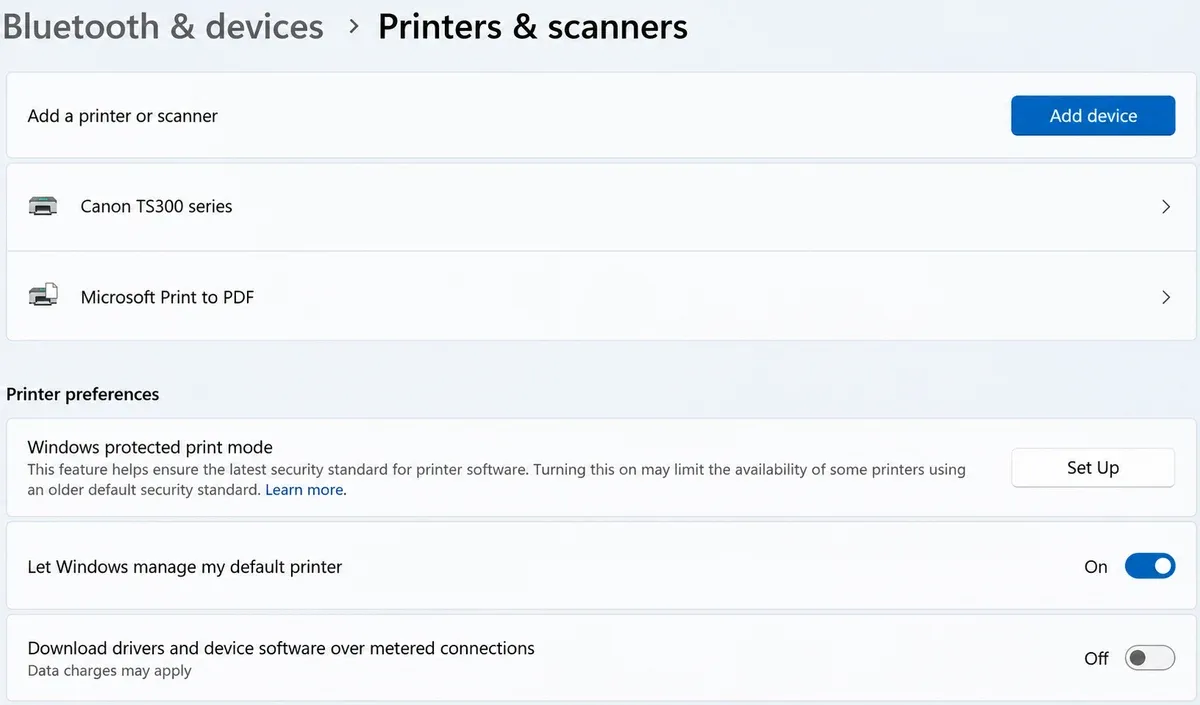
If you want one printer to be the default, select it and choose Set as default. When that button is unavailable because Let Windows manage my default printer is enabled, turn that option off before selecting the default manually. Record the original choice so you can restore automatic management later. Choosing a default directs future printing; it doesn't reconnect an unreachable device.
Older guides often say to open a Printer menu and clear Use Printer Offline. That menu isn't present in every Windows 11 queue. Microsoft's current Windows 11 steps use Open print queue and the ellipsis menu. If your window doesn't offer the older checkbox, continue with the current queue and connection checks rather than hunting for it.
Run Get Help, then inspect waiting jobs
Open Get Help, search for the printer problem and run the printer troubleshooter. Follow its prompts and note what it reports. This is Microsoft's current Windows 11 starting point; a guide's older Settings troubleshooter button may differ on your version.
Return to the affected queue. Record the jobs you still need. To discard pending jobs, use the queue's … > Cancel all option and confirm as prompted. This cancels the waiting documents for that queue, so you'll need to send wanted documents again. On a shared printer, coordinate with its users or administrator before canceling other people's work.
Test one document after the queue clears. A “no problem found” result isn't a substitute for a page arriving at the intended printer. Check the queue again before resending, because a delayed job may print when the connection recovers.
Restart Print Spooler if the queue stays stuck
Search Windows for Services and open it. Find Print Spooler, right-click it and choose Restart. Approve an administrator prompt if you're authorized; otherwise ask IT. This temporarily interrupts the PC's printing service, so finish or coordinate other printing first.
After the service restarts, inspect the queue and try one small job. Don't assume every pending document disappeared. In the Ars discussion about a Brother printer showing offline, one participant reported spooler-restart success while the questioner said the diagnostic tool hadn't helped. That supports trying the targeted service step, without establishing one Windows bug behind every offline report.
If cancellation and restart still leave jobs stuck, Microsoft's connection guide describes a later spooler-file reset: stop Print Spooler, clear the files inside %WINDIR%\System32\spool\PRINTERS, then start the service again with Automatic startup. Clearing those files discards pending spooled jobs on that PC, including jobs for other printers. Use the linked instructions only after saving the documents to resend and coordinating shared work. Delete files inside that exact folder, not the folder itself or neighboring system files; stop if access is denied and ask an administrator.
Re-add the printer with the correct installation route
Before removing it, record the printer model, connection, queue name and any settings you'll need to restore. For an office-managed queue, ask IT to repair or redeploy it. For your own printer, open its page in Printers & scanners, choose Remove and confirm. With the printer on and connected, return to the printer list and select Add device.
If it isn't found, choose Add manually and follow the option appropriate to its connection. Consult the current manufacturer instructions for the exact model and Windows version if a driver is needed. Keep a compatible installation route available before removing an older printer; don't substitute an unrelated model's package.
ARM PCs need particular care. Microsoft notes that some manufacturer installers cannot add printers on ARM-based PCs and directs affected users to Windows' Add or install a printer route, unless the manufacturer provides different guidance. Check Settings > System > About > System type; don't assume an x64 installer suits an ARM device.
If the printer keeps going offline
Retest after the event that caused the failure: waking the PC, waking the printer, restarting, changing networks or sending another job. In the long Microsoft Q&A discussion about recurring offline printers, readers report different outcomes from spooler resets, reinstalls, network changes and security-software checks. Some improvements lasted only briefly. A single successful page doesn't establish a permanent repair.
For a network printer, record its current address, the queue's configured port or connection type, and whether the issue followed a router, driver or Windows update. Ask the manufacturer or network administrator to check that those details match. Port changes, address reservations and SNMP status checks depend on the printer and network; don't delete ports, turn off status monitoring or change every printer because one forum suggests it.
A Spiceworks thread about offline queues after 25H2 discusses WSD and TCP/IP ports, but the questioner was still testing the change and already used a universal driver. It isn't confirmation that 25H2 causes every offline printer or that a universal driver is the answer. Record the Windows build and update timing rather than uninstalling security updates on that basis.
If VPN or security-software changes coincide with the failure, ask its support team how to permit the intended local printer connection. Keep security protection enabled and avoid copying another person's firewall exception or marking an unfamiliar public network as trusted.
Give support the exact model, Windows version and system type, connection method, queue status, trigger, troubleshooter result and whether another device prints. The Windows device troubleshooting hub links to related device and driver guides.



