

If System Restore won't work in Windows 11, save its complete error and identify whether the failure is a missing restore point, a sign-in or BitLocker prompt, or a restoration that finishes unsuccessfully. If a suitable point exists and the attempt from Windows fails, Microsoft also supports applying it from Windows Recovery Environment > Troubleshoot > Advanced options > System Restore. Back up accessible files and have the recovery key before changing the system again.
I'd establish what the tool can actually restore before trying another repair. A newly created point records the current configuration; it can't recreate a working state from before the problem. Keep the existing points while you investigate.
Identify where System Restore fails
Record the Windows build, the change you want to reverse, the selected point's date and description, and the exact stage that failed. Include the error code and named file or folder. For "System Restore did not complete successfully," keep the explanation after that heading too. A photograph can preserve a recovery-screen message, but keep account details and recovery keys out of anything you post publicly.
| What you see | Useful next step |
|---|---|
| No points listed | Check Show more restore points when offered. Without a suitable existing point, choose another recovery method. |
| Key or password prompt | Resolve that access requirement with the device owner or IT before treating it as a failed restoration. |
| Restore reports an error | Save the full message and selected point; compare the supported Windows RE route if the earlier attempt ran inside Windows. |
| Restore still running | Keep power connected and observe its status. Don't force power off simply because a fixed time has elapsed. |
| Windows won't start afterward | Record the new startup message and use the boot-recovery route. |
| Personal file still missing | Use the relevant file backup or recovery route; System Restore isn't a personal-file backup. |
Microsoft's System Restore instructions describe rolling back system files, registry settings and installed programs without affecting personal files. Point-in-time restore is a different recovery feature that can also roll back personal files. Check the actual tool name and retention warning rather than choosing a similarly named button.
If there is no usable restore point
Open the available-point list and select Show more restore points if the checkbox appears. Look for a point from before the change that caused the original problem. An older date alone doesn't make a point appropriate: read its description and the programs it would affect.
If another existing point predates the same problem, review its affected programs before deciding whether to use it. A different point can roll back a different set of changes; it isn't a guaranteed repair. If the list has no suitable point, stop that restoration attempt. Turning on protection now or making a new point won't recreate the missing historical configuration. Don't download someone else's restore files or delete the remaining points as a first repair.
For future protection, Microsoft's System Protection controls are available through Start's Create a restore point result. The Configure control enables protection and sets its disk-space allowance; Create makes a point with a description. Microsoft notes that protection isn't enabled by default. Inspect your actual configuration, and ask IT before changing a managed device.
Making a point successfully and restoring an earlier point successfully are separate results. Keep a separate file backup even when protection is enabled.
Review the point before applying it
Use this route when Windows is responsive and you have a suitable existing point. Save work, close programs and keep the PC connected to reliable power. Back up important files you can access. System Restore's intended file retention isn't a replacement for a recoverable backup.
- Press Windows + R, enter
rstrui.exeand press Enter. Alternatively, open Control Panel > Recovery > Open System Restore. - Choose Next when the opening page is shown.
- Select the relevant point. Use Show more restore points if offered and needed.
- Select Scan for affected programs and review the result before continuing. Plan for apps or drivers that the rollback may affect.
- Choose Next and confirm the point's time, description and target drive. Cancel before committing if these don't match your intended recovery.
- Choose Finish only when ready, then read and approve the confirmation. Let the operation and its restart complete.
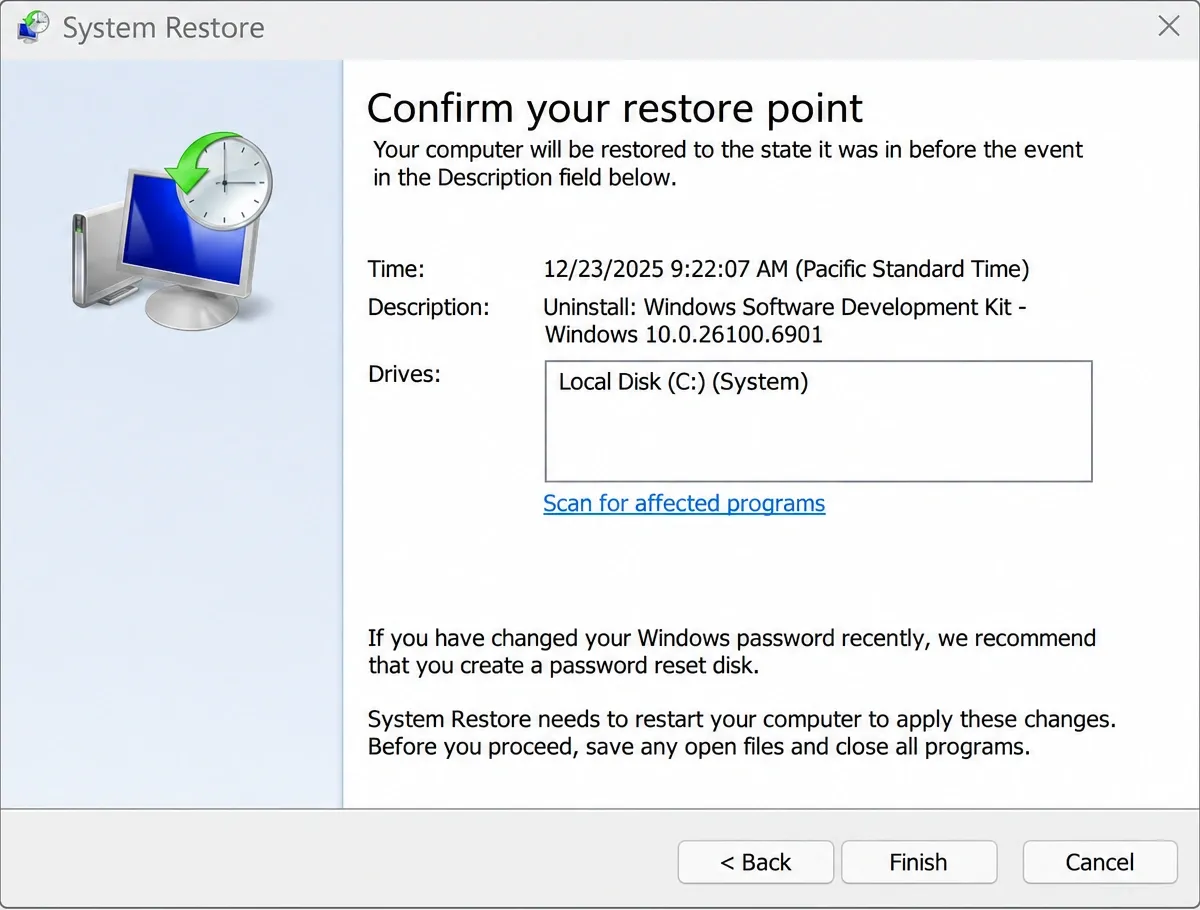
Don't use a universal completion deadline to decide that the operation failed. If it reports a failure, preserve the final message. If it remains apparently unresponsive, keep power connected and ask the PC manufacturer's support about that exact screen before forcing an interruption.
Compare the Windows recovery route
If the previous attempt failed inside the running Windows session, the Windows RE route gives you a supported alternative environment. It still needs a suitable restore point; it doesn't manufacture one or guarantee that a damaged point will work.
- Have your BitLocker recovery key ready if the device is encrypted. If you cannot obtain it, stop and use the authorized key-recovery or IT route.
- From a responsive Windows session, open Settings > System > Recovery and select Restart now beside Advanced startup. Holding Shift while choosing Power > Restart is another documented entry route.
- In Windows RE, select Troubleshoot > Advanced options > System Restore. Complete any authorized account or recovery-key prompt that appears.
- Select the appropriate point, review Scan for affected programs, then choose Next > Finish when ready. Read any warning about whether the operation can be undone.
- After the point is applied, select Restart and check normal Windows startup.
Microsoft documents these Windows RE entry methods and recovery-key requirements. If Windows cannot start or its recovery menu cannot be reached, use the recovery-entry and official-media checks. Follow the repair route, keeping installation and partition-deletion choices separate.
A credential prompt isn't permission to bypass the account or edit its offline database. Record the selected account and exact message for authorized support. If Windows itself says the User Profile Service failed the sign-in, follow the profile-access and file-preservation checks for that separate error.
What reported results can tell you
The available cases show different failure stages. They don't establish one common cause or a repair-success percentage.
In a Windows 10 restore failure naming an LCU package, the owner later said a newly created point appeared to work. That doesn't show that the original older point was recovered or that deleting servicing files is a repair.
In a separate report about a laptop that couldn't load Windows after restoration, the answer suggested startup recovery, but the owner didn't confirm a result. A post-restore boot failure needs its own startup evidence.
The first discussion began with an effort to recover Outlook contacts. The owner reported resolving the email problem separately. That is a useful reminder to match the recovery tool to the original task instead of assuming a configuration rollback will recover missing mail.
When the same error returns
Keep the error code, full text, named path, point date and whether the attempt ran inside Windows or Windows RE. A path under Windows servicing identifies something to investigate; it isn't an instruction to delete that folder. Don't repeatedly disable and enable protection, clear shadow copies, or force every related service to Automatic without a diagnosis.
If the message identifies security software or access denial, keep the protection product and version with the report and use its current support procedure or IT's instructions. Don't turn off protection merely because a generic guide lists antivirus as a possible cause.
When system-file corruption is independently indicated and Windows remains usable, use the DISM and SFC result-based repair route. Record its result separately. Running an online repair command in recovery doesn't target the same Windows session, and a repaired system file isn't proof that a historical restore point is usable.
If the drive is disappearing, reads fail or the PC repeatedly crashes, prioritize preserving accessible files and qualified support over repeated restoration attempts. Describe those observations; a System Restore error alone doesn't diagnose a failed disk or RAM module.
Verify recovery and choose the next option
After a successful restoration, sign in normally, inspect the affected apps and drivers, open important files and repeat the original failing task. Restart normally again when practical. A success message confirms the restoration operation; the original symptom still needs checking.
If no usable point exists or the supported attempts fail, compare Microsoft's recovery options and what they retain. A working Windows session may support an app-preserving Windows repair. Reset this PC > Keep my files still removes apps and settings; it isn't the same retention choice.
If Windows won't start and irreplaceable files aren't backed up, arrange data preservation before a reset or reinstall. Send support the original symptom, recent change, exact restoration error, available point dates and each attempt's result through a private channel. The startup and recovery hub separates the remaining boot, sign-in and crash routes.



